
Participant
April 13, 2017
Answered

Move vertical line independently in table

  • April 13, 2017
  • 5 replies
  • 6536 views

Hi,

As I searched in this forum, I did not find an answer to my question. I hope someone can help me.

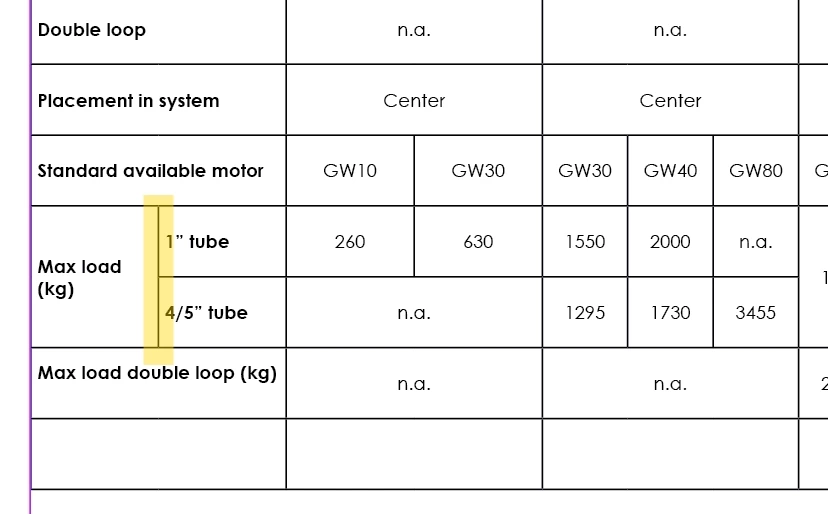
I want to move a single vertical line in a table to make the left text fit better. When I drag it, the whole table drags along with it, which is not preferable.

See highlighted line in the picture. Is it even possible? Thank you in advance! Cheers, Maarten
    Correct answer winterm

    What about Shift+drag?

    5 replies

    hansa1976
    Inspiring
    January 16, 2025

    Hi,

    This is an old thread for sure, but I was wondering if there´s been any development in this matter? What I would specifically like to see is an option where you create a default table with x columns and rows, and then after you can control and manipulate all lines manually.

    Not doable? Overkill?

    Anyway, thanks for the clarification and help this thread did for me.

    Amazon62Author
    Participant
    April 13, 2017

    Sorry, I have another question related to this.

    I can't get a vertical line in-line with another line. It stops just a few points before the other line.

    See highlight in the picture. The lower vertical line is not in line with the one above. Thanks!

    vinny38
    Legend
    April 13, 2017

    Hi

    Without knowing how exactly you designed your table, we can just try to guess.

    So I guess that your central column is in fact made of 3 columns. You merged "n.a.", "Center" and "High load possible..." cells.

    So far so good.

    Then you have merged the 3 cells at the very bottom.

    Now, you realized that you did need 3 cells there.

    You should have used "Cancel merge" there. But instead, you split vertically and tried to adjust using Shift + Drag.

    It's not correct... Merge them all back, and then cancel merging. You'll go back to the 3 original cells.

    But his is just a guess, I may be wrong ^^

    See example below:

    Amazon62Author
    Participant
    April 13, 2017

    Ha, the first thing is exactly what I did..... So I tried the second one and it works!

    A bit weird of Adobe to make it like this...

    Thanks a lot Vinny38!

    Amazon62Author
    Participant
    April 13, 2017

    Perfect! Shift+drag worked!

    Thank you.

    amaarora
    Community Manager
    Community Manager
    April 13, 2017

    Hi,

    I guess i misunderstood the question.

    Shift + drag is a good way to achieve the above screenshot posted in question

    -Aman

    amaarora
    Community Manager
    Community Manager
    April 13, 2017

    Hi,

    I dont think that is feasible.

    But the below method would definately do make it possible:

    1. First, merge all the 4 cells so that you get a single cell

    2. Then insert a 2 column, 2 row (2X2) table in that single cell keeping the cursor in the merged cells

    This way you would be able to move the column partition.. (the one you have shown)

    It would require a lot of tweaking and adjustments. Would love to know if there is an easier way.

    -Aman

    winterm
    Legend
    April 13, 2017

    Table in table? Uh, I’d try to avoid this as long as I can. IMO, you should try simple solutions first. Here’s a table with shift+dragged verticals to their max values. After some simple and intuitive manipulating with merge/split cells:

    winterm
    wintermCorrect answer
    Legend
    April 13, 2017

    What about Shift+drag?

    Participant
    February 10, 2026

    Shift drag used to always work for me, but now it adjusts all of the columns, not just the one cell