Participant
April 3, 2020
Answered

Multi line bracket

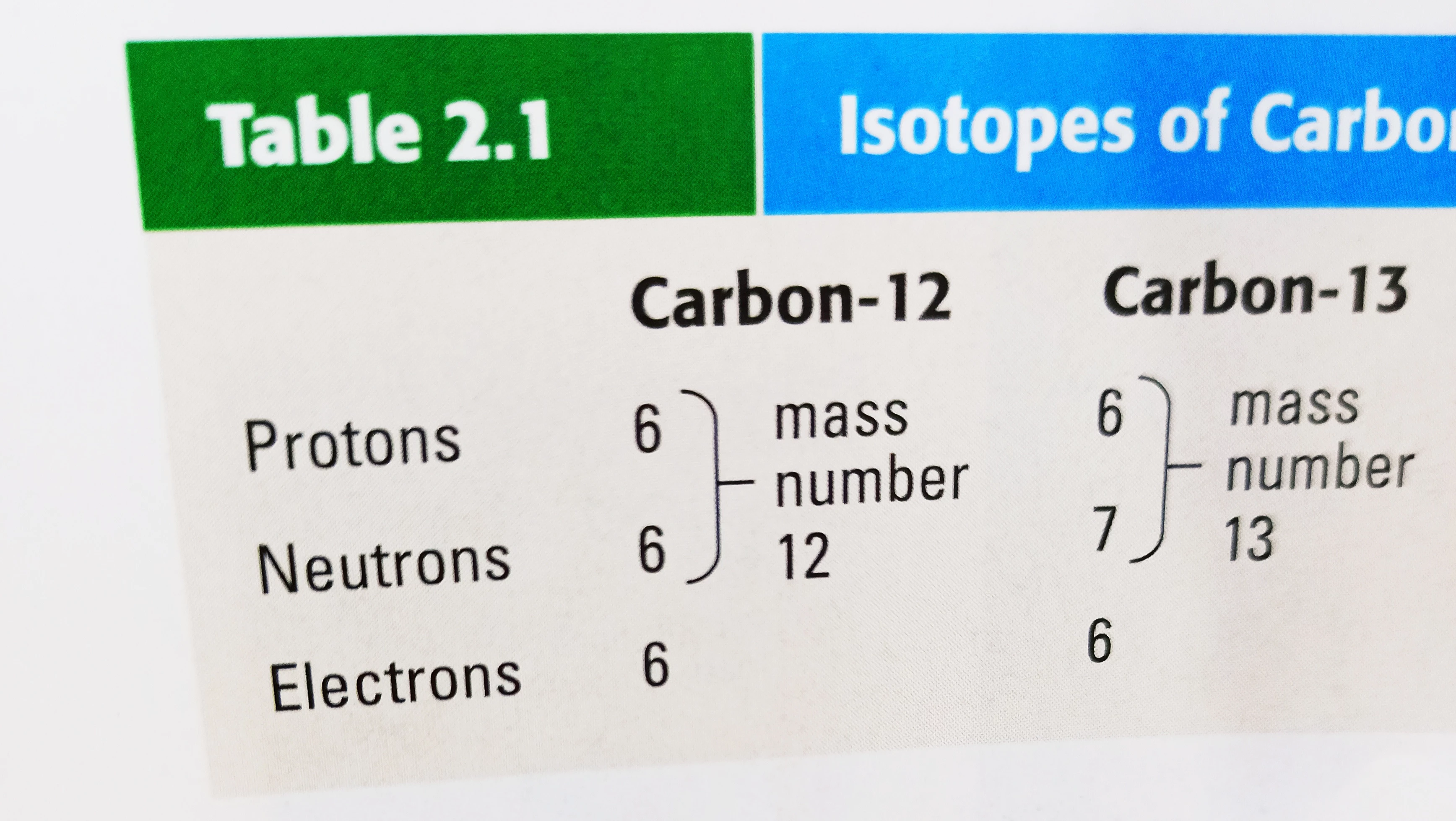
Hi, I'm new to InDesign.. can anyone help me to get like these brackets (in the attached image) inside a table?

 

Barb Binder
Barb BinderCorrect answer
Community Expert
April 4, 2020

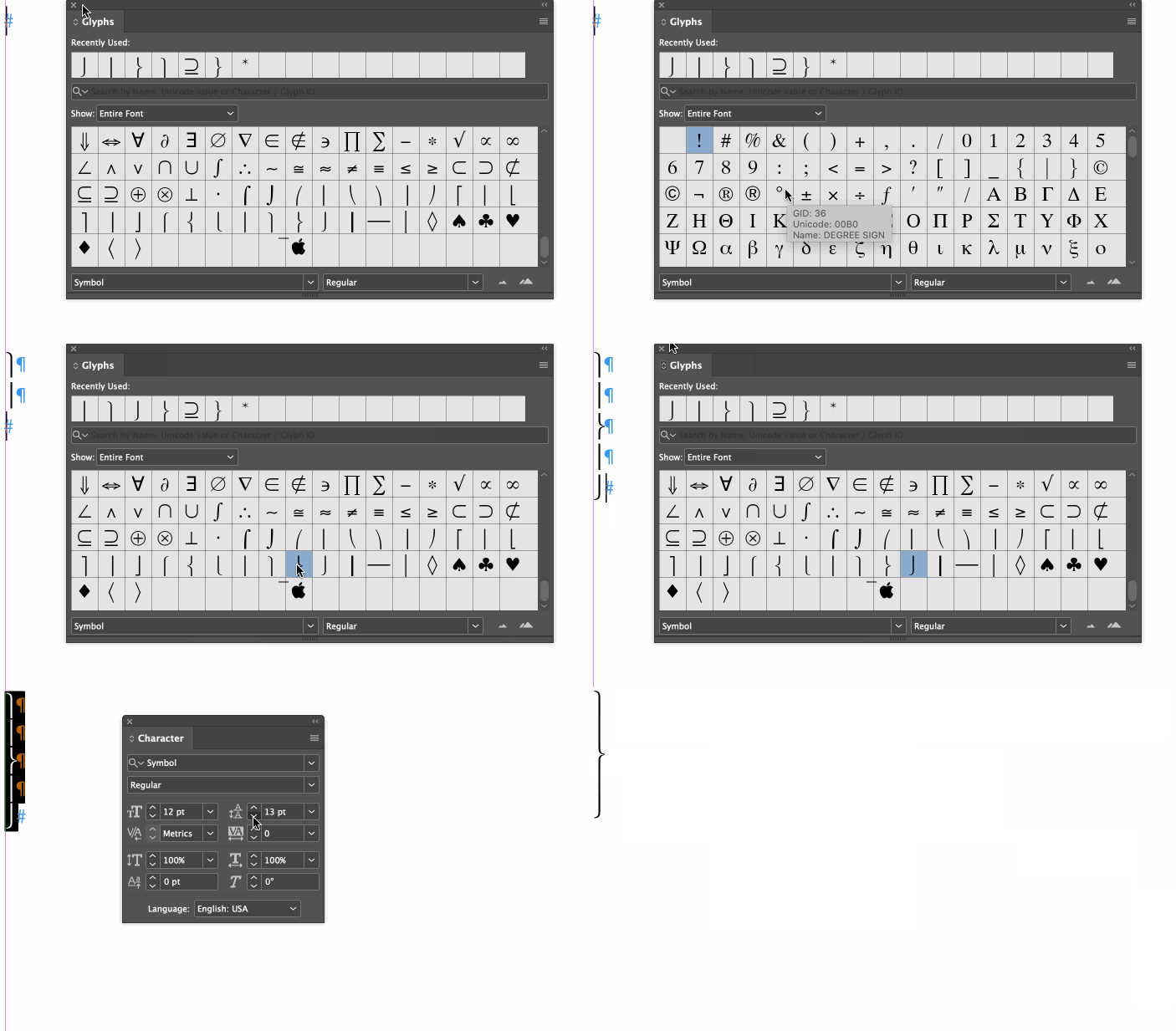
But if it were my table, I would replace that shape with a curly brace. Using the Symbol font in the Type > Glyphs panel, you can build braces of any height. They serve the same purpose as your graphic but I think they look better.


~Barb

~Barb at Rocky Mountain Training

4 replies

Barb Binder
Community Expert
Barb BinderCommunity ExpertCorrect answer
Community Expert
April 4, 2020

But if it were my table, I would replace that shape with a curly brace. Using the Symbol font in the Type > Glyphs panel, you can build braces of any height. They serve the same purpose as your graphic but I think they look better.


~Barb

Translate
~Barb at Rocky Mountain Training
Barb Binder
Community Expert
Community Expert
April 4, 2020

Since you are new to InDesign, here's a demo to illustrate how to set up the table, using the shape Luke outlined in his response. Note: merging cells from the Table menu and adjusting the column width by dragging the right edge of a column. You can copy the shape with the Selection tool, and paste into the table with the Type tool.


~Barb

Translate
~Barb at Rocky Mountain Training
Luke Jennings3
Community Expert
Community Expert
April 4, 2020

Here is a work-around. Place the object on top of your table.

Translate
Community Expert
April 3, 2020

Hi yassirr1031301,

could you show a screenshot of your table on an InDesign page where hidden characters are visible and also frame edges showing so one could see how your table is actually constructed?


FWIW: You could construct, draw, the brackets with two graphic lines, group them and anchor the group to text. But maybe there are better ways if you have a font with brackets, or the composing parts of brackets…


Regards,
Uwe Laubender

( ACP )

Translate