Inspiring
March 31, 2017
Answered

My flattened Photoshop documents maintain Transparency in InDesign. Is that Ok for print?

  • March 31, 2017
  • 3 replies
  • 1227 views

Greetings forum,

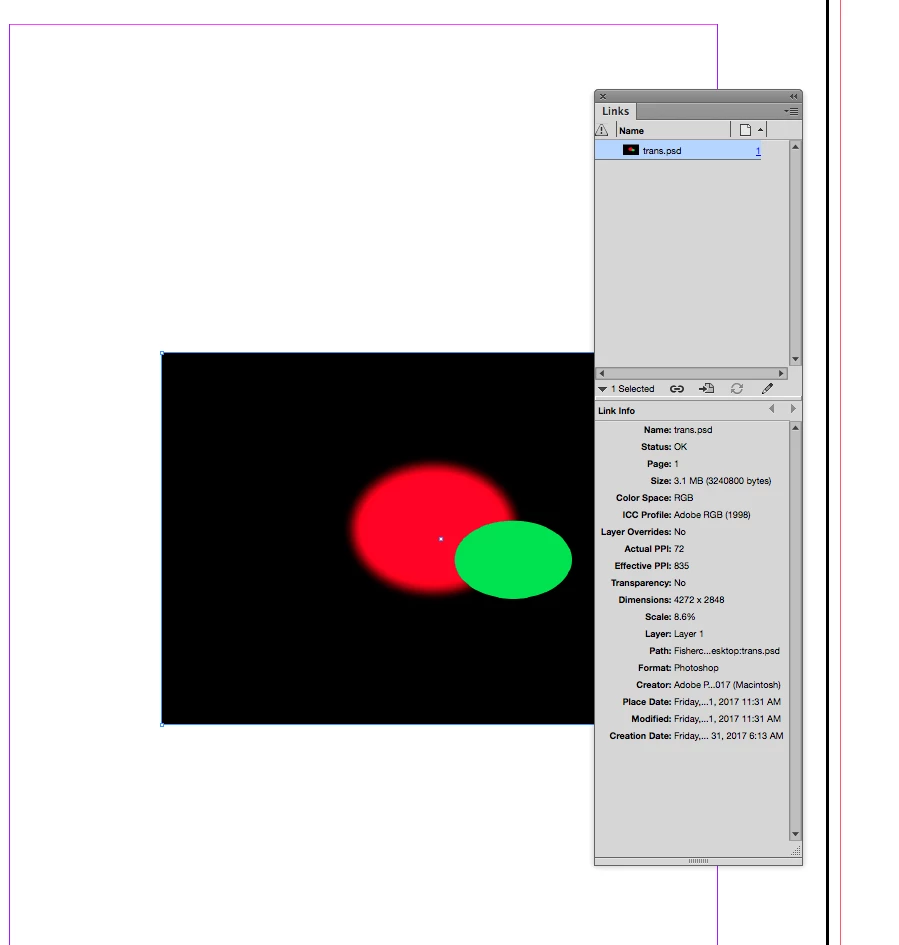
My flattened Photoshop documents still maintain Transparency when placed into InDesign. Is this OK in terms of printing? I thought once the photoshop documents were flattened, so too was the transparency. Will this present a problem when exporting a PDF for Print? Or does the PDF Presets take care of the transparency?

Once again, dazed and confused.

Thanks in advance, Scott
    This topic has been closed for replies.
    Correct answer rob day

    If you are flattening an image and it is seen as Layer and not as Background, InDesign sees it as a file with transparency even if there is none.

    Just to avoid Merge/Flatten term confusion; Photoshop's Layer>Flatten, or the Layer panel's Flatten Image, always completely flattens the image and you get a single layer named Background.

    If you use one of the Merge commands—Merge Down or Merge Visible—you might not completely flatten an image even when there is only one layer.

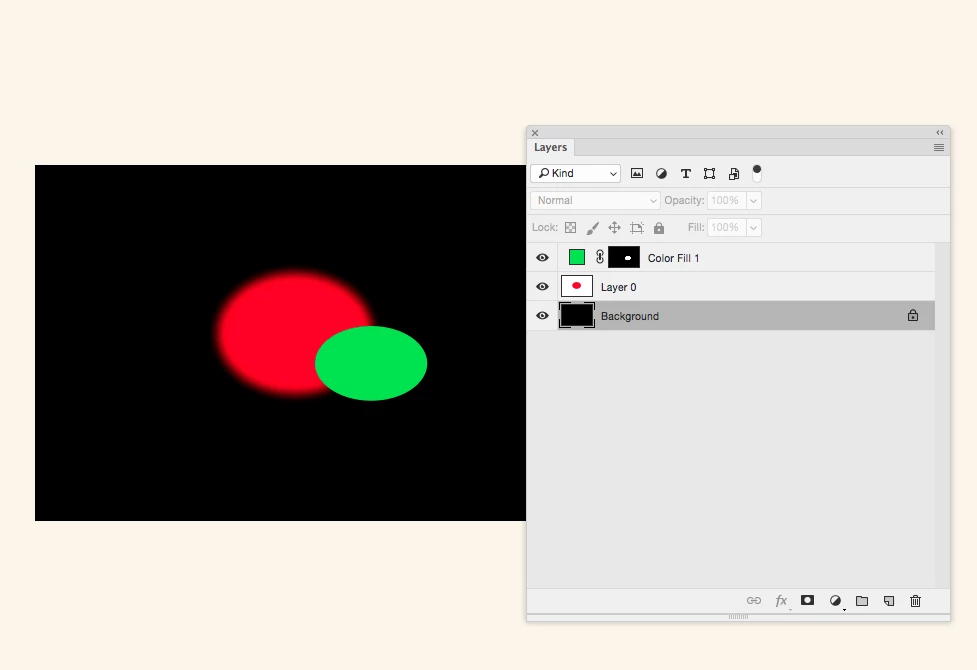
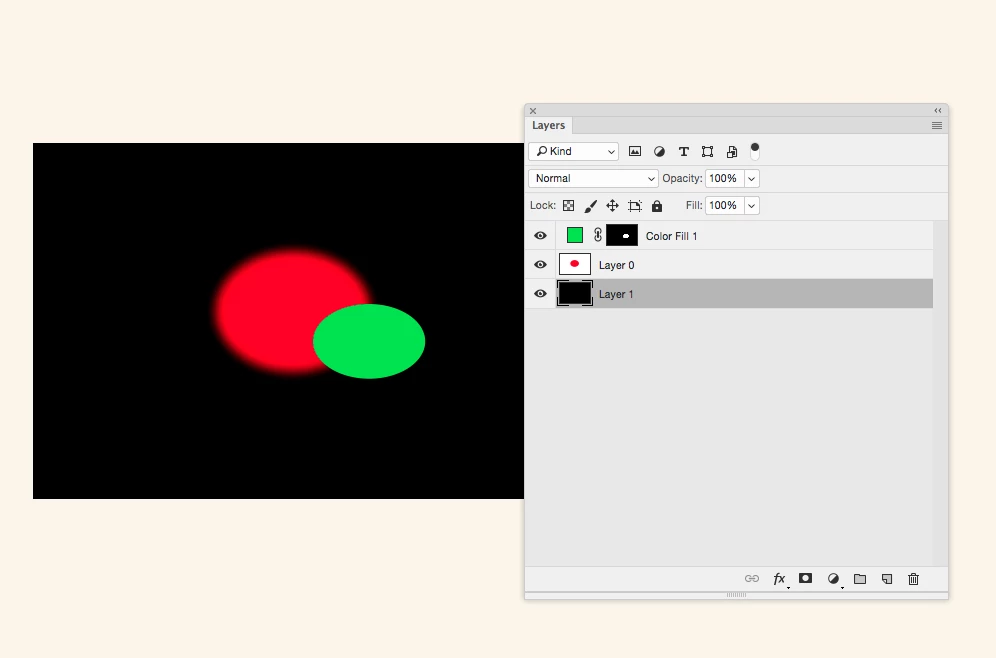
    A Photoshop file can have multiple layers with transparent objects that InDesign will see as having no transparency. So the first file below would be considered transparent in ID, but the second example would not because of the bottom Background layer that I made from layer 1 via Layer>New>Background from Layer

    ID doesn't consider the second version with the Background layer to have transparency

    3 replies

    Willi Adelberger
    Community Expert
    Community Expert
    March 31, 2017

    My question is, why did you flatten the image in Photoshop? You should not do so in any way as this can cause other problems. Leave all layers and transparency alive (and even in RGB!!!!) in Photoshop and place the file, only if you want to use the flattened image only.

    If the image contained text or vector layers, leave it alive, save as PDF (with default Photoshop settings) and place the PDF instead.

    If you are flattening an image and it is seen as Layer and not as Background, InDesign sees it as a file with transparency even if there is none.

    rob day
    Community Expert
    rob dayCommunity ExpertCorrect answer
    Community Expert
    March 31, 2017

    If you are flattening an image and it is seen as Layer and not as Background, InDesign sees it as a file with transparency even if there is none.

    Just to avoid Merge/Flatten term confusion; Photoshop's Layer>Flatten, or the Layer panel's Flatten Image, always completely flattens the image and you get a single layer named Background.

    If you use one of the Merge commands—Merge Down or Merge Visible—you might not completely flatten an image even when there is only one layer.

    A Photoshop file can have multiple layers with transparent objects that InDesign will see as having no transparency. So the first file below would be considered transparent in ID, but the second example would not because of the bottom Background layer that I made from layer 1 via Layer>New>Background from Layer

    ID doesn't consider the second version with the Background layer to have transparency

    scottyb34Author
    Inspiring
    March 31, 2017

    Wow, another perfectly detailed answer. Thanks, again, Rob for not only answering my question, but showing me exactly what you mean. It now makes perfect sense. Typically I flatten an image by using Layers>Flatten Image, but lately I've been merging all layers except the background then flattening so as to apply "rich black" in CMYK to the black background. I had a feeling it was something that was right under my nose but I just couldn't see it. There's a method to my madness as to why I need to perform some tasks that others seem to think are foolish, but you just accept the fact that we're all working on very different projects and you simply answer the question(s). You should be an instructor.

    Best regards,

    Scott

    rob day
    Community Expert
    Community Expert
    March 31, 2017

    I assume the link is up to date and doesn't show as modified? Does the Window>Output>Flattener Preview set to Highlight Transparent Objects highlight the Photoshop file?

    I don't think you have to worry about Photoshop transparency at all. if you are in a print workflow that demands flattened PDF (X-1a) the flattening will happen at export. Also, you can have PSD files with transparency that doesn't interact with the InDesign page (a PSD file with the bottom layer showing as Background), and in that case it is not consider a transparent object by either ID or a PDF with live transparency.

    Derek Cross
    Community Expert
    Community Expert
    March 31, 2017

    Select PDF/X-4 from the InDesign Acrobat PDF Presets (unless advised otherwise by your printer).

    scottyb34Author
    Inspiring
    March 31, 2017

    Hi Derek -

    Using the PDF Preset would certainly work, but I'm still stumped as to WHY my "flattened images" from photoshop that are placed into InDesign show up on the Links panel as "Transparency: Yes." I must be missing some sort of setting because I've tried everything that I can think of. In my earlier tests the Links panel would indicate that my flattened and placed photoshop images were indeed Not transparent, i.e. in the Links panel it'd say "Transparency: no." I don't know why this has changed. I need to sleep now, so I'm hoping to awaken to a simple solution that I've overlooked.

    Thanks for your input.

    Scott