
Inspiring
June 3, 2020
Answered

My Interactive pdfs do not display consistent color

  • June 3, 2020
  • 3 replies
  • 1712 views

I have several similar documents to prepare. They use a background image composed in AI, in RGB. I bring them into InDD and then export the whole to an interactive pdf. As far as I can tell, the AI files are made the same way with the same settings. However, when the pdfs are created from INDD, the colors are inconsistent, and in no consistent way I can determine. Is there a way to get my colors to output the same?

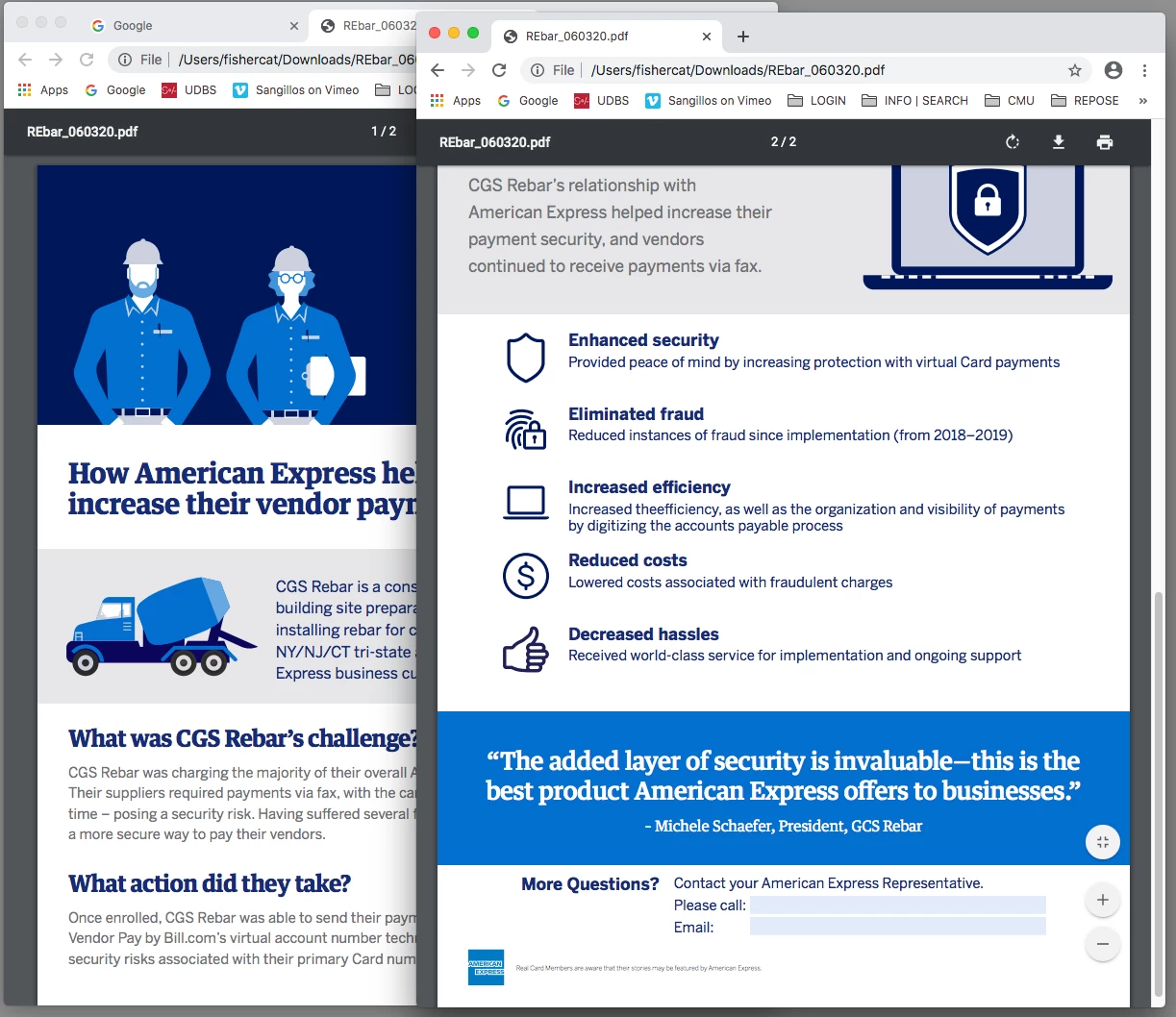
Notice on the attached file on the first page the shirts are a bright blue. The blue band on the second page is spec'ed in AI as the same color, but does not appear the same on screen. (And no, it is not just a matter of simultaneous contrast with a dark blue or white background. If I take screen grabs of the different areas and open them in photoshop, they are clearly not the same color.

Thanks

Stuart
 

This topic has been closed for replies.
Correct answer rob day

where do I find the overprint preview that you mention?


In your Acrobat Preferences—Preferences>Page Display>Use Overprint Preview>Never.


Browsers don‘t have an Overprint Preview so the colors will match if you deliver the PDF online. Here‘s your PDF in Chrome:


3 replies

rob day
Community Expert
Community Expert
June 3, 2020

Also, if you are viewing in AcrobatPro or Reader make sure you have your Use Overprint Preview Page Display Preference set to Never—if you have it urned on, the RGB colors will preview as CMYK.


I checked the RGB values via Output Preview’s Object Inspector and the RGB fills do match.


SilbStuAuthor
Inspiring
June 3, 2020

where do I find the overprint preview that you mention?

To avoid conflicting settings further, I made the two background images into one AI file (previously each had been one page).  But in this case I made them the two pages of the same AI file, and imported them into INDD.  So within AI they are specked the same color, but still the blue in the second page is not as vibrant. And now I cannot attach the pdf like i did with the first email!


rob day
Community Expert
Community Expert
June 3, 2020

Make sure the assigned RGB profile is sRGB in both AI and InDesign—with the document active, check Edit>Assign Profiles, not the Color Settings’ RGB Working Space.


If they are both sRGB, select the band on page 2 and use the Color panel (not the Color Picker) to confirm the fill color mode is RGB, and matches the RGB values in the AI file.

Mike Witherell
Community Expert
Community Expert
June 3, 2020

Is your InDesign document set to RGB (Edit > Transparency Blend Space > RGB)?

Mike Witherell
SilbStuAuthor
Inspiring
June 3, 2020

yep