Participating Frequently
June 18, 2018
Question

Need help resetting ruler zero-point InDesign CC 2018

  • June 18, 2018
  • 1 reply
  • 10340 views

I have searched all over Google and these forums, but have come up empty handed on how to reset the zero-point of the rulers in InDesign. The advice of "double-click the box at the intersection of the rulers" has not worked. I've tried this after changing the ruler type to be "per page" or "per spread" or "per spine". I've tried a few other things, such as this script:

app.documents[0].zeroPoint = [0,0];

I've also tried closing InDesign, updating to the newest version, and opening a new document, but none of these steps have worked.

Any help would be much appreciated!

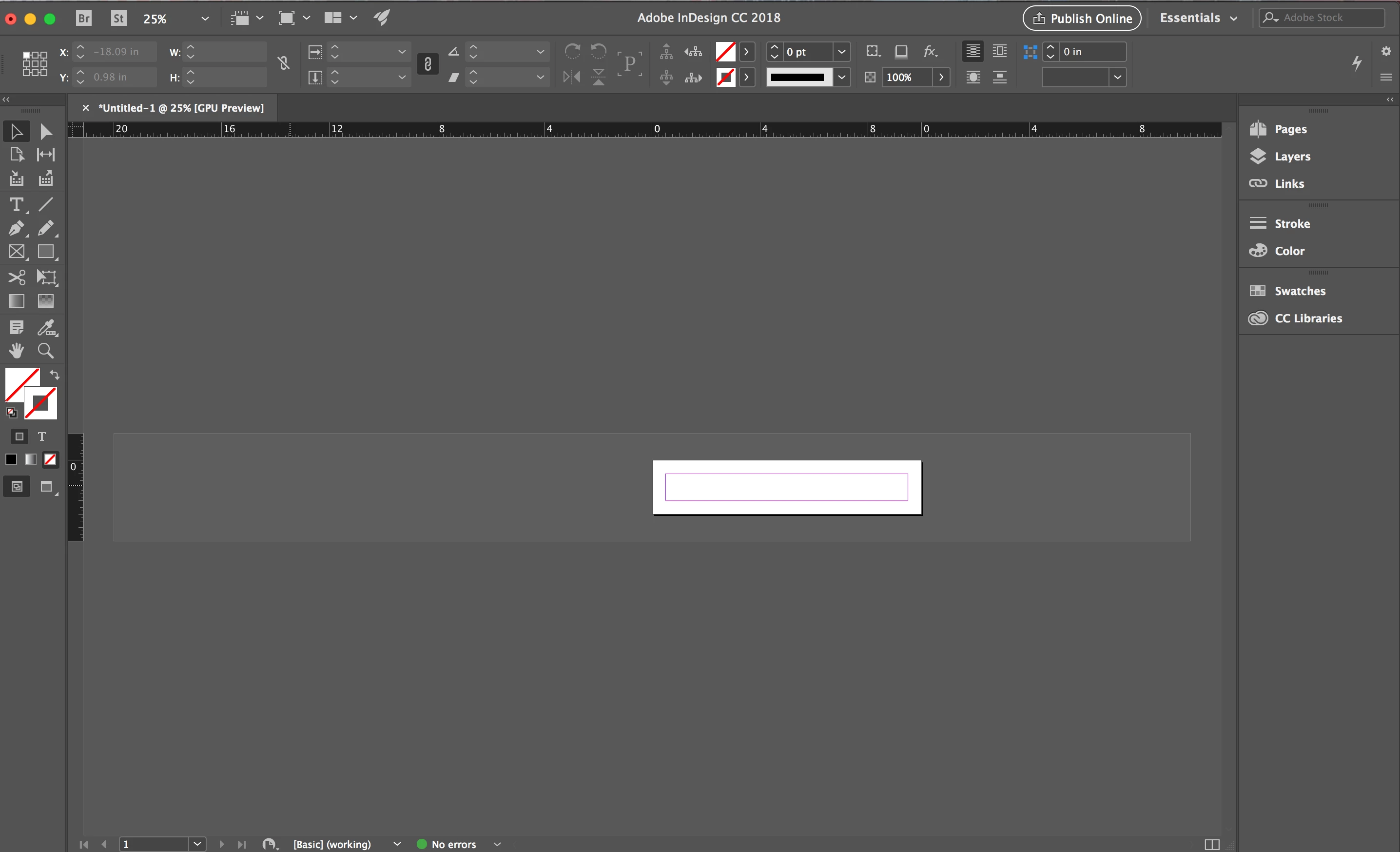
Here is my current workspace.
This topic has been closed for replies.

1 reply

Bevi Chagnon - PubCom.com
Legend
June 18, 2018

Click the upper left box (at the intersection of the horizontal and vertical ruler bars) and drag it to the spot on your layout where you want the new zero point. In this example, the zero point is being set at the upper left corner of the page.

|    Bevi Chagnon   |  Designer, Trainer, & Technologist for Accessible Documents ||    PubCom |    Classes & Books for Accessible InDesign, PDFs & MS Office |
Participating Frequently
June 18, 2018

The zero point is marked at the upper-left corner of the page, but there is still a huge amount of space to the left of my actual page in the work area, that I have to scroll back and forth through, unless I zoom very far out. The image I posted is a bit zoomed out due to this, so it isn't super easy to see, but the top left corner of the page is marked as the "0" there. I want the top left corner of the page to be at the top left corner of my window/work space, without needing to scroll through negative 20" of rulered-space.

Bevi Chagnon - PubCom.com
Legend
June 18, 2018

Your screen is extremely zoomed out, which is putting a small layout in a "sea" of blank space.

2 suggestions:

  1. Change your zoom level. Use any of the zoom keyboard shortcuts to fit the window in your screen, or zoom to 100%. Also use the View menu to Fit Page in Windows (Control + 0 win / Command + 0 mac). See Adobe help at View the workspace in InDesign
  2. Close InDesign. Trash your preferences and relaunch InDesign.

Let us know if either of these  correct the problem.

|    Bevi Chagnon   |  Designer, Trainer, & Technologist for Accessible Documents ||    PubCom |    Classes & Books for Accessible InDesign, PDFs & MS Office |