
Participating Frequently
September 30, 2022
Answered

Needing Some Help to Set Up a Threaded InDesign Doc Properly

  • September 30, 2022
  • 5 replies
  • 349 views

Hi All,


I'm struggling with the set up of a threaded layout that I'm hoping somenone in the community can offer some insight into.


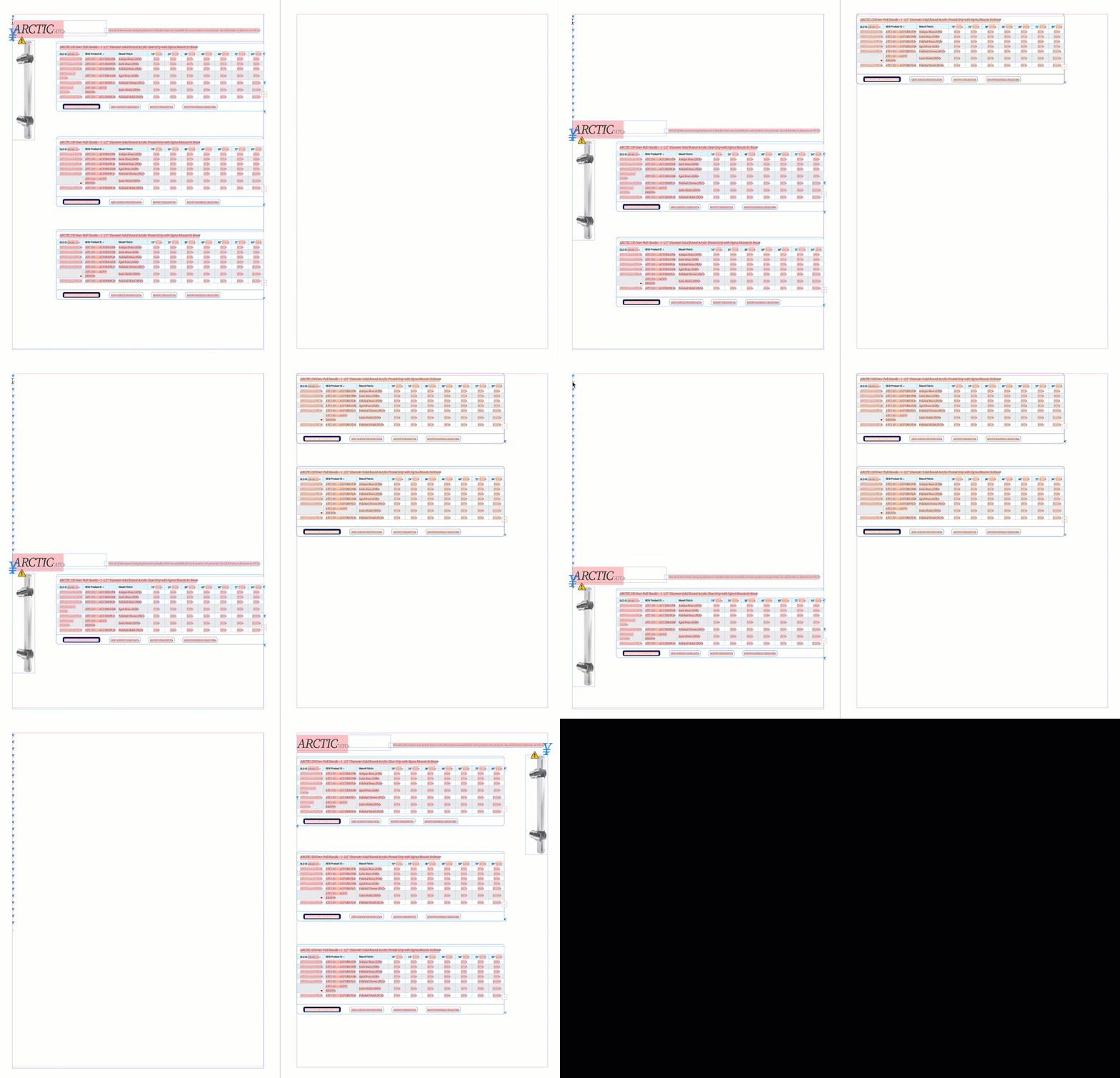
The attached layout is a sampling of how the products will flow. Sometime the product title will be on top, and sometimes not. Sometimes an individual table will get an image, sometimes a group of tables will get an image. However, the header and image are always aligned away from the spine. Ideally I'd like to be able to flow all items from one page to the next so that if at some point I need to add another product into the middle of the document, I won't need to manually reflow hundreds of tables down. I find the concept of threading frames is brilliant, but actuly working with them is a nightmare (for me atleast LOL).


Thanks in advance!

Craig
This topic has been closed for replies.
Correct answer Barb Binder

Hi @CKDestef3541770:


Keeping in mind that there are many ways to approach this. I think I would use a combination of anchored frames and spine-alignment commands in a full-width text frame.

In my video above, I have the heading and the image anchored to the same paragraph and the paragraph style is set to align away from spine. The heading is anchored Above Line and the Image is anchored Relative to Spine and Relative to Column Edge.


I set the table groups up the way I described earlier, only this time I set the paragraph alignment to towards spine.


Aligning towards spine and away from spine is going to allow them to switch sides automatically as they move from left to right pages. And I added a column break just to force the heading to the next page that you could see it.


If you would like to message me your email, I'm happy to send the file over so that you can pick it apart.


~Barb

5 replies

Barb Binder
Community Expert
Community Expert
September 30, 2022

Awww, thanks for letting me know!


~Barb

~Barb at Rocky Mountain Training
Barb Binder
Community Expert
Barb BinderCommunity ExpertCorrect answer
Community Expert
September 30, 2022

Hi @CKDestef3541770:


Keeping in mind that there are many ways to approach this. I think I would use a combination of anchored frames and spine-alignment commands in a full-width text frame.

In my video above, I have the heading and the image anchored to the same paragraph and the paragraph style is set to align away from spine. The heading is anchored Above Line and the Image is anchored Relative to Spine and Relative to Column Edge.


I set the table groups up the way I described earlier, only this time I set the paragraph alignment to towards spine.


Aligning towards spine and away from spine is going to allow them to switch sides automatically as they move from left to right pages. And I added a column break just to force the heading to the next page that you could see it.


If you would like to message me your email, I'm happy to send the file over so that you can pick it apart.


~Barb

~Barb at Rocky Mountain Training
Participating Frequently
September 30, 2022

THANK YOU!!!

Barb Binder
Community Expert
Community Expert
September 30, 2022

Yes, I have the leading (line spacing) set to Auto for that specific reason. That's about the only time to use auto-leading. (And yes, redefine your paragraph style after updating from fixed leading to auto-leading.)


~Barb

~Barb at Rocky Mountain Training
Participating Frequently
September 30, 2022

@Barb Binder That's awesome! It worked.

I hate to ask too much here but you've been so kind to this point so here goes...

Regarding the header and image, I see a few options to set this page up, and wonder if you wouldn't mind weighing in again. Here's a quick 2-minute screen recording of my conundrum (for me at least LOL).

Thanks!

Craig

Barb Binder
Community Expert
Community Expert
September 30, 2022

Hi @CKDestef3541770:


But that is exactly why we need threaded frames—so that content can flow through a document after edits.


In your environment, you will also need to incorporate inline/anchored frames so that all of those groups can flow down when you add a new one. 


~Barb


~Barb at Rocky Mountain Training
Participating Frequently
September 30, 2022

Thanks @Willi Adelberger and @Barb Binder !


Question for you @Barb Binder ...

I noticed that when you paste in the tables, they fall in line as I would expect. However, when I paste mine in, they it's pasting upwards, and overlapping. I suspect this can be corrected somewhere in anchor options, and/or wrap text options, but I wonder why the default is so different. Did you tweak some settings?


Here's a screen recording


Thanks!

Craig


Willi Adelberger
Community Expert
Community Expert
September 30, 2022
  1. You need to work with Paragraph Styles.
  2. Avoid manual overrides!
  3. Don't use [Basic Paragrap] Style.
  4. The first line of a group. Keep Options: Keep with next, but not keep before, all other lines should have style with keep before but not keep with next.