Participating Frequently
October 21, 2020
Answered

No way to update or find links in InDesign CS6

  • October 21, 2020
  • 1 reply
  • 967 views

Using Mac INDD CS6.

• I have a series of cartoon in layouts I created in INDD over the past year; I use INDD to create the keyline frames and capiton/jokes that go under the cartoons themselves. I import/place the cartoon art jpegs witin the INDD layouts.  I keep the art/jpegs in folders/files that also contain the INDD files. So safe to say the source jpgs are on my mac, in a common place. I also back up the folders on an external HD & iCloud drive. (more on that later.)

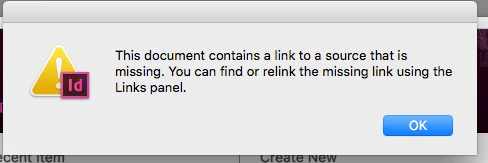
• Recently, whenever I open the INDD files, I get the "source links are missing" pop-up (see Image 1 of the attached six screen grabs). I click OK & the document opens. As expected, the cartoons are pixelated instead of smooth as they ought to be.

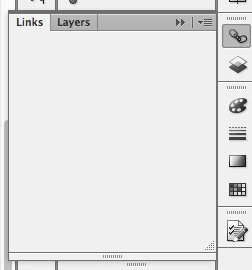
• I open the links panel to find the links but it's blank (see Image 2). 

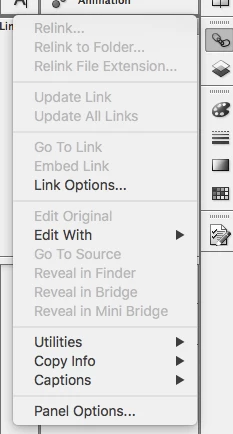
• I select the little arrow within the links panel to see what else I can try, only to see that (Image 3) most of the options (including Relink) are greyed out. 

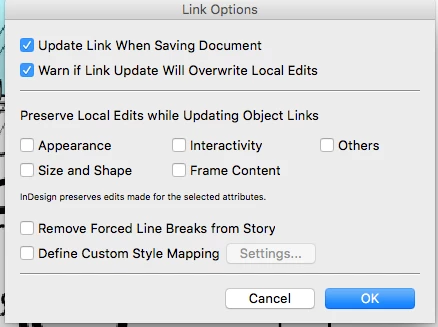
• From this same menu I select Link Options. It opens a pane and I select "Update link when saving document" (Image 4). However when I save the doc and reopen I get the same missing link issue again, so saving the doc fails to update the link.

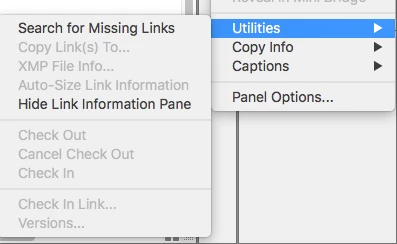
• I then open Utilities (Image 5) and see that "Search for missing links" appears as a non-greyed-out option. So I click that.

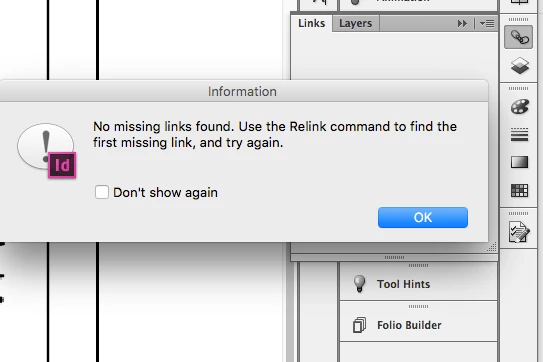
• That opens a new prompt pane (Image 6) that says "No Missing Links Found. Use the Relink command to find the first missing link, and try again." However, as before, the Relink command is greyed-out (see Image 3).

• I thought perhaps this was happening because I saved the folders with the source jpgs and the INDD layouts artwork on iCloud (even though they are also on the Mac) so I removed & trashed the iCloud folder while keeping the Mac folder intact. I then restarted InDesign. This did not resolve the issue.

These INDD files span a year of work, including one as recent as today. I have read online that this can happen if images are embedded vs linked, but I don't how to determine that, and furthermore the art is generally about 1.2 MB so from what I've read it may be too big to auto embed. I used to see the links identified in the links panel no problem, vs the blank panel I now see.  

Any advice? Thanks so much,

Jeff


This topic has been closed for replies.
Correct answer Bill Silbert

I'd really like the MBP to be the mac I do the work on. It's bigger and the smaller Air has hardly any storage in comparison, and the MBP is my workstation, preferred machine for many reasons. Is there a way to manage this while still doing the work on my MBP vs having to always go back and forth between the two machines? 


The reason I suggested trying it on another machine was to see if the problem was related to your version of InDesign. What you found makes that seem likely. I would suggest trashing your preferences and cache files to see if resetting the program to its defaults in this way straightens things out. If that doesn't work then you might need to uninstall and reinstall InDesign.

To trash preferences on a Mac:

The User Library folder in which InDesign’s preferences are stored is hidden by default on most Macintoshes. To access it make sure that InDesign is closed and click on the desktop to launch a Finder Window (Command-N). With this window in column view follow the path User>Home folder (it’s the folder with an icon that looks like a house—it may have the user’s name rather than “Home”) and click on the Home folder. With the Option Key pressed choose Library from the Finder Go Menu. “Library” will now appear within the Home folder. Within the Library folder find the folder called Preferences and within it find the folder called “Adobe InDesign” and the file called “com.adobe.InDesign.plist” and delete both that folder and that file. When InDesign is next launched it will create new preference files and the program will be restored to its defaults.

The advantage of manually deleting preference files in this manner is that after you’ve reset up the program (make sure that no document window is open) to your liking, you can create copies of your personalized “mint” preference files (make sure that you quit the program before copying them—that finalizes your customization) and use them in the future to replace any corrupt versions you may need to delete.

To delete cache files on a Mac:

Follow the same process as above to get to the User Library folder. Within the Library folder find the “Caches” folder. Within the Caches folder find and delete the entire folder “Adobe InDesign”. I find that deleting the InDesign cache folder completely leads to a lasting change.  

1 reply

Bill Silbert
Community Expert
Community Expert
October 21, 2020

Could you be more specific as to when this all started happening? Had you recently updated your Mac OS? If so, then CS6 would not be supported and strange things might start happening. Is this happening with just this file or globally with all files that have imported images—either linked or embedded? Try creating a new file, importing some jpegs, closing the file and seeing if this happens all over again. You also said that you have the files backed up on a separate hard drive. If you copy the file(s) from that to your hard drive does the problem persist? If you copy one of the file(s) onto a different computer with InDesign installed (even if it has a later version of InDesign) does the problem remain?

jpkartAuthor
Participating Frequently
October 21, 2020

Thank you -- here are some answers, after having read/tried your suggestions:  

• No I didn't update the OS.

• This has been happening for about a month.

• I tried creating a new InDesign file using a photograph for the placed artwork, then saved and reopened it. Hurrah, no link problems.

• I opened a cartoon file from last year but this time the link problems were there. All previous In Design cartoon files have this problem.  

• But to futher muddle my mind, I then opened three recent cartoon files going back from today to a month ago. There were no link problems now. This is perplexing because these very files had link problems earlier this week and today. And now not. Yeesh. But all the older ones do, say anything from a month ago and farther back into last year. About 35 files. And who's to say that it won't happen again when I open the newer ones tomorrow?

• I tried opening files from the external HD but had the same trouble.  

• Now, on the  more promising front, I moved the external HD to my other Mac (a Mac Air) and opened an older cartoon file that was link-malfunctioning on my original mac (an MBP). Again I got the "missing links" prompt as on the MBP, but this time when I clicked OK, the links panel correctly display the links (see attached Image A). I then doubled-clicked the question mark icon for the one missing link and it relinked as desired. This is perplexing as the Mac Air has the same OS as the MBP, and, while it is a newer model by just a couple of years, the MBP actually has a newer internal HD. 

• So it's all baffling to me -- inconsistent.


jpkartAuthor
Participating Frequently
October 21, 2020

I'd really like the MBP to be the mac I do the work on. It's bigger and the smaller Air has hardly any storage in comparison, and the MBP is my workstation, preferred machine for many reasons. Is there a way to manage this while still doing the work on my MBP vs having to always go back and forth between the two machines?