Participant
August 4, 2023
Answered

nombre de colors

  • August 4, 2023
  • 2 replies
  • 1025 views

Hola 

•Use adobe color, para extraer colores de una imagen, pero dan los colores con códigos ejemplo #9E8026, en vez de nombres, café, marrón etc. Como podría saber a qué tipo de color pertenece el código.

•Lo ocupo para una caracterización, soy alumna, y realizo una tesis, y trato de caracterizar fauna.
This topic has been closed for replies.
Correct answer rob day

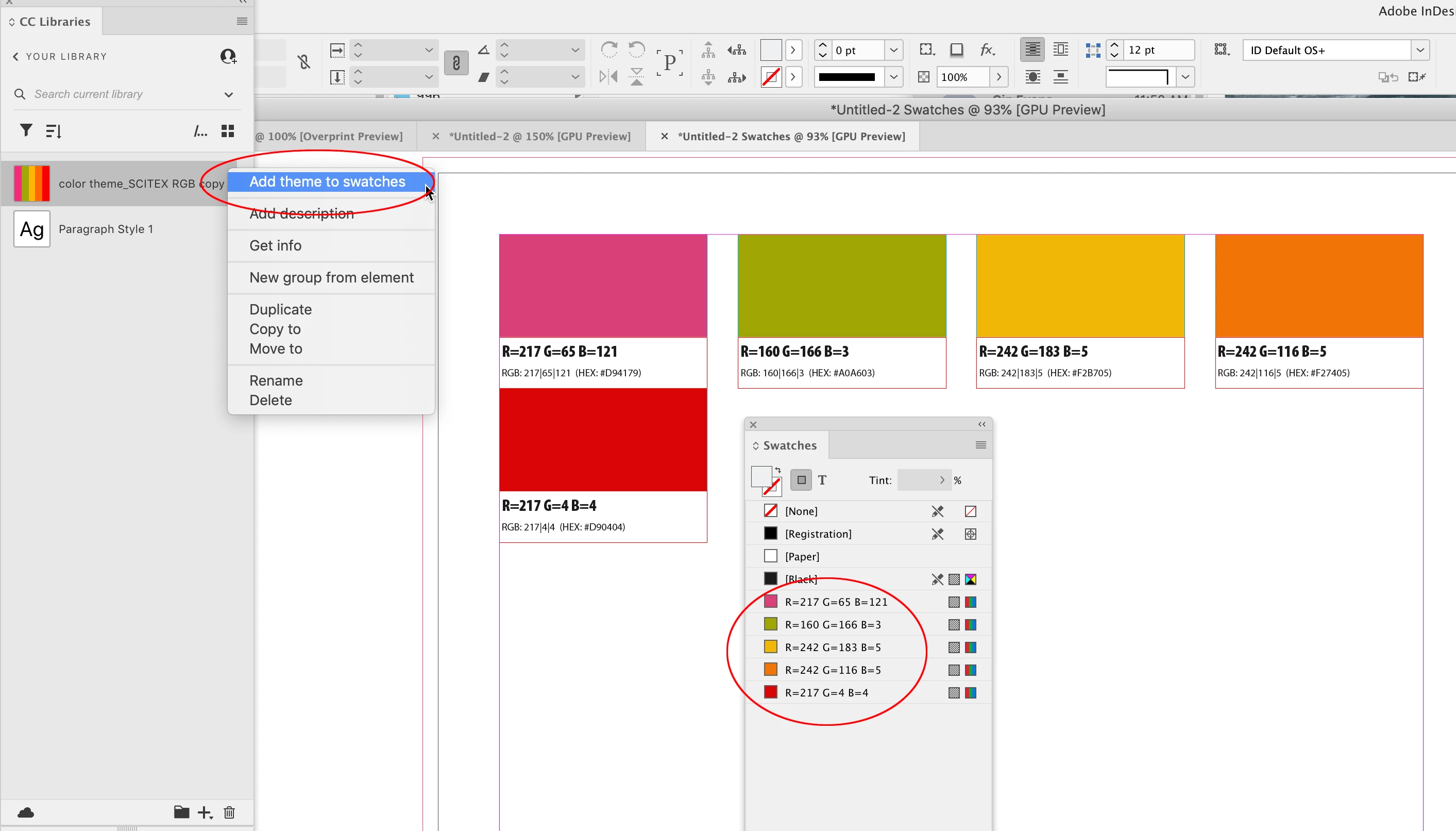
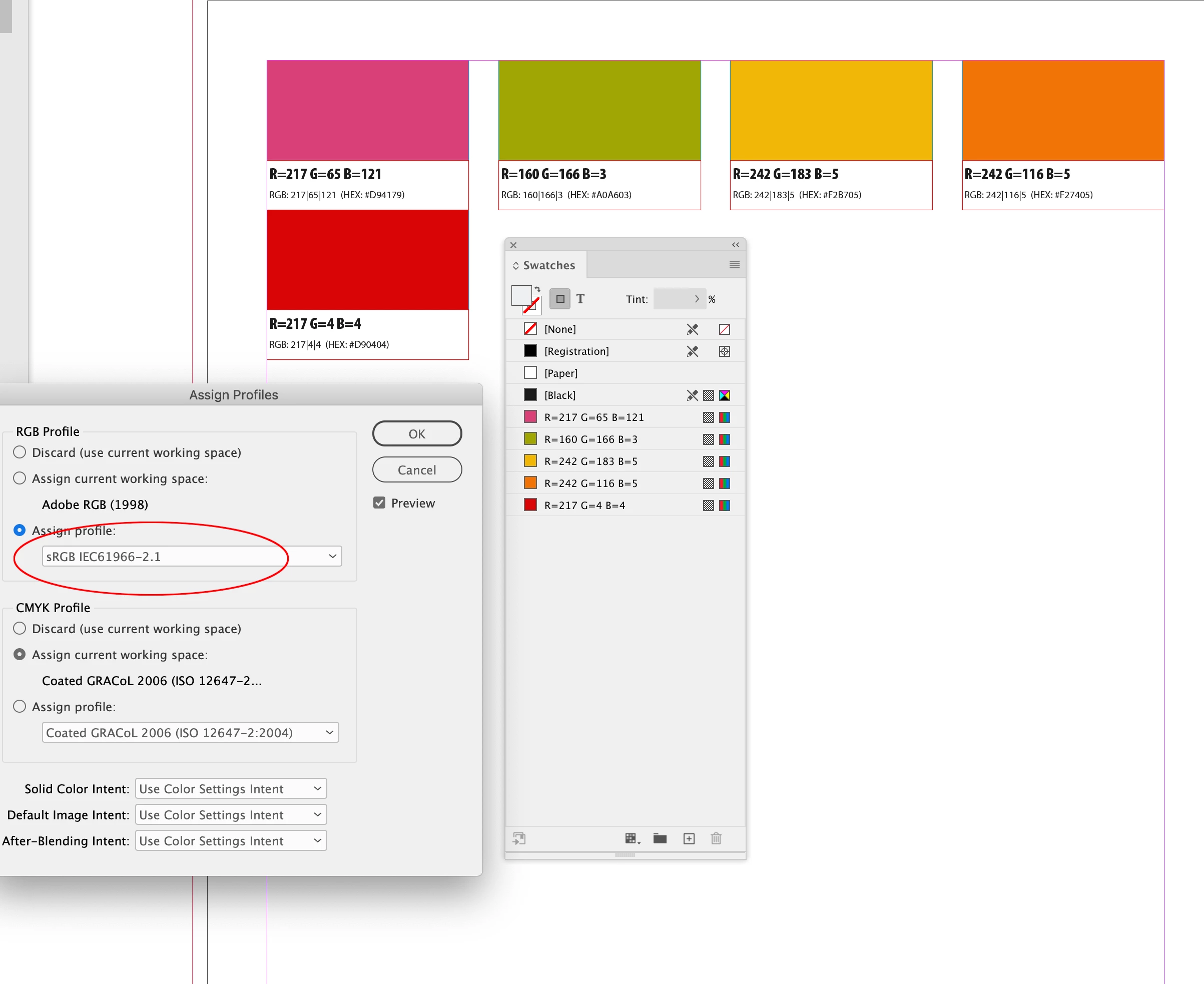
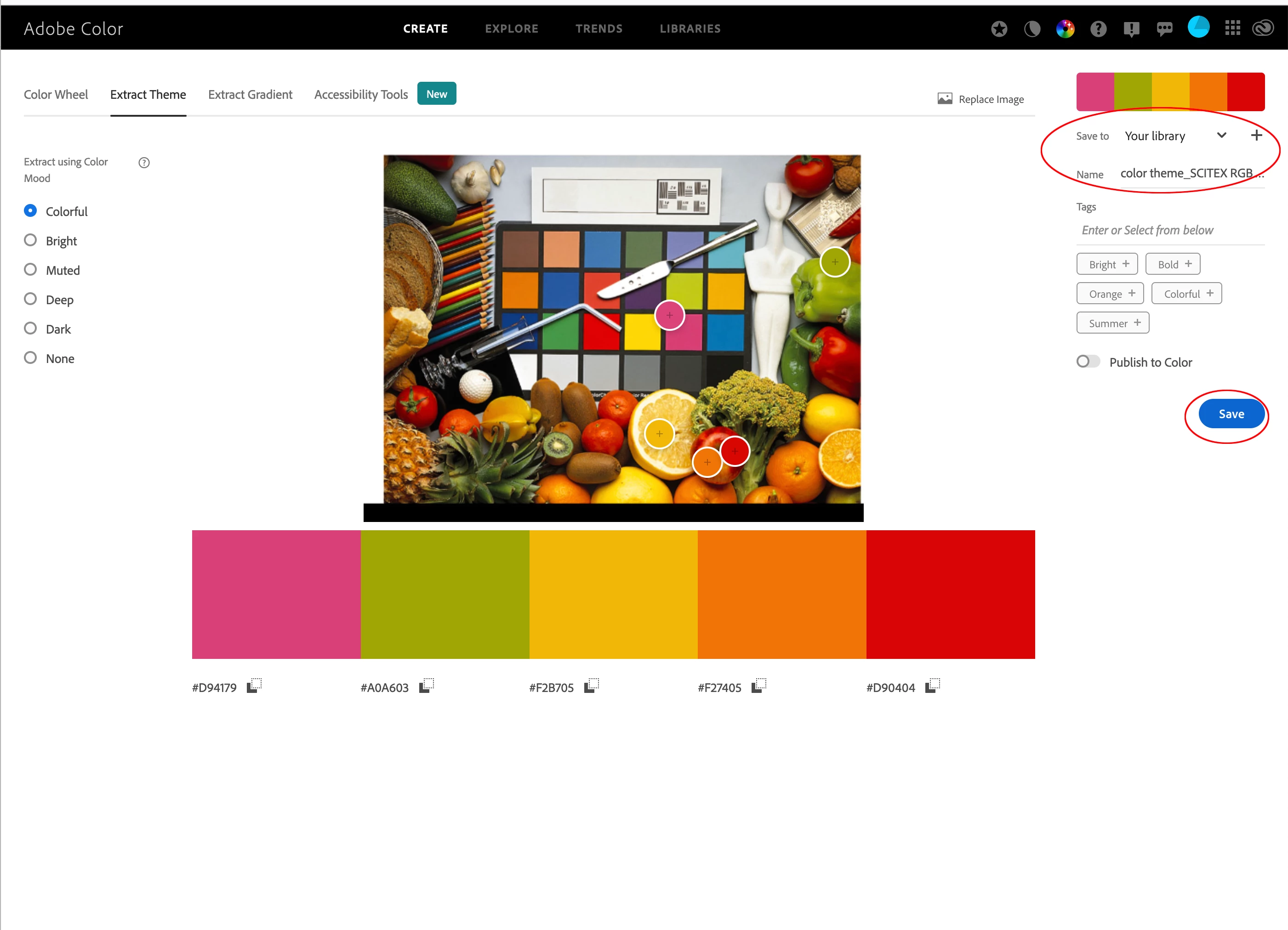
Hi @gabriela31494937ruhf , By Adobe Color i assume you are referring to the web tool at https://color.adobe.com? When you use the Extract Theme tool, the colors are listed as hexidecimal values which is simply a different way to notate RGB colors—hex values are used in HTML coding. Web HTML coded colors are displayed in the sRGB color space, so if you save the theme to one of your CC Libraries they will be added as RGB colors with an assumed RGB profile of sRGB. Set your InDesign document’s assigned RGB profile to sRGB in order to get a match to what you were seeing in the website:


2 replies

rob day
Community Expert
Community Expert
August 4, 2023

Also the Color Panel, Swatches Panel’s Swatch Options, and the Color Picker will give you Hex and RGB equivalents:


Participant
August 5, 2023

rod day, gracias por la ayuda, este es mi correo si pudieras mandar tu nombre, para posteriormente nombrarte en agradecimientos en mi tesis, y si se da el articulo ahí también. 

gabrielamtzlg93@gmail.com


rob day
Community Expert
rob dayCommunity ExpertCorrect answer
Community Expert
August 4, 2023

Hi @gabriela31494937ruhf , By Adobe Color i assume you are referring to the web tool at https://color.adobe.com? When you use the Extract Theme tool, the colors are listed as hexidecimal values which is simply a different way to notate RGB colors—hex values are used in HTML coding. Web HTML coded colors are displayed in the sRGB color space, so if you save the theme to one of your CC Libraries they will be added as RGB colors with an assumed RGB profile of sRGB. Set your InDesign document’s assigned RGB profile to sRGB in order to get a match to what you were seeing in the website: