
Known Participant
February 27, 2018
Answered

[None] Master page settings

  • February 27, 2018
  • 1 reply
  • 2320 views

Dear All,

My question is regarding a document with a lot of pages.

1. The (Margins and Columns) settings are: {These are correct settings}
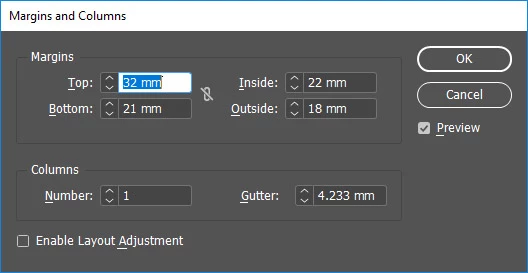
2. The page before applying [None] master page is: {This is correct page}

3. The page after applying [None] master page will be: {This is  incorrect page}

4. The (Margins and Columns) settings after applying [None] master page will be: {These are incorrect settings}
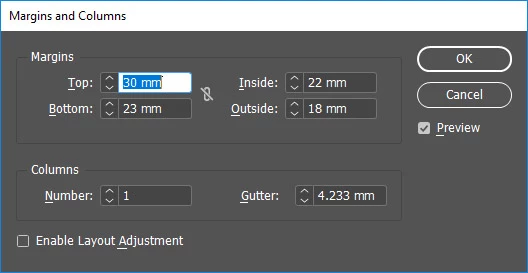
I can correct (Margins and Columns) manually for each spread. But, it is very hard with a lot of pages.

How can I correct the [None] master page settings at one time?

Best Regards

This topic has been closed for replies.
Correct answer jane-e

When you apply the None Master, it retains the Margins and Columns of the previous Master—not of the Document Settings.

To demo this in class, I apply a two-column master, followed by none. The page has two columns. Then I apply a three column master followed by none. The same page now has three columns.

We insert a page based on None. It has one column.

The pages based on None do not have the headers, footers, ruling guides, and objects that are on the A and B masters.

So to get what you want? Apply a named Master. You can follow this with the None Master, or simply create your own blank master and apply it to selected pages.

1 reply

jane-e
Community Expert
jane-eCommunity ExpertCorrect answer
Community Expert
February 28, 2018

When you apply the None Master, it retains the Margins and Columns of the previous Master—not of the Document Settings.

To demo this in class, I apply a two-column master, followed by none. The page has two columns. Then I apply a three column master followed by none. The same page now has three columns.

We insert a page based on None. It has one column.

The pages based on None do not have the headers, footers, ruling guides, and objects that are on the A and B masters.

So to get what you want? Apply a named Master. You can follow this with the None Master, or simply create your own blank master and apply it to selected pages.

Known Participant
March 1, 2018

Thank you jane-e.

Previously, applying [None] master page does not result like this incorrect issue. This item is not sufficiently clear for me.

But, your second solution of creating a new blank master page is a very nice one.

jane-e
Community Expert
Community Expert
March 1, 2018

I agree wholeheartedly—I do this when I want control over the blank pages.

Best,

~ Jane