
Participant
May 31, 2020
Answered

Numbered List second line issue

  • May 31, 2020
  • 4 replies
  • 3193 views

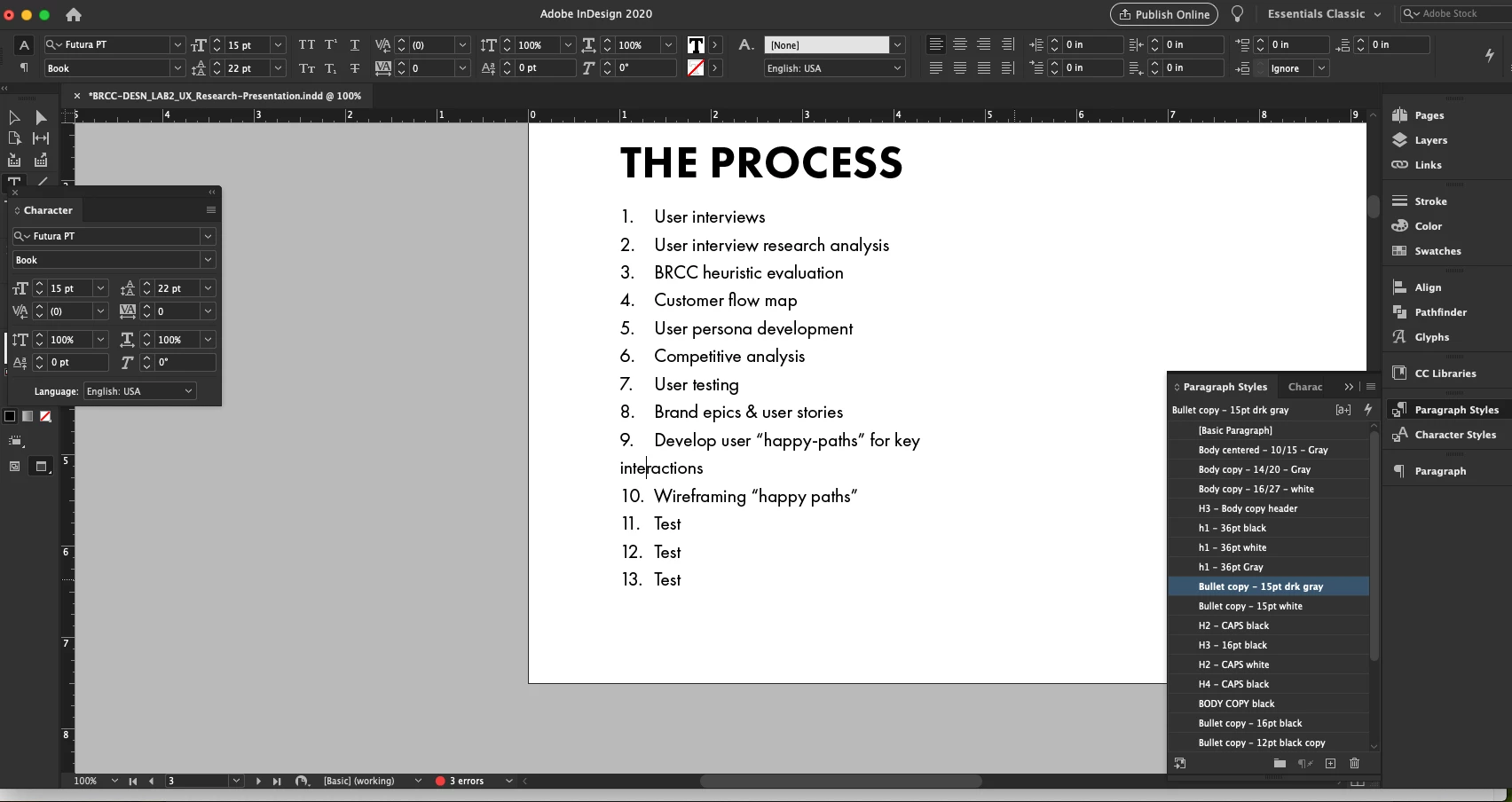
I'm experiencing an issue with numbered lists. Can anyone help me resolve this issue? I can't get the second line to align under the first word of the first line. I know it's a simple fix, but I'm going around in circles. Thank you.


This topic has been closed for replies.
Correct answer Barb Binder

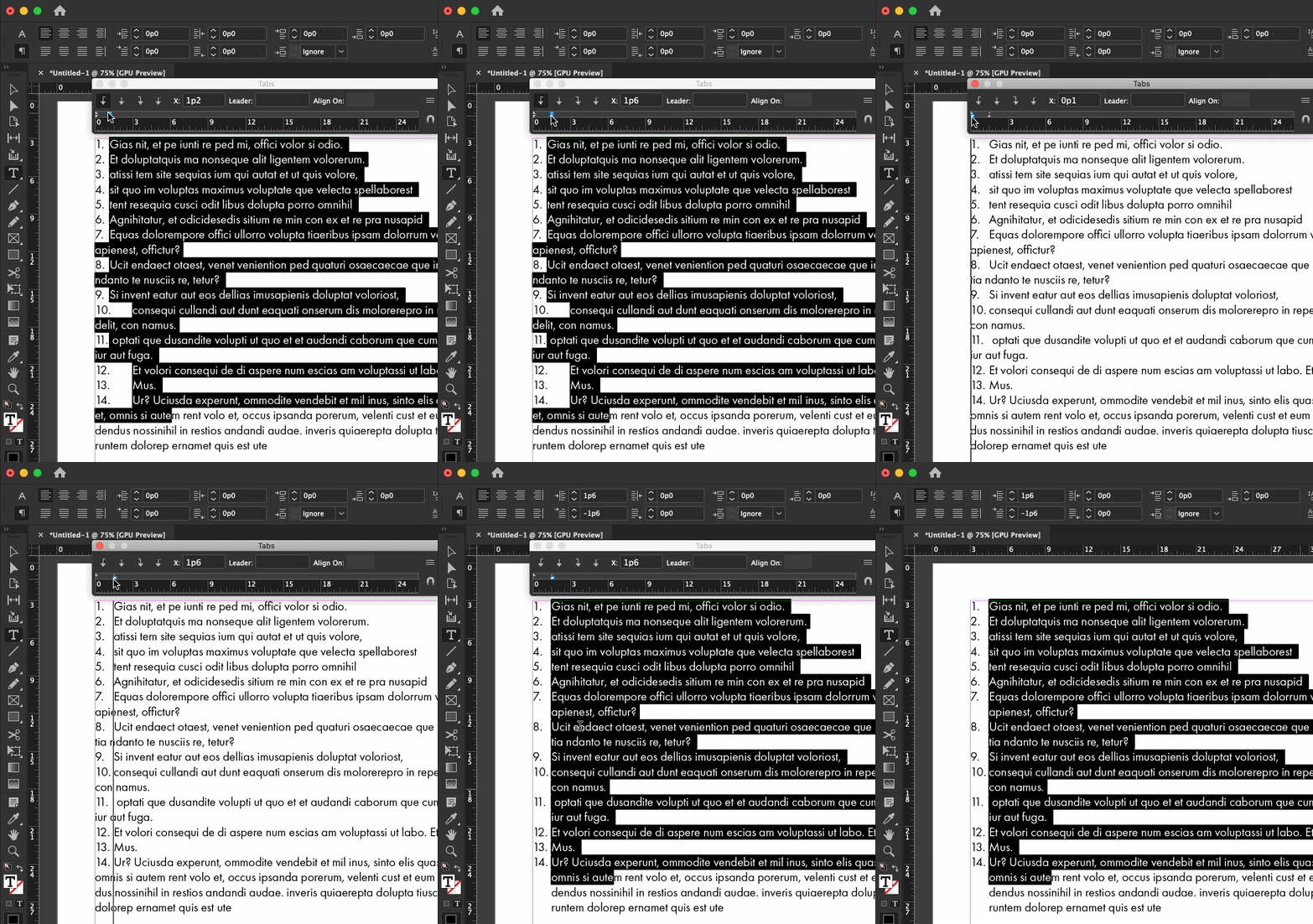
No, that isn't a bug. You are using a font with proportional figures, and the zero is wider that the one, two or three. 


Just set the tab stop and hanging indent to accomodate the 10. and you should be good to go.

  • Type > Tabs
  • Move the tab to the right (the arrow)
  • Then Shift+drag the bottom white triangle to align it with the tab for a hanging indent. 


If you are using auto-numbers this is even easier in the Bullets and Numbering dialog box, but I can't tell if you are or not so this works with any list.


~Barb

4 replies

Barb Binder
Community Expert
Community Expert
November 18, 2020

@Qzzzzzzzzzzzz :


How is it easier in the Bullets and Numbering dialog box

Because you can just type in the hanging indent values, rather than dragging and dropping the miniscule triangles. 


~Barb 


Likes


Likes

 
B


~Barb at Rocky Mountain Training
Community Expert
June 1, 2020

In addition to Barb's advice, if you are using Optical Margin Alignment in the story, turn it off for your numbered and bulleted paragraphs. 


Qzzzzzzzzzzzz
Known Participant
November 18, 2020

why? This did not alter my text in any way

Barb Binder
Community Expert
Community Expert
May 31, 2020

Always happy to help. 😊


~Barb

~Barb at Rocky Mountain Training
Barb Binder
Community Expert
Barb BinderCommunity ExpertCorrect answer
Community Expert
May 31, 2020

No, that isn't a bug. You are using a font with proportional figures, and the zero is wider that the one, two or three. 


Just set the tab stop and hanging indent to accomodate the 10. and you should be good to go.

  • Type > Tabs
  • Move the tab to the right (the arrow)
  • Then Shift+drag the bottom white triangle to align it with the tab for a hanging indent. 


If you are using auto-numbers this is even easier in the Bullets and Numbering dialog box, but I can't tell if you are or not so this works with any list.


~Barb

~Barb at Rocky Mountain Training
Participant
May 31, 2020

Thank you so much Barb!