
Participant
July 8, 2022
Answered

Option to change grey scale to CMKY or RGB not appearing on gradient

  • July 8, 2022
  • 2 replies
  • 252 views

Hello, everyone!


I'm trying to create a gradient on Indesign, but it's stuck on the grey scale. When I open the gradient box, the option to change to CMKY or RGB does not appear. On the three lines button for more options, the only thing that appear is "hide options". When I try to create a gradient sample I'm unable to click on the CMKY configurations. Thank You!
 

This topic has been closed for replies.
Correct answer rob day

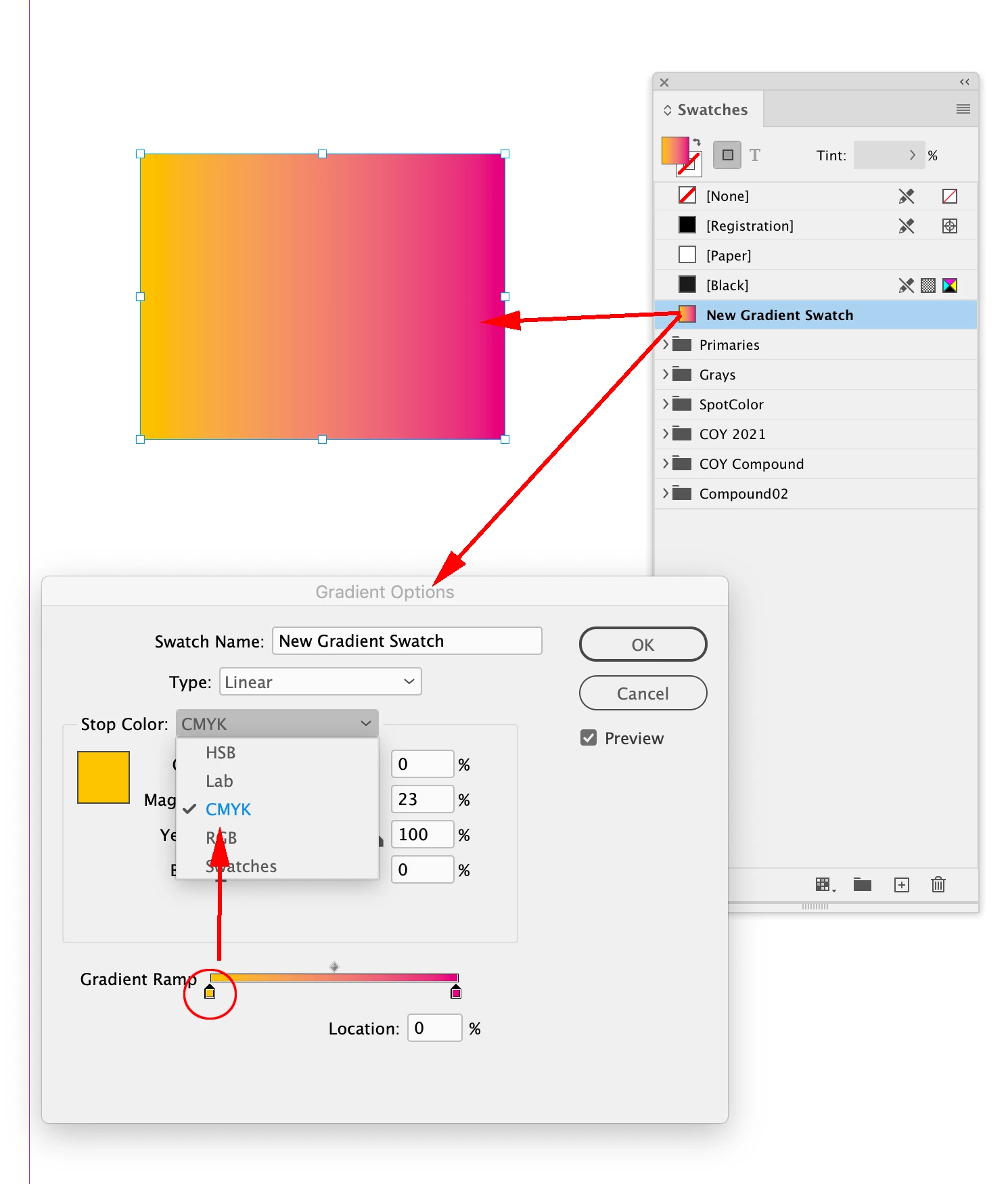
Hi @IEA2517544440ya , Are you making a new Gradient Swatch before you set the colors, sounds like you might be just double-clicking the Gradient Tool?


You have to create a Gradient Swatch from the Swatches Panel’s flyout menu, and then use Swatch Options to edit the color of the stops. To use the Gradient Swatch, select a page item, set its Fill to the gradient swatch, and then use the Gradient Tool to change the applied gradient’s position and angle, by dragging over the selected page item.


2 replies

rob day
Community Expert
rob dayCommunity ExpertCorrect answer
Community Expert
July 8, 2022

Hi @IEA2517544440ya , Are you making a new Gradient Swatch before you set the colors, sounds like you might be just double-clicking the Gradient Tool?


You have to create a Gradient Swatch from the Swatches Panel’s flyout menu, and then use Swatch Options to edit the color of the stops. To use the Gradient Swatch, select a page item, set its Fill to the gradient swatch, and then use the Gradient Tool to change the applied gradient’s position and angle, by dragging over the selected page item.


Participant
July 8, 2022

Thank you! Altough I was unable to click on the CMKY options before, through de swatches panel and clickling in the color square I was able to change colors!

Derek Cross
Community Expert
Community Expert
July 8, 2022

In the Gradient Swatch tool, select, in turn, the small square at each end then select a colour from the Fill Panel – one for each end. You can add more squares and move them along the slider.