
kirat76339549
Participant
August 23, 2017
Answered

Override all master page items and then reapply master?

  • August 23, 2017
  • 2 replies
  • 6678 views

I'm new to InDesign, and just starting to work with master pages, so apologies if this is an obvious question. I created a master 2-page spread that I have been using basically as a template for content - it has some text and image frames, and also some preset font sizes and colors. I wanted to be able to use the preset font selections for each text box, so I put some filler text in my text boxes, and when I created some actual spreads from the master, I chose "override all master page items" to put text and images in the boxes for each specific spread. The question is - now that I have chosen "override all master page items", am I no longer able to edit anything on the master and have those changes apply to all the pages I created from it? The reason I created the master in the first place was to have this function so I wouldn't have to make small edits to every single page; otherwise, why not just copy and paste a spread template and not make a master at all? Is there a better way to create a master with specific text formats for different text boxes, create spreads from it, and then fill in specific content for each spread? Should I not have used the "override all master page items" command?


Thank you, and please let me know if my question is unclear!!
This topic has been closed for replies.
Correct answer amaarora

Hi,

I am sorry if i did not understand the question well...

But did you try to disable the override option while creating the item on Master page which you do not want to override?

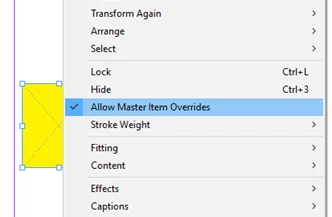
For example consider 2 items on master page A. I want to override item 1 since it is a text frame with filler text and another item 2 which i do not want to override since it has an image... For item 2, click the object and right click. Then disable the override option for this item.

Now you can do this for all the items you do not want to be override..

Next apply this master page to the required pages and then choose override all master page items. This would not override frames for which you have disabled the option

-Aman

2 replies

Legend
August 23, 2017

kirat76339549  wrote

I wanted to be able to use the preset font selections for each text box, so I put some filler text in my text boxes

That is not the best or easiest way to make preset font selections.

You should be setting up Paragraph Styles and Character Styles. (Character Styles are used when you need a small portion of a paragraph to be, say, bold or italic)

This will allow you to globally change all the fonts and sizes as needed.

If you are using the master for positioning of text boxes, then guides on the master pages will serve this purpose. In Most cases, nothing that changes on the document pages should be put on the Master Page.

amaarora
amaaroraCorrect answer
Inspiring
August 23, 2017

Hi,

I am sorry if i did not understand the question well...

But did you try to disable the override option while creating the item on Master page which you do not want to override?

For example consider 2 items on master page A. I want to override item 1 since it is a text frame with filler text and another item 2 which i do not want to override since it has an image... For item 2, click the object and right click. Then disable the override option for this item.

Now you can do this for all the items you do not want to be override..

Next apply this master page to the required pages and then choose override all master page items. This would not override frames for which you have disabled the option

-Aman

kirat76339549
Participant
August 23, 2017

Thank you; this is helpful! I will have to redo a bunch of pages, but that's okay - now I know going forward how to do this.