Participating Frequently
April 27, 2022
Answered

Packaging in InDesign shows .ai files as 4-color

  • April 27, 2022
  • 5 replies
  • 1052 views

We would like to transition from using eps files as vector links in InDesign to using .ai files, but we need our Illustrator vector files to be greyscale or black-only. When the document is packaged or exported to PDF, it saves some sort of data that reads the document as 4-color (see below screenshots). This is a problem when we are sending files to press. Any thoughts on how this can be avoided or if I am missing some sort of setting in Illustrator?


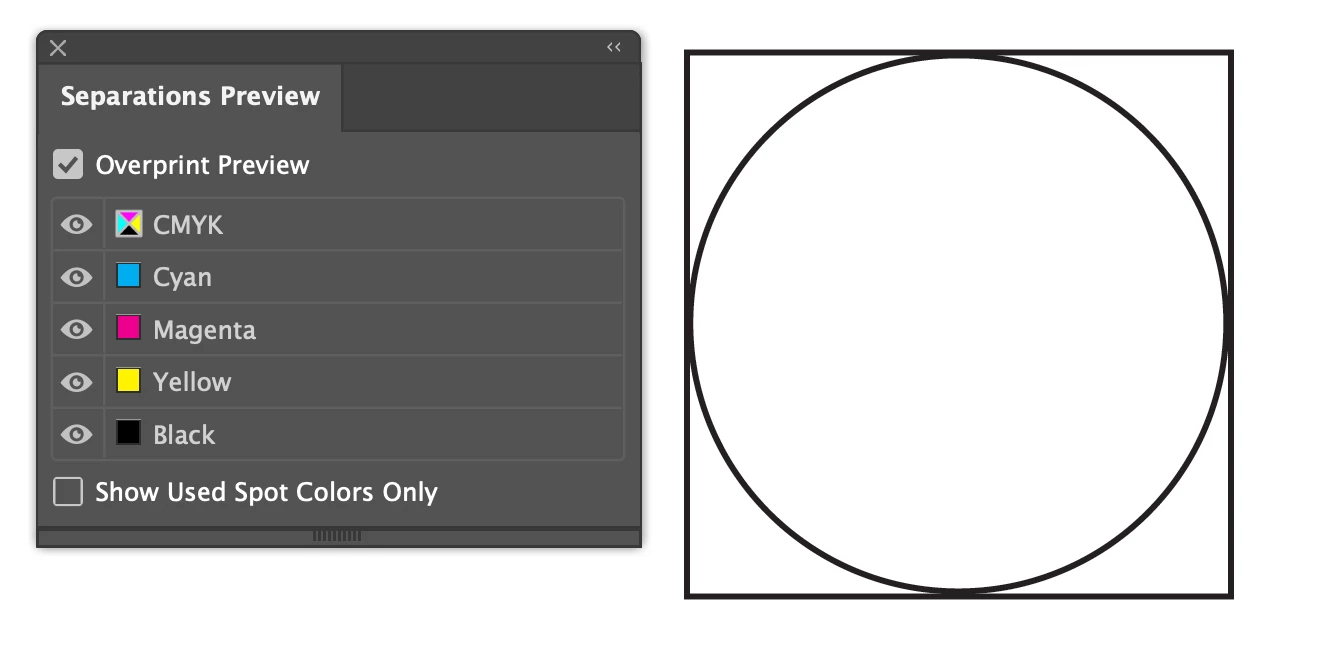
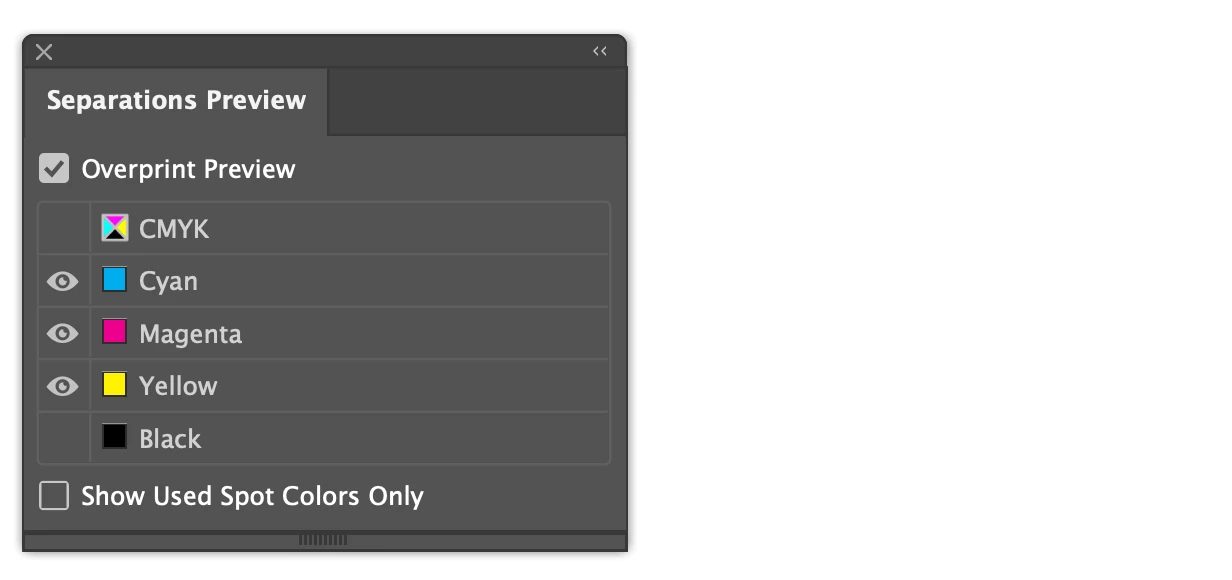
In my example here I have created a brand new InDesign document, and a basic shape in Illustrator which is set to CMYK document color mode and the lines in the shape are set to 100%K. You can see when I turn black off in Separations in Illustrator that it is indeed black only.


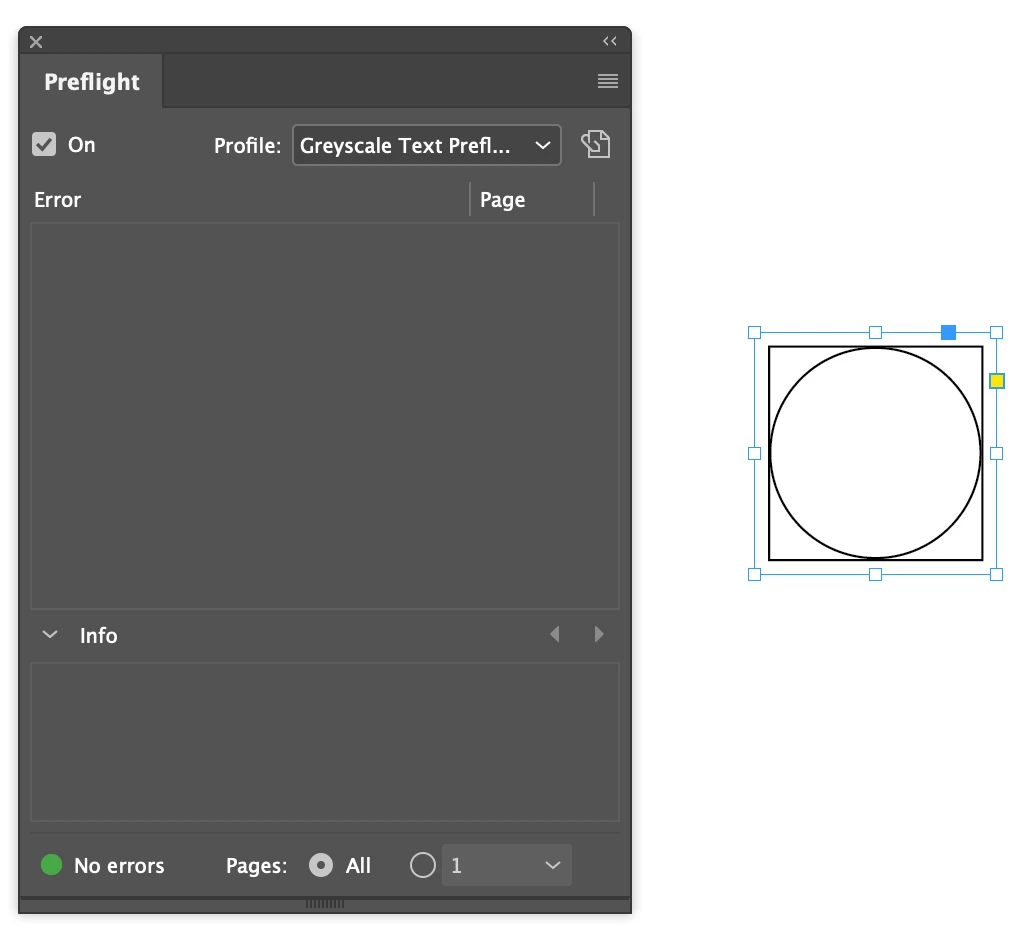
When placed in InDesign, I have created a Preflight to search for incorrect profiles and plates, but it is not appearing as an error here.



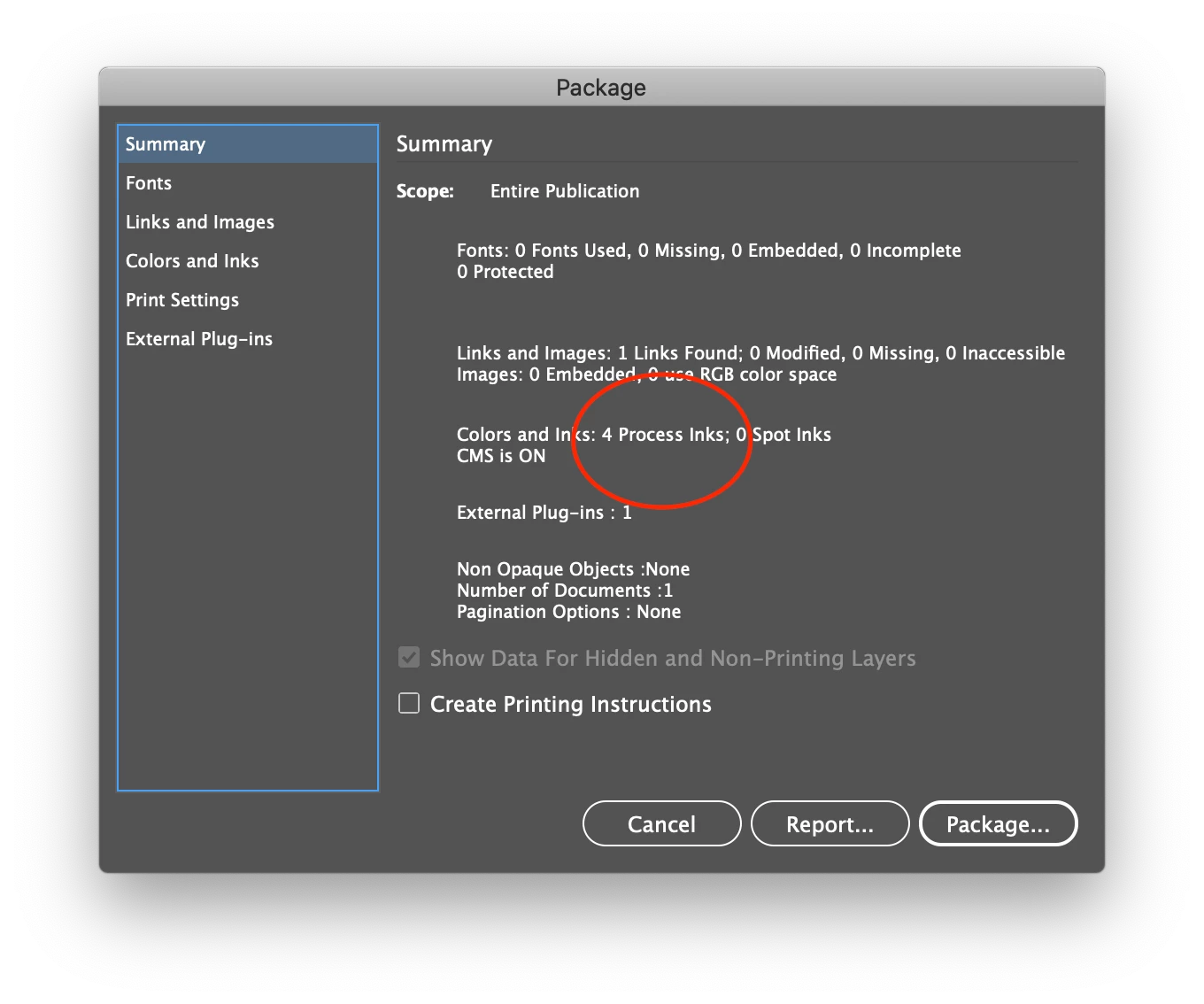
You can see here that when I go to package the file, it shows as 4 inks:


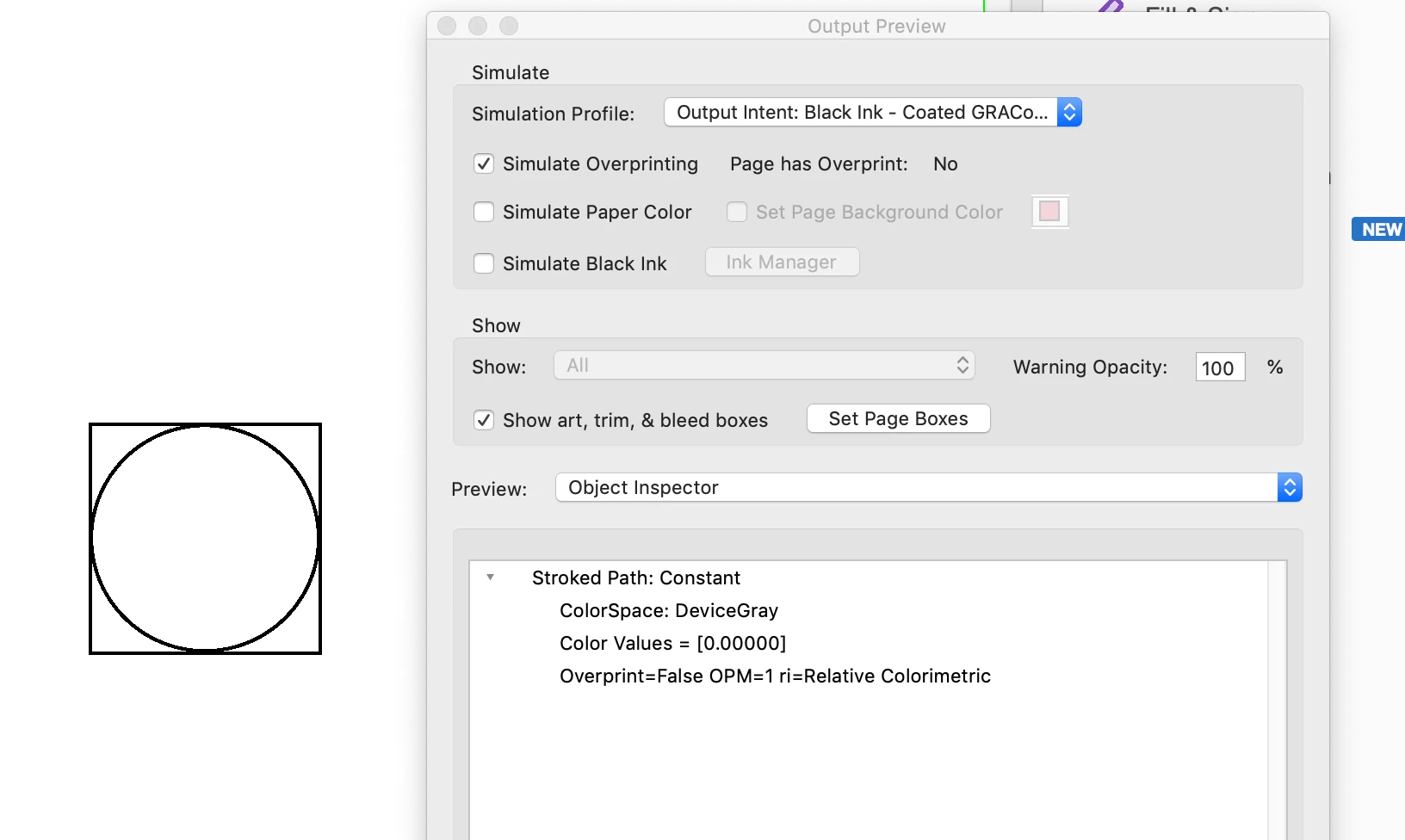
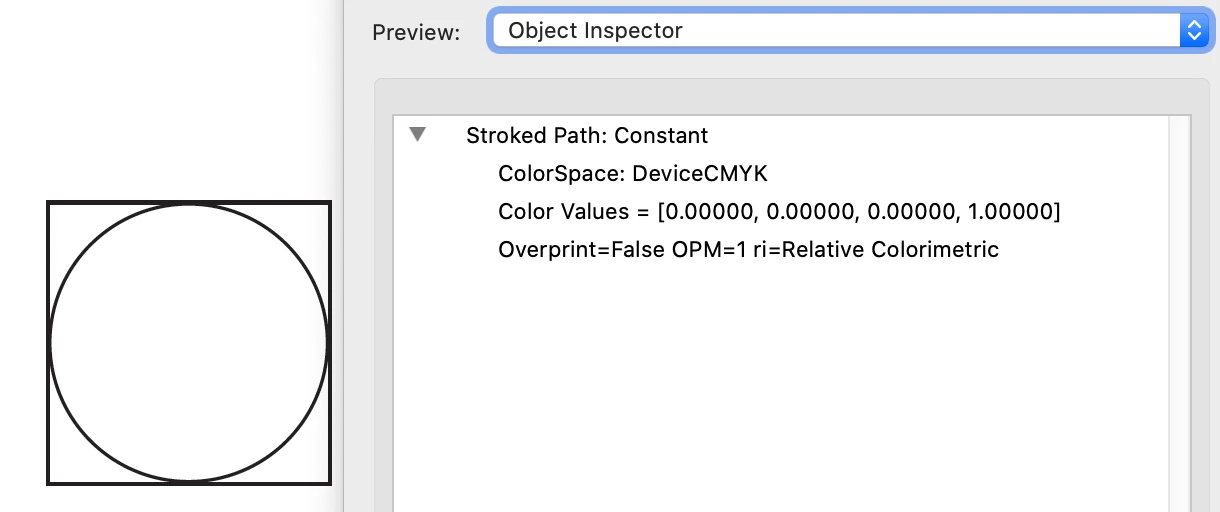
You can also see in Acrobat using the Object Inspector tool, the color space is showing as Device CMYK.


I am looking for these to show as greyscale color space or black only. Am I missing something? InDesign and PDF files attached here for your reference.
This topic has been closed for replies.
Correct answer rob day

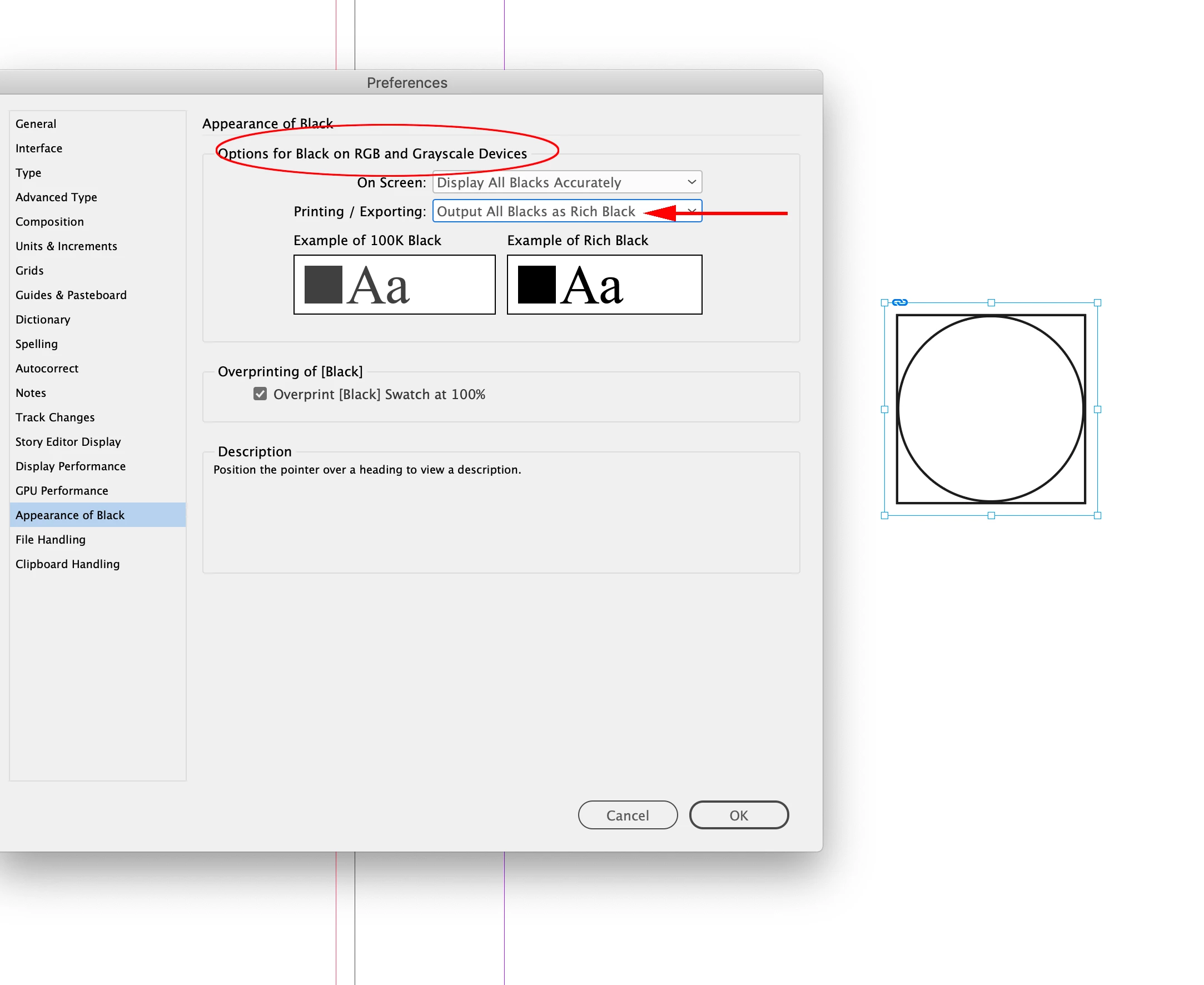
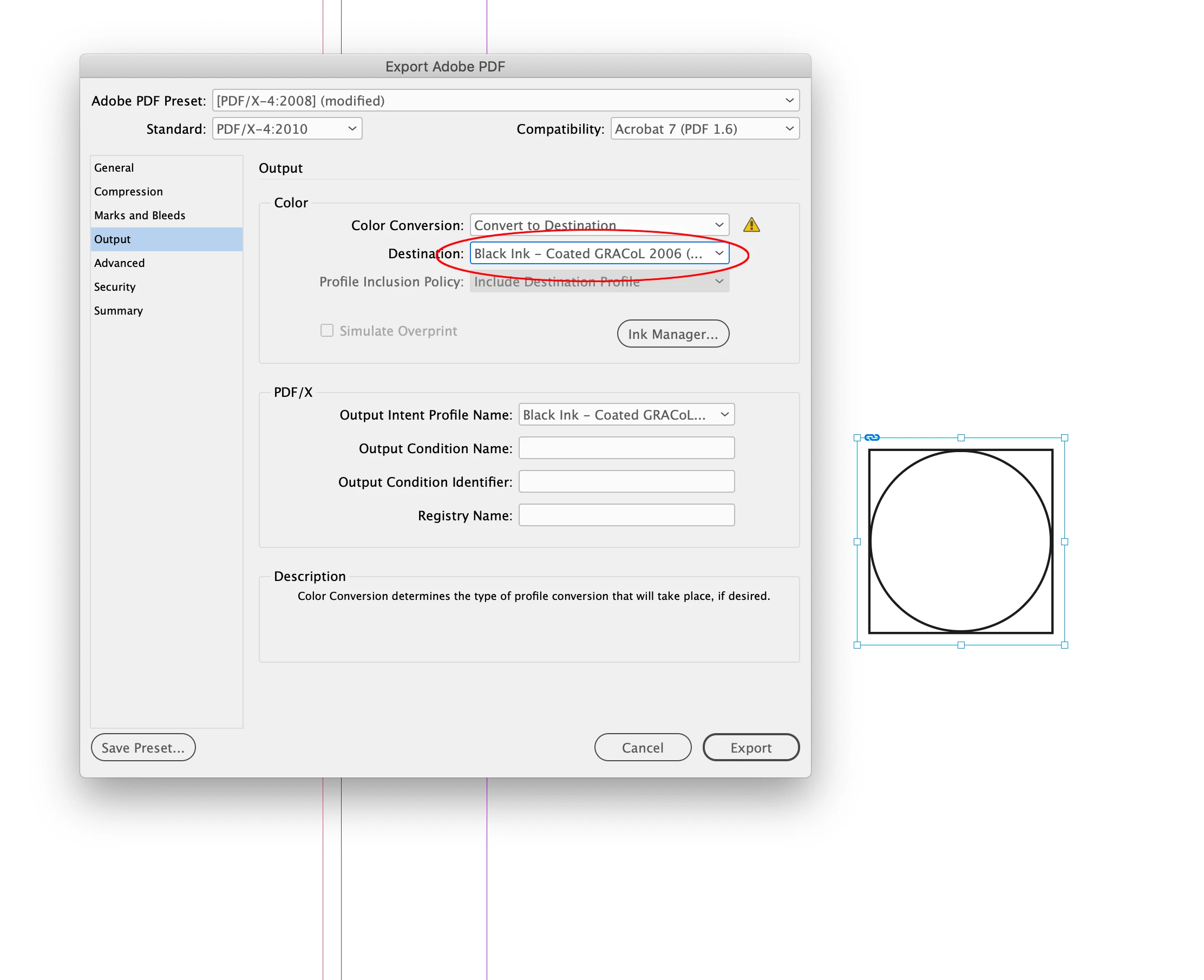
Also if you want the final PDF to have a single Black plate, export to PDF/X-4 with the Output Destination set to a Gray profile. Set your ID Appearance of Black Preference to Exporting Output All Blacks as Rich Black first. In this case CMYK profile conflicts wouldn’t have an affect:


5 replies

rob day
Community Expert
rob dayCommunity ExpertCorrect answer
Community Expert
April 27, 2022

Also if you want the final PDF to have a single Black plate, export to PDF/X-4 with the Output Destination set to a Gray profile. Set your ID Appearance of Black Preference to Exporting Output All Blacks as Rich Black first. In this case CMYK profile conflicts wouldn’t have an affect:


cassiewAuthor
Participating Frequently
May 11, 2022

Thank you this is very helpful. We are using PDF presets sent to us by the printers themselves. I will bring this up next time it comes up and see if they can send us a revised preset based on this info.

rob day
Community Expert
Community Expert
April 27, 2022

Hi @cassiew , Illustrator documents’ color modes are either RGB or CMYK—there’s no grayscale—see File>Document Color Mode


To get the black lines to be black only on an export from InDesign, make sure the Illustrator doc color mode is CMYK, and save as an .ai file with no color profile included. Then from InDesign use one of the PDF/X presets.


Brad @ Roaring Mouse
Community Expert
Community Expert
April 27, 2022

EPS's only contain the print instructions to create the graphic, so yea, it will only show Black when it's read into ID.

.AI files are a whole different world, so a document is treated as a CMYK document or an RGB document, even if you're using just Black or not, InDesign will read it as either a CMYK document or RGB. Why? Mostly this: Colour Management.

EPS's are not colour managed, whereas .AI are, so it needs to see the whole picture. This is unavoidable, and actually, favourable.

As far as going to press, or exporting a PDF, this makes no sense. Your PDF is going to list all 4 colours whether you only use just Black or not, so this is a non-argument.

What process are you using where it "needs" to see it as Black/greyscale? As a prepress person, If the project is meant to be Black only, we process it accordingly.

rob day
Community Expert
Community Expert
April 27, 2022

Hi Brad, @cassiew screen captures are showing the placed file is .AI not .EPS.

Brad @ Roaring Mouse
Community Expert
Community Expert
April 27, 2022

Understood. I was mentioning why there are different rules for eps and ai

Randy Hagan
Community Expert
Community Expert
April 27, 2022

Actually, your job is black only.


When you check the color inspector, it says it's translated into CMYK mode, but if you read the color build it's C0M0Y0K100. Ergo, it's designed to separate onto CMYK plates, but it'll only be putting the image on the Key color blacK one.


Hope this helps,


Randy

jmlevy
Community Expert
Community Expert
April 27, 2022

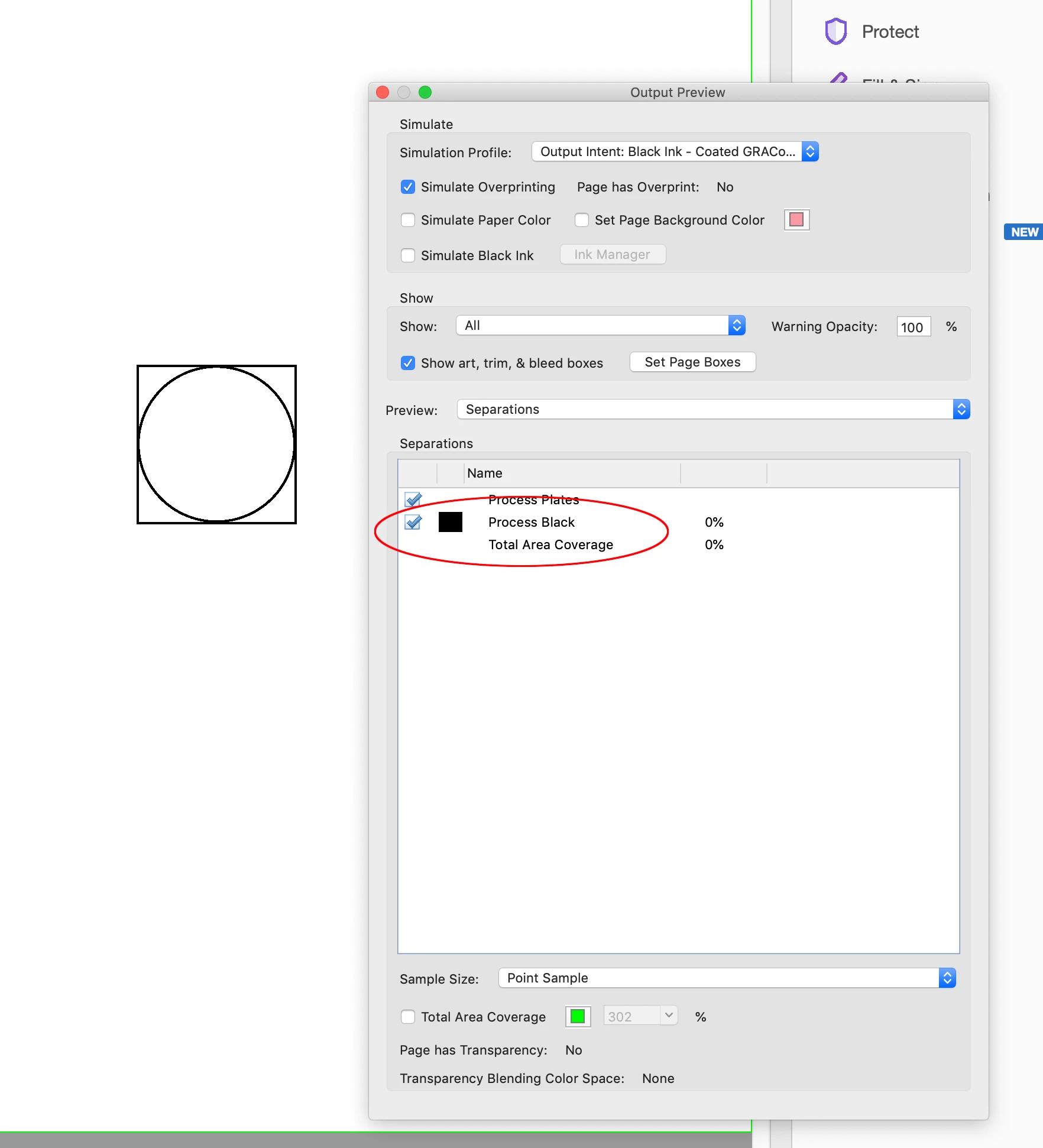
Why do you think that your Illustrator shape turned to 4 color? Your last screenshot shows that it is K only: Color Values = [0.00000, 0.00000, 0.00000, 1.00000] And if you open the PDF in Acrobat and have a look to Output preview (or someting similar, my Creative Cloud is in French), you will also see that it is K only.


cassiewAuthor
Participating Frequently
May 11, 2022

I understand the file is not actually 4-color, but when we send the files to press the images are being flagged as 4-color by the printer.