
Inspiring
March 30, 2024
Answered

Page bottoms not lining up

  • March 30, 2024
  • 4 replies
  • 1409 views

The bottoms of my pages are not lining up. I'm guessing this has to do with spacing I am using before and after sub-headings. 
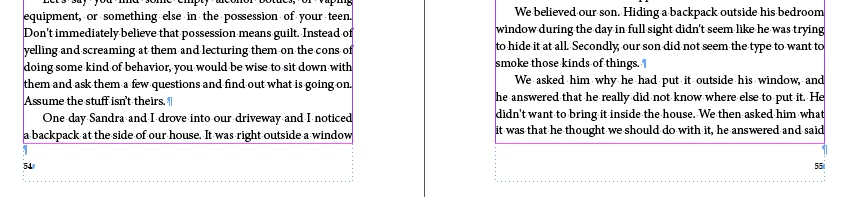
 How do you get the pages to line up on the bottom if you are using spaces before and after subheadings, and using the weight option in paragraph rules to move Chapter headings down the page?


Any and all solutions are appreciated.


This topic has been closed for replies.
Correct answer Andrew Mikelsons

If anyone has an easy way to get baselines to line for the last line of text in a novel, will you please let me know?


4 replies

Inspiring
April 10, 2024

Just a quick comment on lining up text on the bottom of pages for say a 200 page novel. You will need a Paragraph Style for a Sub-Heading that is at the top of a page, and a Paragraph Style for a Sub-Heading that is not at the top of a page. 


 See above: Text lines up at bottom of page for Sub-heading not at the top of a page


For a Sub-Heading that is not at the top of a page, Set your "Paragraph Style Options" >> Space before and >> Space After for your headings to equal the multiples of the leading for your font. Example, if your leading for your font is 16pt; then use 16pt, 32pt, etc your heading. Works great. All text lines up at the bottom of the page. See below for set up in Paragraph Styles (Heading 3 is my Sub-heading not at the top of a page). 


If your Sub-heading is at the top of a page, you need another Paragraph Style to handle this. 


 See above: Text lines up at bottom of pages with Sub-heading at top of page.


Below is how I got it to work even though I don't understand mathematically how it works (Paragraph Style is called "Top page heading".

The Space Before and Space After do not add up to a multiple of 16 (like with headings not at the top of pages. But the above works for the whole book. 

Hope this helps someone.

Andrew MikelsonsAndy Fairchild Publishing Inc.
James Gifford—NitroPress
Legend
April 10, 2024

All good, but a simpler approach is to define headings in terms of how many text lines they replace. For the mid-page one, the total of top and bottom spacing plus leading might equal 3 text lines; the one at page top, 2 text lines. Set up correctly, this would function automatically, with one style, since ID (aggressively) removes space-above at page tops.


A trick to get better visual balance when whole line values won't work is to keep everything spaced on the base leading, and then push headings down (usually) a little with baseline offset.

Andrew MikelsonsAuthorCorrect answer
Inspiring
April 13, 2024

If anyone has an easy way to get baselines to line for the last line of text in a novel, will you please let me know?


Andrew MikelsonsAndy Fairchild Publishing Inc.
James Gifford—NitroPress
Legend
March 30, 2024

Using the baseline grid is the "hard" or forced way to maintain even line and page spacing. What lies beneath it, sort of, is understanding how to give your set of paragraph styles harmonious line and other spacing, relative to the page's margin height, so that pretty much no matter what combination you use on any page (or in any column), the last line falls right at the bottom page margin. It's a learned art.


The takeaway here is that just turning on baseline grid might produce unwanted spacing results; it helps if you understand what it's trying to do and work with it. Adjust your styles' spacing with and without it, until there's no visible difference on most pages.

Conrad_C
Community Expert
Community Expert
March 30, 2024

It can be related to the values you have used for leading, paragraph before/after spacing, and paragraph rule weight, and possibly more. Everything should line up at the bottom if the values are uniform, like leading is 12 points, paragraph spacing is 12 pt, etc. so that by the time the column hits the bottom of the text frame, the last lines end at the same vertical position. But what happens more often is after the variety of values used for leading, spacing, and rules are totaled for each column, the last lines can’t possibly align.


For example, if the left column has three paragraphs and the right column has two, and the paragraph Space Before value is 6 points, then the left column had 12 pt of total paragraph spacing and the right column has 18 pts, and if the leading is for example 4 pts, then after the spacing is totaled for each column, there is a very low chance that the last lines of the two columns will fall exactly at the same vertical position. The total spacing of the left column from its combination of leading, paragraph spacing, rules, etc. might add up to for example 624 points (just making up example values here), and the total in the right column might add up to 618 points.


One way to solve this is Will Adelberger’s suggestion of establishing a baseline grid and forcing all lines to align to it. Another way is to choose Object > Text Frame Options, and set Vertical Justification to Justify, which forces the top and bottom lines of columns to align by distributing their lines evenly from top to bottom.


Both of those solutions override whatever your spacing values are, because that’s the only way to force all lines to stick to a grid or line up at both the top and bottom. If you don’t want that to happen, then you must choose a combination of leading/spacing/rule weight values that mathematically line up every time. 


The disadvantage of vertical justification is that it only looks perfect if all columns have the same number of lines. Because if the left column as 10 lines and the right column has 11, then although they will align at top and bottom, they will have different spacing because across the same distance, there has to be more space between each of 10 lines than each of 11 lines.


Also be aware that other options can make it more difficult. For example, two columns might have enough lines of text to fill both columns equally, but the last paragraph in the left column only shows its first line in the first column and in its Keep options, Keep Lines Together is enabled with Start 2 Lines. To keep the first two lines together, the paragraph would be forced to start in the next column, leaving the left column short a couple lines compared to the right column.


So getting columns to always line up exactly at the bottom requires thinking through all these combinations of values and options, because it’s so easy to set up a combination that technically can’t work because of just one setting.

Inspiring
April 3, 2024

I am looking into this now. My document is a book. Each page is 1 column if you want to express it that way. Thank yo for your input. I am going to look into understanding it; not sure if your instructions are different if dealing with a novel. 

Andrew MikelsonsAndy Fairchild Publishing Inc.
Conrad_C
Community Expert
Community Expert
April 3, 2024
quote

…not sure if your instructions are different if dealing with a novel. 

By @Andrew Mikelsons


The discussion so far was generally about balancing lines of text across multiple columns on a page.  Novels tend to be just one column per page. But where this would come into play for a novel is looking at a two-page spread, and seeing how the lines on one page line up with the lines on the other page.


I looked at a few novels on my shelf, and most of them are typeset so that both pages have the same number of lines on both pages, always starting and ending at the same vertical positions, and every line on one page is always aligned with every line on the other page. That would require them to ensure that all vertical spacing options in all of their paragraph styles are set up to make that happen, regardless of what combination of styles (headings, paragraphs, lists…) is used on the page. In InDesign, you would preview your styles across a spread by first making sure the Facing Pages option is enabled in File > Document Setup.

Willi Adelberger
Community Expert
Community Expert
March 30, 2024

Use a baseline grid alignment. Make the width of the bottom border so, that it align with the baseline grid.

Inspiring
March 30, 2024

Baseline grid alignment? Never used it. I'll have to youtube I suppose. Thank you for pointing me in the right direction. 

Andrew MikelsonsAndy Fairchild Publishing Inc.