
Answered
Page numbers skipped in the Pages Panel
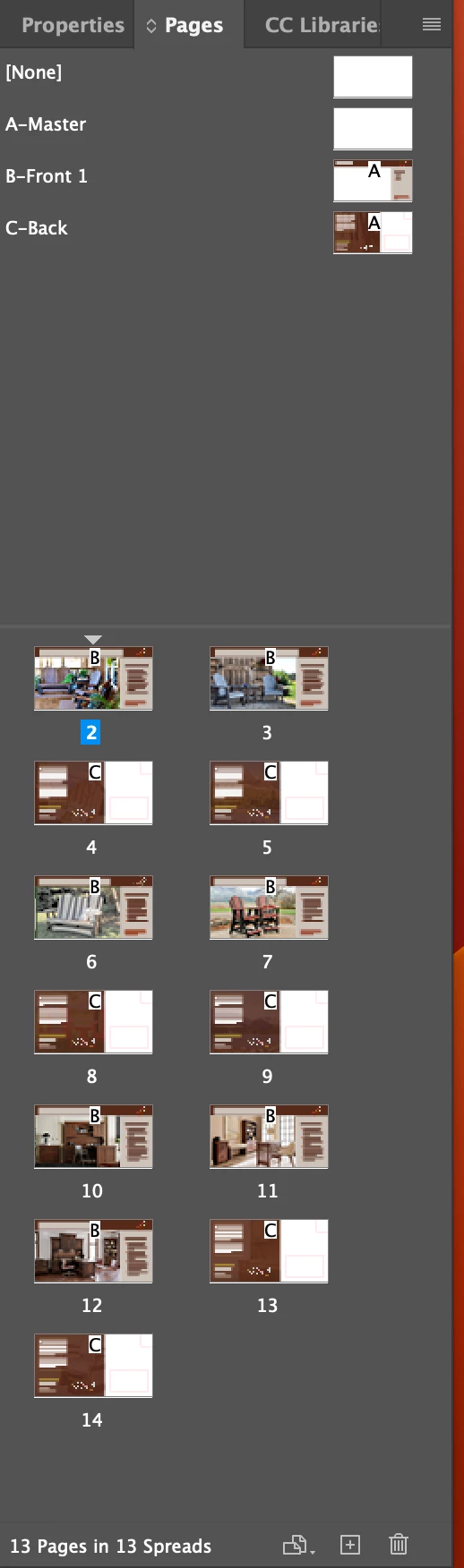
Hey all, I have a document set up with 13 pages. In the pages panel, however, the page number starts 2 and goes through 14 instead of 1-13. Does anyone know why this glitch is happening? See the attached screenshot below.
This document has been copied over from a previous project with the same specs. And it looks like my original document has the same problem (a total of 2 pages, but the page numbers are labeled 2 -3 in the Pages panel). Fortunately, on this project I won't need page numbers, but I'd love to solve this before I start on any new booklet or projects
I'm running on InDesign 18.2.1 with a MacBook Pro - Ventura 13.2.1
Thanks for your help!
- Fletcher
 AdChoices