
Inspiring
September 18, 2020
Answered

Page transfer keeps old page numbering

  • September 18, 2020
  • 4 replies
  • 875 views

I have moved 20 pages of a document to a 25 page document with the same setup. I have master slug information with file name, last modification date and page x of y on both documents. In the new "move-to" document, the page count shows page X of 25 for the first 25 pages and page X of 45 pages for the last twenty that I moved in. I removed the slug information, saved the file as an idml, reopened and saved as indd and rebuilt the slug info and got the same results. I am working with copies of the move from and to move to so I can start from scratch if necessary to fix this issue.

That said, what can I do to fix it and show the proper page count in my master slug info. 
This topic has been closed for replies.
Correct answer barbara_a7746676

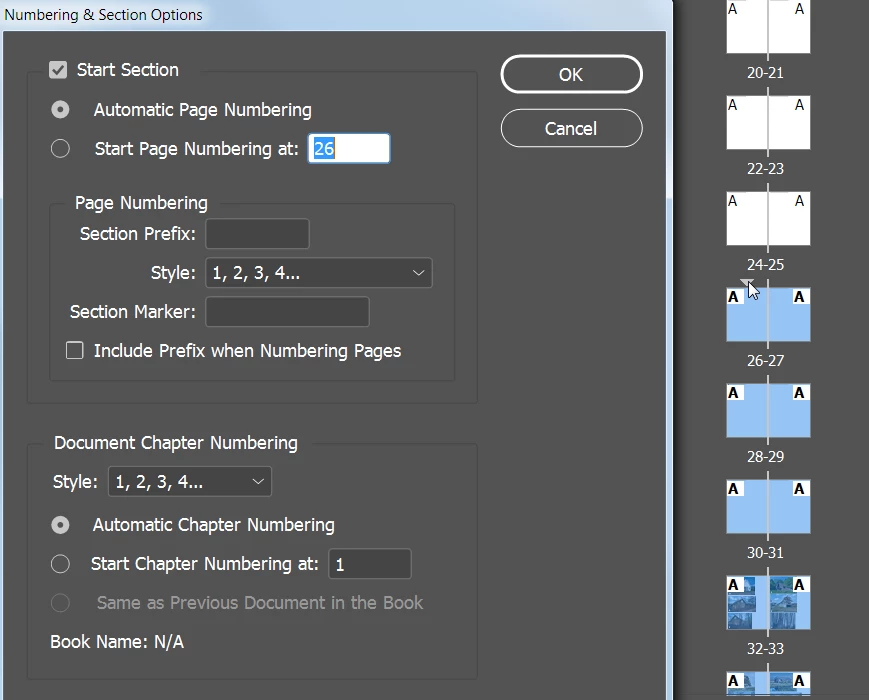
There is a section marker that is re-starting the numbering.

Double-click on the little triangle that represents the start of a new section. That will open the Numbering & Section Options dialog. Remove the checkmark from 'Start Section'.

4 replies

ceyhun_akgun
Legend
September 20, 2020

Page numbering, SECTION NUMBER is specially given. Since it is given manually, there is no automatic flow.

Within the same document, the same numbers can be used, but the logic of this is used to give the first pages from the STYLE section a special order for the entry section, such as I, V, VII or a, b, c.

START PAGE NUMBER should remain automatic when you want to change this structure.

Graphic Designer Educator / PrePress Consultant
Inspiring
September 20, 2020
barbara_a7746676
Community Expert
barbara_a7746676Community ExpertCorrect answer
Community Expert
September 20, 2020

There is a section marker that is re-starting the numbering.

Double-click on the little triangle that represents the start of a new section. That will open the Numbering & Section Options dialog. Remove the checkmark from 'Start Section'.

Inspiring
September 20, 2020

Well Barbara, aren't you just a bloody genius. HUUUUUUUUUUUUGE thanks,

Joe

vladan saveljic
Inspiring
September 19, 2020

In the Pages panel, double-click the section indicator icon that appears above the page icon in the Pages panel.

Or, select a page that uses a section marker, and choose Numbering & Section Options in the Pages panel menu.

Untick start a new section

and take a look this article

https://helpx.adobe.com/uk/indesign/using/numbering-pages-chapters-sections.html#define_section_numbering

barbara_a7746676
Community Expert
Community Expert
September 19, 2020

It sounds like all pages are not using the same master pages. 

Inspiring
September 19, 2020

That's true. I have selected pages and clicked override master and reassigned all pages to a new master, but the first 25 pages continue to show x of 25 while the rest of the book shows x of 45. There has to be a way to fix this. I've tried every trick I can think of and nothing works. I sure do not want to have to rebuild 25 pages in a new document to fix the problem.

Thanks,

Joe


barbara_a7746676
Community Expert
Community Expert
September 19, 2020

I think the problem may be that you chose to override master items. When you do that, the master items become regular objects on the overriden pages and therefore they are selectable and are on top of any master items. Try deleting the page numbers that are showing incorrectly on the overriden pages.