
Known Participant
August 18, 2021
Answered

Pages not printing back to back in order

  • August 18, 2021
  • 3 replies
  • 3789 views

I am printing 3 pages (not spreads) through InDesign. I check the "2-sided" option. It prints out with Page 1 front copy & text, the back of Page 1 is blank. On 2nd sheet of paper – Page 2 front has copy and text and it is backed by Page 3 copy & text. Odd. Page 2 should print on the back of Page 1. On my 2nd sheet of paper should be "Page 3" and the back should be blank. I am using an HP Envy Photo 7855 and spent 1-1/2 hours with HP tech support, who left the issue unresolved. Please help!!!! Thank you!
This topic has been closed for replies.
Correct answer Randy Hagan

Thank you! I have sent. I hope this is what you requested.


OK. The document is set up as a single-sided document, and there's only one "section" in it. That lets us know that the document doesn't have any artificial page number changes.


Let's try this:


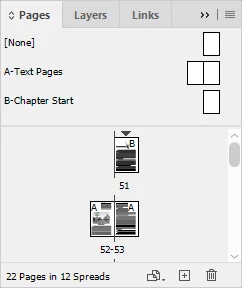
Go to the File>Document Setup... menu command, and when the dialog box appears, select the Facing Pages check box. Then check the Pages panel again. Hopefully it stacks up like the example at right. Then try to print it again, and see if it gets the same result or a better one for you.


Sometimes a print driver is finicky about how it defines a duplex printing job. It could be that since your InDesign document isn't "recognized" as a two-sided document, the printer driver isn't seeing it that way when you output it. I've seen this happen before.


And as for the question you asked above, why would you have to go through the extra step of using a PDF, it was because that also could get you past your problem. That's all we're trying, and able to do.


Both of these are worth a try to get you past your problem. Whatever works, right?


Hope this helps,


Randy

3 replies

Legend
August 19, 2021

Just for the heck of it, could you try to add a blank page after page 3 and try duplex printing again? If it goes to the pattern you are already gettig, that last blank page will print by itself, and will be blank on both sides, but if it does work, it would seem that something related to booklet printing is getting confused with just single-sheet duplexing. It's a long shot, but it couldn't hurt to try. And if you're reluctant to waste toner or ink, just hide everything but the page number before you print.

Randy Hagan
Community Expert
Community Expert
August 18, 2021

Have you tried to print this job before without duplexing?


If you're printing pages 1, 3, 5, 7, etc. it's generally because you had the Odd Pages Only option selected in the Sequence: options box for the Print dialog box. That would only print odd-numbered pages, even if you have 2-sided printing set up on your duplex output device.


You can change that setting in the InDesign Print dialog box to All Pages. Depending on what output device driver you're using, you may also have to change that in your print driver and/or the printer settings with your operating system. But generally, changing it within InDesign's settings alone.


Hope this helps,


Randy

June5FEBAuthor
Known Participant
August 18, 2021
Thank you, no - all the pages are printing...
Okay, this print job will require using 2 sheets of paper, even though I am
printing only 3 "pages".

The way it SHOULD print is: Sheet One is printed with Page 1 on the front
and Page 2 on the back. Sheet Two is printed with Page 3 on the front and
is blank on the back!

The way it currently is printing is: Sheet One is printed with Page 1 on
the front and is blank on the back. Sheet Two is printed with Page 2 on the
front and Page 3 on the back! Seems like a reverse order weirdness.

HELP!!!!!!!
Randy Hagan
Community Expert
Community Expert
August 19, 2021

Can you supply a screen shot of what your InDesign Pages panel looks like?


Please expand it so we can see both the complete master pages section on the top and all the document pages below. If we can see that, it may give a better idea of what you've got and how we can help you.


Randy

J E L
Community Expert
Community Expert
August 18, 2021

@June5FEB Is there a reason from InDesign you don't want to first export your document to a PDF and then do your page arranging and printing from there?

June5FEBAuthor
Known Participant
August 18, 2021
Thank you, Jain. I suggested possibly converting to a PDF when HP Tech
Support exhausted all solutions, but then he needed to get someone above
the someone he already spoke to and will reconnect with me in 48 hours(?).

My question is...why should I have to take an extra step to convert to a
PDF? This seems like the simplest of printing procedures. Thank you.
J E L
Community Expert
Community Expert
August 19, 2021

I understand. Even though I've used InDesign since its inception, I can't recall a time when I've printed something directly to my local printer. I've always exported to PDF not as an extra step but to have a "version" of the document as it would be delivered to other people and so it could be printed correctly by any printer. Exporting to PDF is also a way to check for any anomalies or problems. But there is no reason you shouldn't be able to print directly in the manner you want. I am glad @Randy Hagan is working to help you to figure this out. If there is some type of bug in the printing flow that extends beyond your specific document or HP printer, we want to know about it!