
Participating Frequently
March 6, 2019
Question

PC/Mac spacing issues - sharing a file, OpenType fonts, overset text

  • March 6, 2019
  • 4 replies
  • 1344 views

My husband has his own business - he uses a Mac, and I use a PC. (We also have/will have other freelancers helping occasionally, so we need to find a long-term solution as well).  We are creating eBooks for customers, and there is a slight but obvious issue with the spacing between the two platforms. (I've been reading about others having cross-platform spacing issues in the past, but it didn't quite fit this situation, and I'm hoping any possible Mac/PC spacing issues have somehow been resolved.)

We are trying to use OpenType Roboto.

On PC, if I design the layout and fit the frame to content and then package or send him the file, when he pulls it up on his mac there is extra space at the bottom of the content box. (That extra white line is not visible on my version. The box fits snug on PC, but extra space shown on Mac.)

On Mac, if he designs the layout and fits frame to content, everything looks fine at first, but when I do ANY adjustment to the text box (even deleting a letter), the spacing in the box increases and we end up with overset text. The font itself stays the same size, but suddenly the text doesn't fit within the frame, and I have to re-fit it... causing the above issue (extraneous space when he re-receives the file).

Image 1 shows how Day 1 and Day 2 look fine as long as I don't mess with them - and when I copy Day 1 and Day 2 and their content, and paste below - with no other edits, there is immediately overset text on the newly pasted parts.
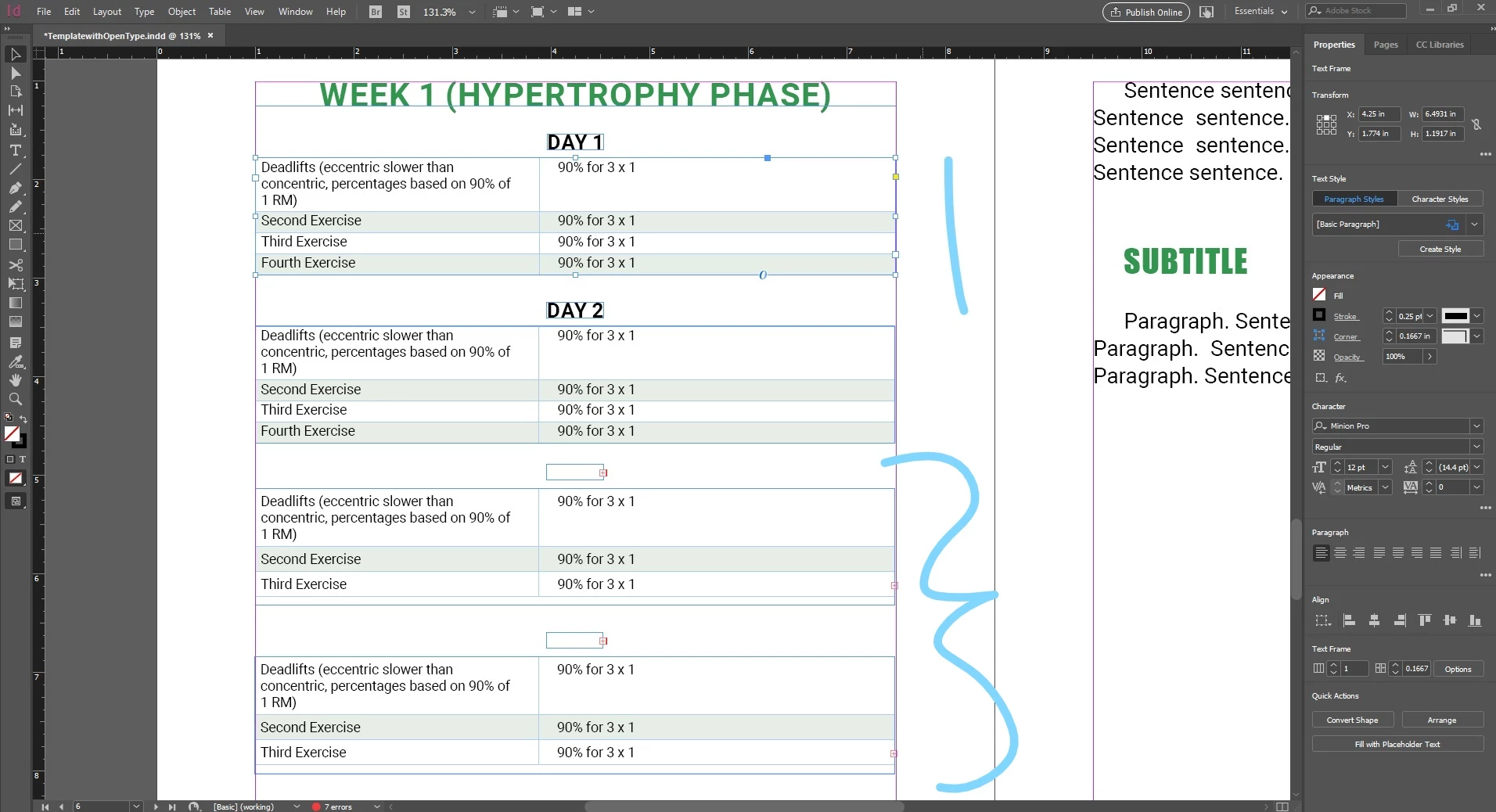
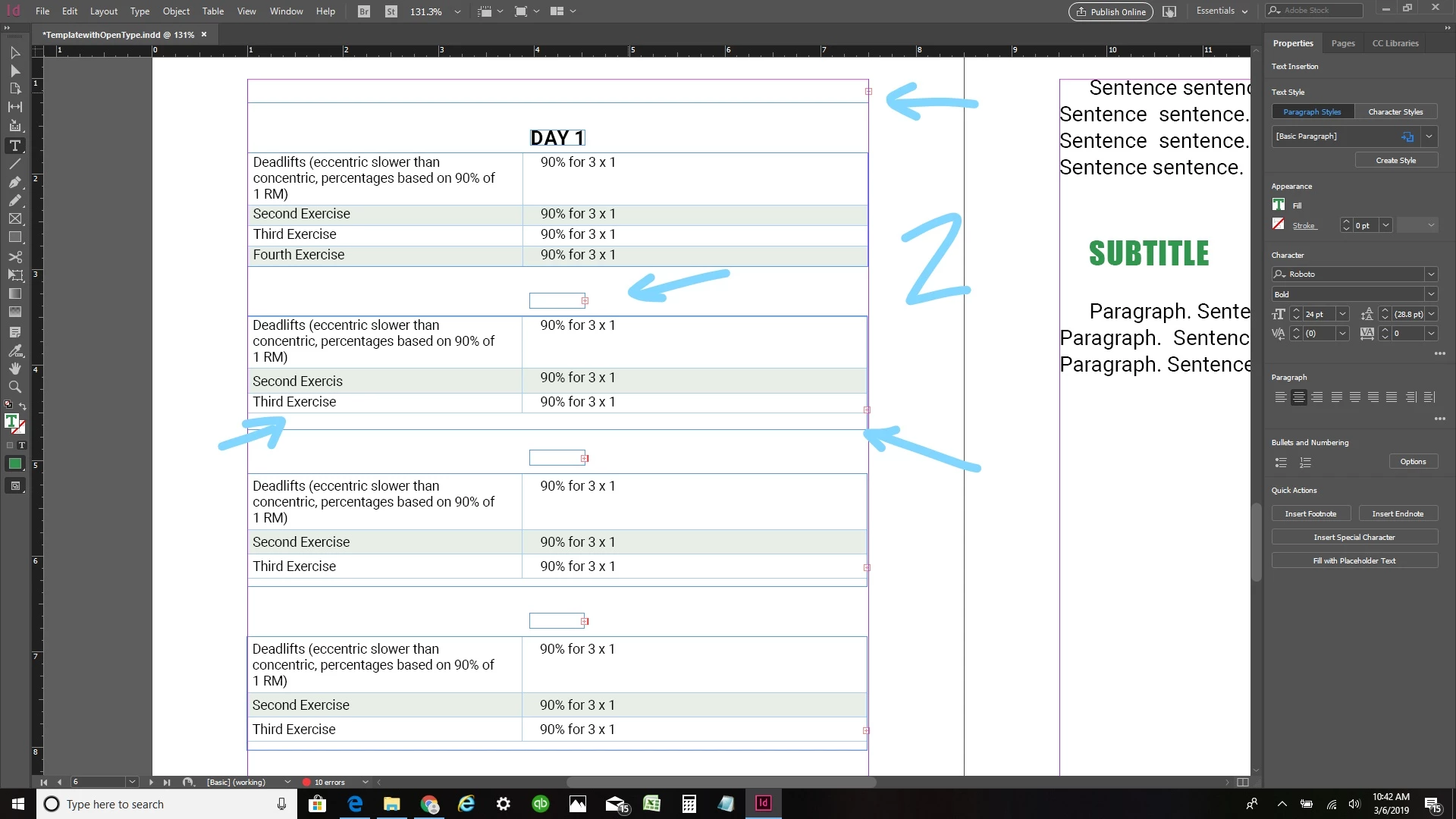
Image 2 shows how, when DELETING a letter from the main header (week 1) and sub header (day 2), and deleting the last letter "e" at the end of "Second Exercise" on day 2 ("Fourth Exercise" line disappears), the overset text warning appears in all places.
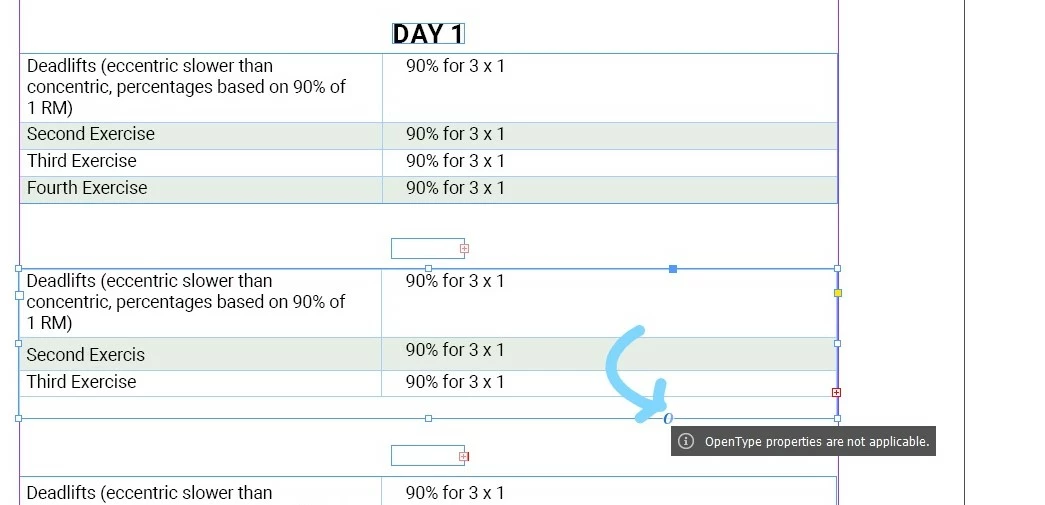
Before all this, he originally was using Roboto TrueType (Mac) and I synced the Typekit substitution, which also gave these above errors... All these screenshots are after he has attempted to switch it to Roboto OpenType (which we hoped would be the solution), and we still are having the same issue. Also, there is a little "O" symbol that also advises "OpenType properties are not applicable," though I am not getting any errors for missing fonts - just overset fonts.
We need to be able to work cross-platform. For consistency's sake (as he has done many other eBooks for this client), we'd strongly prefer to continue using Roboto if there is a workaround/fix for the spacing issue.

Is there a solution?  Am I doing something wrong/missing something obvious, or is this a continuing cross-platform issue?

Paula

This topic has been closed for replies.

4 replies

Community Expert
August 31, 2021

Hi Paula,

I know this thread is more than two years old, but I think your issue could be related to the following behavior I am describing in an answer to the linked thread below.


Read through my reply here where I do a comparison of a needed Roboto font activated only with Adobe Fonts and the same Roboto font style provided with a font file downloaded from Google Fonts:


Problems with baseline shift when editing text boxes
Laubender, Jul 27, 2021

https://community.adobe.com/t5/indesign-discussions/problems-with-baseline-shift-when-editing-text-b...


Think of every table cell as its own "text container". There is also an option for the position of the first baseline with text cells. And if this would not work as expected in text frames, as described in my linked reply, it could also happen to text cells. Will do some tests, now that I found a possible candidate for the issue…


Regards,
Uwe Laubender

( ACP )

paulampiAuthor
Participating Frequently
March 6, 2019

So as for the spacing issue - I decided to recreate the table completely from scratch, and check ALL the parameters... Then I overlayed the new table/box (created by me on PC) over the original table that he made on Mac.

I overlayed the new table/box over the Day 2 data (not the label day 2 - just the content), and the cell with "Deadlifts (eccentric...)" overlays almost perfectly - which you can tell because that cell is transparent.  Second Exercise has a background fill... but looking down at Third Exercise, it is very obvious there is a difference.  You can also see the content box (above Deadlifts) is higher than the original box (more padding).

Again, Day 1 and Day 2 original stay in their "original" form unless I make any changes to the text in a cell, and then it seems to be just the spacing that increases.

EDIT TO ADD:

I've also noticed any text change increases the internal padding in just the one cell - EACH cell I change adds the padding to that one cell, therefore compounding for each row.  Once I've changed each cell, the original ends up being the same size as the new PC table version I created.

Community Expert
March 6, 2019

Hm…

Just a guess:

Are you working from a packaged InDesign document?

Check if a Roboto font can be found in the Document fonts folder that went along with the package.

There should be none, because the used one is activated with the Adobe Fonts service.

Another thought:
Are you working online and do you have the Adobe Fonts service activated with the Adobe Creative Cloud Desktop app?

Is Roboto Regular ( or any other Roboto font in use ) activated with Adobe Fonts service?

Wild guesses:

Maybe there was an update to the font recently?

And either you or your partner is working offline and the update did not make it to the individual machine?

If all will not help there could be a radical solution:

Download all Roboto fonts from Google ( they are available as TTF font files for desktop use ), deactivate all Roboto fonts from Adobe Fonts service, install the downloaded version on both machines or better provide them via a Document fonts folder, substitute the Adobe Fonts version with the downloaded version in all your documents.

Regards,
Uwe

BobLevine
Community Expert
Community Expert
March 6, 2019

I think you're onto something here. Check out that screenshot.

It says the document was created with an earlier version of the font.

BobLevine
Community Expert
Community Expert
March 6, 2019

So, I just re-read this. This is only happening after you paste the text frames?

paulampiAuthor
Participating Frequently
March 6, 2019

It is not only when we are pasting - it is ALSO happening after pasting, but all of the boxes do that (the particular example image in the original question was not pasted).  Actually, I'll try to rebuild the tables and make sure all the settings are exactly the same. It's befuddling me though that even the main header (text frame) is doing it when a character is deleted.

We are both updated to CC 2019 - We are both using 14.0.1.

So far, this test file is small enough we have shared files over email and flashstick, and he has packaged and sent it via email and flashdrive as well.  Dropbox is a good idea.

I'm going to keep playing around with it, but we have a deadline, so I'm going to have to figure something out quick. Please keep throwing ideas to me! Thanks!

BobLevine
Community Expert
Community Expert
March 6, 2019

I really encourage you to put the file in a dropbox folder, package it and then work off the package.

That will insure that you’re both using the exact same font for installed fonts and sync any remaining fonts via Adobe Fonts (formerly Typekit).

BobLevine
Community Expert
Community Expert
March 6, 2019

I work cross-platform all the time and have not seen an issue like this.

Are you both using the exact same version of InDesign? What version?

Are you both using the exact same version of the font?

How are you sharing these files? FWIW, I recommend a shared Dropbox folder.