Chris  P.  Bacon
Inspiring
August 14, 2022
Answered

Perfectly justified columns?

  • August 14, 2022
  • 13 replies
  • 5547 views

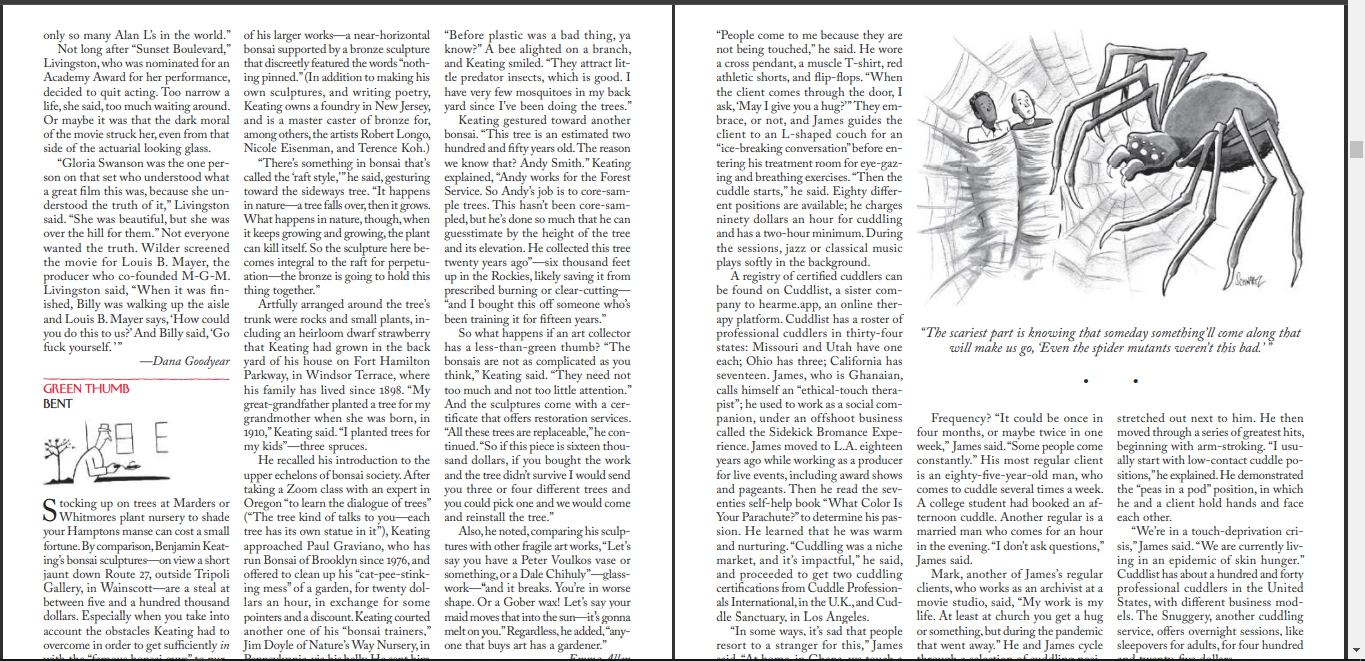
Does anyone know how does The New York Times achieve these perfectly justified columns without extra spacing without words?

How do I do that in In Design?
This topic has been closed for replies.
Correct answer rob day

Hi @Chris P. Bacon 

I don’t think eliminating H&J violations means you’ll get the best setting—the violation highlight simply indicates lines where InDesign can no longer adhere to the rules you have set. So I might argue that the ideal is to not allow any hyphenation, word spacing, letter spacing, or glyph scaling (glyph scaling distorts the letter forms).


But obviously that’s not possible with a short measure—most of the lines create a violation—and it would look horrible with justified text as InDesign makes adjustments without knowing what your preferences are:
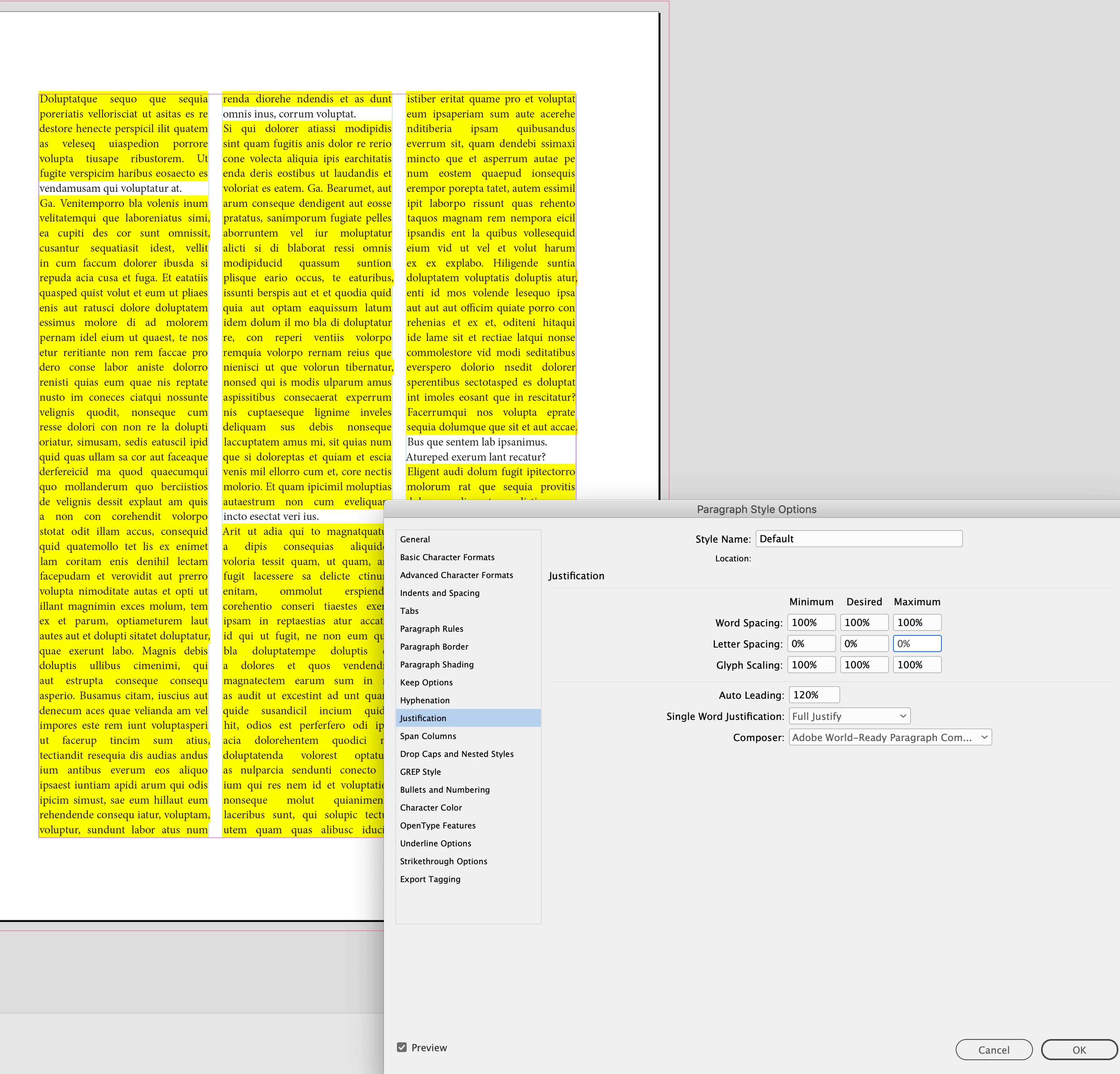


The InDesign default loosens up the rules for Word Spacing and allows word spacing to flex between the 80% and 133% , with the ideal being 100%. However, there will still be violations because there is no flexibility allowed with letter spacing and glyph scaling
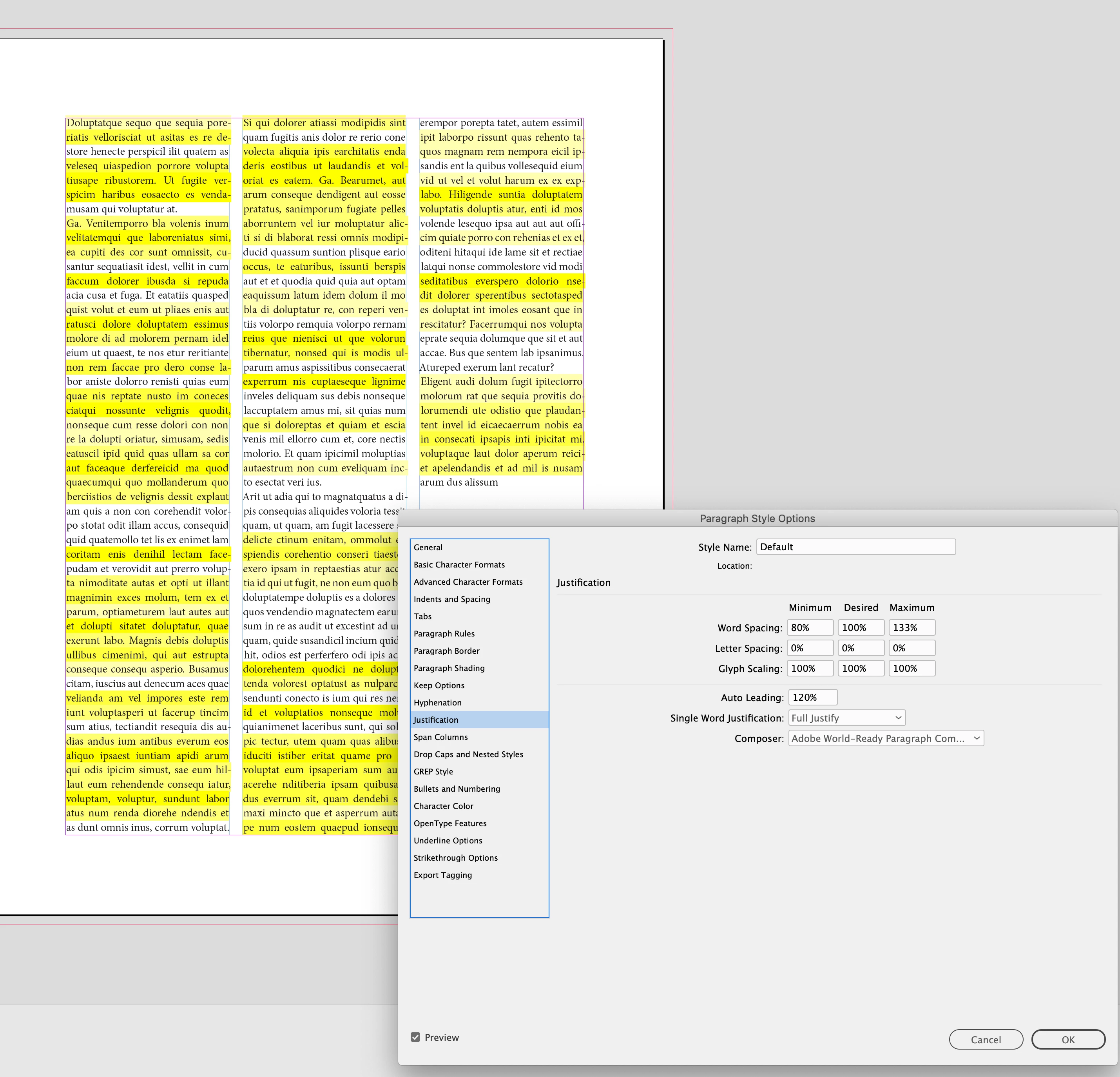


If I set very liberal rules for word/letter spacing and glyph scaling, I can get rid of the violations, but at the cost of distorting and tracking the text:
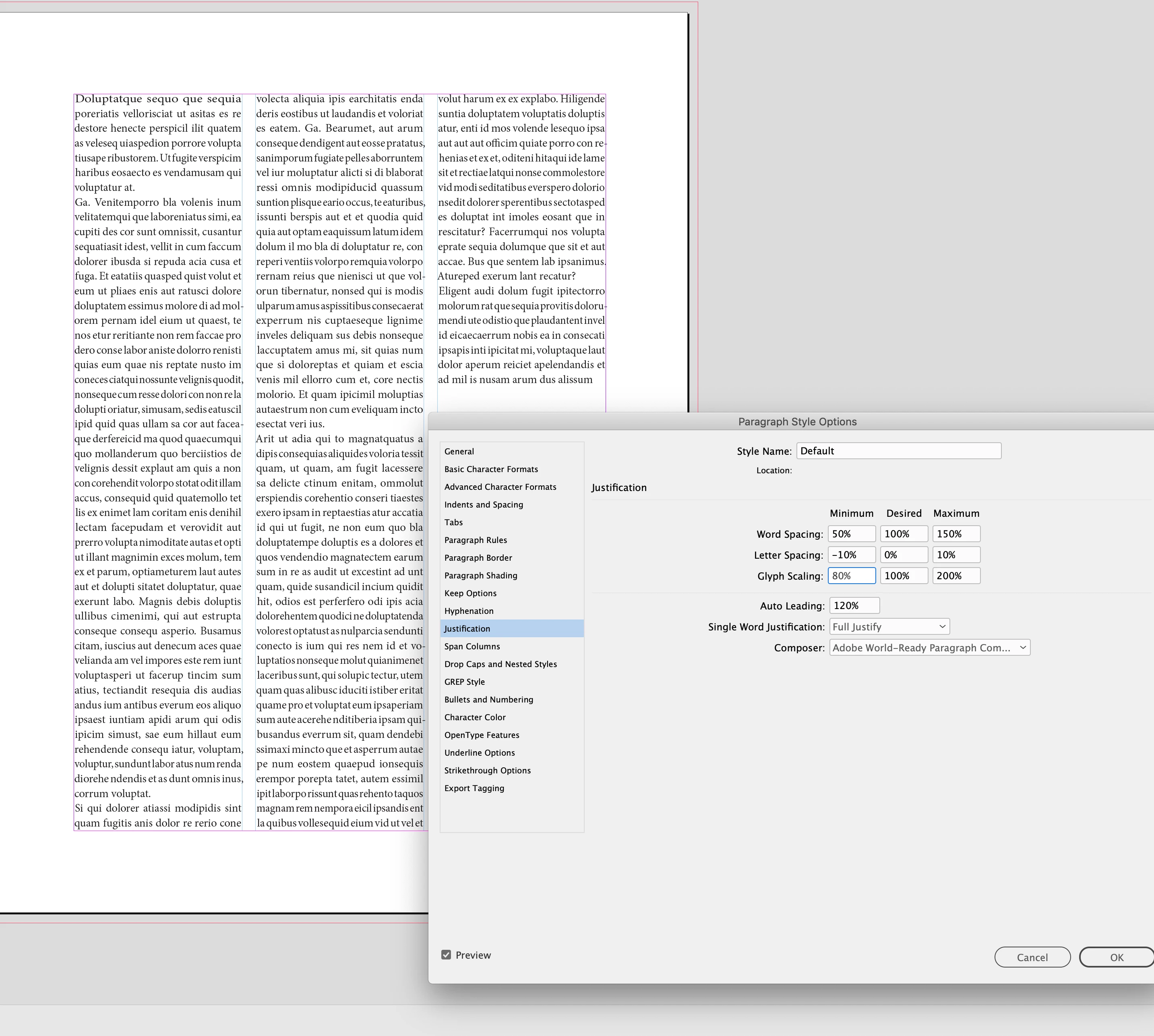


I can tighten up the rules, get less distortions and tracking, and live with the violations:
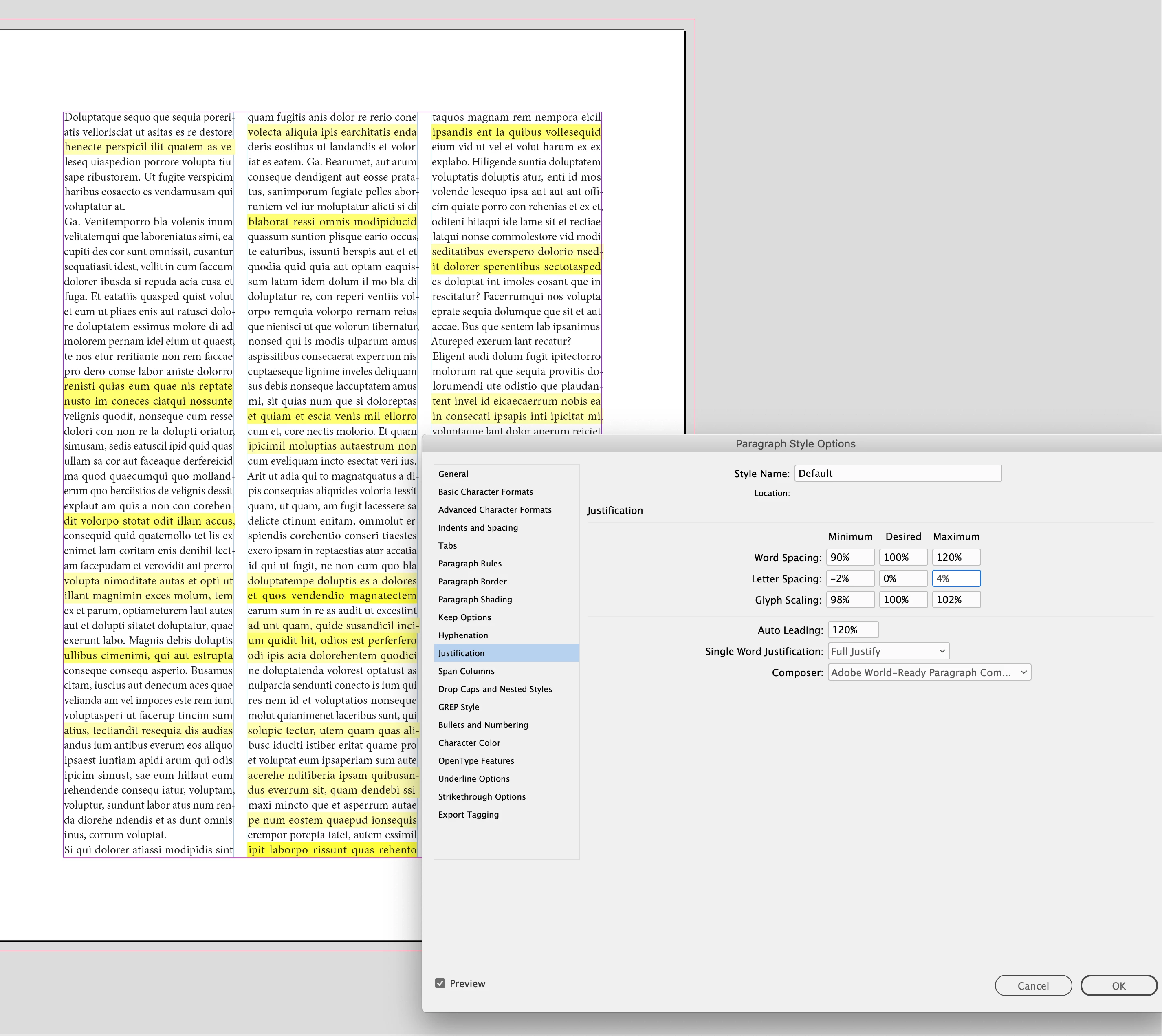


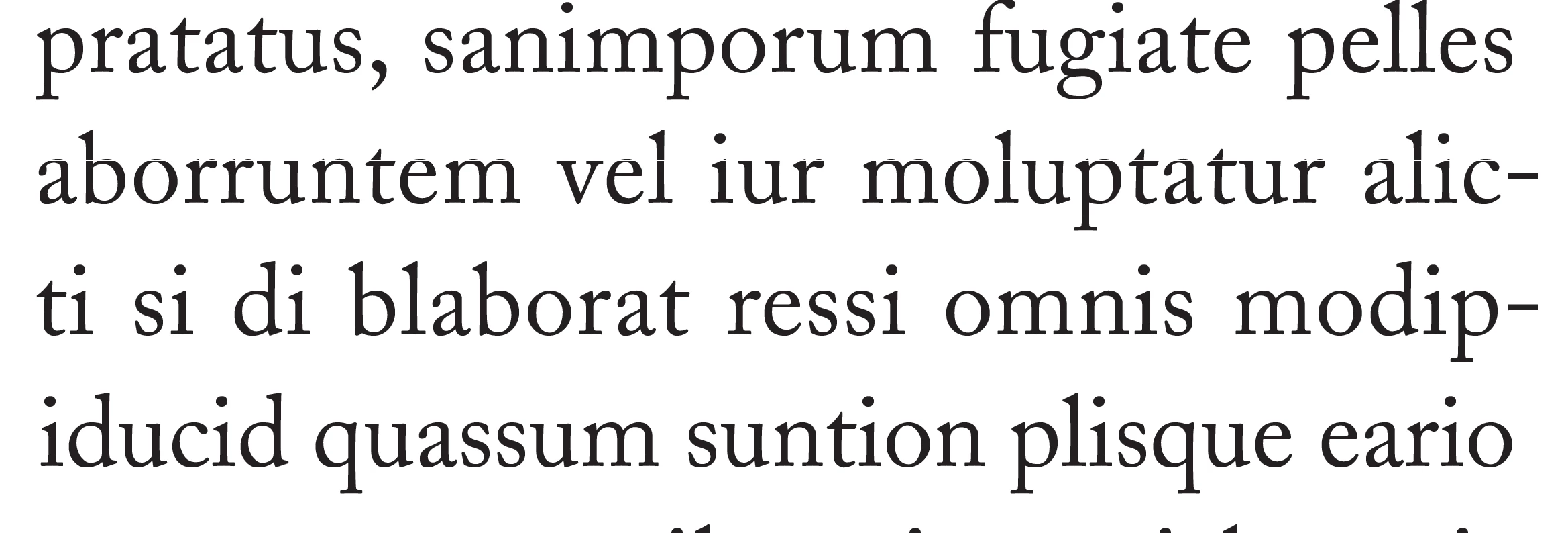
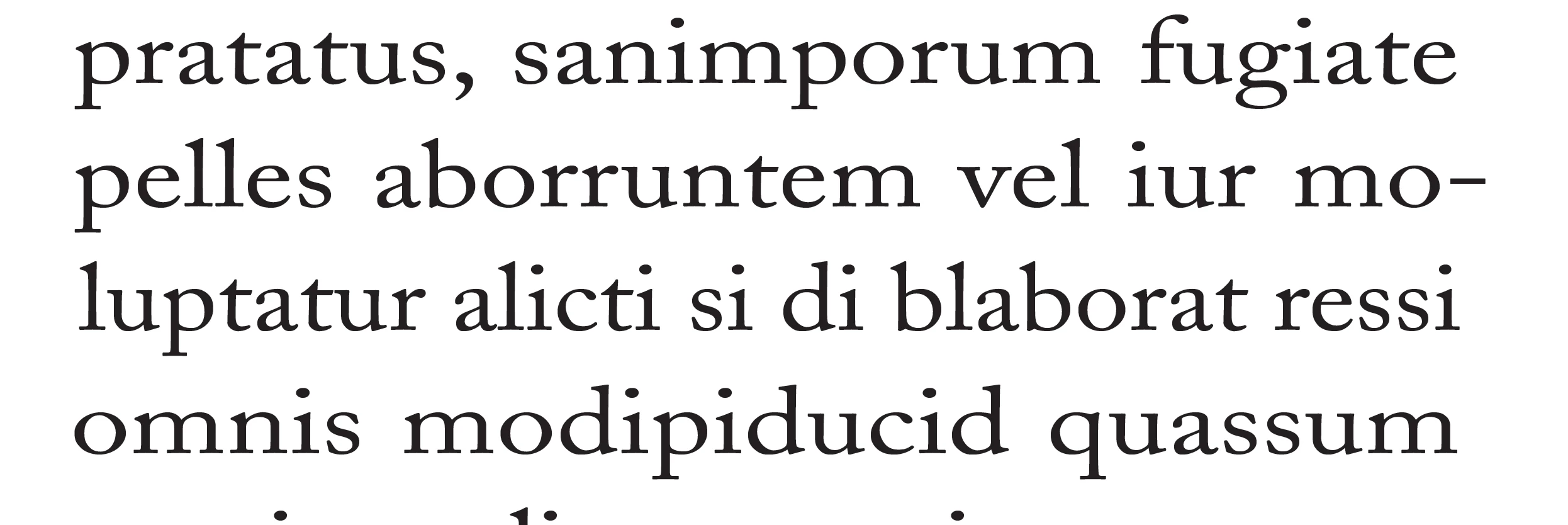
I would rethink your 105% |120% |145% Glyph scaling—it’s distorting the the horizontal scaling to the point where it would be obvious to the reader. You want the desired setting to be 100%, and only allow a slight Minimum and Maximum change so the scaling is not discernible.


105|120|145 distortion:


13 replies

Mike Witherell
Community Expert
Community Expert
August 17, 2022

Don't demo it on fake latin text. Use English. I promise you, the previously denoted numbers will do some nice typesetting for you!

Mike Witherell
Community Expert
August 16, 2022

One hint from me:

If you setup your details with typography, any details, always do this on actual readable text and never do this on "Lorem Ipsum" filler text.


Regards,
Uwe Laubender
( Adobe Community Professional )

Chris  P.  Bacon
Inspiring
August 16, 2022
I was thinking about that, great hint.
Mike Witherell
Community Expert
Community Expert
August 16, 2022

Hyphenation: 9, 3, 4, 1, 1p6, off, off, off

Justification:

80,100,120

-5%, 0%, 5%

95%, 100%, 105%


Keep Lines 2 and 2

Also, set the paragraph style to Optical kerning.

I promise you nearly perfect typesetting right out of the gate.

Mike Witherell
Chris  P.  Bacon
Inspiring
August 17, 2022

Thanks.

Chris  P.  Bacon
Inspiring
August 15, 2022

It seems that justification actually works extremely well.

I turned on H&J violations in composition highlighting and I played with my justification settings until all the yellow highlighting disappeared, meaning that it's possible to find a setting without any visible artifacts, if anyone is interested in the setting, the font size is also visible:

Chris  P.  Bacon
Inspiring
August 15, 2022

And if the Hyphenation slider is dragged down totally to "Better spacing" it's even better, and no H&J violations highlighting at all in 2 pages.

James Gifford—NitroPress
Legend
August 16, 2022

Right. And now you have a perfect solution for those two pages.


Which is how it works. All the tools will do almost anything... but not by themselves.


Chris  P.  Bacon
Inspiring
August 15, 2022

So yes it works great, the hyphenation and justification settings in the paragraph style settings, I found a ratio that seem to perfectly justify for 3 columns:

No need to stress out ( I thought I can't justify it).

Chris  P.  Bacon
Inspiring
August 15, 2022

Some letters definitely seem thicker and more black when looking at the screenshot at a small size, and indeed there are spacing changes between the letters, plus extensive use of dashes wherever possible, it seems that's how they create the perfect justification.

Peter Spier
Community Expert
Community Expert
August 15, 2022

One other facor which affects the paragraph that hasn't been mentioned is the relationship between the column width and the nuber of glyphs that will fit in that width. The narrower the column in ratiuon to the glyph count, tha harder it beomes to get a smooth look.

Chris  P.  Bacon
Inspiring
August 15, 2022

Ah I thought it's getting easier with narrower columns. I'll experiment then with wider columns.

Scott Falkner
Community Expert
Community Expert
August 14, 2022
  1. Lots of justification control. When I lay out long documents I usually have at least three versions of every body copy style: normal, loose, and tight. If I want a paragraph to be a line shorter I will try the tight version of the style. I do this often when I have a word going onto the next line (widow, I believe, although after years I still mess up which is orphan and which is widow). If I want a paragraph to be a line longer (perhaps the following paragraph is starting at the bottom of a column) I will apply the loose version.
  2. Adjust picture sizes. That spider comic or the graphic on the left hand page (or graphics in the story on pages we cannot see) can be adjusted to take up more or less space, allowing the story to fit the required area.
  3. Pull quotes. Pull quotes main function is to fill space and give the designer options to fit the story in the space provided.
  4. Edit.
James Gifford—NitroPress
Legend
August 14, 2022

And maybe the most important step:


5. Iterate.


Once in a while one straight pass through a layout will get you to a satisfactory result. But often, when it's important to get it somewhere between "right," "perfect" and "elegant," you will likely have to back up and start again several times. Undo all the text tweaks and start with another major change like resizing a graphic or increasing a headline spacing a bit, then tweak it paragraph by paragraph, using all the options, until you get to the end and you just can't do a better fitting.


Chris  P.  Bacon
Inspiring
August 14, 2022

Look at the third column (left) after "prescribed burning or clear cutting" that long dash ---- and many of them, are quite annoying, I think that's what they use to fill in the gaps.

James Gifford—NitroPress
Legend
August 14, 2022

Sigh.


"That long dash" is exactly that, an em-dash, and it's used very specifically in typesetting to set off a clause in a certain way.


There are no "perfect settings" as you request. If there were, there wouldn't be any menus to change the values; Adobe would just set things to "perfect" and move on. But it doesn't work that way.


I and the others here are willing to help and answer questions all day long, but the answers are only going to make sense if we share the same understanding. From your many questions (and many arguments against things you are told), I think you are reaching for very advanced, sophisticated, elegant results with a very, very limited understanding of some important basics.


You need to start with basic lessons on typography, layout, etc. so that you fully understand what you're looking at in these magazine pages, and not just say "I wanna do THAT!" when you see something you like. Mastering the tool is never the same thing as mastering the task. Understand the task, then work on understanding how a tool like ID helps you complete the task and achieve the goal.


TL;DR? All of this is a lot harder, a lot more complex and a lot more dependent on broad basic knowledge than it is on learning which button to click.


Chris  P.  Bacon
Inspiring
August 14, 2022

The hyphenation settings suggested in this (quite old) video tutorial makes my columns look worse.

Chris  P.  Bacon
Inspiring
August 14, 2022
