Known Participant
November 15, 2016
Answered

Periods appearing over all my letters

  • November 15, 2016
  • 4 replies
  • 2152 views

I'm sure this is a real easy fix with a press of a button, but for the life of me I cannot find the answer for it.
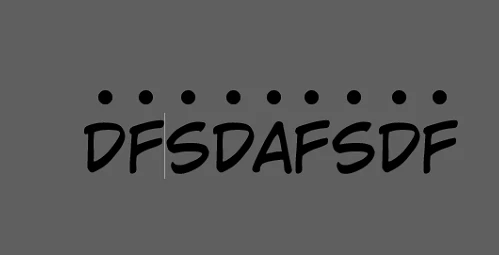
Every time I type a letter, even in different fonts periods appear over every of the letters. It's not Hidden Characters, I thought about toggling that on and off and that didn't solve it.

Whenever I try to google it, it assumes I'm trying to insert a diacritic (from the glyph menu) and I can't find an answer on why I would be getting a single dot over every character as I'm typing.

I would greatly appreciate someone telling me the silly setting I need to turn off.

Thank you!
    This topic has been closed for replies.
    Correct answer Sandee Cohen

    Let's see if it's a paragraph rule. And then we'll turn it off.

    Click inside any text with the dots.

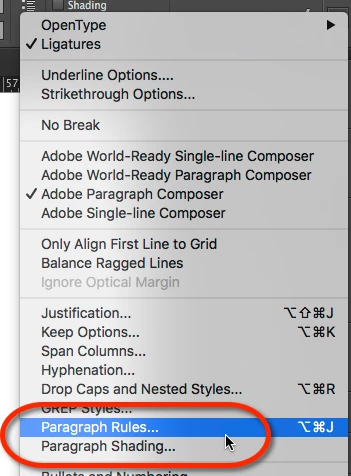
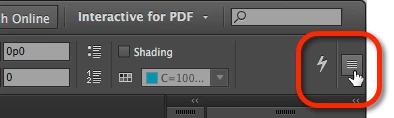
    Go to the extreme right of the Control panel and click the icon to open the menu.

    In the menu, choose Paragraph Rules.

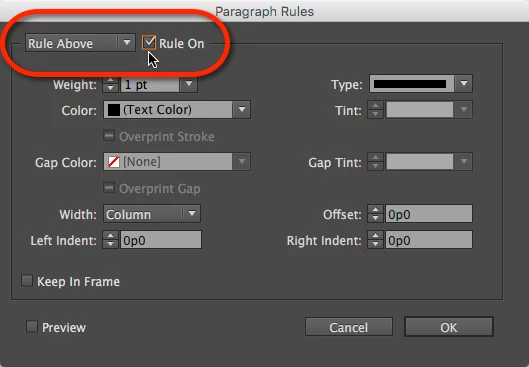
    In the dialog box, look to see if Paragraph Rules is turned on.

    You can turn it off, but most likely it's going to pop up again. So click Cancel.

    If it's not on, we'll have to figure out something else. But I'm almost positive it is.

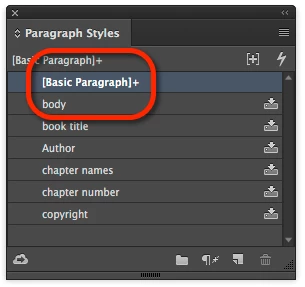
    If it is on, keep your cursor in that text and open the Paragraph Styles panel.

    Look at whatever style is selected. It may or may not have a plus ( + ) sign.

    Double click that style, even if it doesn't have a plus sign.

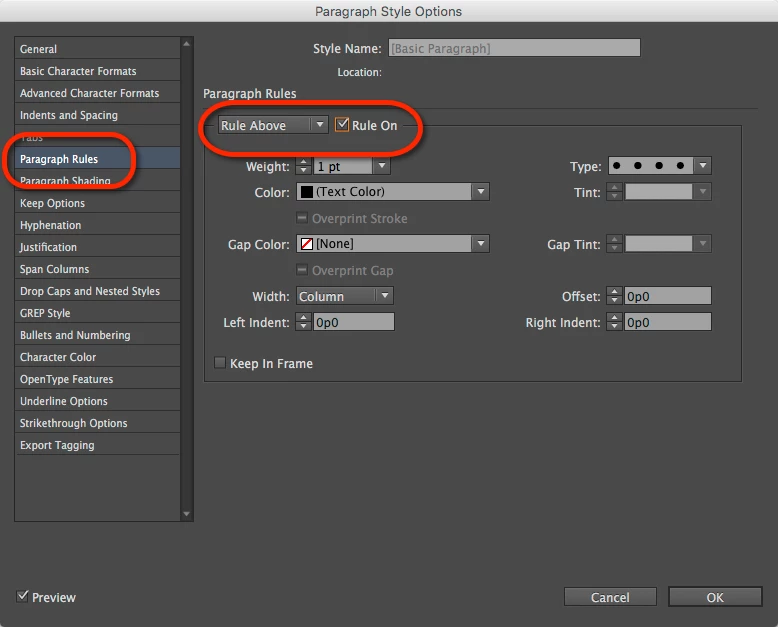
    In the dialog box, click Paragraph Rules.

    Turn off the rule. Click OK. This should turn off the dots for all text.

    (PS It's possible, but doubtful that it's a Rule Below, so check that setting also.)

    4 replies

    Participant
    February 9, 2022

    This article might be a bit of a help on determining what those dots are. I had a similar experience with an indesign file that originated from Korea and as i was searching, I stumbled upon kenten which I think is what those dots are called (just a guess). From what I understand from the article, it is used to emphasize letters, more like an underline in an english text?

    And I've read somewhere that you need to download a version of indesign that supports these characters to edit it. This is too much of a hassle for me so I just redid the whole file locally.


    https://helpx.adobe.com/indesign/using/formatting-cjk-characters.html

    TᴀW
    Legend
    November 15, 2016

    Do you have underline turned on? But again it would be unlikely that the dots would be exactly over each letter.

    Perhaps this is a demo font for testing? And to get rid of the dots, you need to buy the full version of the font? I've never come across anything like that, but it could be...

    id-extras.com | InDesign tools & scripts for typesetters, form designers, and translators
    Sandee Cohen
    Legend
    November 15, 2016

    The only time I bought a demo font, they made it a demo by substituting some glyphs with the company's logo. But never dots.

    Jongware
    Community Expert
    Community Expert
    November 15, 2016

    Select such a character and look in your Paragraph Styles panel. Does it show a '+' after the style name? In that case you have a local override of some kind. Hover the mouse on the style name to see what the overrides are.

    Legend
    November 15, 2016

    My first thought was that it could be a paragraph rule above, with the type of line set to dotted, but for every letter to have one dot above would take some serious coincidence to work out that way. Here's a screen shot of something similar done with a rule above, but the dots don't correspond directly to each letter.

    bekreiderAuthor
    Known Participant
    November 15, 2016

    Was there something with the paragraph rule that you toggled on or off?

    Sandee Cohen
    Sandee CohenCorrect answer
    Legend
    November 15, 2016

    Let's see if it's a paragraph rule. And then we'll turn it off.

    Click inside any text with the dots.

    Go to the extreme right of the Control panel and click the icon to open the menu.

    In the menu, choose Paragraph Rules.

    In the dialog box, look to see if Paragraph Rules is turned on.

    You can turn it off, but most likely it's going to pop up again. So click Cancel.

    If it's not on, we'll have to figure out something else. But I'm almost positive it is.

    If it is on, keep your cursor in that text and open the Paragraph Styles panel.

    Look at whatever style is selected. It may or may not have a plus ( + ) sign.

    Double click that style, even if it doesn't have a plus sign.

    In the dialog box, click Paragraph Rules.

    Turn off the rule. Click OK. This should turn off the dots for all text.

    (PS It's possible, but doubtful that it's a Rule Below, so check that setting also.)