Participating Frequently
May 7, 2018
Answered

Pixel size in InDesign vs. Photoshop

  • May 7, 2018
  • 5 replies
  • 3688 views

I created a 255x220 px image at 300 ppm in Photoshop but it imports into InDesign at 100% as a 62.2 x 52.8 px image. Why?

    This topic has been closed for replies.
    Correct answer rob day

    I regret that I still do not understand why the 255x220px image that I made in Photoshop (at 300ppi) isn’t filling the 255x220px frame that I made for it in my InDesign layout when imported at 100%.

    InDesign uses the placed file's print output dimensions in inches when you place at 100%—the pixel dimensions are not considered.

    So if you check your Image Size in Photoshop its output dimensions at 300ppi are .85" x .733":
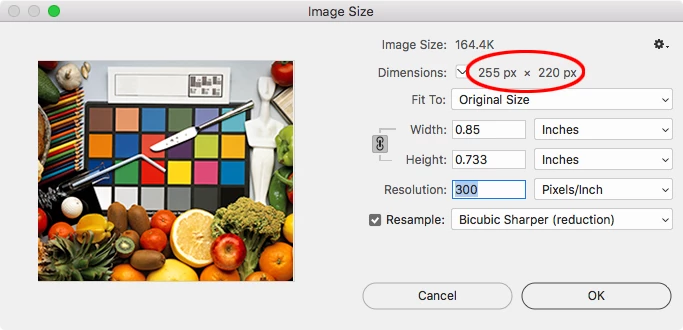
    When I place on an InDesign page with the ruler units set to inches the image's output dimensions are the same:
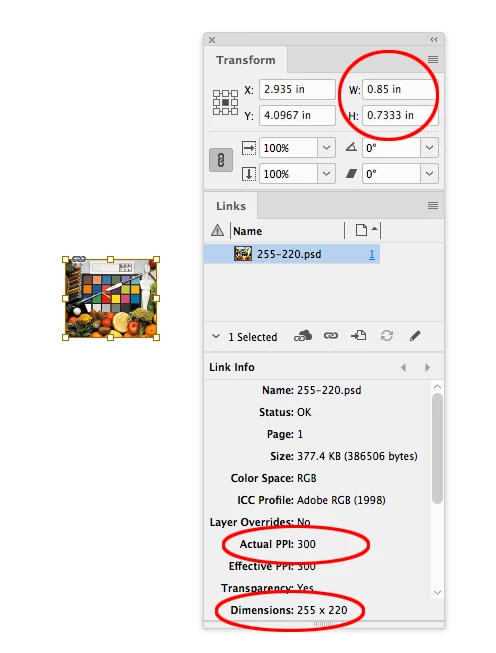
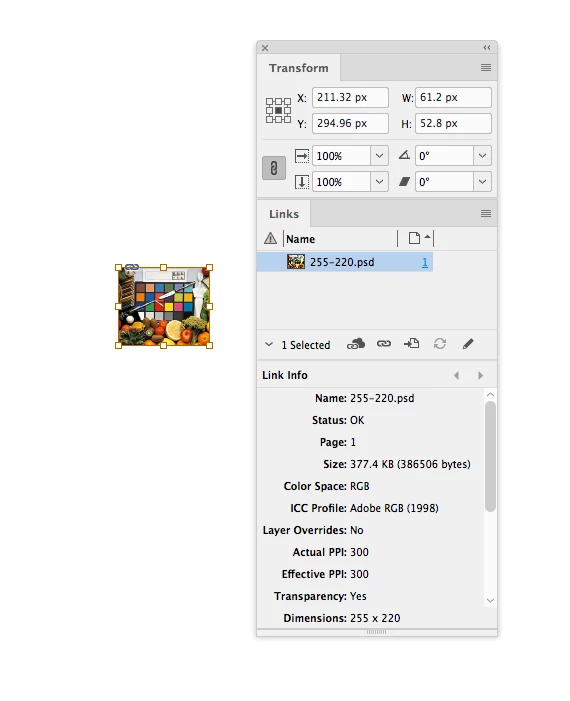
    If I change my ruler units to pixels the image's pixel dimensions and resolution have not changed, but the Transform panel shows me pixel ruler units where 1 pixel =1/72".

    An InDesign page has no resolution, as John points out, the pixel unit is just a convenience for exporting a page to an image format with a specific pixel dimension.
    5 replies

    Participant
    September 30, 2020

    Thank you! This has resolved my issue, a very confusing difference between Photoshop and InDesign. I set my document using the inches size given in Photoshop in the correct pixel sized image: worked perfectly.

    John Mensinger
    Community Expert
    Community Expert
    May 7, 2018

    jo72933865  wrote

    Why?

    Because by using pixels as the unit of measure in InDesign, you're dictating a document resolution of 72 ppi.

    Your image was saved at 300 ppi

    72/300 = 0.24

    Your image dimensions: 255 x 220 / 0.24 = 62.2 x 52.8

    If you're working on a layout for screen display (the only reason you'd want to use pixels as the unit of measure), your image(s) should be saved using Export for Screen or Save for Web. That would give you the result you expect.

    Participating Frequently
    May 7, 2018

    Thank you. Your response is very helpful.

    So, it sounds like I should never save a photo file for use in an email layout at a ppi higher than 72.

    Derek Cross
    Community Expert
    Community Expert
    May 7, 2018

    How does email come into this, you started by asking about placing images into InDesign!

    Are you optimising an image in Photoshop, then placing it in InDesign where you're adding text and then saving the InDesign file as say a JPG for an attachment in an email?

    John Mensinger
    Community Expert
    Community Expert
    May 7, 2018

    jo72933865  wrote

    62.2 x 52.8 px

    Where are you getting that measurement?

    Participating Frequently
    May 7, 2018

    Here are screen shots of the ID image frame (green box) which is 255 x 220 px with the imported image (purple box) at 62.2 x 52.8 at 100%

    Participating Frequently
    May 7, 2018

    Thank you for your reply Derek, but I regret that I still do not understand why the 255x220px image that I made in Photoshop (at 300ppi) isn’t filling the 255x220px frame that I made for it in my InDesign layout when imported at 100%.

    Derek Cross
    Community Expert
    Community Expert
    May 7, 2018

    This image would print effectively at around (roughly) 1 inch by 1 inch

    Participating Frequently
    May 7, 2018

    Thank you for your prompt reply but I regret that I still do not understand why the 255x220px image that I made in Photoshop (at 300ppi) isn’t filling the 255x220px frame that I made for it in my InDesign layout when imported at 100%.

    Derek Cross
    Community Expert
    Community Expert
    May 7, 2018

    300PPI (pixels per inch) – look at the Effective PPI in the InDesign Links panel. It should be around 250 to 350 PPI per image.