


Inspiring
May 8, 2021
Question

Pixelated and Jaggy Images on PDF export from Indesign

  • May 8, 2021
  • 4 replies
  • 38949 views

Hello all, this started happening happening on the latest update of InDesign. When I export High Quality or Press Quality PDFs from InDesign, my output PDF shows images as pixelated and with jagged edges. Jpgs come out blurry too. This was not happening before. Here is an example:




Here are my settings for Exporting PDF. 
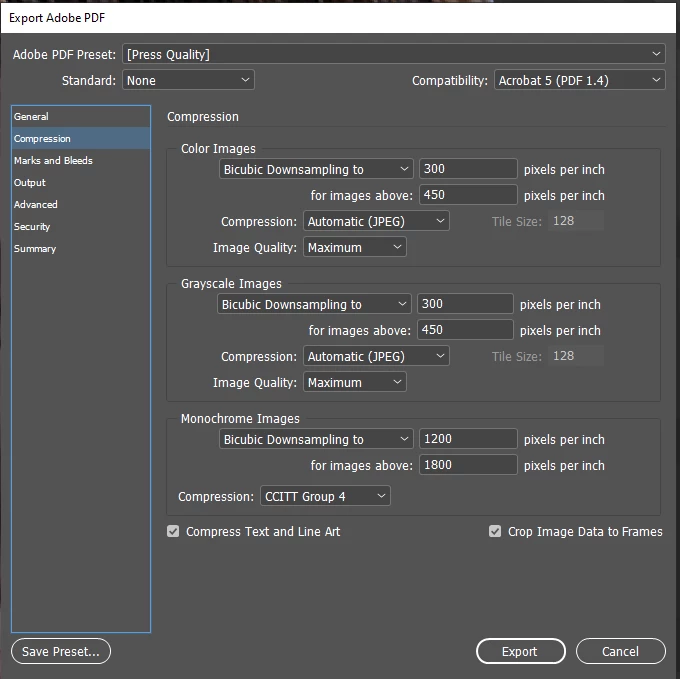


If my memory serves me right, this was an issue on 2018 CC version. I think it's happening again. 


Any ideas or fixes? 

Thanks!!
4 replies

rob day
Community Expert
Community Expert
May 10, 2021

The Effective resolution of your image is listed as 2681 ppi and your PDF preset is set to downsample any image over 450ppi to 300ppi, so the image’s starting 3839 x 5761 pixel dimensions will get reduced to 430 x 645 on the downsample. You can prevent the downsample by choosing Do Not Downsample in the Export Compression tab.

Community Expert
May 10, 2021

Hi together,

I think all information is on the table.

The effective resolution of the placed image is 2681 ppi, the exported PDF shows 32 ppi in Acrobat.

Bicubic downsampling in Export PDF (Print) with [Press Quality] is set to 300 ppi.


Could be a bug. Could be something with your installation.


What I would try:

[1] Use a different PDF Export preset: e.g. PDF/X-4

[2] Do not downsample or use a different value


What's the exact version of InDesign?

What's your exact version of the operating system?


Regards,
Uwe Laubender

( ACP )


rob day
Community Expert
Community Expert
May 10, 2021

the exported PDF shows 32 ppi...Could be a bug. Could be something with your installation.


Hi Uwe, I think you may have may have accidentally read the bits/pixel bit depth as the resolution?


Community Expert
May 10, 2021

Well, I did. Not enough coffee this morning.

Thanks, Rob!


Uwe Laubender

( ACP )

Willi Adelberger
Community Expert
Community Expert
May 8, 2021

show us a screenshot of the link panel with the selected image which causes problems and expand the panel so we are able to see all information.

Community Expert
May 8, 2021

Also - purpose of the link for the article is to ask you to check the effective ppi of your images.


Open the Info Panel, by going to

Window > Info.

Then select the image. 

The Info panel will show you the Actual ppi and Effective ppi.

It's the effective PPI that needs to be hi-res.


Inspiring
May 9, 2021

Here is the info panel from Indesign. Notice the image is relatively high res. 


Now here is the exported PDF with info panel ... notice the image is pixelated. 


I've been using ADOBE products on a professional level for over 20 years and I've never run into this situation. I'll experiment at my office computer to see if i get the same results. If I don't we can assume it's something on this specific computer or version of adobe. My office computer is an MAC so I'll see if we get different results. 

Thanks for any suggestions or input.