Participant
October 29, 2018
Answered

Placed photos appear black

  • October 29, 2018
  • 7 replies
  • 35654 views

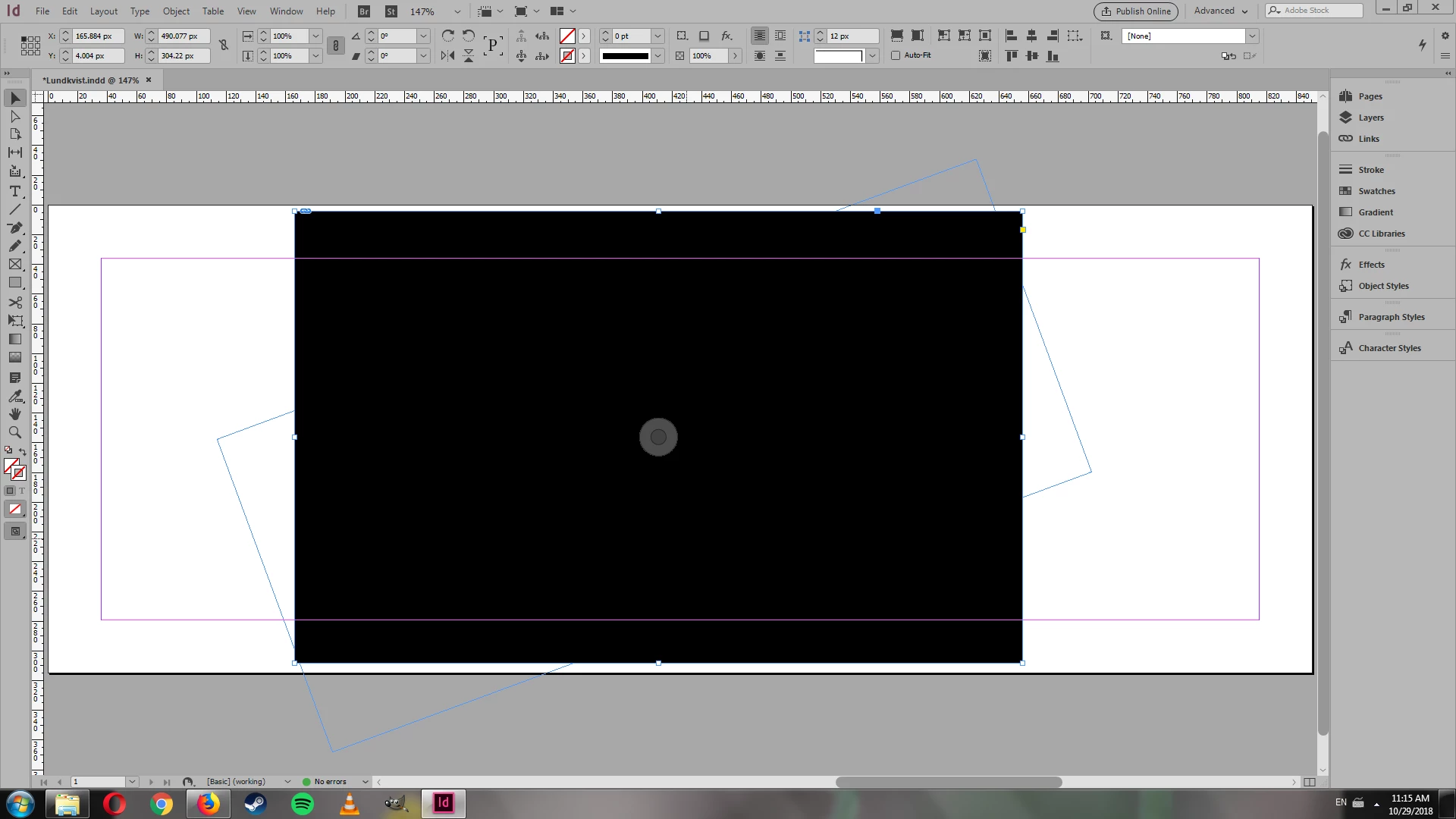
When I place a photo, it appears as a black square. This seems to happen for all kinds of photos--I tried JPEGs and PNGs and even changed my ICC settings, but it didn't help. What else might be the problem?

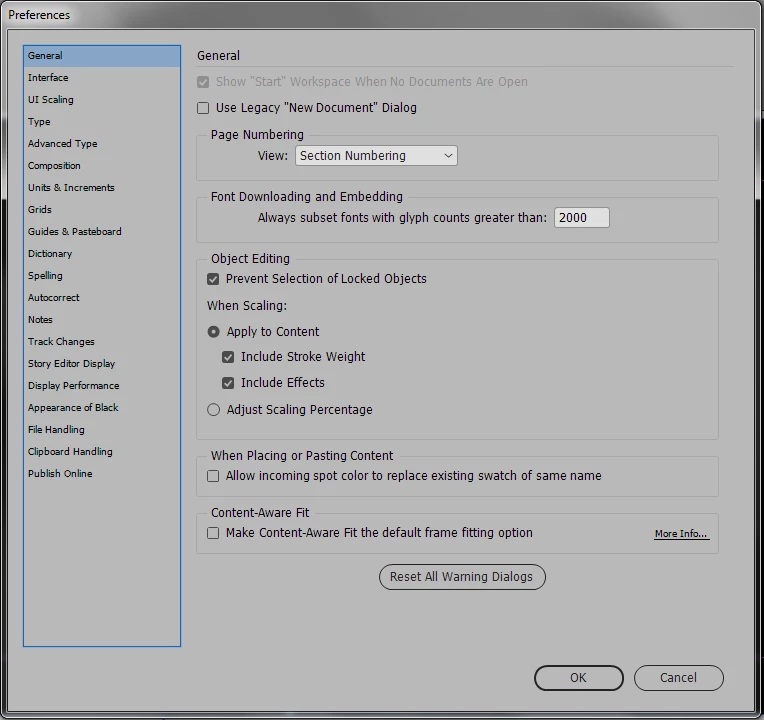
I heard this might be a GPU performance problem...but my copy of InDesign doesn't appear to have GPU performance settings. As far as I know it should appear between "Display Performance" and "Appearance of Black," but as you can see, it doesn't.

I'm using InDesign 14.0 x64.

    Correct answer Bill Silbert

    Try resetting your preferences.

    To do so on a PC:

    You can try the quick way of resetting on a PC which is to hold down Ctrl + Alt + Shift when launching InDesign and respond affirmatively when asked if you want to reset. There have been some recent reports that the window asking if you want to reset is not popping up but that the prefs are being reset anyway. If this works great but if it doesn’t you may have to manually delete them.

    To do so:

    On Windows 7 and above the preference files are hidden. To find them go to the Control Panel and open Folder Options and then click the View tab. Then select “Show hidden files and folders” or “Show hidden files, folders or drive options” in Advanced Settings. Then delete (or rename) the folder at the end of this path: C:\Users\<USER>\AppData\Roaming\Adobe\InDesign\<Version #>\<Language>. Make sure that InDesign is closed when you do this. When you relaunch the program it will create  new preference files and the program will be at its default settings.

    The advantage of manually deleting preference files is that after you’ve reset up the program (make sure that no document window is open) to your liking, you can create copies of your personalized “mint” preference files (make sure that you quit the program before copying them—that finalizes your customization) and use them in the future to replace any corrupt versions you may need to delete.

    7 replies

    Participant
    October 23, 2023

    I just relinked and was good to go. 

    Participant
    March 21, 2022

    Hi,


    For me, this turned out to be a color space problem due to my exports from Photoshop. Unchecking convert to sRGB fixed it. Jsut thought I'd share in case anywhere comes looking with a similar issue.

    Participant
    March 9, 2022

    For me this turned out to be a dropbox issue. I had been temporarily signed out and the links were not pulling through as they should. Signing back in solved it.

    RachelRocket
    Inspiring
    March 10, 2022

    Thanks Jack, I think much the same thing happened to me, Dropbox somehow interferred, and then somehow magically right itself! Ahh, the mysteries of tech for some os us : ) Cheers!

    Inspiring
    March 23, 2021


    I am assuming you have 'high quality display' set?


    RachelRocket
    Inspiring
    March 23, 2021
    Yes, indeed, I use high quality display always, pretty much. The problem
    resolved after clicking those 4 keys (on my Mac) upon opening InDesign and
    then selecting YES to refresh. : )
    Participating Frequently
    January 18, 2022

    Using InDesign 17.0.1. Many problems with links. Redoing prefs did not work for me but turning off "High Quality Display" did work. All photos showed up. On High Quality, they are just black squares.

    Participant
    February 8, 2021

    This is FUKED

    Bill Silbert
    Community Expert
    Bill SilbertCommunity ExpertCorrect answer
    Community Expert
    October 29, 2018

    Try resetting your preferences.

    To do so on a PC:

    You can try the quick way of resetting on a PC which is to hold down Ctrl + Alt + Shift when launching InDesign and respond affirmatively when asked if you want to reset. There have been some recent reports that the window asking if you want to reset is not popping up but that the prefs are being reset anyway. If this works great but if it doesn’t you may have to manually delete them.

    To do so:

    On Windows 7 and above the preference files are hidden. To find them go to the Control Panel and open Folder Options and then click the View tab. Then select “Show hidden files and folders” or “Show hidden files, folders or drive options” in Advanced Settings. Then delete (or rename) the folder at the end of this path: C:\Users\<USER>\AppData\Roaming\Adobe\InDesign\<Version #>\<Language>. Make sure that InDesign is closed when you do this. When you relaunch the program it will create  new preference files and the program will be at its default settings.

    The advantage of manually deleting preference files is that after you’ve reset up the program (make sure that no document window is open) to your liking, you can create copies of your personalized “mint” preference files (make sure that you quit the program before copying them—that finalizes your customization) and use them in the future to replace any corrupt versions you may need to delete.
    RachelRocket
    Inspiring
    March 23, 2021

    Hello,

    Thank you for this, led me on the right track, but actually it seems that to delete InDesign preferences with shortcuts you need to hold down on *4* keys on a Mac...

    Mac OS: Shift+Control+Option+Command

    For Windows it's just 3 keys: Shift+Ctrl+Alt

    Cheers,

    Rachel


    IanIgniteDC
    Participating Frequently
    June 15, 2021

    Did that work straightaway for you? I've tried it and it is still happening! 😞

    maxwithdax
    Community Expert
    Community Expert
    October 29, 2018

    Have you tried opening them in Photoshop First and resaving them? There maybe something corrupt in your image files.

    Have you tried placing a stock photo from Adobe Stock? Same effect?

    -Dax

    Participant
    September 30, 2021

    I resaved the file in PS and it works. Thanks.

    Ashutosh_Mishra
    Inspiring
    October 3, 2021

    Hi there,


    Glad to hear it worked out for you. Please feel free to reach out if you have any other concern in the future.

    In addition to the information shared earlier, you may also try suggested steps on this community post. Hope it helps.


    Regards,

    Ashutosh