Participant
February 12, 2019
Answered

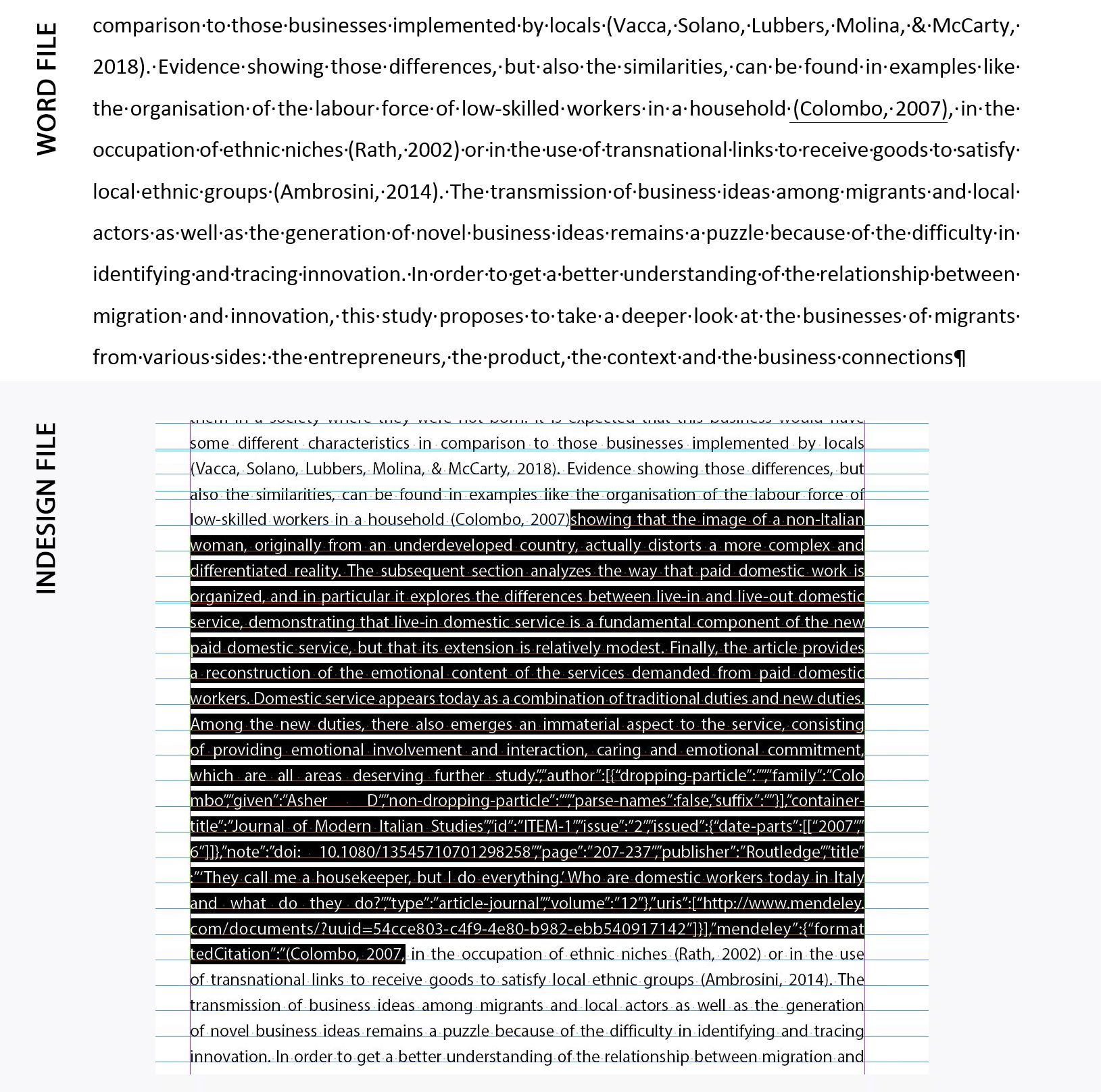
Placing a word file in indesign - after a reference there is additional text
  • February 12, 2019
  • 2 replies
  • 3857 views

This only happens after a reference - is it a word problem or the settings in Indesign?

    This topic has been closed for replies.
    Correct answer christyr77693249

    This works as well

    Part of my workflow in dealing with Word files has been for a long time to always flatten all fields to plain text (How to remove fields in a Word document). This removes the hidden data and the variable fields, and replaces them with only the actual text that is supposed to show. (It's also an irreversible action, so don't accidentally overwrite your original file.)

    2 replies

    Jongware
    Community Expert
    Community Expert
    February 12, 2019

    christyr77693249  wrote

    This only happens after a reference - is it a word problem or the settings in Indesign?

    Technically, neither. It is a problem inside InDesign -- a bug, not a setting.

    The problem here is that InDesign is not really very good at importing Word files. A major pain, because there aren't really very much formatted text formats it can read to start with!

    What you are seeing here is part of internal data of a cross-reference manager. Word itself can handle this just fine; the cross-reference manager chooses what parts of this data gets shown in the short reference in text and the full reference in the reference list at the end. Word even does not need the actual plug-in to be able to show the correct text. The data itself contains fields which indicate what text gets shown where (although of course, to adjust such a reference you'd need the actual plug-in).

    On importing such a file, InDesign is supposed to silently strip all of that invisible extra data and retain only the text-to-be-shown -- again, what should be shown is well defined in the Word file. But Adobe managed to mess this up. (In case you're wondering, they should be able to fix it by reading the documentation, such as in Office Open XML (OOXML) - Word Processing - Fields. You might want to tell them at Adobe InDesign Feedback.)

    One cannot predict in advance if any, and if so, which, fields will be processed badly, and under what circumstances. Sometimes a plain re-saving the document in Word magically fixes things (akin to InDesign's "Save As" clearing up routine), but then again, sometimes it does not. Also, sometimes re-saving fixes this part of the import process but reveals problems in other areas.

    Part of my workflow in dealing with Word files has been for a long time to always flatten all fields to plain text (How to remove fields in a Word document​​). This removes the hidden data and the variable fields, and replaces them with only the actual text that is supposed to show. (It's also an irreversible action, so don't accidentally overwrite your original file.)

    Participant
    February 12, 2019

    Thanks maxwithdax: Have accept all changes and stop tracking in the word file - but it did not help.

    But it got me in the right track, have saved the word file as rtf and the tekst after the references has gone.

    Thnks for the quick reply!

    christyr77693249AuthorCorrect answer
    Participant
    February 12, 2019

    This works as well

    Part of my workflow in dealing with Word files has been for a long time to always flatten all fields to plain text (How to remove fields in a Word document). This removes the hidden data and the variable fields, and replaces them with only the actual text that is supposed to show. (It's also an irreversible action, so don't accidentally overwrite your original file.)

    maxwithdax
    Community Expert
    Community Expert
    February 12, 2019

    Looks like track changes might have been still enabled in the word doc. Open your word doc and accept all changes and stop tracking. try re-importing the word doc and see if the text remains.

    -Dax