

May 22, 2020
Answered

Placing Files Preview

  • May 22, 2020
  • 3 replies
  • 833 views

Why is it we do not have a preview of .psd files when plscing from InDesign?

This topic has been closed for replies.
Correct answer Laubender

Hi apcoinc,

when on Windows this is a very good question!


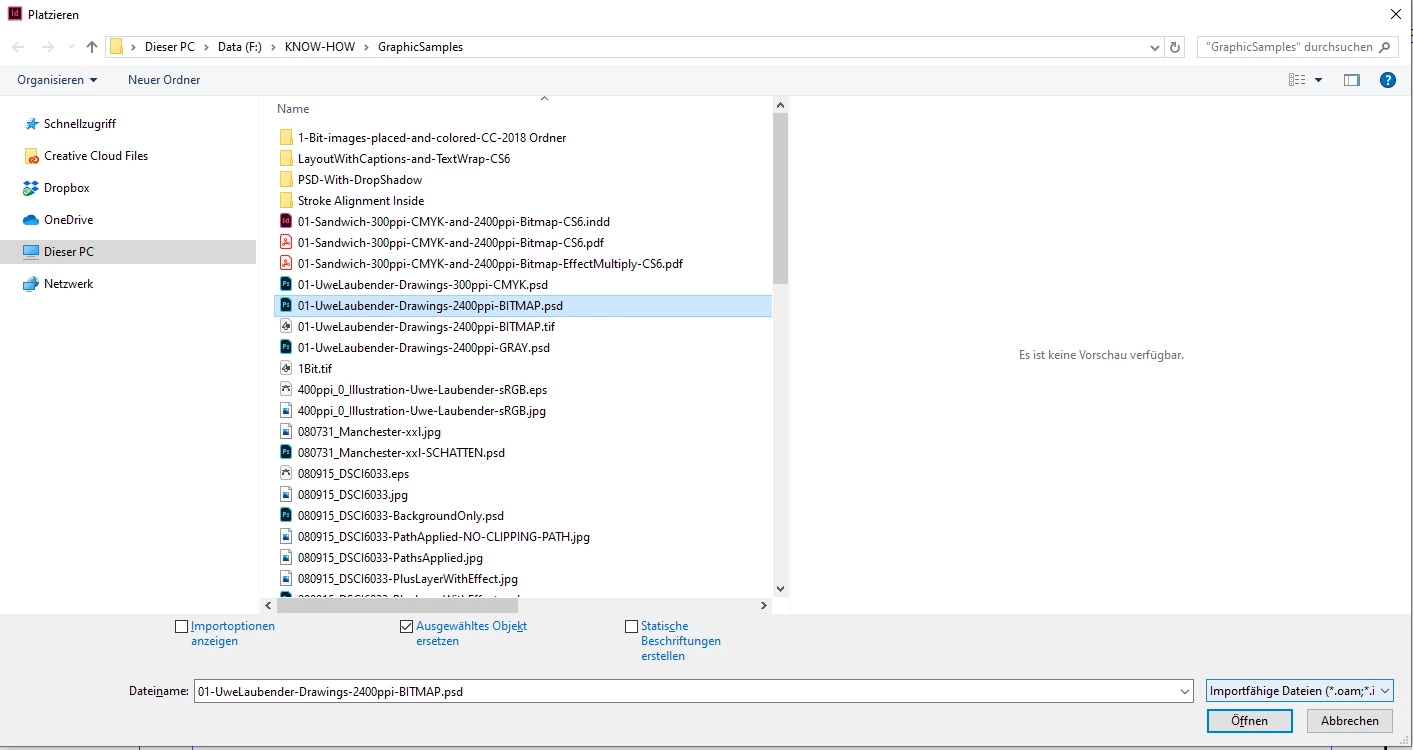
Below two screenshots from InDesign's Place dialog.

This one with a selected TIFF file, the preview is there:
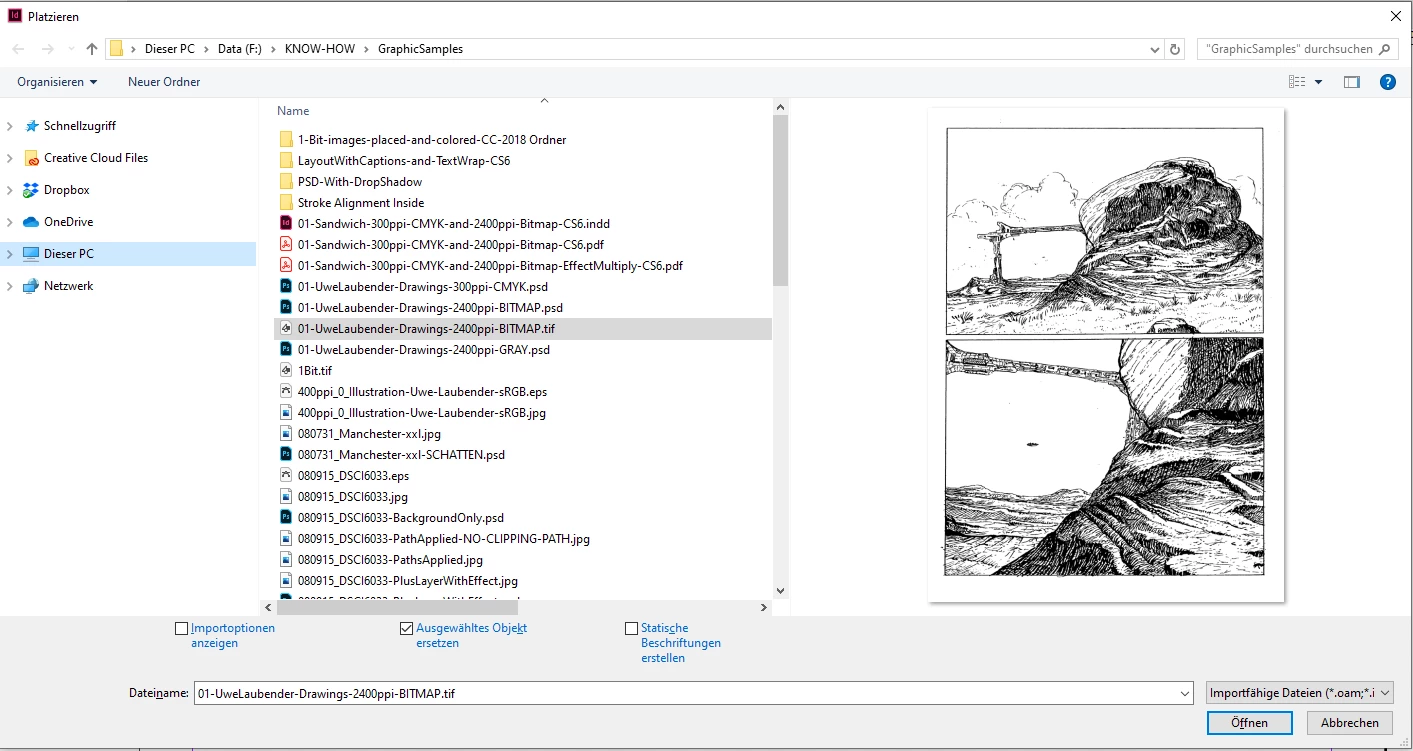


No preview, if the same file is saved as PhotoShop PSD:


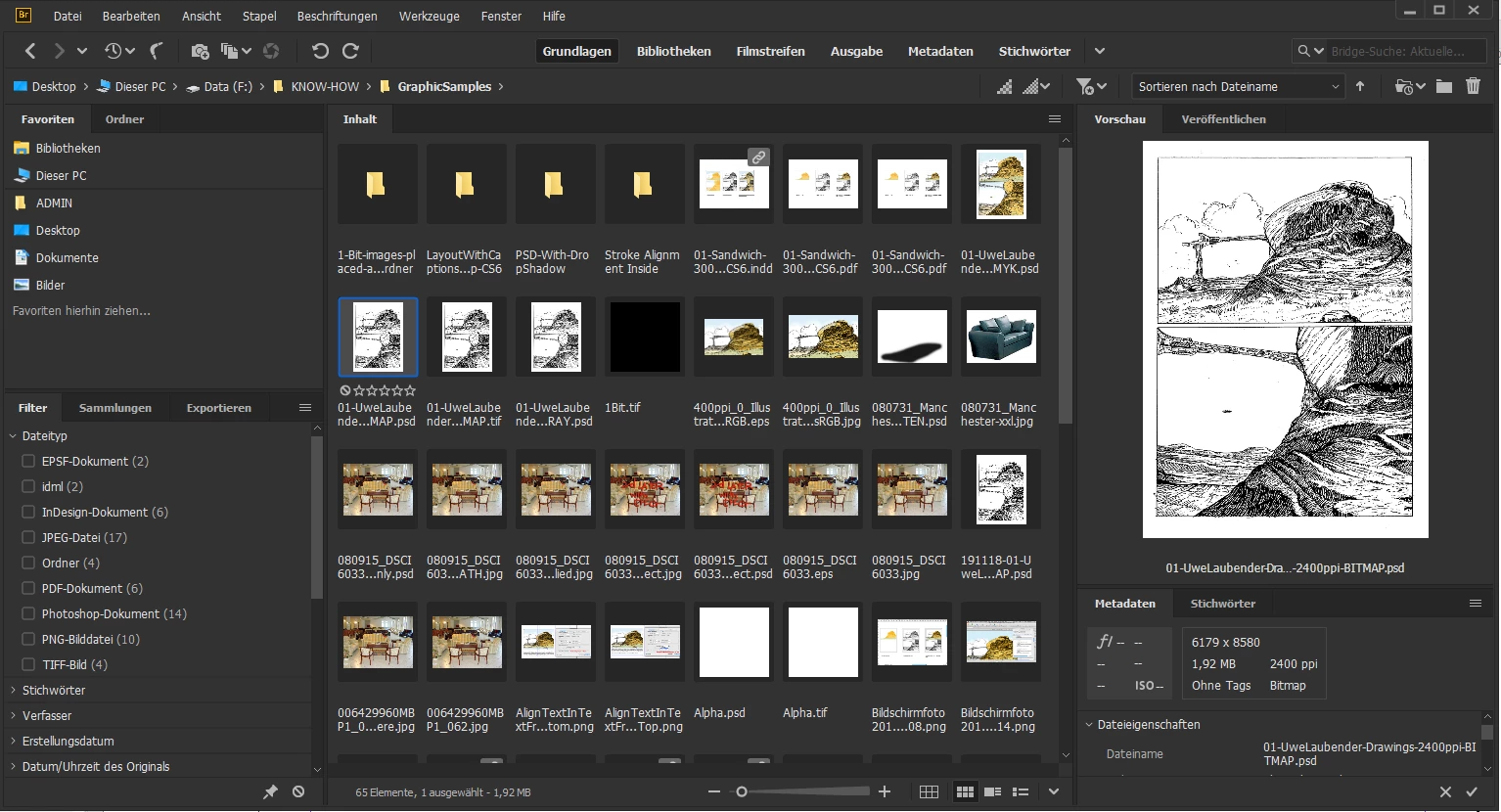
The workaround:
Use Adobe Bridge for that purpose. From InDesign:

File > Browse in Bridge…


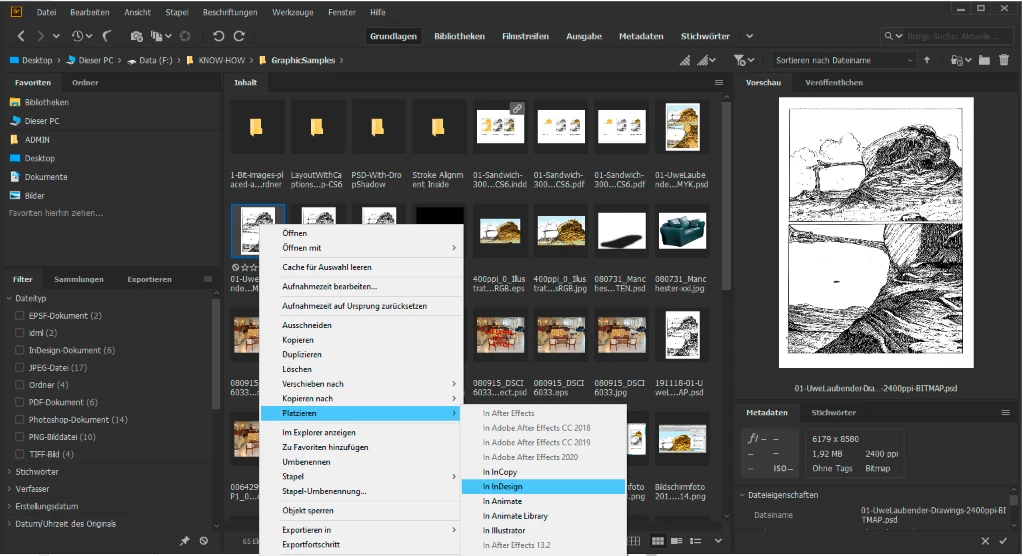
Then one can place the selected PSD from Adobe Bridge using the context menu:


Regards,
Uwe Laubender

( ACP )


3 replies

LaubenderCommunity ExpertCorrect answer
Community Expert
May 22, 2020

Hi apcoinc,

when on Windows this is a very good question!


Below two screenshots from InDesign's Place dialog.

This one with a selected TIFF file, the preview is there:


No preview, if the same file is saved as PhotoShop PSD:


The workaround:
Use Adobe Bridge for that purpose. From InDesign:

File > Browse in Bridge…


Then one can place the selected PSD from Adobe Bridge using the context menu:


Regards,
Uwe Laubender

( ACP )


June 16, 2020

Thank you Laubender, that's pretty much waht I do. You are correct in your words"The Workaround" Adobe really should correct this.

BobLevine
Community Expert
Community Expert
May 22, 2020

What are you referring to? You're going to need to expand on this...a lot!

Geоrge
Legend
May 22, 2020

What are you asking for? This is link to the same thread with few things that can help.  I don't think that topicstarter forget how to read the words or can't go to this link!

Remember, never say you can't do something in InDesign, it's always just a question of finding the right workaround to get the job done. © David Blatner
Geоrge
Legend
May 22, 2020
Remember, never say you can't do something in InDesign, it's always just a question of finding the right workaround to get the job done. © David Blatner