Participating Frequently
October 10, 2019
Answered

Plugin error with Mac OS Catalina

  • October 10, 2019
  • 5 replies
  • 12356 views

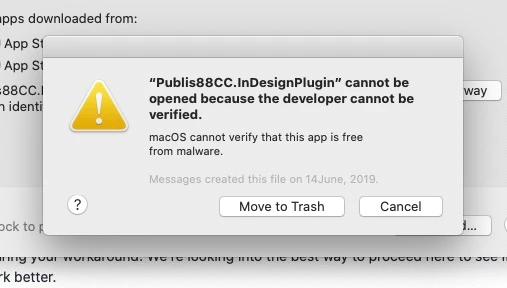
Hi, got this error when launching InDesign 2019 (14.0.3.433) with my plugins installed, does anyone know how to fix it?

They do appear over the OS Security & privacy prefs panel (the plugin was blocked from use because it is not from an identified developer), I press Open Anyway but nothing happens.


This topic has been closed for replies.
Correct answer Dirk Becker

You've downloaded the plugin using a web browser. Apple considers that a security problem and quarantines the file.

Ask the developer to provide a notarized archive/installer/dmg, not just the plugin.

Until then the following steps might help, but I have not tried them myself.


You will need the admin password later on.

Quit InDesign.

Move the plugin out its place, e.g. to the Desktop.

Start InDesign, so that it considers the change*

Quit InDesign.

Move the plugin back.

Unquarantine the plugin with the xattr command in terminal.

Launch terminal

type "sudo xattr -r -d com.apple.quarantine " without the quotes and without return, but including the final space

Instead of typing the path, drag the plugin file to the terminal.

The result should read:

sudo xattr -r -d com.apple.quarantine path/to/your/plugin

press return to run the command

terminal will ask for an admin password.

When completed, start InDesign.


The double restart of InDesign is required because InDesign does special processing with the plugin when it finds it for the first time. This special processing is only performed again when the "plugin configuration" changes.


See a similar discussion here

Photoshop and Catalina | macOS 10.15

5 replies

Participant
April 6, 2021

I found an alternate way to do this for ScriptListener plug in without having to use terminal is:


• Place the plug in in the respective plug in folder ( mine was photoshop 2020 ).

• Make sure photoshop/application is quit.

• Go back to the plug in folder where you just placed the plug in, in finder.

• Control click the plug in you want to install/work and select "Show package contents"

• go to contents > MacOs

• inside the MacOs folder there is a Unix executable file called ScriptingListener ( in my case )

• Control click this file and select "open with" from the menu that appears

• Navigate to and select adobe photoshop (or relevent application for the plug in) in the dialogue box then select open

• A message will appear shortly after the application boots to warn you in a similar way to the error before but will give you an option to open anyway.

• Select open anyway

• The file will show as an error/unreadable by the application but it will now have been quarantined.

• Restart the application and the plug in should run as expected.


Hope this helps anyone unfamiliar with using the terminal.

n8milton
Participant
December 30, 2020

whaaaaa it worked in after effects -- that made it not working beforehand worth it, felt so good. thanks

Participant
December 17, 2020

Thanks, worked great!

Participant
June 16, 2020

GREAT! Worked for my illustrator 🙂

Dirk BeckerCorrect answer
Legend
October 10, 2019

You've downloaded the plugin using a web browser. Apple considers that a security problem and quarantines the file.

Ask the developer to provide a notarized archive/installer/dmg, not just the plugin.

Until then the following steps might help, but I have not tried them myself.


You will need the admin password later on.

Quit InDesign.

Move the plugin out its place, e.g. to the Desktop.

Start InDesign, so that it considers the change*

Quit InDesign.

Move the plugin back.

Unquarantine the plugin with the xattr command in terminal.

Launch terminal

type "sudo xattr -r -d com.apple.quarantine " without the quotes and without return, but including the final space

Instead of typing the path, drag the plugin file to the terminal.

The result should read:

sudo xattr -r -d com.apple.quarantine path/to/your/plugin

press return to run the command

terminal will ask for an admin password.

When completed, start InDesign.


The double restart of InDesign is required because InDesign does special processing with the plugin when it finds it for the first time. This special processing is only performed again when the "plugin configuration" changes.


See a similar discussion here

Photoshop and Catalina | macOS 10.15

InterlasaAuthor
Participating Frequently
October 10, 2019

Hi

We usually compile the InDesign plugins then manually place them inside the plugins folder.

Found an Apple article on how to notarize them


Thank you Dirk for your reply.


Jongware
Community Expert
Community Expert
October 10, 2019
Can you help others with the same problem by adding a link to that solution?