Participating Frequently
January 12, 2019
Answered

Possible to have a different table title when using "convert rows to headers"?

  • January 12, 2019
  • 1 reply
  • 377 views

Hi, when creating long tables that extend to multiple pages, I would want the title of the table on the extended pages to have, for example, a 'continued' suffix. Is this possible? I know that "convert to headers" can only be applied at minimum to the first row (which is usually the table's title), you can't select just the headers (I.e. begin at the 2nd or 3rd rows).

Does anyone have a workaround for this? Thanks.

    This topic has been closed for replies.
    Correct answer Eugene Tyson

    Yes you can actually!

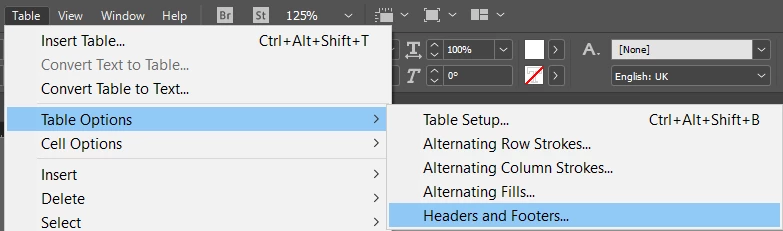
    The trick is to have a fake table heading at the start! Here's how:

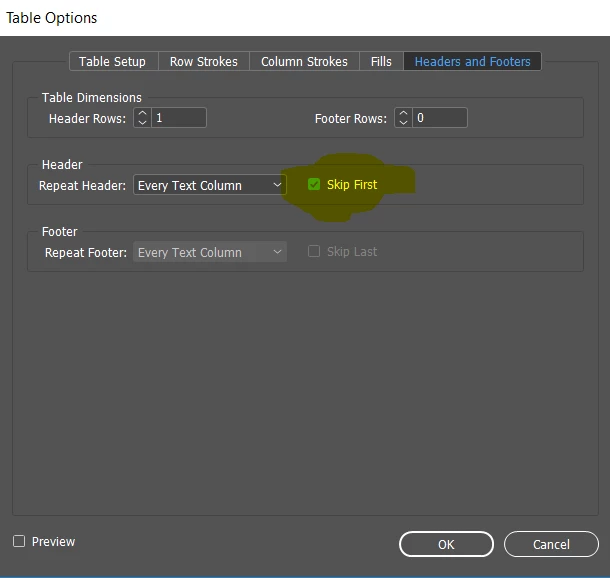
    Table heading setup as heading cont - as per below (don't mind my sloppy spelling ha ha )

    Once you skip first - the heading then jumps to the next page.

    You can then copy and paste the heading into the first page of the table - and remove the words (contd)

    It just means if you update the heading on the first page of the table - it needs to be updated on the first next page of the table also.

    That's the only way  I know!

    1 reply

    Eugene TysonCommunity ExpertCorrect answer
    Community Expert
    January 12, 2019

    Yes you can actually!

    The trick is to have a fake table heading at the start! Here's how:

    Table heading setup as heading cont - as per below (don't mind my sloppy spelling ha ha )

    Once you skip first - the heading then jumps to the next page.

    You can then copy and paste the heading into the first page of the table - and remove the words (contd)

    It just means if you update the heading on the first page of the table - it needs to be updated on the first next page of the table also.

    That's the only way  I know!

    bwnichAuthor
    Participating Frequently
    January 12, 2019

    Hey it works! Thanks Eugene! I added 2 blank rows as table headers so I can copy-paste the title as well as column headings on the following pages.