Participant
May 17, 2017
Answered

Pre-saved new document sizes

  • May 17, 2017
  • 2 replies
  • 976 views

Hello. We often create DL size documents, as well as some other sizes, that are not automatically available in InDesign (or Illustrator).

Is there a way to have them pre-saved, so when I go to File --> New there are more options than just A4 A5 Letter Legal etc.

Also, I don't even know what Legal Letter Tabloid sizes are and never used them, can these be renamed to something we would actually use?

Thank you. We did try to search for answers, nothing popped up.

    This topic has been closed for replies.
    Correct answer Alma Strutt

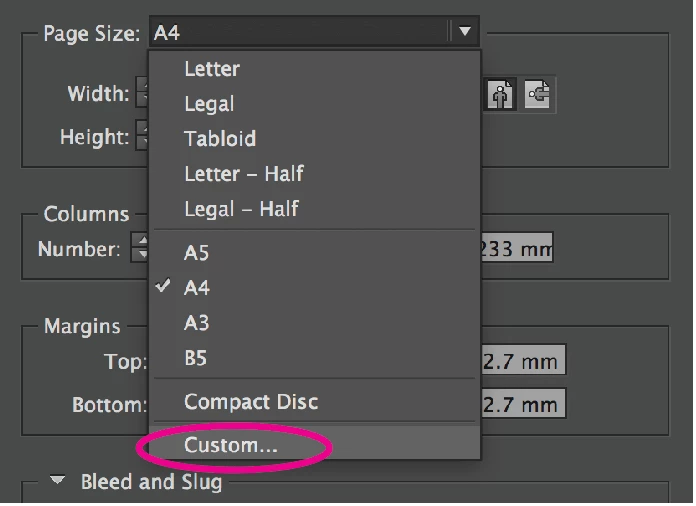
    When you create a New Document Select 'Custom' from the Page Size drop down menu.
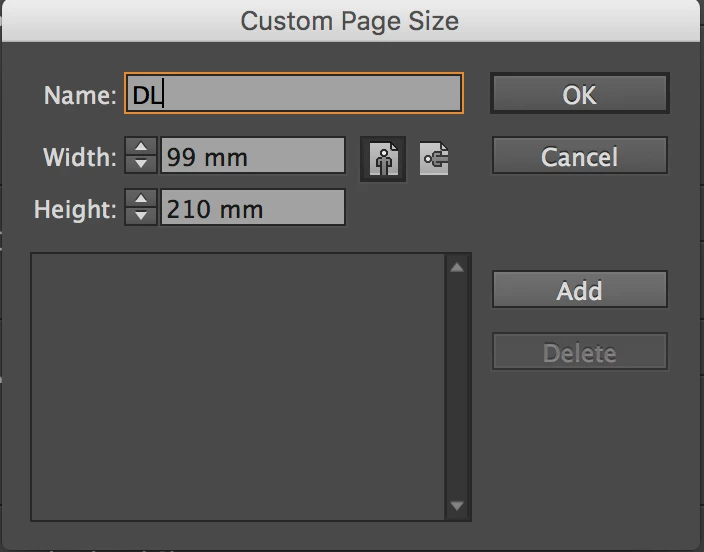
    You can create a page size to whatever dimensions you require and name it with an appropriate identifier, e.g. DL.
    Once you click the Add button it will appear in the area below.
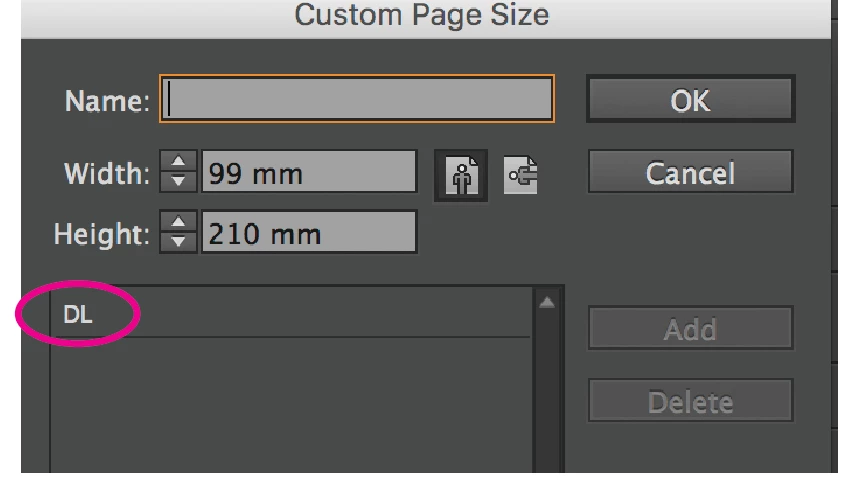
    You can create many different custom sizes. Click Ok

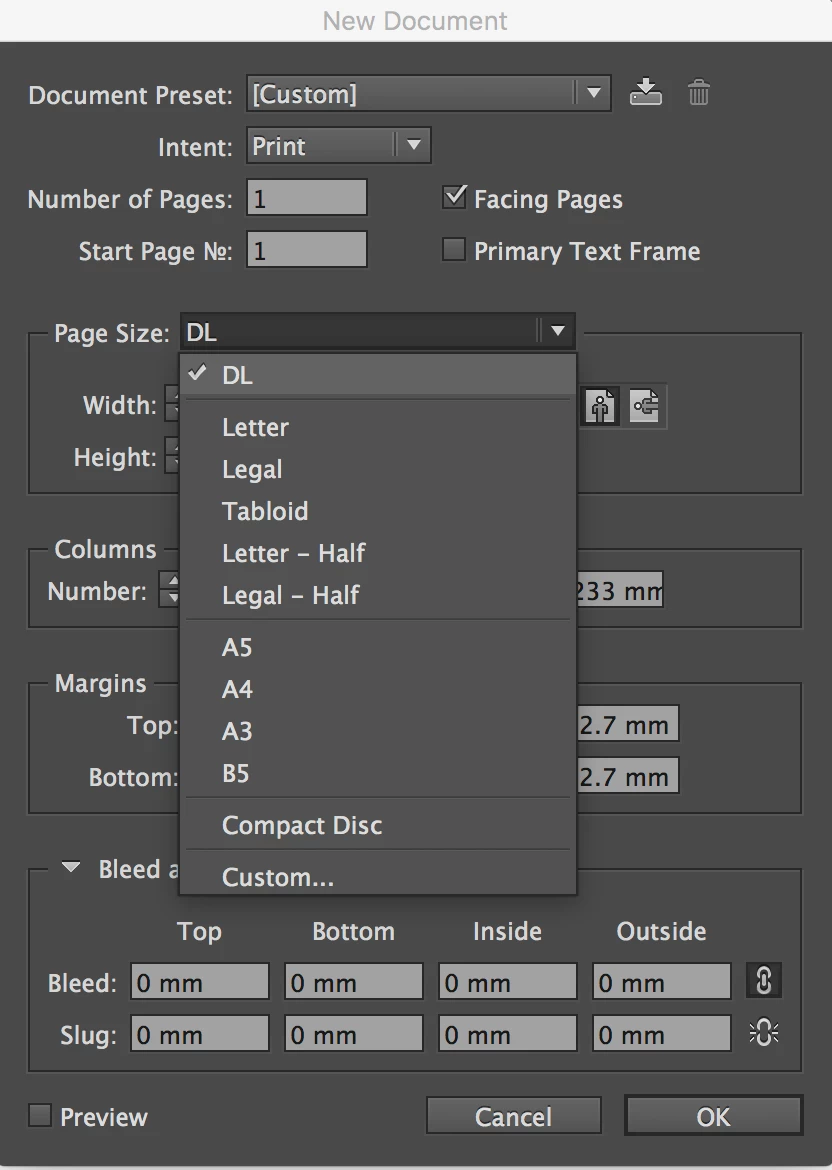
    Now from the Page Size drop down menu your new custom size (DL) is available to select.
    You can take this a step further and create a Document Preset.

    Once you have chosen the correct page size and decided on suitable margins and columns you can click the 'Save Document Preset' icon at the top right of the New Document panel.
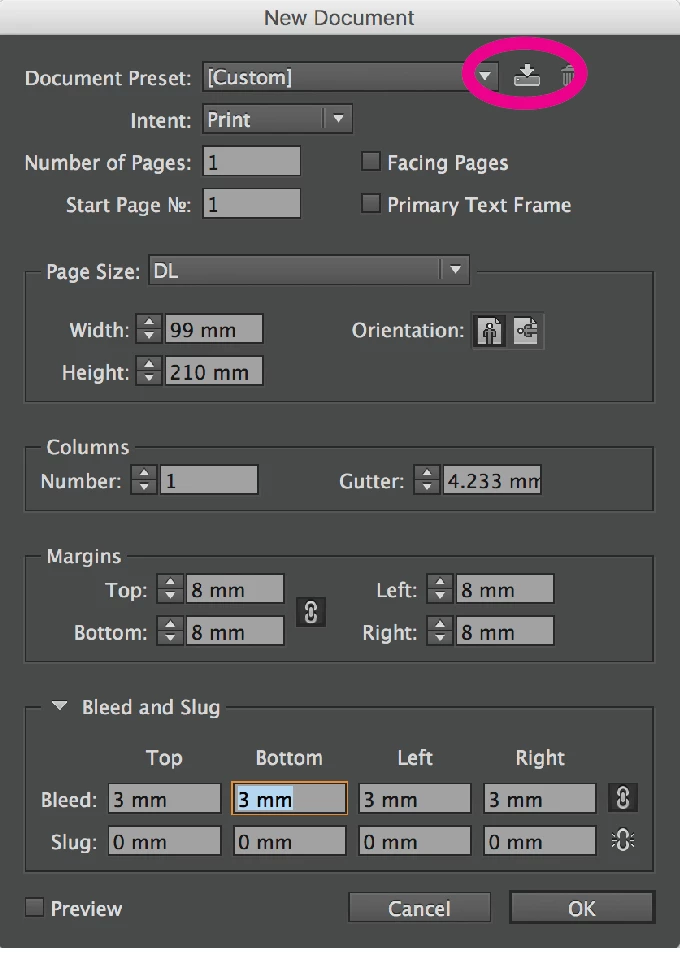
    Then give the Preset an identifiable name

    This Document Preset can be selected each time you create a new document and it will honour the Intent, Number of pages, Page Size, Columns, Margins as well as whatever Bleed and Slug you have set up.
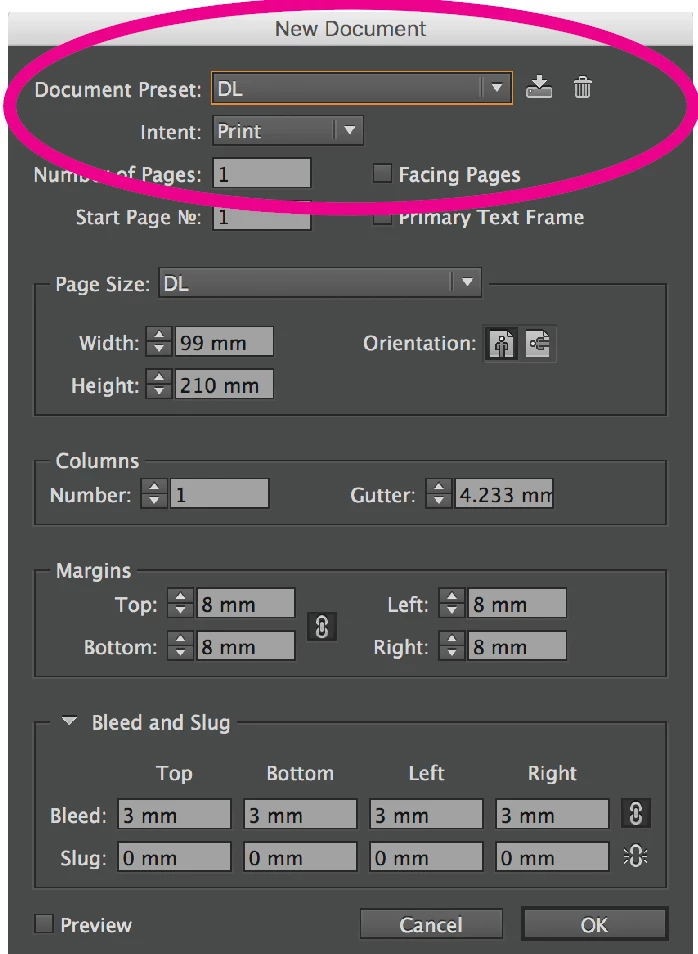
    If you decide to edit any of the New Document values, the Document Preset will display the Custom preset. You can choose to save the new setup and either save it as a new preset or override an existing once by choosing the old one from the drop down menu.

    Hope this helps!

    2 replies

    Alma StruttCorrect answer
    Inspiring
    May 17, 2017

    When you create a New Document Select 'Custom' from the Page Size drop down menu.

    You can create a page size to whatever dimensions you require and name it with an appropriate identifier, e.g. DL.

    Once you click the Add button it will appear in the area below.

    You can create many different custom sizes. Click Ok

    Now from the Page Size drop down menu your new custom size (DL) is available to select.

    You can take this a step further and create a Document Preset.

    Once you have chosen the correct page size and decided on suitable margins and columns you can click the 'Save Document Preset' icon at the top right of the New Document panel.

    Then give the Preset an identifiable name

    This Document Preset can be selected each time you create a new document and it will honour the Intent, Number of pages, Page Size, Columns, Margins as well as whatever Bleed and Slug you have set up.

    If you decide to edit any of the New Document values, the Document Preset will display the Custom preset. You can choose to save the new setup and either save it as a new preset or override an existing once by choosing the old one from the drop down menu.

    Hope this helps!

    vlassovAuthor
    Participant
    May 19, 2017

    Thank you so much, this explains it perfectly.

    Inspiring
    May 19, 2017

    Glad to be of help Vlassov

    Steve Werner
    Community Expert
    Community Expert
    May 17, 2017

    You can create your own Document Presets. Either from File > Document Presets > Define, or from the File > New dialog.

    Create new documents in Adobe InDesign CC 2015 and earlier