
Known Participant
June 11, 2025
Question

Problem with automatic font activation in InDesign.

  • June 11, 2025
  • 2 replies
  • 1560 views

I have some locally installed fonts which InDesign still keeps downloading and trying to install which I want to stop. Some of them then get the "can't install due to a conflict" but they still get downloaded and others get installed. I do have the "Auto add Adobe Fonts" in preferences->File Handling deactivated already.


I narrowed down the issue but don't know how to fix it. The fonts this is happening to are the ones which I originally (intentionally) activated through Adobe fonts but later uninstalled and installed the font locally. If I open a document with that font in it and then go to 'Type -> Find/Replace Font' and then click on the font in question, I can see that under 'Path' it says 'Added from Adobe Fonts' despite it now being installed locally.
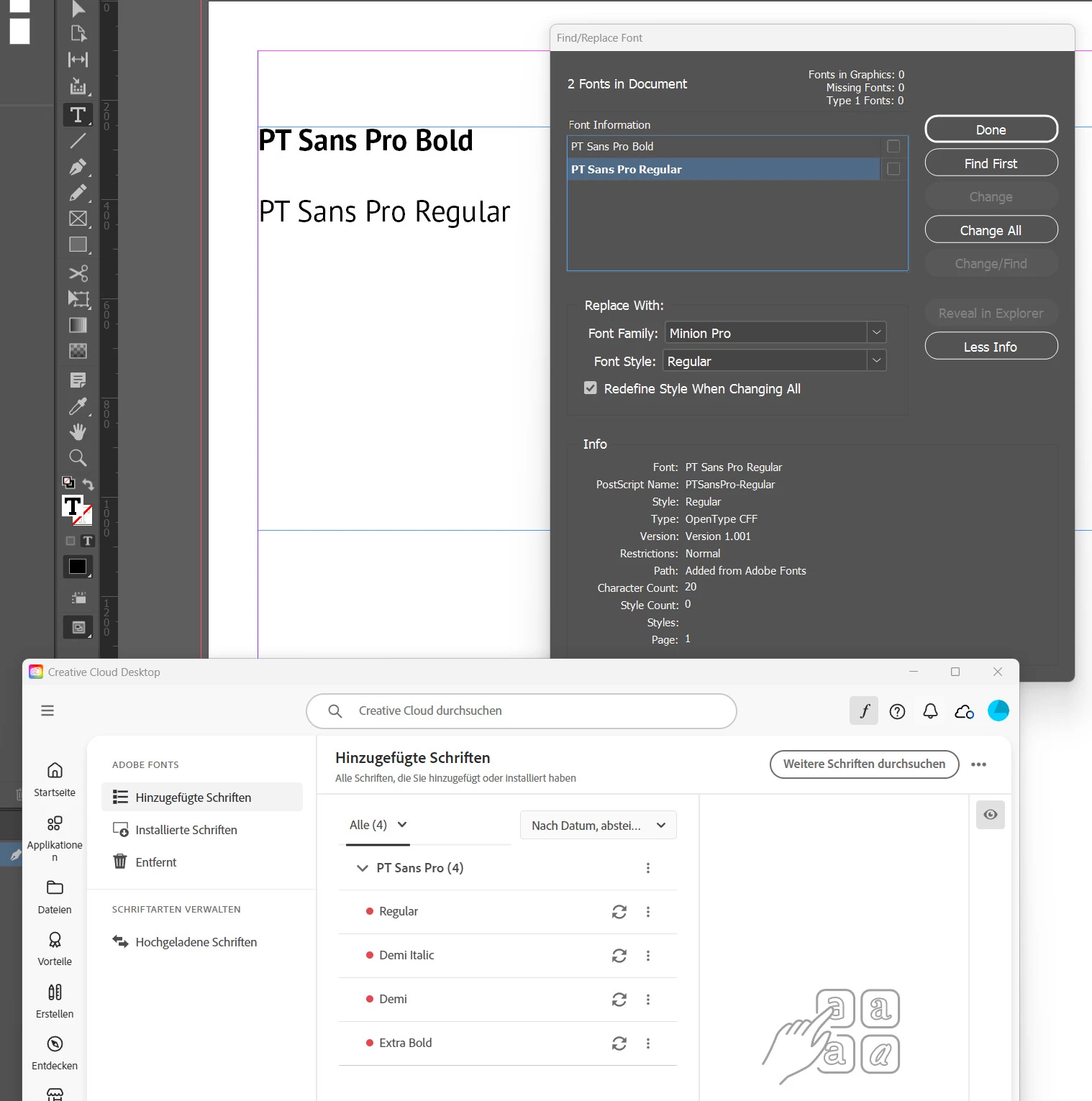


So, how can I make InDesign "forget" that it initially used the Adobe Fonts version and stop InDesign from downloading the font despite having a local version and 'Auto add' disabled? I suspect it might have to do with the font cache but idk what exactly to delete.


I've already logged out of all Adobe apps and rebooted (with Auto add in InDesign deactivated and even Adobe Fonts deactivated in CC). But even after the reboot, it still thinks the path should be Adobe Fonts and not the local font file. The second I activate Adobe Fonts in CC, the fonts get added.


System environment: Windows 11, InDesign 20.3.1 (but problem existed for a long time). I am using MainType 12 but I don't think this should play a role here.


Thanks for any help. 

2 replies

rob day
Community Expert
Community Expert
June 11, 2025

I have some locally installed fonts which InDesign still keeps downloading and trying to install which I want to stop


Hi @claudia2323 , The Adobe Fonts get activated not installed. Adobe Type offers a version of PT Sans which is different from Google’s version—your problem has come up before from users mixing the Google (installed) and Adobe Type (Activated) versions.


If you want to use the Adobe Type version, try uninstalling all the Google versions of PT Sans installed in your local OS so there is no conflict and activate via the Add Font button at Adobe Fonts


Known Participant
June 11, 2025

Hi @rob day


Thanks for your reply. 


I actually want to use my local version NOT the Adobe one. And it's happening to several fonts (not only Google fonts). It really comes down to Adobe Type trying to use the Adobe version because I had it activated initially, even after I uninstalled it in Adobe Fonts.  


Thanks for your help.

rob day
Community Expert
Community Expert
June 12, 2025

I actually want to use my local version NOT the Adobe one


Have you turned off Auto-activate Adobe Fonts in your ID Preferences, and gone to https://fonts.adobe.com/fonts/pt-sans-pro and clicked the Remove button?


If you don’t want to use any Adobe Fonts you can disable all Adobe Cloud Fonts in your CC app Prefs. There is a Google version of PT Sans which you can download and install in your system from Google https://fonts.google.com/specimen/PT+Sans


Abhishek Rao
Community Manager
Community Manager
June 11, 2025

Hi @claudia2323,


Thanks so much for the detailed explanation. This behavior can sometimes be tied to cached font data that InDesign holds onto.

To help reset this, could you try clearing InDesign's font cache? Reference: https://adobe.ly/4kBhEam
After doing this, restart your system and launch InDesign again with Adobe Fonts disabled in both InDesign and the Creative Cloud app.

Also, if you haven't already, try manually replacing the font via Type > Find/Replace Font and select the locally installed version to override the reference. This may help InDesign stop recognizing the font as sourced from Adobe Fonts.


Let me know how this goes.

Abhishek

Known Participant
June 11, 2025

Hi @Abhishek Rao,


Thanks for the quick replay. 


To start from bottom, replacing the font via Type>Find/Replace Font with a local version was one of the first things I tried but that doesn't work unfortunately. InDesign keeps the Adobe Fonts reference even with Adobe Fonts disabled.


I suspected it had something to do with the font cache but wouldn't it be rather the Adobe font cache instead of the Windows System font cache. The system doesn't allow me to delete those files (bc they are in use; and yes, I do have the necessary permissions). Before I go all the way to disable the Windows services to delete them, I want to check if those are really the right font cache files. I've seen in other posts that there are (non-Windows) Adobe specific font caches which make more sense to me but I'm not sure which files exactly. So, are you sure I have to delete the Windows cache?


Thanks.

Abhishek Rao
Community Manager
Community Manager
June 11, 2025

Hi @claudia2323,


Thanks for the update! Just to understand the situation better, could you please confirm if you're trying to remove a specific font, or if there's a list of fonts you'd like to stop InDesign from activating? 

For example, if it's a particular font and it was originally activated via Adobe Fonts, you'll need to head over to the Creative Cloud Desktop App and manually remove or deactivate it from there. After doing that, you can double-check that it's no longer active by visiting https://adobe.ly/3SMvBpL and searching for that font. 

Also, regarding the font cache cleanup, just to reassure you, clearing InDesign's font cache won’t remove or affect any of your installed fonts, whether local or from Adobe Fonts. It simply clears up any unnecessary or outdated cache data that might be causing these kinds of issues.

Let me know once you’ve had a chance to try that or if you're dealing with multiple fonts. 


Looking forward to hearig back from you. 

Abhishek