@eyalz1312
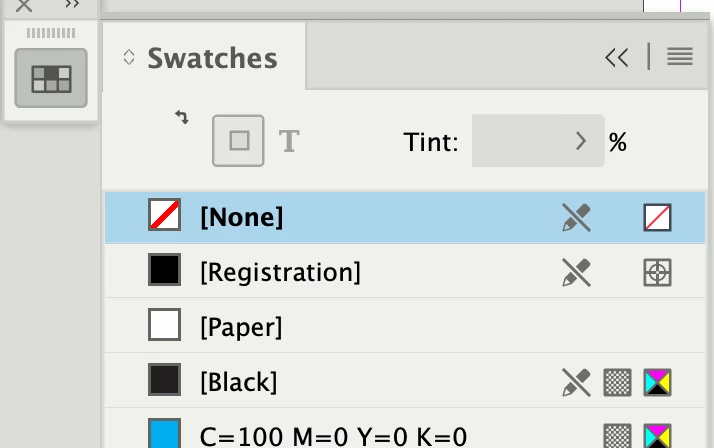
When InDesign starts to behave erratically, it is usually due to a corrupt Preferences file. If you delete the file, InDesign will create a new one, which should fix your icons for Fill and Stroke in the Swatches panel.
There are two ways:
- Preferences > General > Reset Preferences On Quit
- Quit InDesign, then:
Windows: Start InDesign, and then press and hold Shift+Ctrl+Alt. Click Yes when asked if you want to delete preference files.
macOS: While pressing Shift+Option+Command+Control, start InDesign. Click Yes when asked if you want to delete preference files
Details here:
https://helpx.adobe.com/indesign/using/setting-preferences.html
Please let us know if this solves your issue with the Swatches panel.
I've moved your post from Creative Cloud Desktop to the InDesign forum.
Jane



 AdChoices