Participating Frequently
August 26, 2022
Question

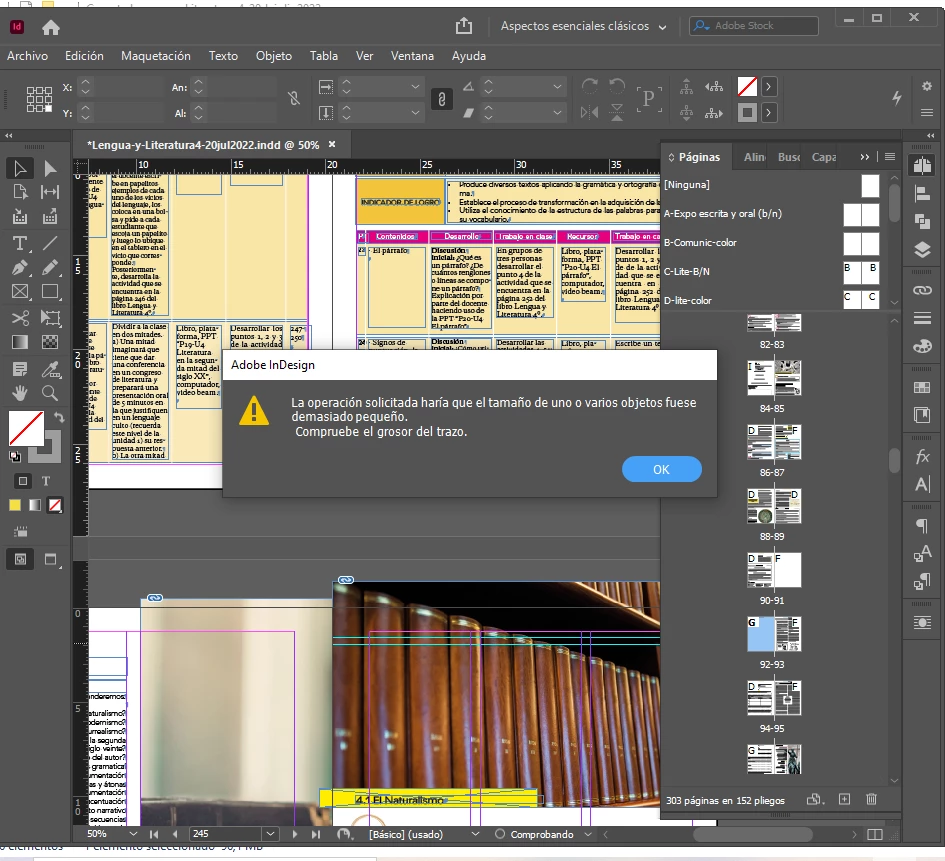
Problemas al crear, mover o borrar una página, aparece el mensaje de error de grosor de trazo

  • August 26, 2022
  • 4 replies
  • 1049 views

Problemas al crear, mover o borrar una página, aparece el siguiente mensaje y se cierra la aplicacion "la operación solicitada haria que el tamaño de uno o varios objetos fuese demasido pequeño. Compruebe el grosor del trazo.", no se porqu muestra eso. Ya desinstale el programa e instale el programa y persiste el problema. Necesito ayuda por favor ya que es mi herramienta de trabajo y tengo un proyecto que terminar. Agradezco su pronto respuesta, gracias.
 

This topic has been closed for replies.

4 replies

Community Expert
September 10, 2022

Hi Adriana,

ok, to sum this up:


Trying to export this specific document to IDML crashed InDesign.

You get an unspecified error when you export to PDF.

You did not create this document and only had to do some edits.


Well, I'm not sure, but maybe you still have some options.

First thing is to quit InDesign, restart the machine, make sure that unnecessary applications are not running. Just concentrate on InDesign.


First: When on Windows make sure that you can see invisible elements (files and folders) in your file system so you can see the AppData folder. See path below. This folder is hidden and when Windows is running with default settings the user cannot see it. Also make sure that you can see file suffixes so that you can identify files that are named with the *.idlk suffix.


[1] Check if there is an *.idlk file in the same folder with the crashed InDesign file.

Move that *.idlk file out of this folder, later you can trash it.

[2] When on Windows backup and then remove the following cache folder that is named Version 17.0. The version number corresponds with InDesign 2022. It would be Version 16.0 for InDesign 2021 for example. So go to:


User > [Your user name] > AppData > Local > InDesign > Version 17.0


Rename folder Version 17.0 to eg OLD_01_Version 17.0. InDesign will create a new one after the next start.

Or zip folder Version 17.0 and then remove the original one. InDesign will create a new one after the next start.


Make a duplicate of your problem document and only work with the duplicated file.

Only after all this above is done, start up InDesign.

Open the duplicated InDesign document from File > Open…

( Do not do a double-click the document file in the file system. )


When the document is open export to IDML. I hope this time it will work well.

When successful open the IDML file with File > Open… , this could take a while because InDesign is recreating the document from scratch, save the document to a new name, close it, make a backup, open it again and try to work on.


If exporting to IDML still does not work and still crashes InDesign, go through items [1] and [2] again before you try anything new.


What could you do next? Speculation, more details if they are necessary later:

A. Uninstall all necessary fonts ( maybe there is a font corruption? )

B. Move pages to a new document, spread by spread and after every move try to export the target document to IDML.

C. Force InDesign to do exports without a background task.

… ??


Regards,
Uwe Laubender
( Adobe Community Professional )

Community Expert
August 29, 2022

Hi @Adriana24071284rxfa ,

two things you could try:

[1] Change the minimum pasteboard size in the preferences of the document. Allow for more room around the document pages. Save the document to a new name.

[2] Export the document to IDML. Open the IDML file as document and save it to a new name.


Regards,
Uwe Laubender
( Adobe Community Professional )

Participating Frequently
August 30, 2022

Hola Laubender.


Gracias cambie de nombre el archivo y se guardo, intente guardaro coo idml y el programa se cerro, añadido a esto intento exportar pdf y dice que tiene un error de las tareas en segundo plano.


Community Expert
August 31, 2022

Hi Adriana,

is there more information about the error if you click the little triangle in front of the read error message?

If you are not able to save or export to IDML do a new document and move the pages over to that new document.

You can find the command for this in the Pages panel.


Regards,
Uwe Laubender
( Adobe Community Professional )


Willi Adelberger
Community Expert
Community Expert
August 27, 2022

What I see in your screen shoot:

  1. A terrible typeset document. Text frames above tables and frames
  2. Image above spine


I think, there are many other hidden problems. I think, according to the message, that you have lost objects on the outside of the page. Moving the page it causes them not to have enough space.


You should clean up your document:

  1. Look if lost objects are outside the pages.
  2. Don't add text frames obove colored frames or tables.
  3. Work with paragraph styles, character styles, object styles, table styles and cell styles. They are important.
  4. Work with layers.
  5. Look into your concept of master/parent pages. How it look, it looks odd. Maybe that here is one of the reasons of the problems.
  6. In document set up you have forgotten to define the bleed.


Maybe a basic class in InDesign will help you to avoid those problems.

Participating Frequently
August 28, 2022

Esta bien muchas gracias tedría que corregir todo el documento.

Bill Silbert
Community Expert
Community Expert
August 27, 2022

Try deleting your InDesign preferences. this will return the program to its defaults and, hopefully, fix the problem.

To do so:

For Macintosh Users: The User Library folder in which InDesign’s preferences are stored is hidden by default on most Macintoshes. To access it make sure that InDesign is closed and click on the desktop to launch a Finder Window (Command-N). With this window in column view follow the path User>Home folder (it’s the folder with an icon that looks like a house—it may have the user’s name rather than “Home”) and click on the Home folder. With the Option Key pressed choose Library from the Finder Go Menu. “Library” will now appear within the Home folder. Within the Library folder find the folder called Preferences and within it find the folder called “Adobe InDesign” and the file called “com.adobe.InDesign.plist” and delete both that folder and that file. When InDesign is next launched it will create new preference files and the program will be restored to its defaults.

For Windows Users: You can try the quick way of resetting on a PC which is to hold down Ctrl + Alt + Shift when launching InDesign and respond affirmatively when asked if you want to reset. There have been some recent reports that the window asking if you want to reset is not popping up but that the prefs are being reset anyway. If this works great but if it doesn’t you may have to manually delete them.

To do so: On Windows 7 and above the preference files are hidden. To find them go to the Control Panel and open Folder Options and then click the View tab. Then select “Show hidden files and folders” or “Show hidden files, folders or drive options” in Advanced Settings. Then delete (or rename) the folder at the end of this path: C:\Users\<USER>\AppData\Roaming\Adobe\InDesign\<Version #>\<Language>. Make sure that InDesign is closed when you do this. When you relaunch the program it will create new preference files and the program will be at its default settings.

The advantage of manually deleting preference files is that after you’ve reset up the program (make sure that no document window is open) to your liking, you can create copies of your personalized “mint” preference files (make sure that you quit the program before copying them—that finalizes your customization) and use them in the future to replace any corrupt versions you may need to delete.

Participating Frequently
August 27, 2022

Hola Bill!


Muchas gracias voy a probar la solución que me das y te escribo si me funciona o no.