
pmccb1002
Inspiring
September 5, 2017
Answered

Problems placing EPS and AI files

  • September 5, 2017
  • 4 replies
  • 3315 views

Hi all,

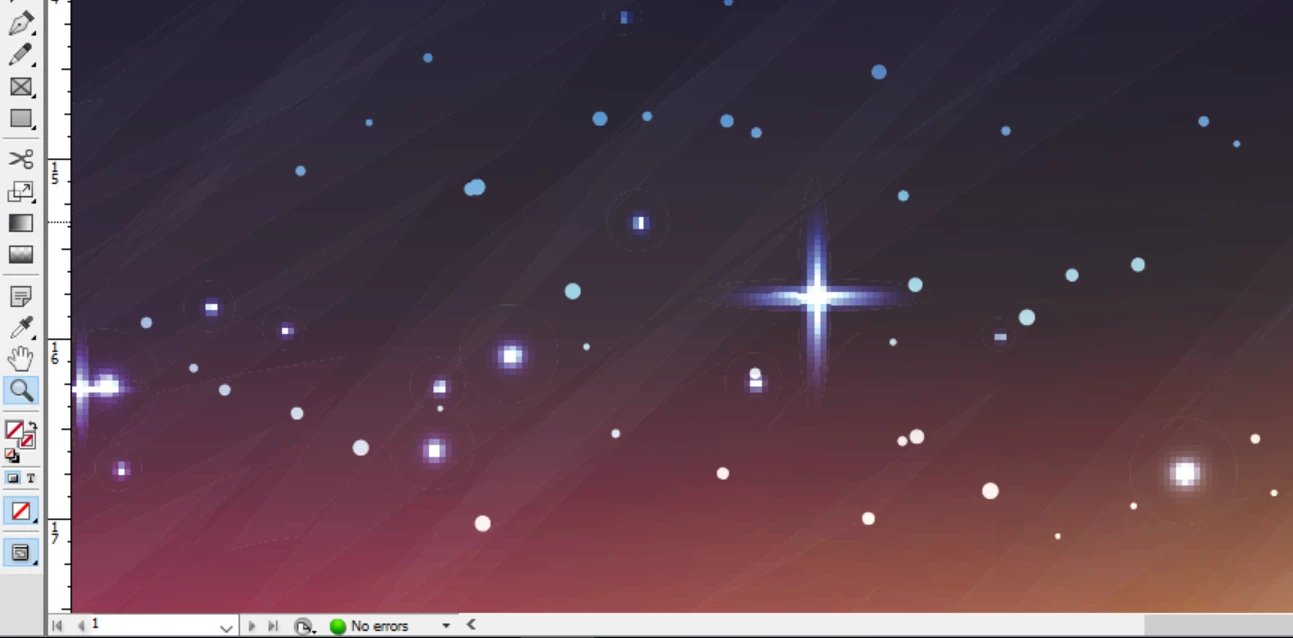
I'm trying to create a 13" x 19" image in InDesign CS6 using (what was originally an) eps file and some text. I placed the eps file and it initially looked fine on screen, but when I printed it, I noticed that some of the stars were all pixelated. I went back to the file, zoomed in, and realized that I could see this on screen.
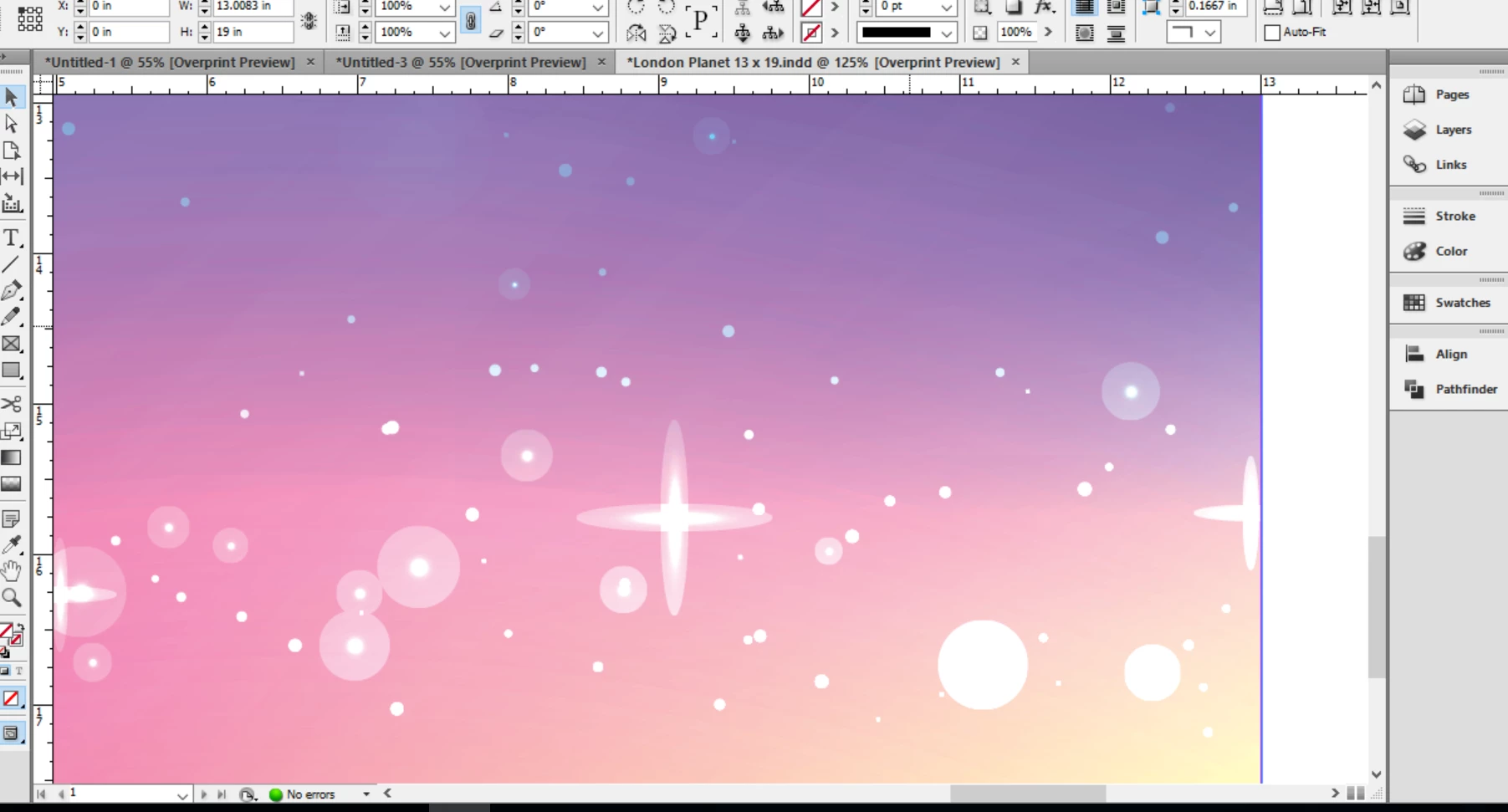
So I tried saving the file as an ai file and placing that. But InDesign seemed to think I was placing a PDF file and the output was even weirder.
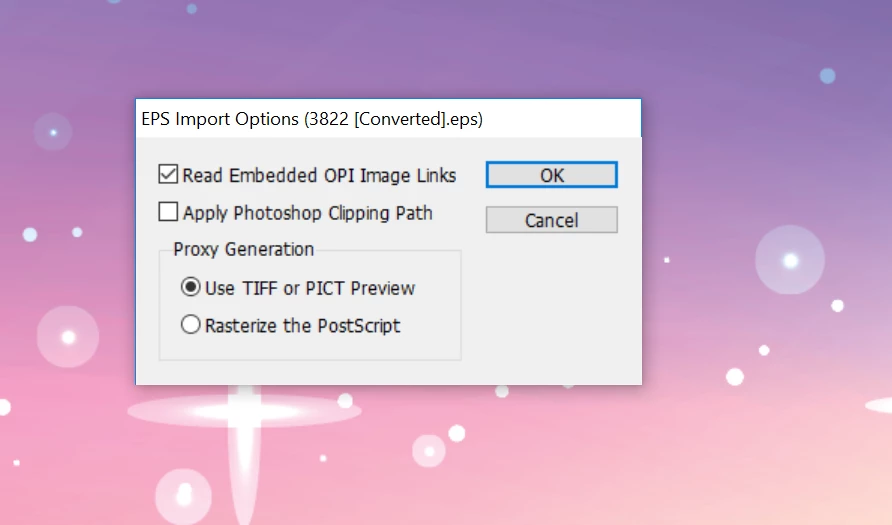
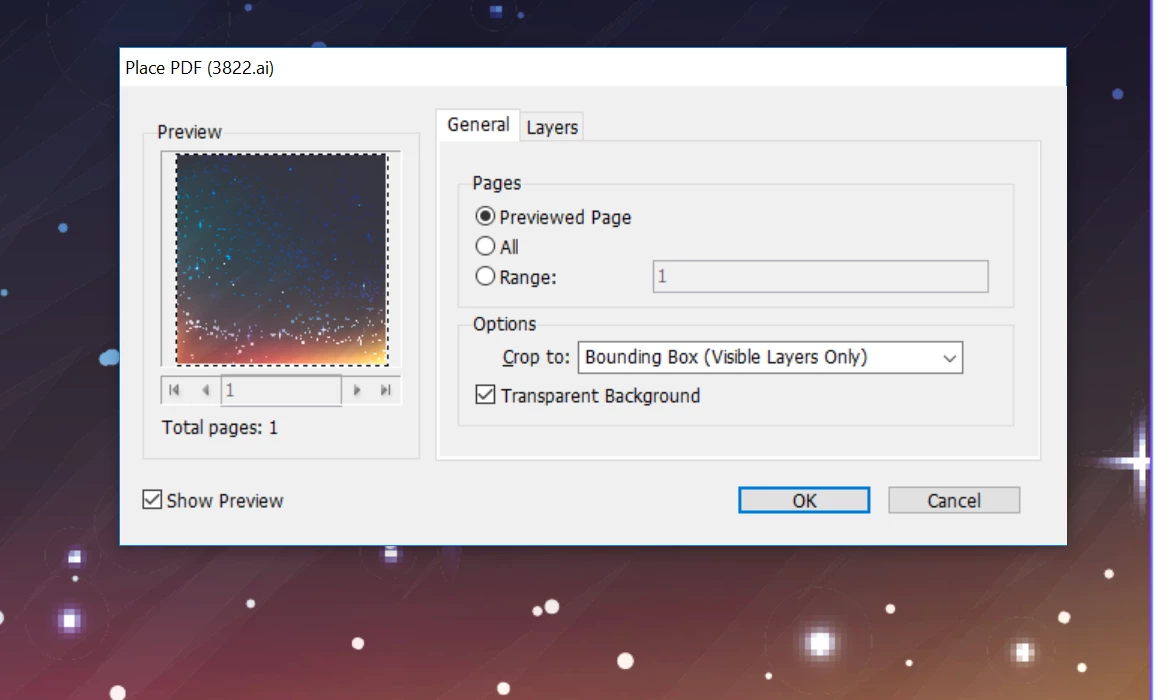
I'm stumped for what's wrong and how to fix it. For what it's worth, here's a link to the original file. And here are the screens that came up when I placed both the EPS and AI (read as PDF) versions of the file. I didn't really know what to make of either screen and so just left the default settings on.
Does anybody have any ideas for how I can fix this?

EDIT [link gives 404 fail – moderator]

This topic has been closed for replies.
Correct answer Jeff Witchel, ACI

Illustrator, by default, will save your AI file with a PDF preview. Without this preview, you cannot see the AI file in your layout when Placed. So as JR_Boulay said, this is totally normal. If you check in the InDesign Links panel with any AI file that's been Placed, it will say that it's a PDF.

I am not finding any issues with pixelation with this file, on screen or with printing.

Did you convert the file to CMYK? When I tried this, it screwed up the Blending Modes used on various objects, so the color as well as the look of the stars got very strange as in your screenshots.

If you need to convert the image to CMYK, I would suggest Exporting the image as a PSD first at a very high resolution (high enough that when you resize in Photoshop, Image > Image Size with Resample unchecked) it will still be 300 ppi at the size you wish to use the image.

Hope this helps!

4 replies

pmccb1002
pmccb1002Author
Inspiring
September 5, 2017

Just to follow up - success! It printed cleanly. Thanks again everybody!

Jeff Witchel, ACI
Community Expert
Community Expert
September 5, 2017

Hi pmccb1002,

Glad to have helped. If an answer worked for you, please mark it as correct, so others stop answering.

Thanks!

Jeff

pmccb1002
pmccb1002Author
Inspiring
September 5, 2017

Hi guys,

Thanks for the help. I had tried resizing the EPS in Illustrator (to 13" x 19") and placing a TIFF version of that in InDesign, but it I couldn't really get it to work right (I'm still learning Illustrator). Then I tried Jeff's suggestion of looking into the color space and - fingers crossed - that seems like worked. The document's transparency blend space was set to CMKY, which I didn't realize and I don't need as I have a photo printer which prints from RGB anyway, so I switched to RGB and the ai file looks like it's importing normally. I couldn't see any pixelization when I zoomed into the InDesign file or when I exported it to a PNG and zoomed in. So I'm going to run home shortly and try to print it again and see if I can't get a clean version of it.

Incidentally, normally I probably would have just given up on the file, but I'd sold a 13" x 19" version of the finished print (based on an 8" x 10" version that I'd laid out) that uses it without realizing that there was an issue, so hence the panic. I know EPS is an outdated format but I've never had a problem using one before so I didn't even know this problem could happen. I also (now) know that InDesign imports ai files as PDFs, but I've never had that screen come up with the PDF options. Should that be a cue in the future that there's something wonky with the file? And/or is this a common problem with EPS files?

Thanks again for the help!

JR Boulay
Community Expert
Community Expert
September 5, 2017
here's a link to the original file

Upss! The 404 Bandit Strikes Again!

Acrobate du PDF, InDesigner et Photoshopographe
pmccb1002
pmccb1002Author
Inspiring
September 5, 2017

Bummer, I even tested the link in another browser before including it. Anyway, here's the file, it's from Freepik.

As for it being normal and expected behavior are you saying that the fact that InDesign is trying to import the ai file as a pdf is normal? I've never noticed that before (and I import a lot of files this way), but that in an of itself doesn't bother me, what bothered me was that importing the file as a pdf made it look weird. If there's a way to do that without distorting the look, I'd be fine with it.

BobLevine
Community Expert
Community Expert
September 5, 2017

What kind of EPS is this? If it’s a raster EPS then you need to find out what the resolution that it’s created in.

JR Boulay
Community Expert
Community Expert
September 5, 2017

So I tried saving the file as an ai file and placing that. But InDesign seemed to think I was placing a PDF file and the output was even weirder.

This is normal and expected behavior, see:

https://translate.google.fr/translate?sl=fr&tl=en&js=y&prev=_t&hl=fr&ie=UTF-8&u=https%3A%2F%2Fwww.abracadabrapdf.net%2Ff…

Acrobate du PDF, InDesigner et Photoshopographe