
September 2, 2022
Answered

Question about rectangle frame tool

  • September 2, 2022
  • 3 replies
  • 483 views

Hi all,


I'm hoping to learn how to re-create the following:


I have a rectangle with a transparent background, and it has a solid border around it with no transparency. I'm able to move the frame around as one without doing any grouping. 


Does anyone know how to do this? The only way I know how to achieve the above is by creating each frame separately and grouping them. 


Thanks!
 

This topic has been closed for replies.
Correct answer Scott Falkner

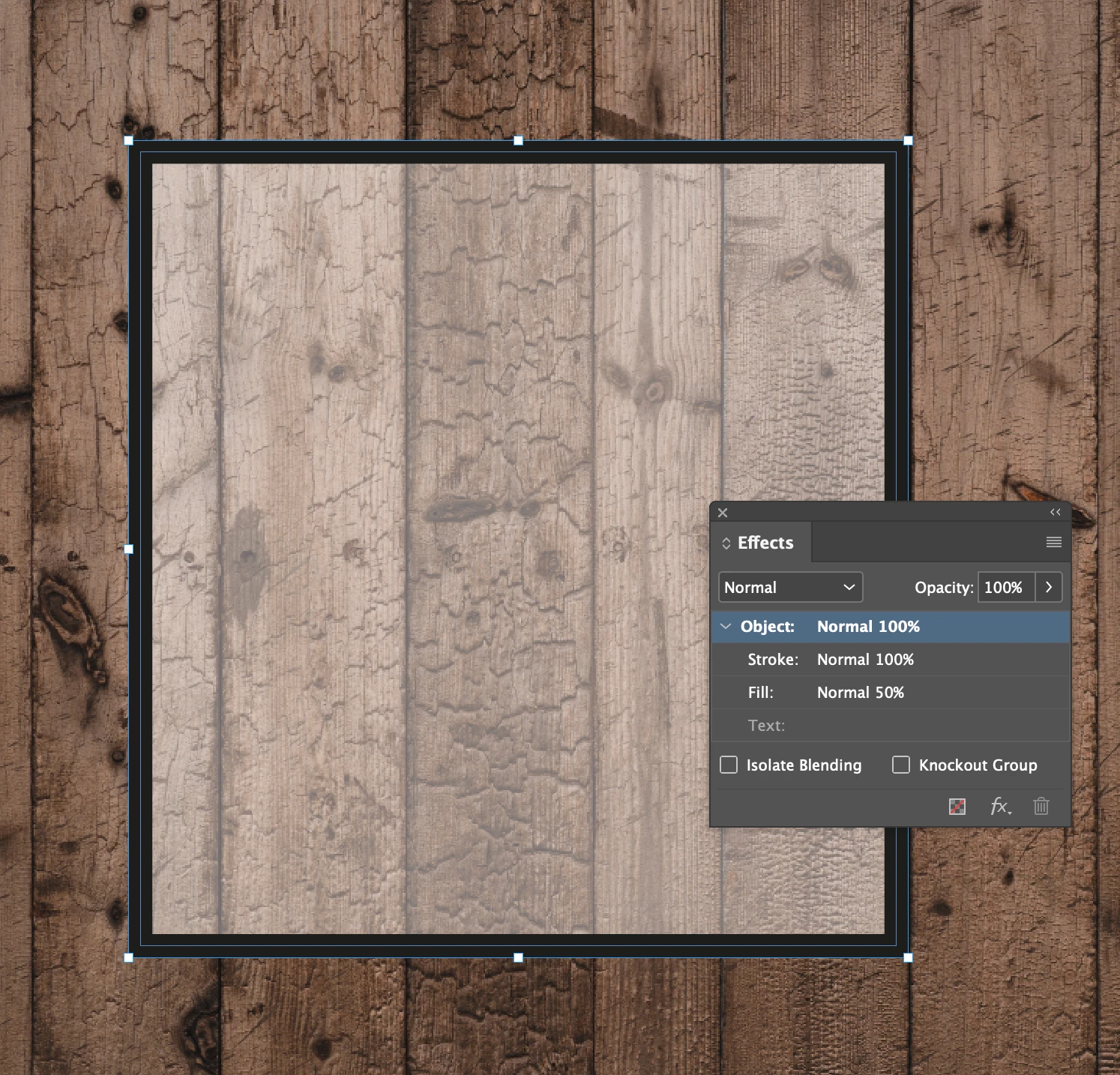
I think I understand what you want. You can do this with one object. Open the Effects panel hten click on the area you want to target when changing opacity. Here I have an opaque stroke (100% opacity) and a white fill (50% opacity). This is one object.


3 replies

Scott Falkner
Community Expert
Scott FalknerCommunity ExpertCorrect answer
Community Expert
September 2, 2022

I think I understand what you want. You can do this with one object. Open the Effects panel hten click on the area you want to target when changing opacity. Here I have an opaque stroke (100% opacity) and a white fill (50% opacity). This is one object.


Community Expert
September 2, 2022

Hi @1975992 ,

do you have two frames, one with the solid border and the other one with transparency set?

And you want to move both? Select them by using a selection marquee. Draw a rectangular area with the Selection Tool that touches both frames. Then move the selection.


Better apply the solid border to the one that has transparency.

Make sure that you apply the transparency only to the fill of the rectangle and not to the whole frame.

That's an option in the Effects panel.


Regards,
Uwe Laubender
( Adobe Community Professional )

Scott Falkner
Community Expert
Community Expert
September 2, 2022

I don’t understand your problem or what you are trying to do. Can you provide a screen shot?