
Klаus
Inspiring
July 16, 2020
Answered

»Radial« text setting?

  • July 16, 2020
  • 8 replies
  • 1948 views

Hi there!

Just wondering ...

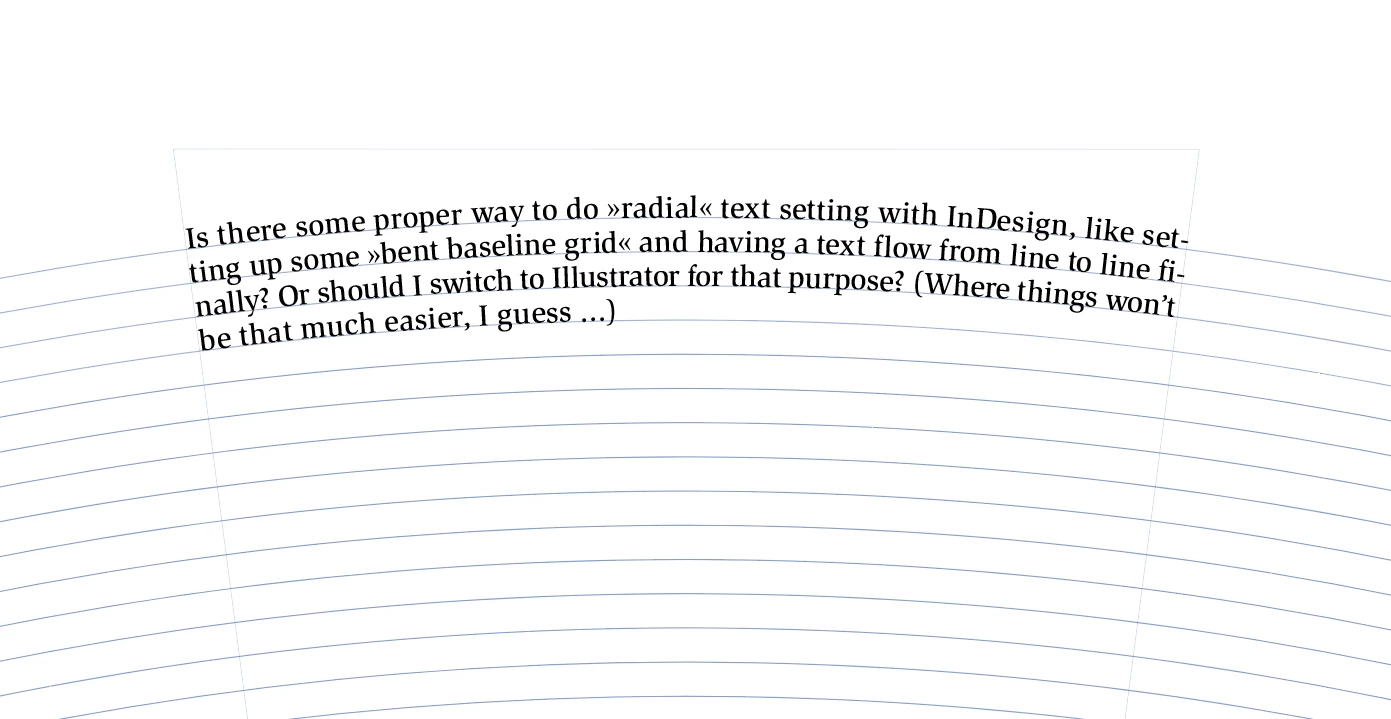
Is there some proper way to do »radial« text setting with InDesign, like setting up some »bent baseline grid« and having a text flow from line to line finally? Or should I switch to Illustrator for that purpose? (Where things won’t be so much easier, I guess ...)

Thanks –
Klaus
Correct answer Laubender

Well, that could be a compound path you first have to release it to single objects.

Menu Object > Paths > Release Compound Path


If you find a group, ungroup it first.


To detect what kind of object you have after pasting the paths go to the Layers panel and inspect your selection.


Regards,
Uwe Laubender

( ACP )


8 replies

Participating Frequently
May 28, 2025

Hi Klaus,

200 and 300 series Epson CD printer software had this capability for radial text printing supplied with those printers. It included avoidance of the hole in the center of the CD. Now, for some unknowable reason, Epson no longer provides this capability with their multifunctional printers, such as the ET-8550. I've been looking for software for sometime to replace what Epson no longer provides. USB dongles, which can copy what is scanned on the ET-8550, are not a replacement due to limited space for content description.

These memories are of limited lifespan, as are all others, except CD/DVD, which are stated to survive well over 100 years. This survival rate raises questions about why historical daalita would be compromised by forcing the use of low memory timespan capabilities. The reader is free to draw their own conclusions of, perhaps, why this might provide an avenue for rewriting history to suit those with an agenda to do so.


I have a CD used in a Small Claims Court case here in Van Nuys, California that was made 8 years ago. It contains all the receipts, photos and court documents used to justify why the tenants should not get their Security Deposit back. Unfortunately the damages were ignored by 3 judges and I had to return the Security Deposit. The evidence was completly ignnored.

Security Deposit to the renter.

Participant
March 7, 2025

Radial Type on path in InDesign is the most frustrating and complicated thing to do in InDesign. I wish they would already find an easier way to use this tool. Ever tried doing a design on a CD label that goes round? Or a pie graphic with lots of text? It's the worst.

LaubenderCommunity ExpertCorrect answer
Community Expert
July 17, 2020

Well, that could be a compound path you first have to release it to single objects.

Menu Object > Paths > Release Compound Path


If you find a group, ungroup it first.


To detect what kind of object you have after pasting the paths go to the Layers panel and inspect your selection.


Regards,
Uwe Laubender

( ACP )


Klаus
KlаusAuthor
Inspiring
July 17, 2020

Wow, thanks a lot, that does the trick! I wasn’t aware of that »Release Compound Path« function.

Community Expert
July 17, 2020

Hi Klaus,

the rules are the following:

You have to select graphic lines ( or graphic frames or text frames ), but not groups.

If you select graphic lines inside a group the script should work as expected.


Regards,
Uwe Laubender

( ACP )

Klаus
KlаusAuthor
Inspiring
July 17, 2020

Well, unfortunately it doesn’t work for me.


Would be great if you could try to re-produce that issue by copy&pasting two simple line paths from Illustrator to InDesign in one step. I’d love to learn about how to deal with them in InDesign in order to make them suitable for your script.

Mike Witherell
Community Expert
Community Expert
July 16, 2020

Klaus, it depends on your settings in, I think, Illustrator. In preferences, you can set it to AICB, and it should therefore copy simple paths that arent PDFed or overly grouped/compounded. With this statement, I will assume you have drawn the paths in Illustrator and they have no grouping, compounding, nor live effects, or else you have *expanded* their appearance.


Of course, a Laubender script is always a welcome addition!

Mike Witherell
Community Expert
July 16, 2020

Hi Klaus,

after you pasted all that graphic lines to InDesign you could execute a script to add text on path to every graphic line and thread all the graphic lines to one single story. For that you have to select them one by one in the order you want to thread the text paths. See my script code here:


How to curve text within a paragraph
Correct answer by Uwe Laubender, Jun 05, 2018

https://community.adobe.com/t5/indesign/how-to-curve-text-within-a-paragraph/m-p/9916712#M103738


Have fun!


Uwe Laubender

( ACP )

Klаus
KlаusAuthor
Inspiring
July 17, 2020

I could get your script to work, Uwe, as long as it’s separate bows that I copy&pasted from Illustrator, each by each. As soon as it’s a group of two or more bows that has been pasted in, it won’t work 😞

It seems I would need to somehow ungroup those pasted bunch of bows. In InDesign that is, for I already ungrouped them in Illustrator.

Luke Jennings3
Community Expert
Community Expert
July 16, 2020

InDesign does have type on a path. As a work-around, you could make one path and step and repeat it, (or make a set of concentric circles) then paste long text into the top path and add the overset type to the other paths. Hiding the top path after loading the overset type will make it easier to select the next path and flow the text.

Klаus
KlаusAuthor
Inspiring
July 16, 2020

Thank you, Luke!

Let’s assume I’ve just built up some very nice concentric »baseline grid« in Illustrator: I found not way to import that to InDesign so that I could use it there to follow your work-around suggestion 😞

Mike Witherell
Community Expert
Community Expert
July 16, 2020

If you drew those paths in Illustrator, wouldn't you (assuming these are simple paths) likely copy n paste those paths to InDesign? Then, in InDesign, you would have to make them all type-on-a-paths; link/thread them together; then flow in your text. Not a quick process, but the effect is pretty cool.

Mike Witherell
Community Expert
July 16, 2020

Hi Klaus,

I think you guessed right, this should be done with Illustrator.

In InDesign you have no way to do text wrap with text on paths.


Regards,
Uwe Laubender

( ACP )