
Re: Create a list that is 1.1, 1.2, 1.3 then 2.1, 2.2, 2.3
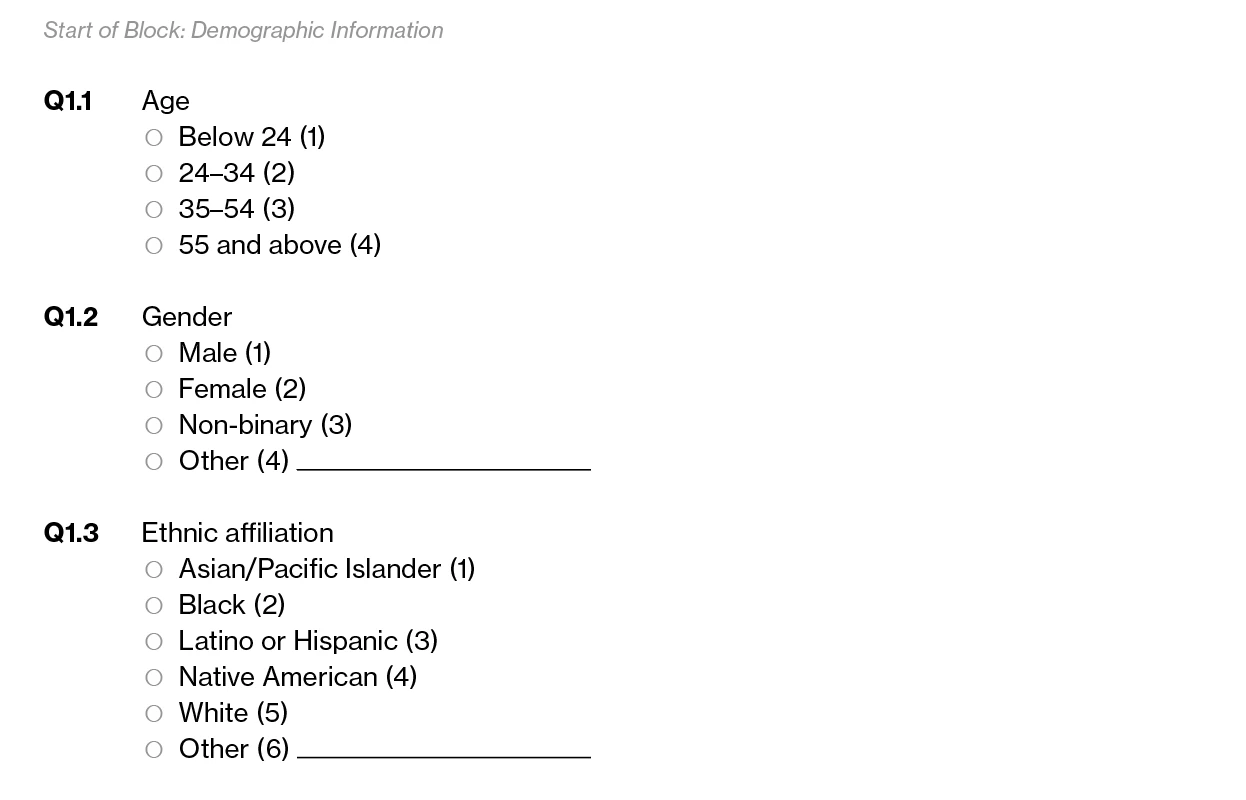
For project I am currently working on, I needed to format sections for a questionnaire that did not display the main sections (1, 2, 3, etc). I needed the questions in each sub-section to appear as Q1.1, Q1.2, Q 1.3 and so on. How I accomplished this was to do the following:
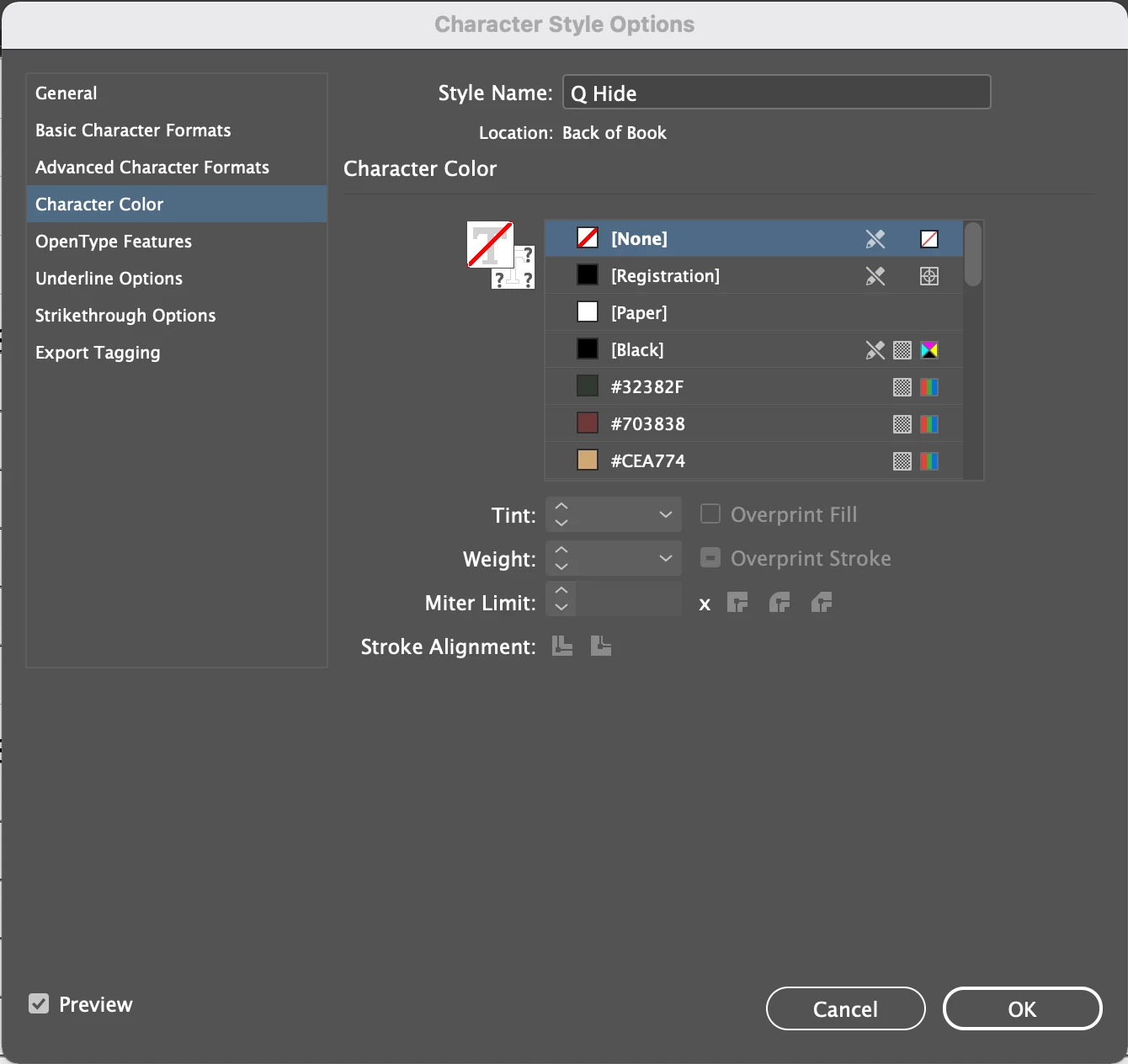
1. Create a character style called "Q Hide" with a character color of "None." This is so that it can be applied to the first tier of the nested list (1, 2, 3, etc.) and will not show.
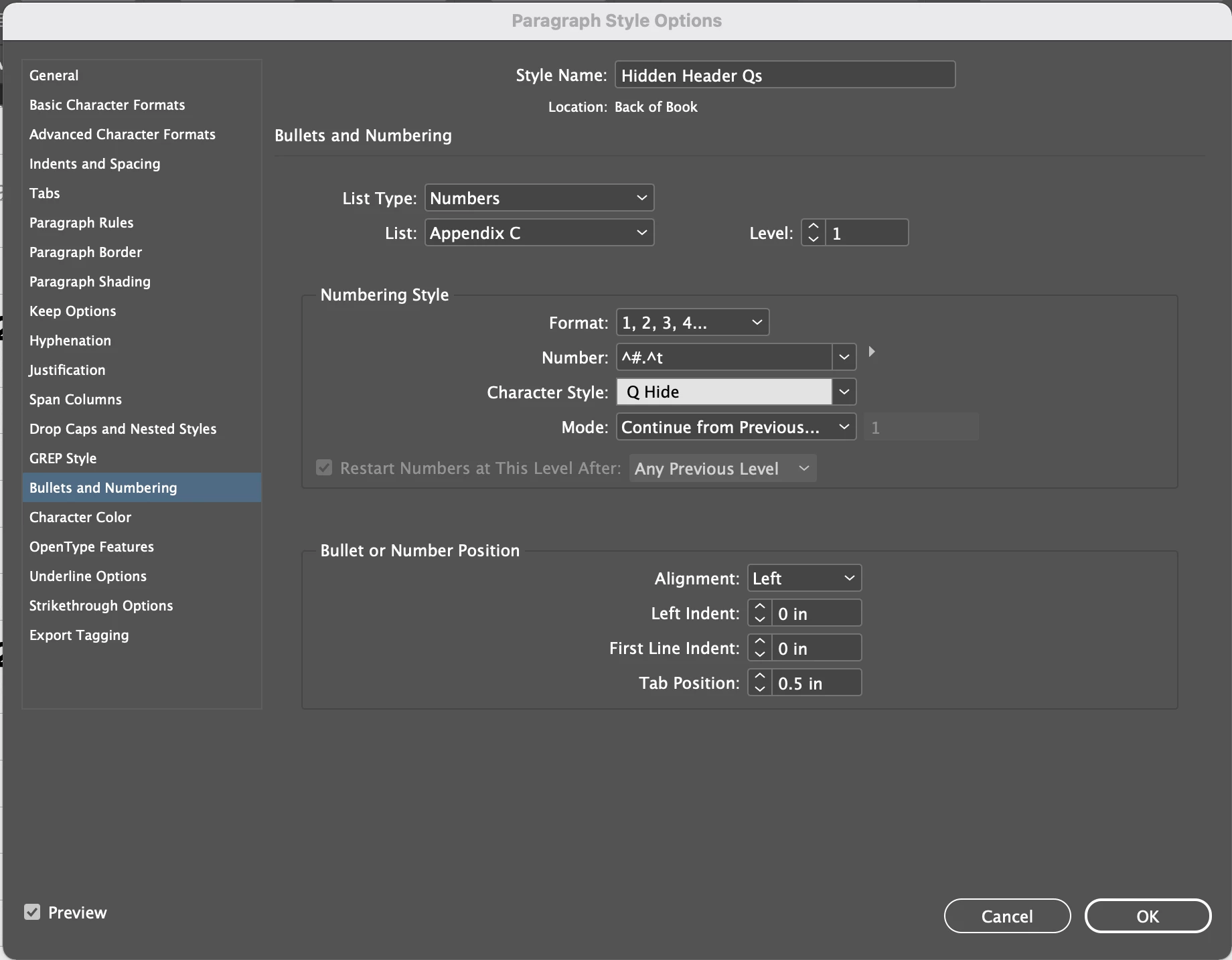
2. Create a paragraph style called "Hidden Header Qs" and under "List," create a new list. I called mine "Appendix C." Make sure it is set to "Level 1" and all settings match mine below. Note that the character style for the numbering style should be set to "Q Hide."
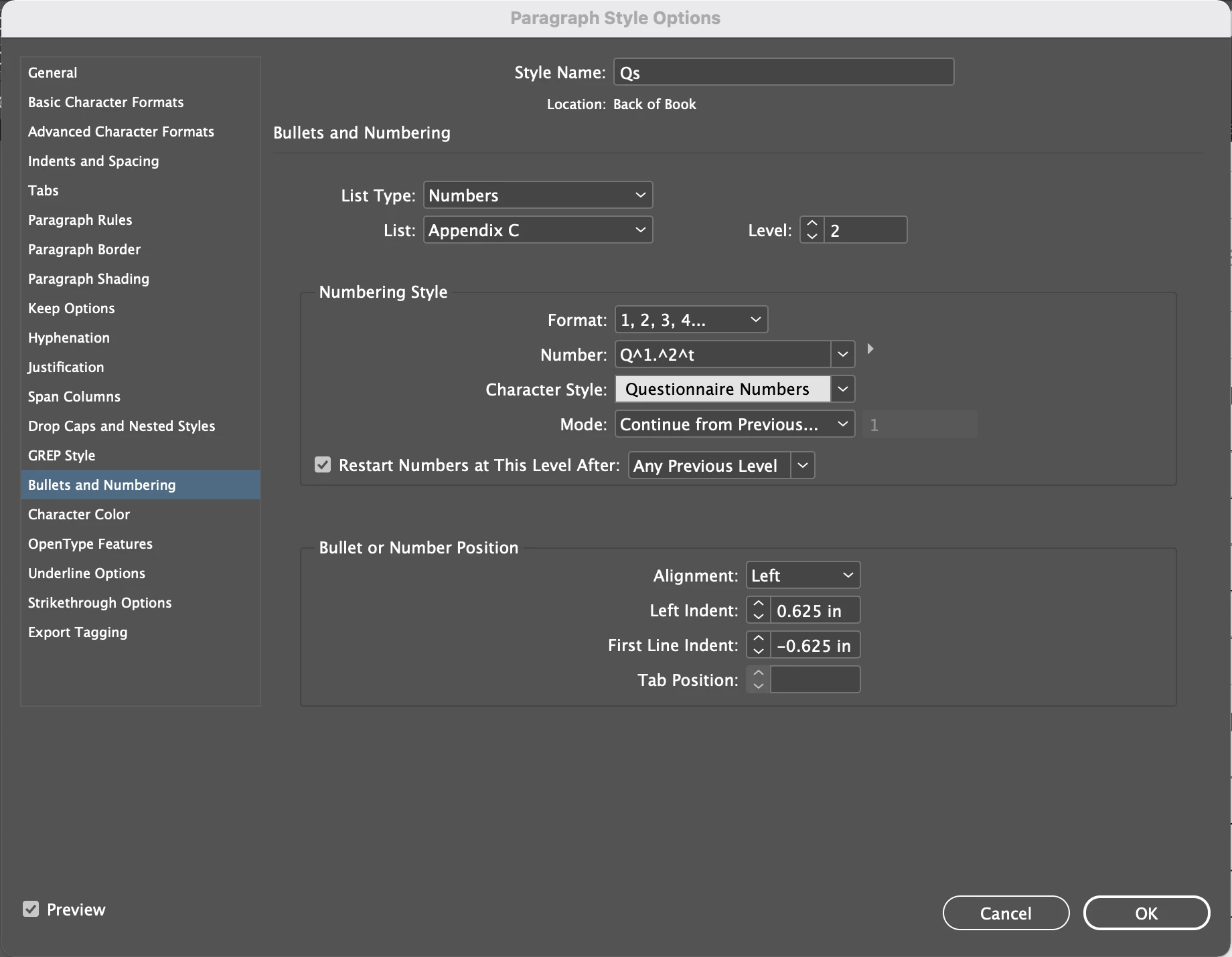
3. Create another paragraph style for the numbered list that you would like visible (1.1, 1.2, 1.3, etc) and name it "Qs". Make sure to use the same list as for the previous paragraph style. For me, it is "Appendix C." This style should be "Level 2". Note how I have structured the "Number" field. This is so that every number begins with a Q. Also, because I wanted these numbers to appear in bold, I created a character style for that and assigned it. This one is a matter of preference and is not necessary to achieve the nested numbers.
4. To make all of this come together, you will first insert a non-breaking space at the top of the start of your questions. To this space, you will assign your paragraph style "Hidden Header Qs." This sets the reference point for the questions to follow, but because it has a character style that has no color, it will be invisible. You will need to repeat this for all of your sections (1, 2, 3, etc). Next, select your first nested list item (1.1) and assign it the paragraph style "Qs." If you are happy with spaceing, etc., apply to the rest of your nested list items.
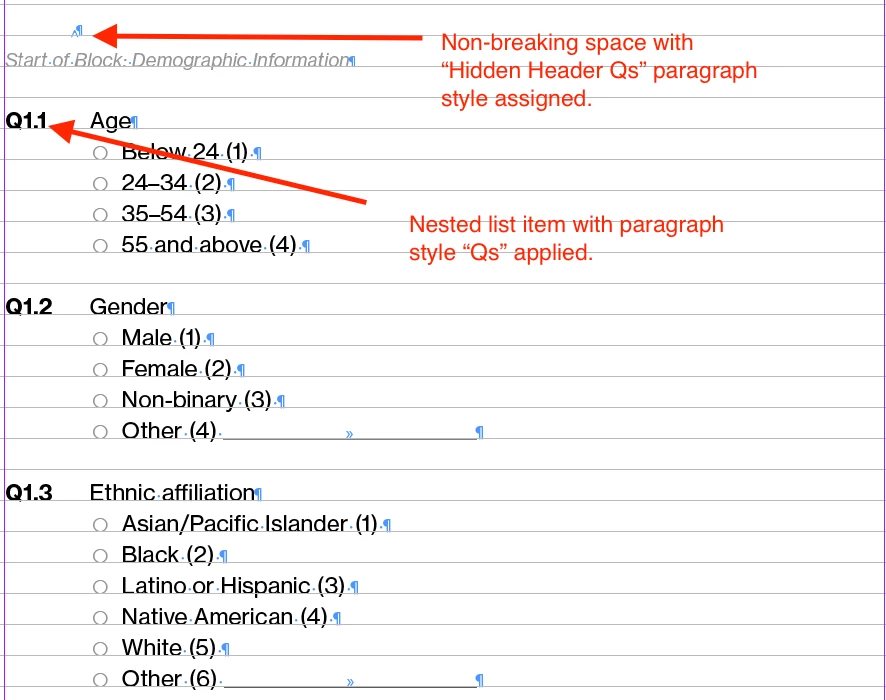
That's it! I hope this was helpful because I had a heck of a time trying to figure it out for myself!
 AdChoices