myronm79299567
Inspiring
March 15, 2018
Answered

Re: Deleting description next to page number on InDesign template

  • March 15, 2018
  • 6 replies
  • 3654 views

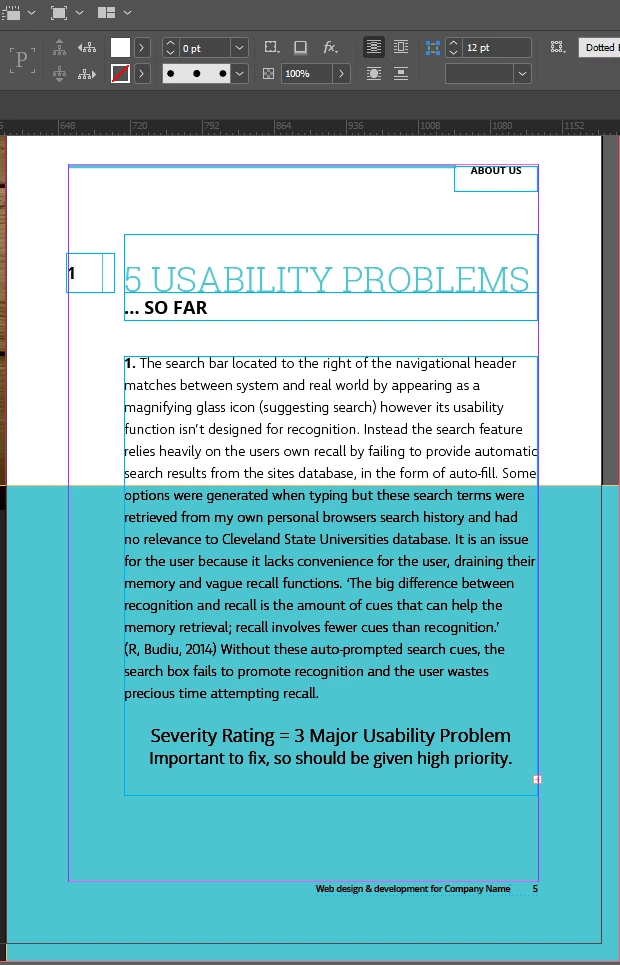
Hi! I am a student and just wrote a report using this Business Proposal Layout template off Adobe stock and i cannot delete the little company description saying 'Web design & development for Company Name' at the footer next to the page number? It just won't delete, i need this for tomorrow please help me. I basically want to replace this text and insert my own. Any helpful techniques? Thankyou

    This topic has been closed for replies.
    Correct answer Barb Binder

    Hi myronm79299567:

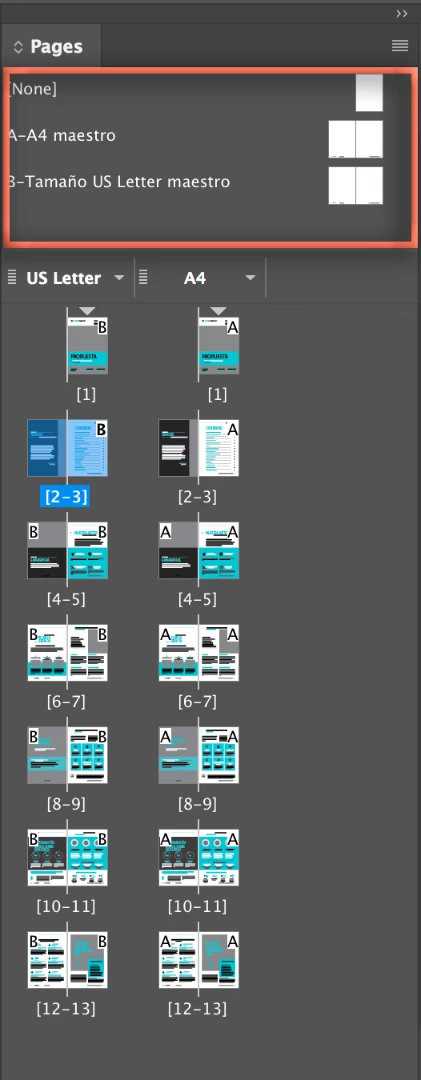
    winterm is correct that you will need to change this on the master page, but like many of the InDesign templates, this one uses Alternate Layouts. If master pages are unfamiliar to you, we can pretty much guarantee that Alternate Layouts are, as well.

    This template has two master pages: A is for US Letter and B is for A4. Be sure to navigate to the master page for the paper size you are actually using. I wrote this post to help my students navigate the Pages panel in the InDesign templates—you may find it useful. Adobe InDesign: I Can’t Edit an Adobe Stock CV Template! - Rocky Mountain Training

    ~Barb

    6 replies

    Barb Binder
    Community Expert
    Community Expert
    March 16, 2018

    Great!

    The templates are geared towards new users, but employ features that new (and when it comes to alternate layouts even seasoned) users aren’t  familiar with.

    I’m glad we could help you.

    ~Barb

    ~Barb at Rocky Mountain Training
    Barb Binder
    Community Expert
    Barb BinderCommunity ExpertCorrect answer
    Community Expert
    March 15, 2018

    Hi myronm79299567:

    winterm is correct that you will need to change this on the master page, but like many of the InDesign templates, this one uses Alternate Layouts. If master pages are unfamiliar to you, we can pretty much guarantee that Alternate Layouts are, as well.

    This template has two master pages: A is for US Letter and B is for A4. Be sure to navigate to the master page for the paper size you are actually using. I wrote this post to help my students navigate the Pages panel in the InDesign templates—you may find it useful. Adobe InDesign: I Can’t Edit an Adobe Stock CV Template! - Rocky Mountain Training

    ~Barb

    ~Barb at Rocky Mountain Training
    myronm79299567
    Inspiring
    March 16, 2018

    Thankyou for all your help. I'm still having issues. I am able to delete this footer info from the master page, however its still there on my actual pages? When i click master 2 blank pages come up as i have already deleted this info amd its still there on my pages?

    myronm79299567
    Inspiring
    March 16, 2018

    Its definitely an A4 master. The annoying footer info is still there.

    manal shanableh
    Legend
    March 15, 2018

    for sure it is master page item, i thought you know the master and its locked there,

    double click on the master page from pages panel, and delete or edit the text.

    winterm
    Legend
    March 15, 2018

    See that thin dotted line around? It says the element is placed on the Master Page. Go there (you can use Pages panel) and edit.

    manal shanableh
    Legend
    March 15, 2018

    manal shanableh
    Legend
    March 15, 2018

    Open the layers panel (Window> Layers) and check if the layer locked.

    unlock and edit.