
Inspiring
December 13, 2022
Question

Re-importing AI with crop to bleed alters size and proportions

  • December 13, 2022
  • 1 reply
  • 510 views

Dear all.

I'm preparing a file for print and, inadvertently, a graphic on the cover is not passing into the bleed, rather stopping at page edges. Never mind, I said, let's just re-import the same graphic with the different option checked (crop to bleed). With my horror, the same AI file with different crop options doesn't have the same size on page as it had before, and not in a way that would look like a proportional error. 

Here is how it looked before (and how it should look also after the new import):
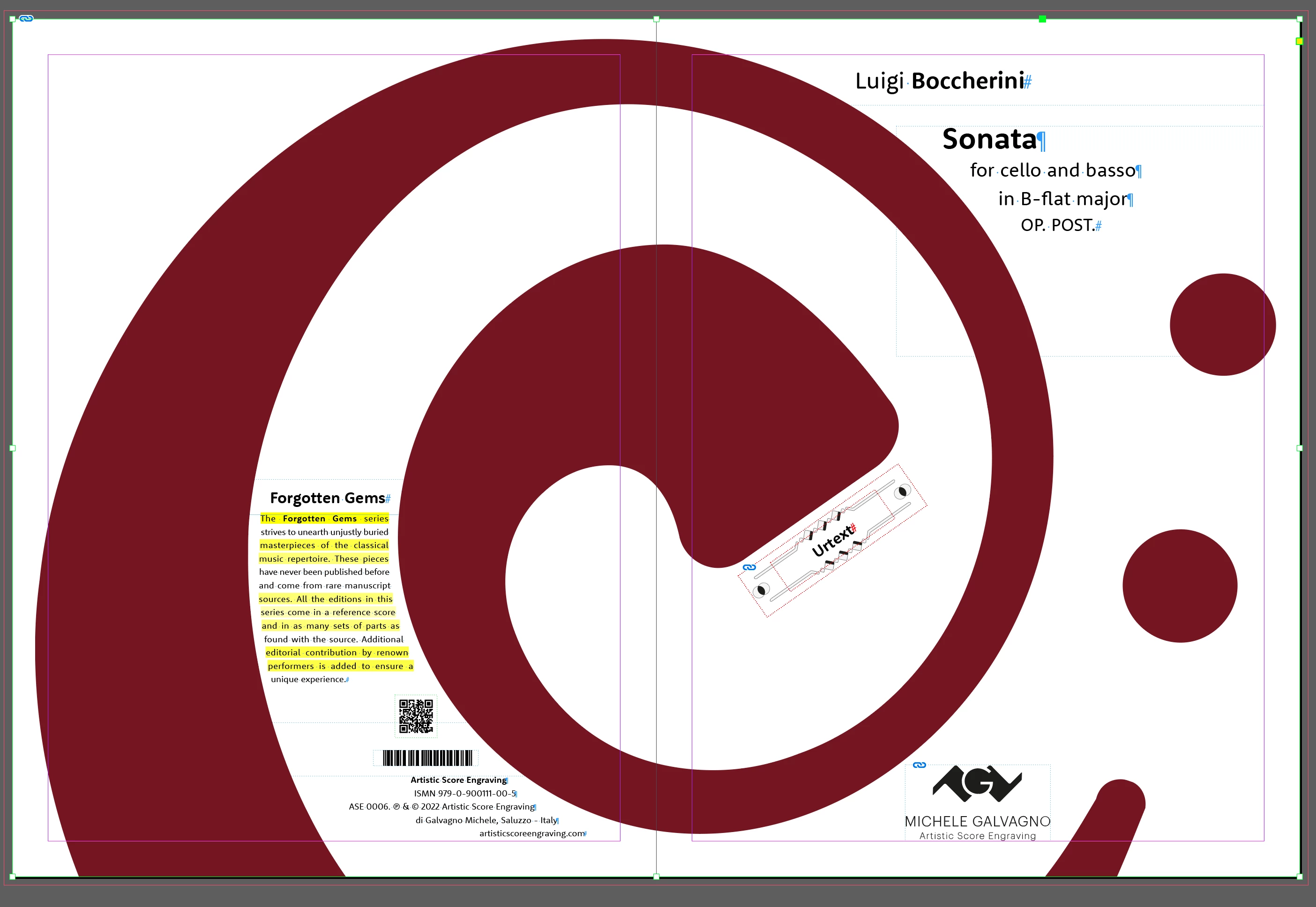
I made a copy of this AI file, then selected this graphic in the InDesign file, pressed Cmd-D, checked replace selection & import options, set the crop to Bleed and hit OK. The file was substituted correctly, but the graphic still doesn't go into the bleed (not even if I make the frame bigger). Could it be because there is a text wrap contour around this shape? 

If, then, instead of using the Place command with the graphic selected, I just ... place it ... it is not of the same size nor proportion (new graphic in yellow to show the issue): 
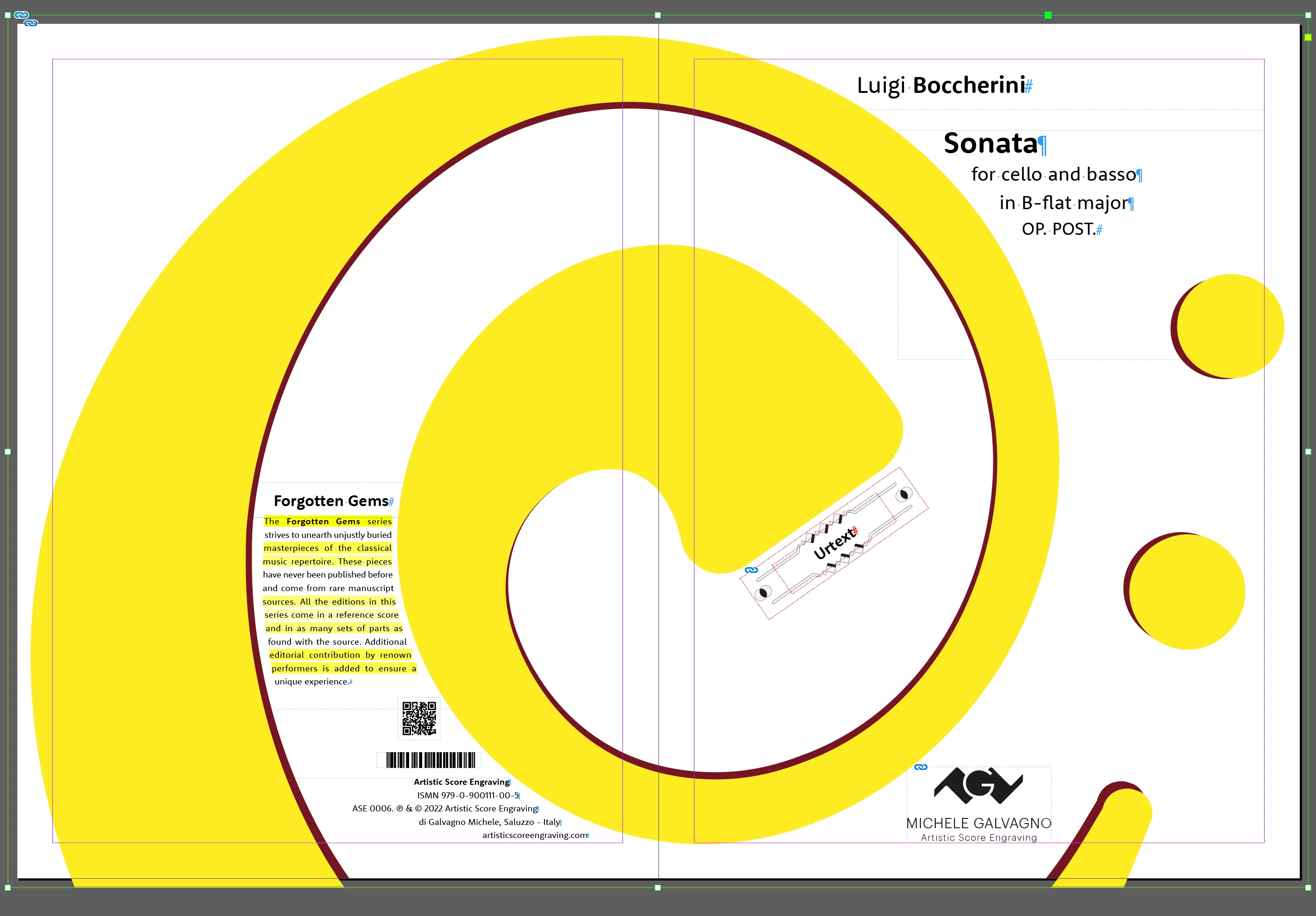
Any idea what may be happening? Most of all ... how to solve it ... it is a copy of the same file, it should be the same size and proportions, in theory ... I thought I may have resized the original file once placed but no, that's not the case ... 

Thank you so much


EDIT: solved ... but I do not know what I have done ... it suddenly worked ... how to delete this post?

This topic has been closed for replies.

1 reply

rob day
Community Expert
Community Expert
December 13, 2022

solved ... but I do not know what I have done


Hi @Inélsòre , If this is the same file you posted in the other thread about color, the .AI file’s parent container frame doesn’t extend into the bleed, so it is clipping the placed file.


Here I’ve used the (Black) Selection tool to select the parent frame and changed the fill from None to green so you can see the bounds:


If I use the (white) Direct Selection tool I can select the placed AI file. Note that in the Layers panel the selection icon is slightly reduced indicating I have selected the art and not the container:


If I extend the container frame to the bleed and reimport the AI file to include the bleed:


Also, not sure if it matters the AI file is scaled to 98.6% x 97.5% in your file—I’ve set it to 100% centered above.

Inspiring
December 13, 2022

Yes, the scaling apparently mattered, but now, following your instructions, I don't understand what I should do with the Direct Selection Tool. Extending the container frame just resizes the graphic right now ... what am I missing?

rob day
Community Expert
Community Expert
December 13, 2022

what am I missing?


A placed object always has a container, so you have to be aware of what you have selected—the placed object, its container, or both. If you have a rectangle selected and Place an object the rectangle becomes its container. If you Place directly on a page, a same sized container is created for the object when you place.


Here I’m placing your .AI file into a selected rectangle. If I click on the placed object with the white Direct Selection tool you can see its bounding box:


If I use the Black Selection tool, I can select the container and change its size without affecting the object inside by draging its control points:


If I place your file directly on the spread with Showing Options I can include the Bleed, and I’ll get a container and the placed object at 18.25 x 12.25:


I can still Direct Select the .AI file and reposition it relative to the container: