Participant
December 14, 2020
Answered

Recto and Verso numbering in spreads with repeating page number R1, V1 R2, V2 etc

  • December 14, 2020
  • 2 replies
  • 633 views

Hi


I am wondering if anyone can help me with the following. I have a 2 page spread document and I need to number is so that the Recto page is 1 and then the verso of that page is also 1. Then R2, V2, R3 V3 etc.

Tried all kinds of things on the masters but no joy.


Any help would be greatly appreciated!


Thank you 🙂

This topic has been closed for replies.
Correct answer jmlevy

That is possible but not with the automatic page numbering, and it takes some steps, using lists:

  1. Create 2 paragraph styles, one will be named recto and the other one verso
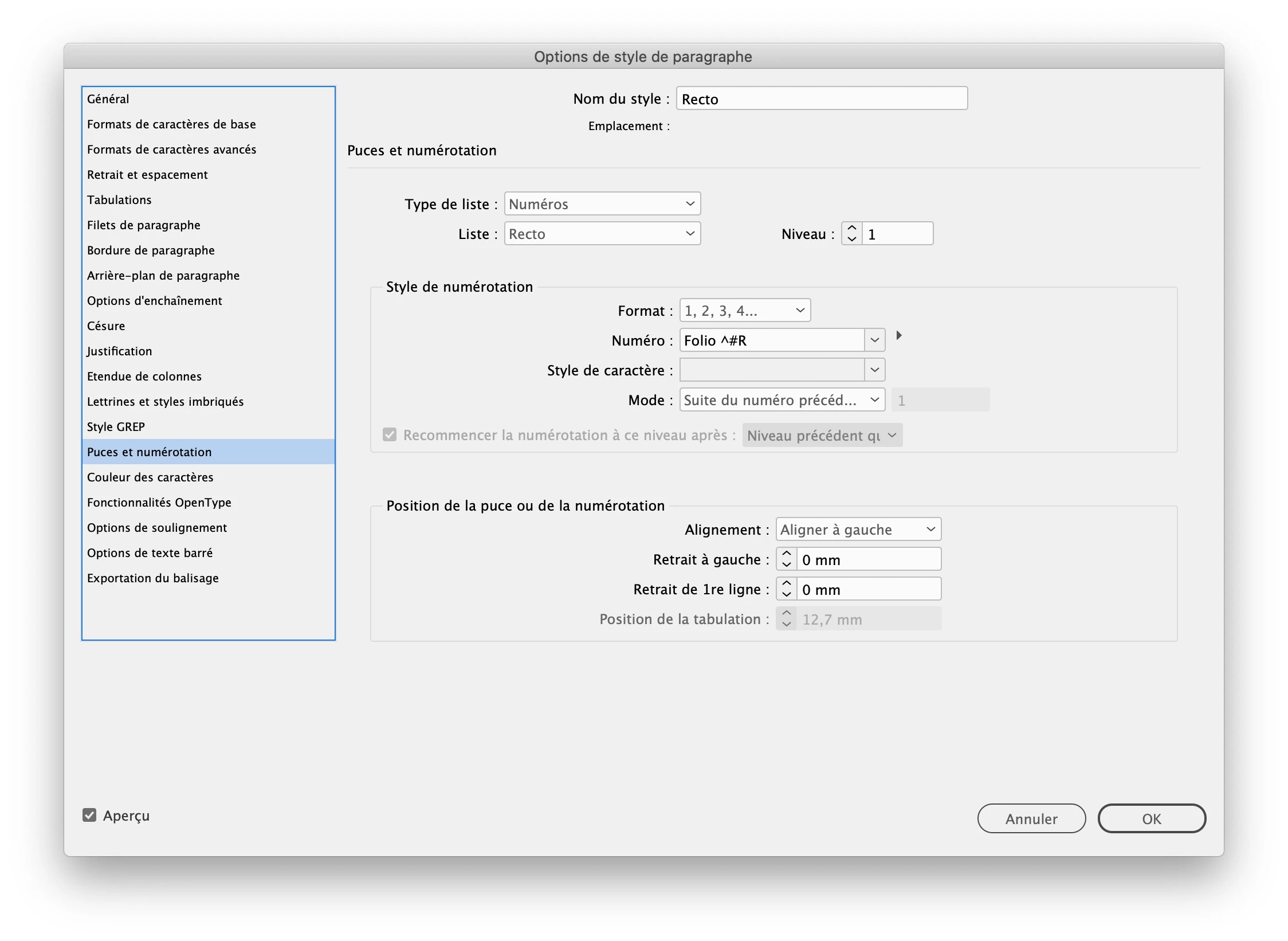
    note that for each style you need to create a list, like this

    so, you neeed 2 lists, one “recto” for the recto style and one “verso” for the verso style
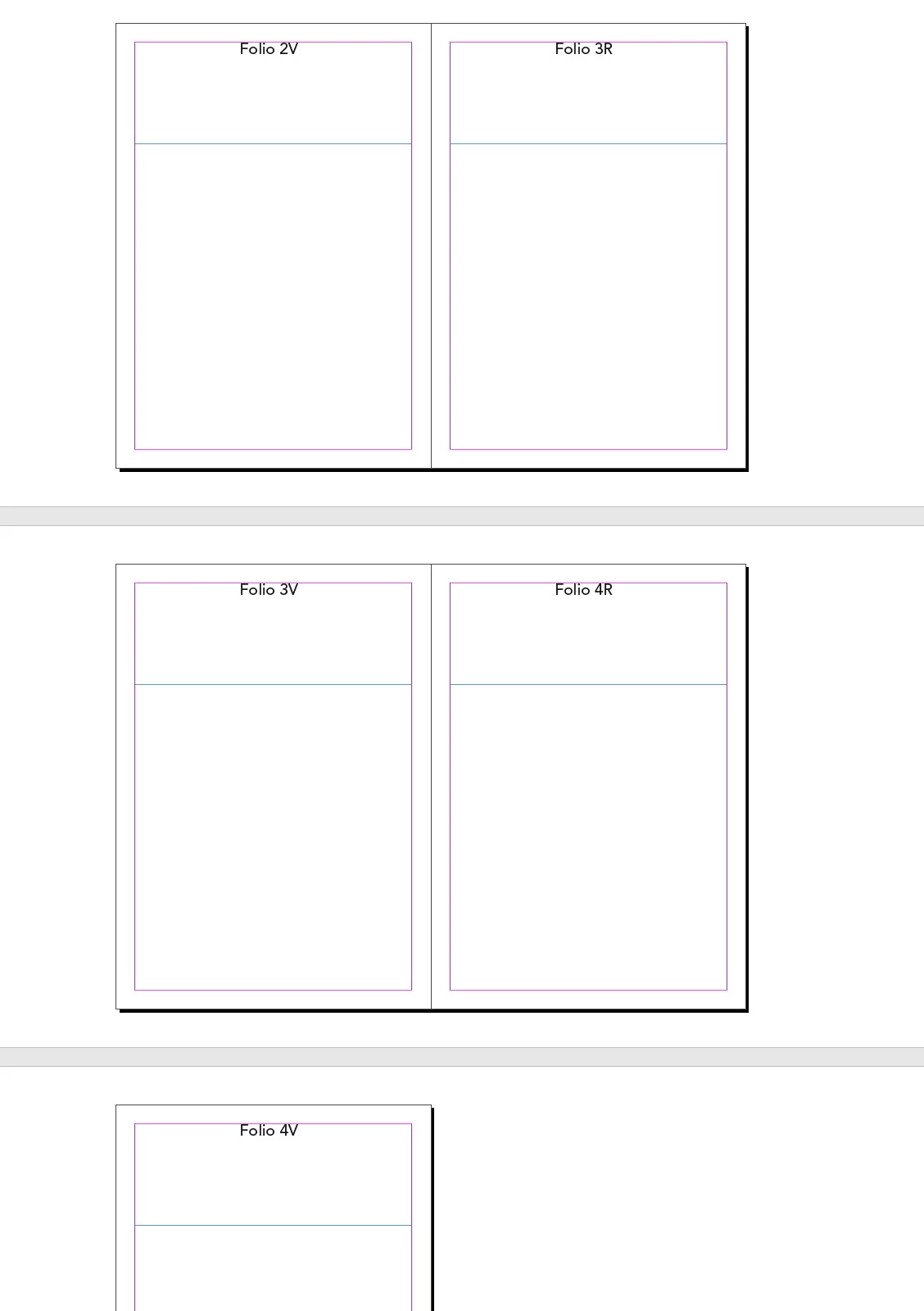
  2. create text frames on each master page and apply the recto style on the recto page by typing a space in the text frame and do the same for the verso page, applying the verso style. You will get this:
  3. create the number of pages you need. At this point, you will not see any automatic numbering
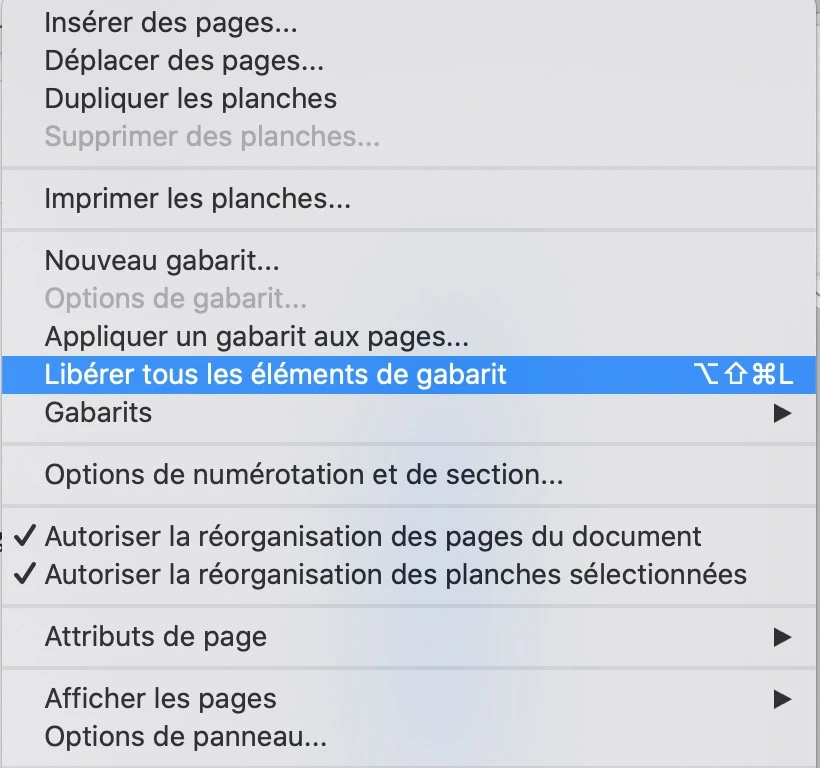
  4. the final step is to select all the pages in the page panel and to “release all master frames” (not sure of the English exact term since I am using a French version)

2 replies

JS220267Author
Participant
December 15, 2020

Thank you so much! It worked perfectly. 🙂

jmlevy
Community Expert
jmlevyCommunity ExpertCorrect answer
Community Expert
December 14, 2020

That is possible but not with the automatic page numbering, and it takes some steps, using lists:

  1. Create 2 paragraph styles, one will be named recto and the other one verso
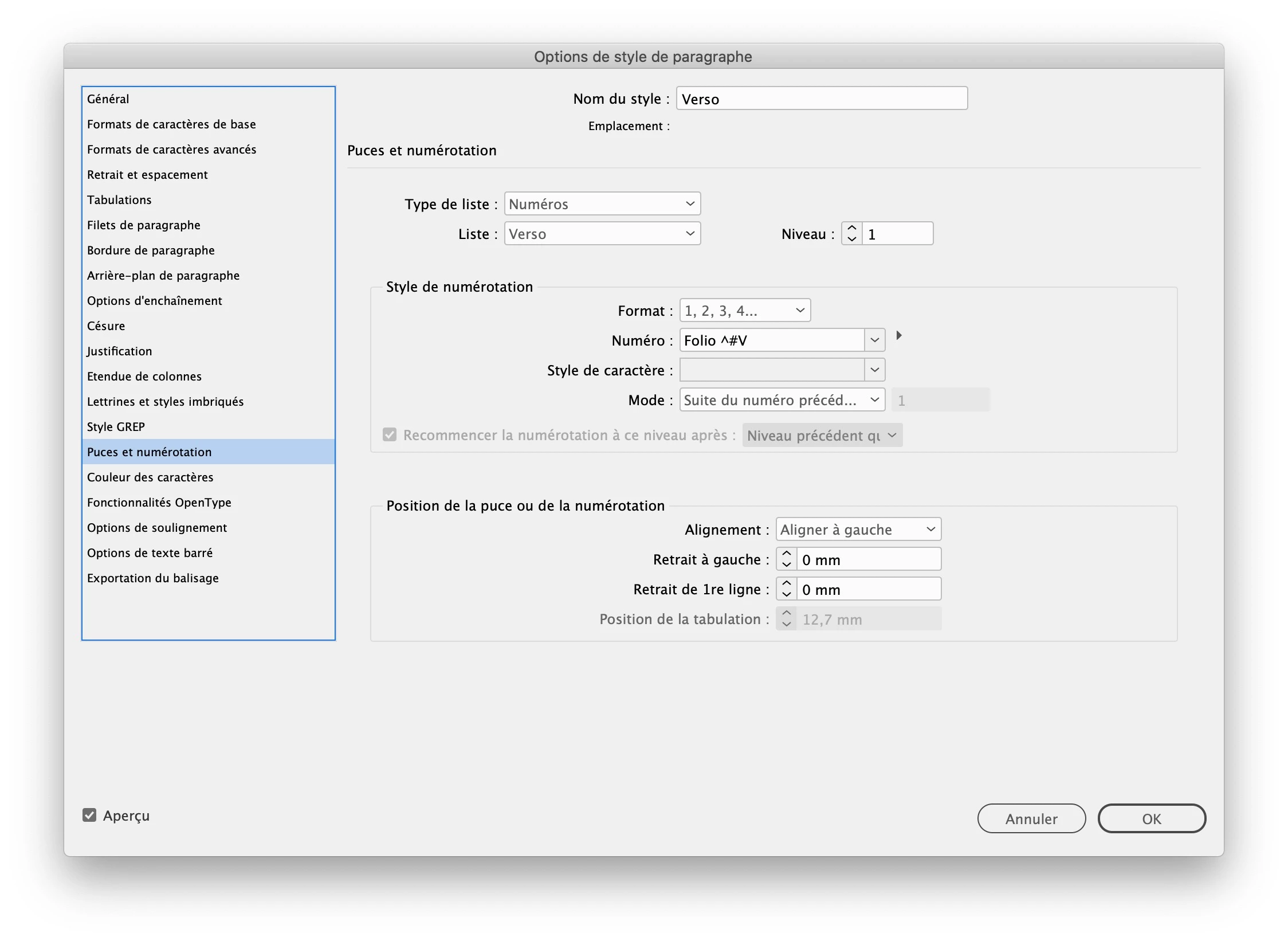
    note that for each style you need to create a list, like this
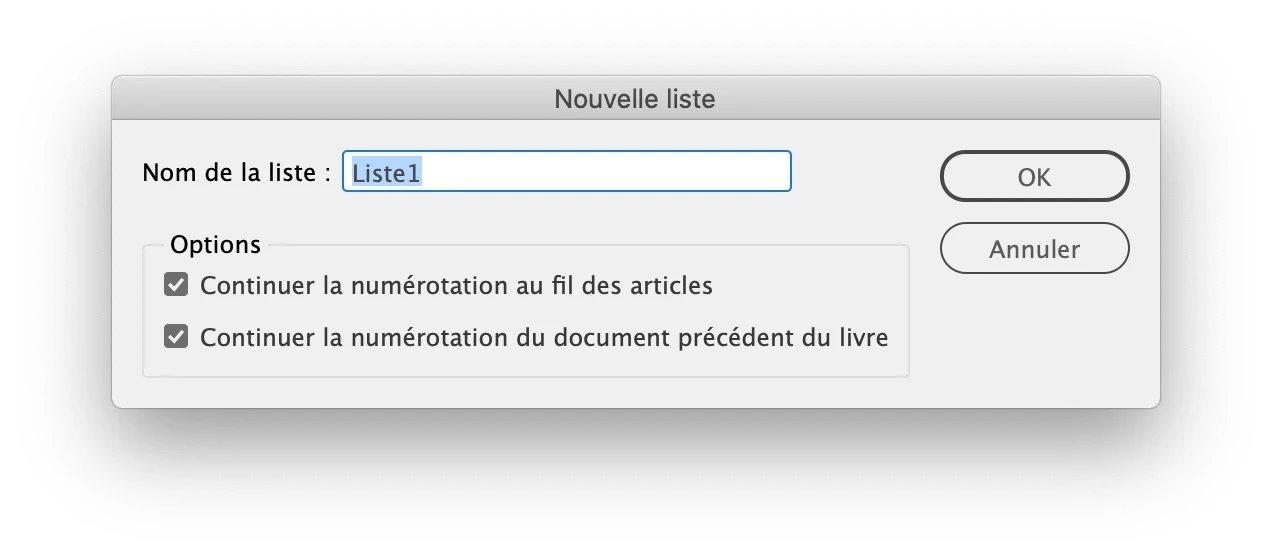
    so, you neeed 2 lists, one “recto” for the recto style and one “verso” for the verso style
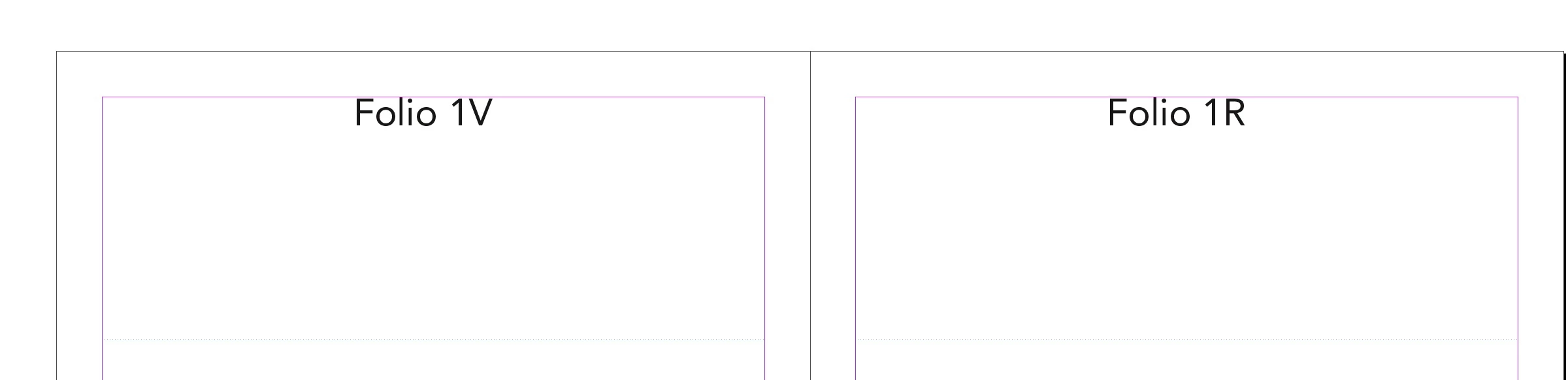
  2. create text frames on each master page and apply the recto style on the recto page by typing a space in the text frame and do the same for the verso page, applying the verso style. You will get this:
  3. create the number of pages you need. At this point, you will not see any automatic numbering
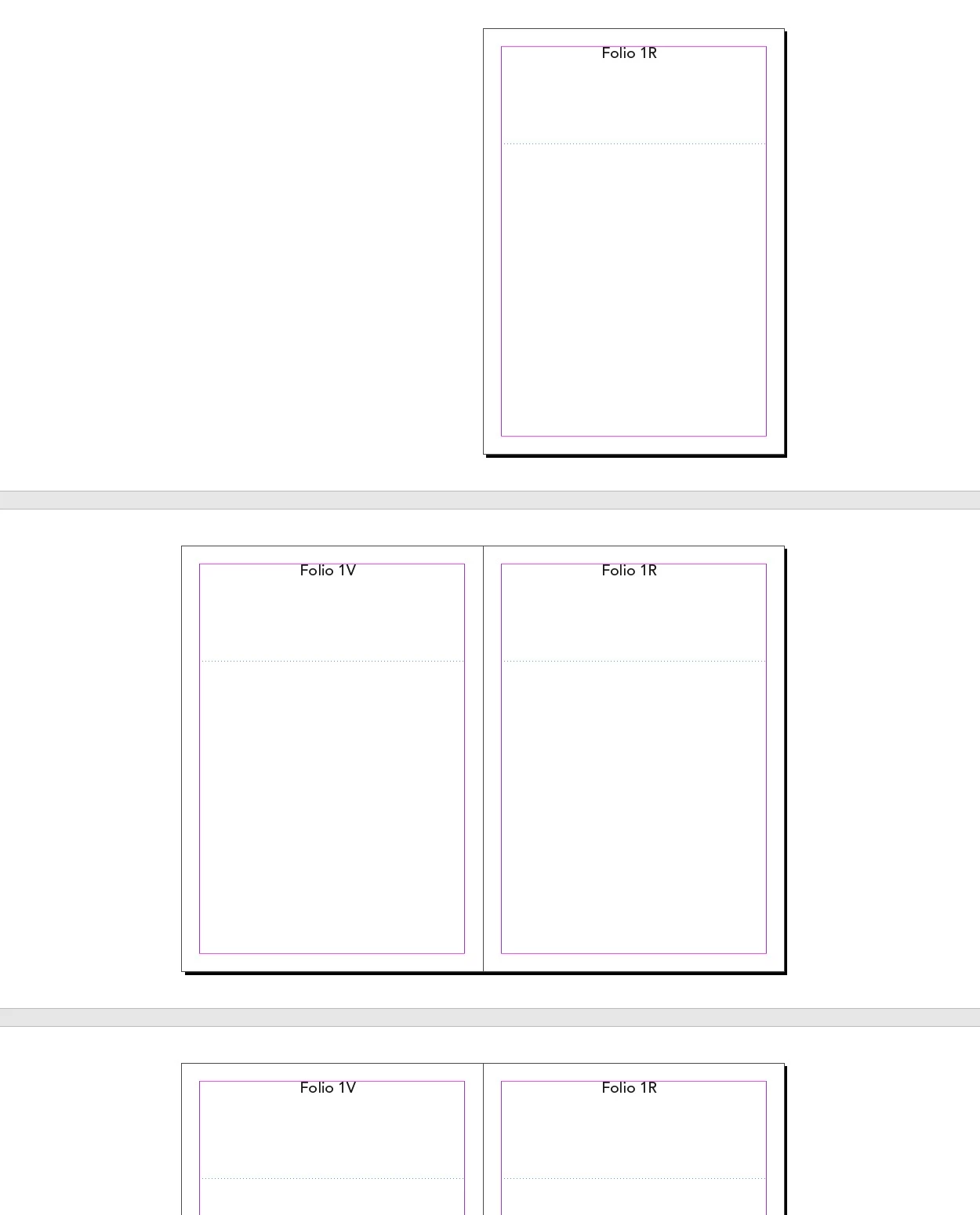
  4. the final step is to select all the pages in the page panel and to “release all master frames” (not sure of the English exact term since I am using a French version)