Do you have text wrap settings on that text frame?
I think it may be as easy as:
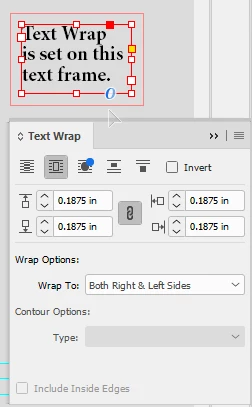 Select the text frame with your Arrow/Selection Tool. Then open your Text Wrap panel, which should show some variation of text wrap (that outside border that doesn't let you place anything inside of it. In the example at right, the text frame is set with a regular wrap of 3/16ths of an inch, or .1875 in. If any button is selected in the Text Wrap panel except the one at the far left, the one with the lines going straight through the box, you have a text wrap set around your text frame. With the text frame selected, click on that far left button and the text wrap will disappear ... on that selected text frame.
- Since you're getting that text wrap all the time, you likely have it selected as your tool default for perhaps your Type Tool, likely your Arrow/Selection Tool, and maybe your Rectangle Tool and/or Rectangle Frame Tool as well. To go back to your defaults, choose each tool in your Tools panel, then make sure absolutely nothing is selected. Go to your Text Wrap panel and click the far left button to ensure that the default setting for those tools uses No text wrap.
Do these steps and you should be done with this perplexing little issue. For what it's worth, I know this from personal (unfortunate) experience.
Hope this helps,
Randy

 AdChoices