
Participant
February 20, 2023
Answered

Save opacity as part of swatch

  • February 20, 2023
  • 3 replies
  • 2887 views

I want several objects to share the same opacity value. I don't want to apply the opacity value to each object individually - instead, I'd like to have opacity saved as part of the objects color swatch, and later change the opacity of all those objects using a single slider of the swatch.


Is this possible in InDesign?
This topic has been closed for replies.
Correct answer Rene Andritsch

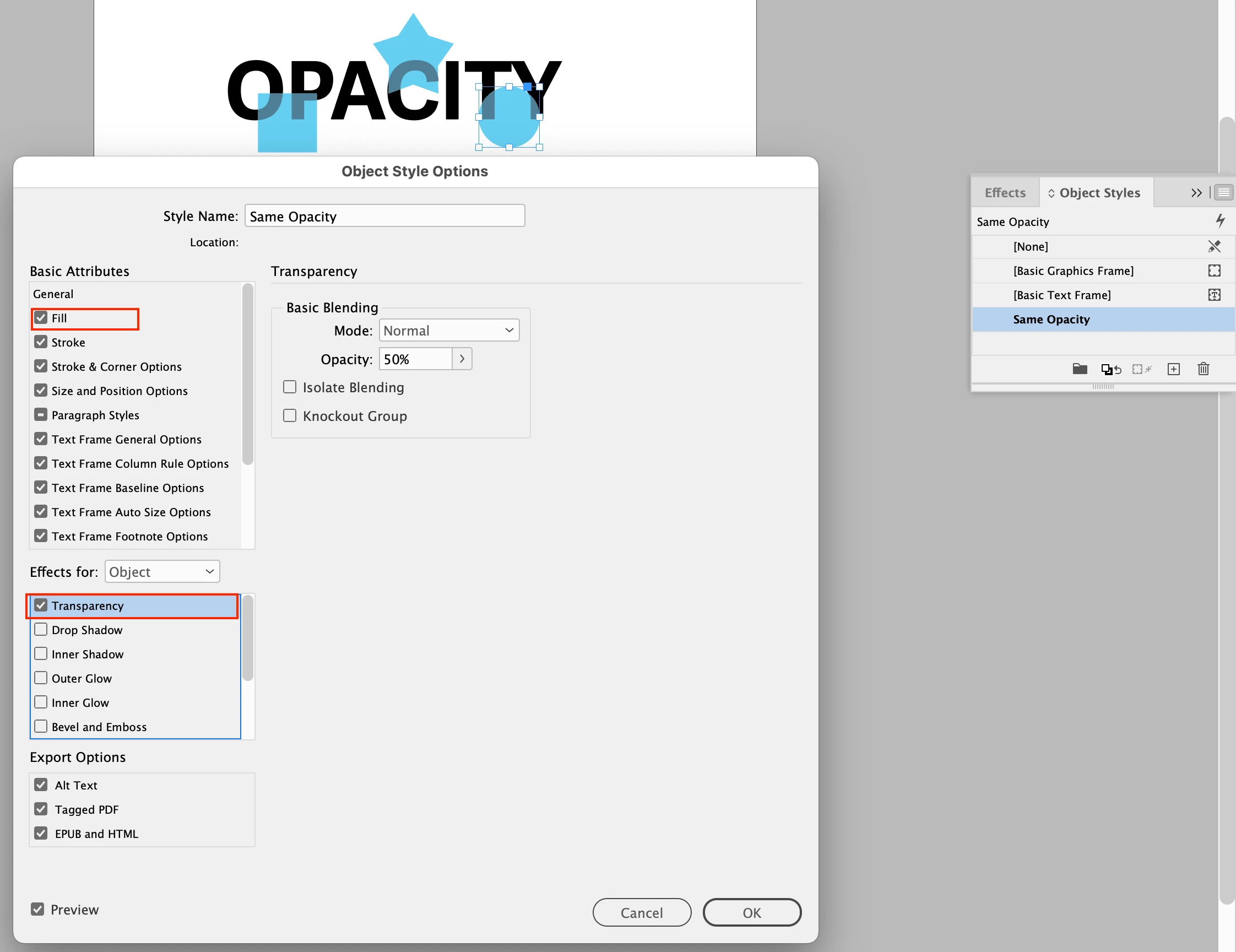
You could simply create an Object Style with the Transparency setting to your liking. Apply it to all your objects. If the Fill color should be different simply deactivate the Fill tick box. You can change the Transparency value anytime and all objects with the Object Style applied will change accordingly.

3 replies

Rene Andritsch
Community Expert
Rene AndritschCommunity ExpertCorrect answer
Community Expert
February 20, 2023

You could simply create an Object Style with the Transparency setting to your liking. Apply it to all your objects. If the Fill color should be different simply deactivate the Fill tick box. You can change the Transparency value anytime and all objects with the Object Style applied will change accordingly.

Community Expert
February 20, 2023

I agree this is a viable solution - however, it would involve adding transparncy to the page and could have unintended consequences on output. But shouldn't be too much of an issue.


The problem is that it applies to the entire block - that is everything inside that is given the same opacity.

You couldn't have a block of text in Cyan and then 50% opacity text in the middle of the sentence.

It would be better to have this a 50% tint with overprint applied.


Horses for courses.

Community Expert
February 20, 2023

Further to Peter's advice - https://helpx.adobe.com/ie/indesign/using/tints.html

That's the how to page to create Tint Swatches - they will be based on the Parent swatch.


For opacity - set the fill in the object to Overprint - this will let the tint blend with any colour it goes over.

If you don't wnat this to happen - then turn off Overprint for the fill / stroke colour - and the swatch will knockout - which means when it interacts with a colour underneath it will remain the same colour.

https://helpx.adobe.com/ie/indesign/using/overprinting.html#:~:text=Choose%20Window%20%3E%20Output%20%3E%20Attributes.,selected%20objects%2C%20select%20Overprint%20Stroke.


Participant
February 20, 2023

The object fill stays opaque, even if I turn on "Overprint Fill" - am I missing something?

Community Expert
February 21, 2023

Hi Eugene, I think it can be risky to use overprint for a color effect even with CMYK. Here I’m overprinting green on 100% magenta, and the color responds to Overprint Preview because there is no magenta component in the green mix, but if I add even .5% there is no overprint effect:


And if there is a color conversion in the workflow that adds any magenta to the green mix, the overprint affect would also be lost. Today it’s very difficult to control the output CMYK values all the way to press—printers tend to intervene—so I don’t think you can’t expect an overprint to alwways work.


I would not expect that at all. 

I've been experimenting too and I can see overprint is true in the PDF but the result is not visible.

Would you think this is a bug or just how it works?


Transparency effect it is so.

Peter Spier
Community Expert
Community Expert
February 20, 2023

Not opacity, which implies you want other objects to show through and is an object-level attribute, but you can create a TINT swatch with your chosen percentage of a color, which is opaque.