Participant
December 18, 2024
Question

Schaltflächen Funktionieren nicht auf der ersten Seite aber überall.
  • December 18, 2024
  • 2 replies
  • 137 views

Hey Leute, 

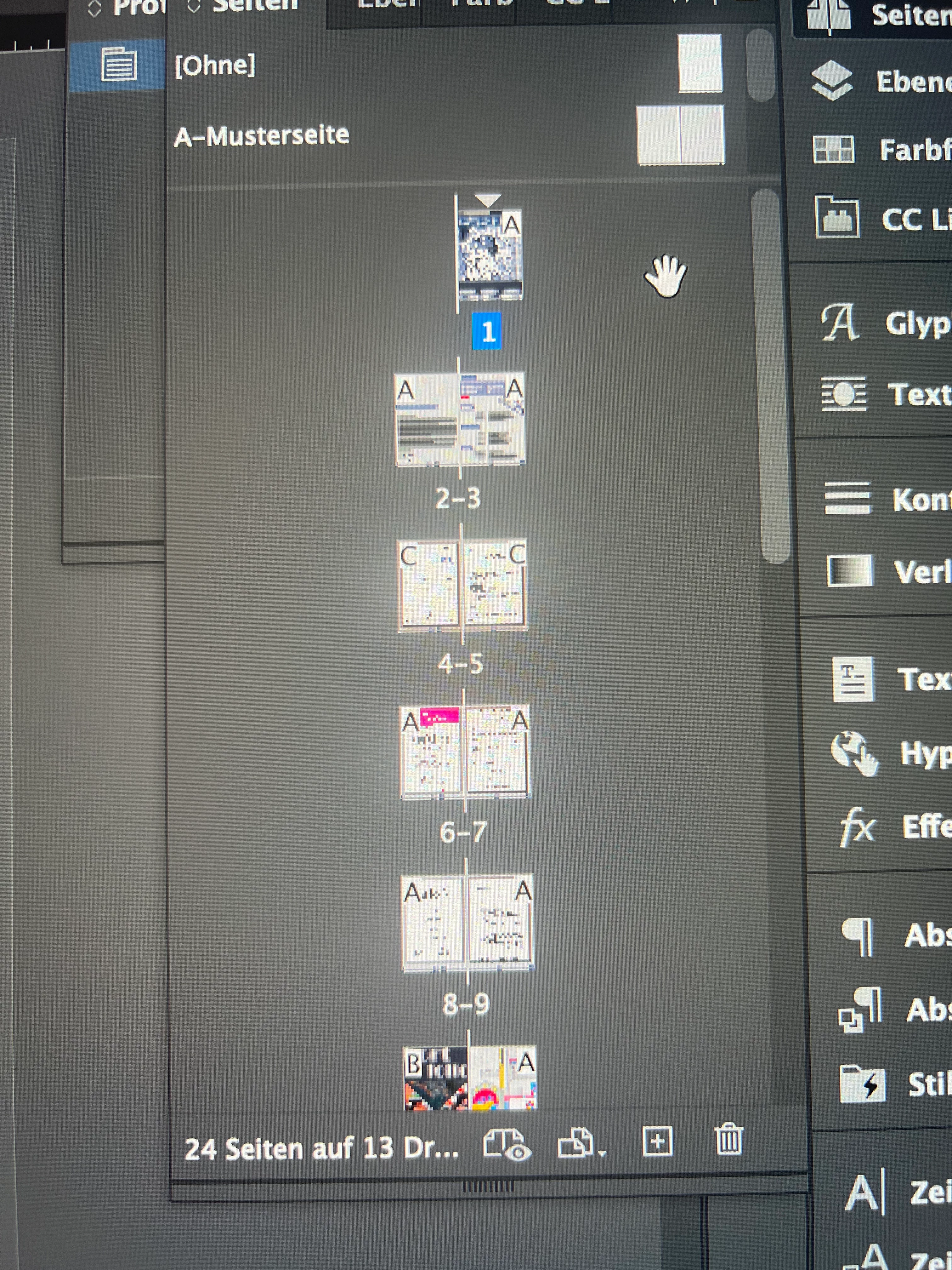
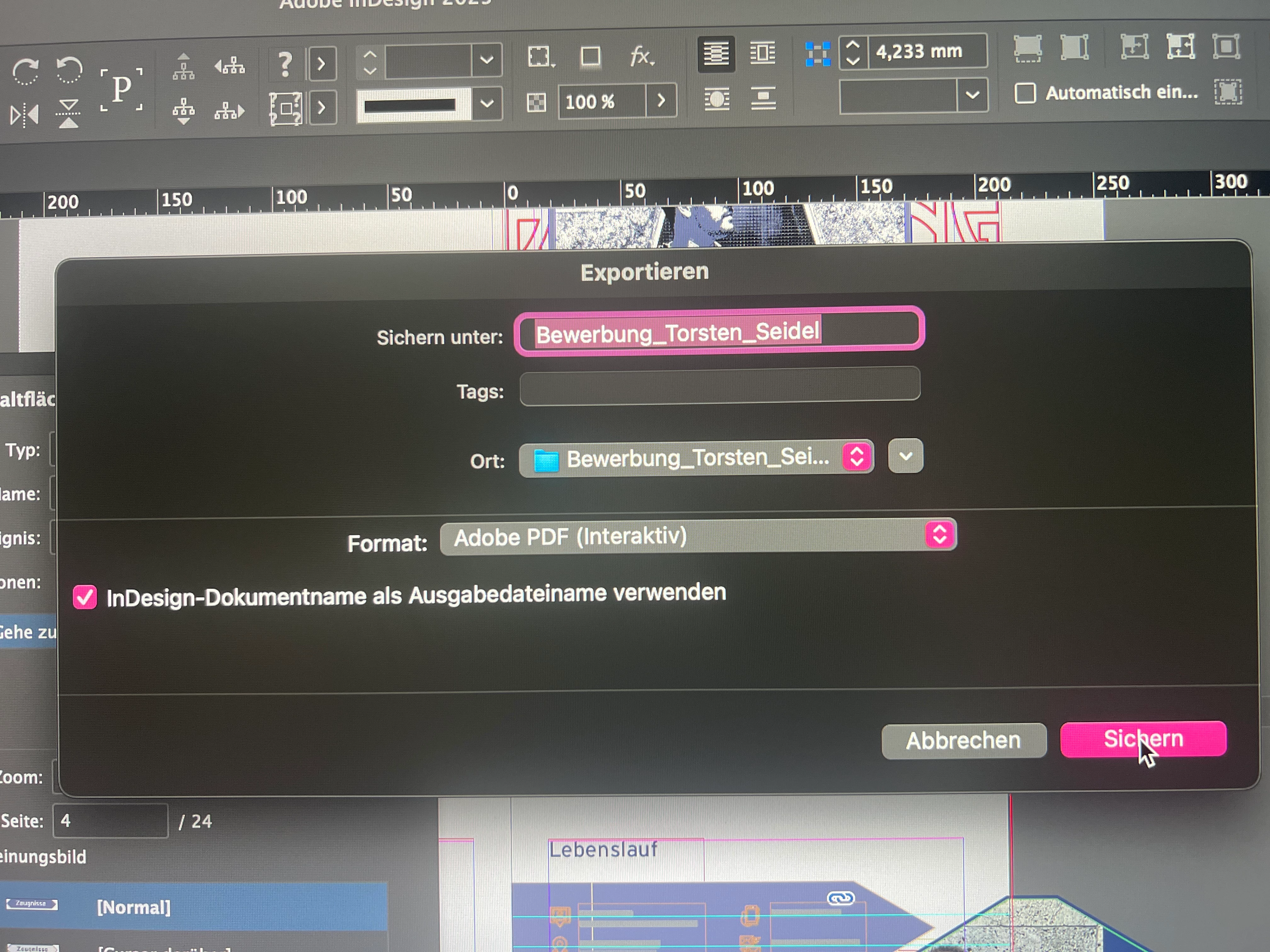
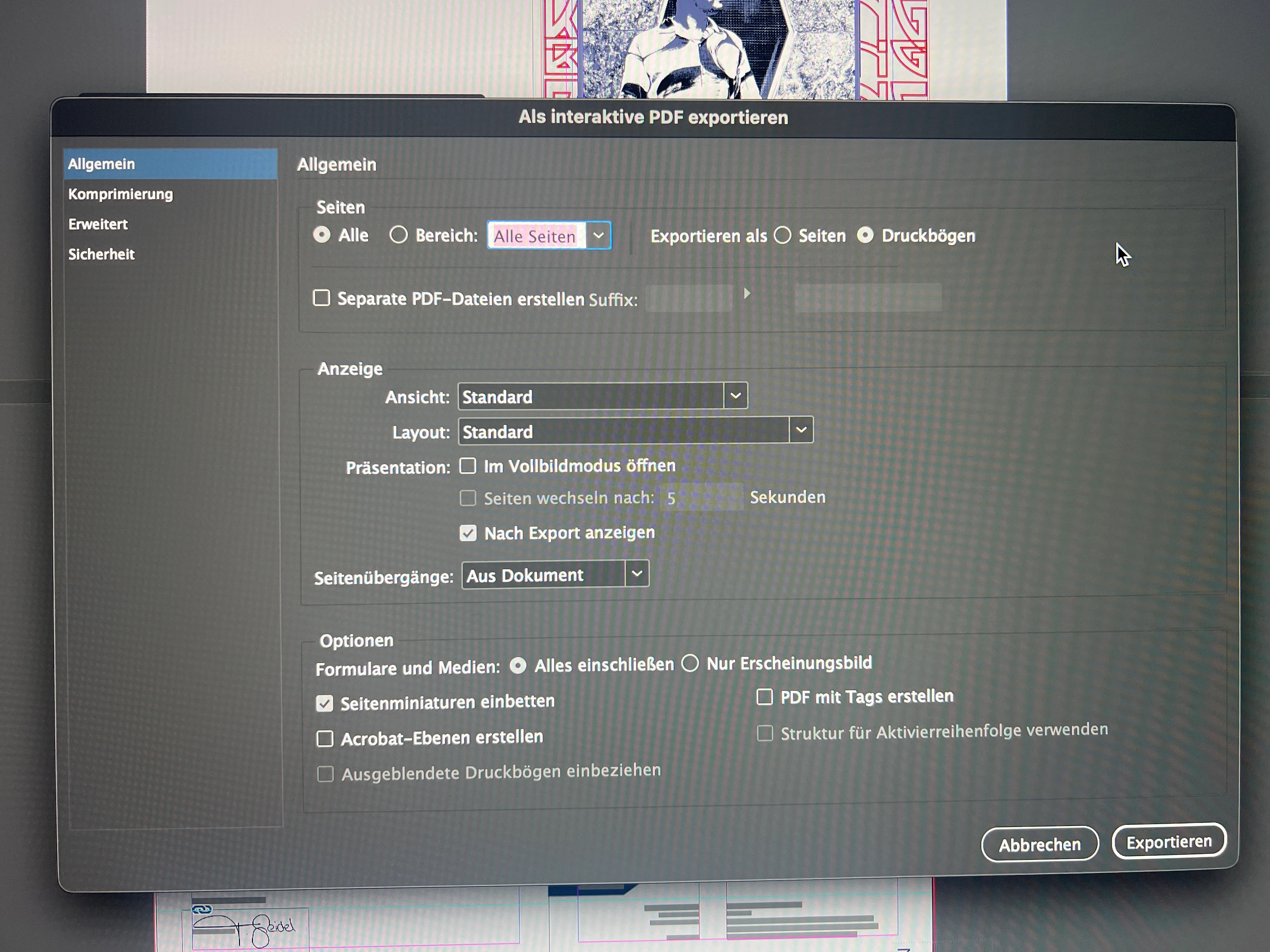
Ich versuche gerade eine Bewerbung für mich zu gestalten und wollte dabei eine Interavtive PDF machen. Dabei habe ich Schaltflächen angelegt. Diese funktionieren auf allen Seiten außer auf der 1. Seite. Ich hab kein Plan was das Problem ist. Wenn ich es in der Vorschau Öffne funktioniert alles. Aber sobald ich es Exportiere geht nur die 1 Seite nicht. Die Rolloveranimation funktioniert allerdings einwandfrei? Nur das Weiterleiten auf die jeweilige Seite geht nicht. Ich hab euch mal dazu ein Bild meiner jeweiligen Einstellung dazugepackt. Pls Help me❤️ 

This topic has been closed for replies.

2 replies

Community Expert
December 18, 2024

The button action "Go to Page" does not work when exporting to PDF.

For a PDF, you can use the button action "Go to Destination".  First, go to page 4 and create and define a new hyperlink destination (the type can be a page number), Then on page 1 button, select "Go to Destination" for the action, and the newly created destination (Page 4).

Abhishek Rao
Community Manager
Community Manager
December 18, 2024

Hi @Torsten_Seidel6043,


Thanks for reaching out and for the detailed explanation along with the images, it really helps!

To get a better understanding of the issue, could you please share:

1. The version of Adobe InDesign you're using (e.g., 2024, 2025, etc.).

2. The operating system (Windows or macOS, and the version).

3. Is this problem happening only with this specific file, or do you see this behavior in other documents as well?


From what you've described, it's interesting that the rollover animation works fine but the page redirection doesn’t. This suggests that the button's appearance and interactions are set correctly, but there might be something odd happening during the export process or with the file setup.

Would you mind trying below?:

1. Re-check the button setup on Page 1:

 - Open the Buttons and Forms panel.

 - Make sure the "Go to Page" action is correctly assigned and points to the right page.

2. Duplicate Page 1:

 - Create a duplicate of the first page and test the buttons there.

 - Sometimes an issue might be tied to the specific page, and recreating it resolves unexpected behavior.

3. Export Settings:

 - When exporting, ensure you're using the Interactive PDF option (it looks like you already are in your screenshot).

 - You might also want to test with a clean export-try exporting a new file to a different folder.


Let me know how this goes! I’ll be here to help you.


Thanks,

Abhishek Rao