
Seeking tips and tricks for maintaining image and text formatting with anchored objects
I have a document with images and text. I'm anchoring the images with related text, so the formatting maintains if the text moves. But I'm finding this method is not always ideal, because if the document changes in such a way that the anchored text moves up a page, the image moves up with it and then the image overlaps the text above.
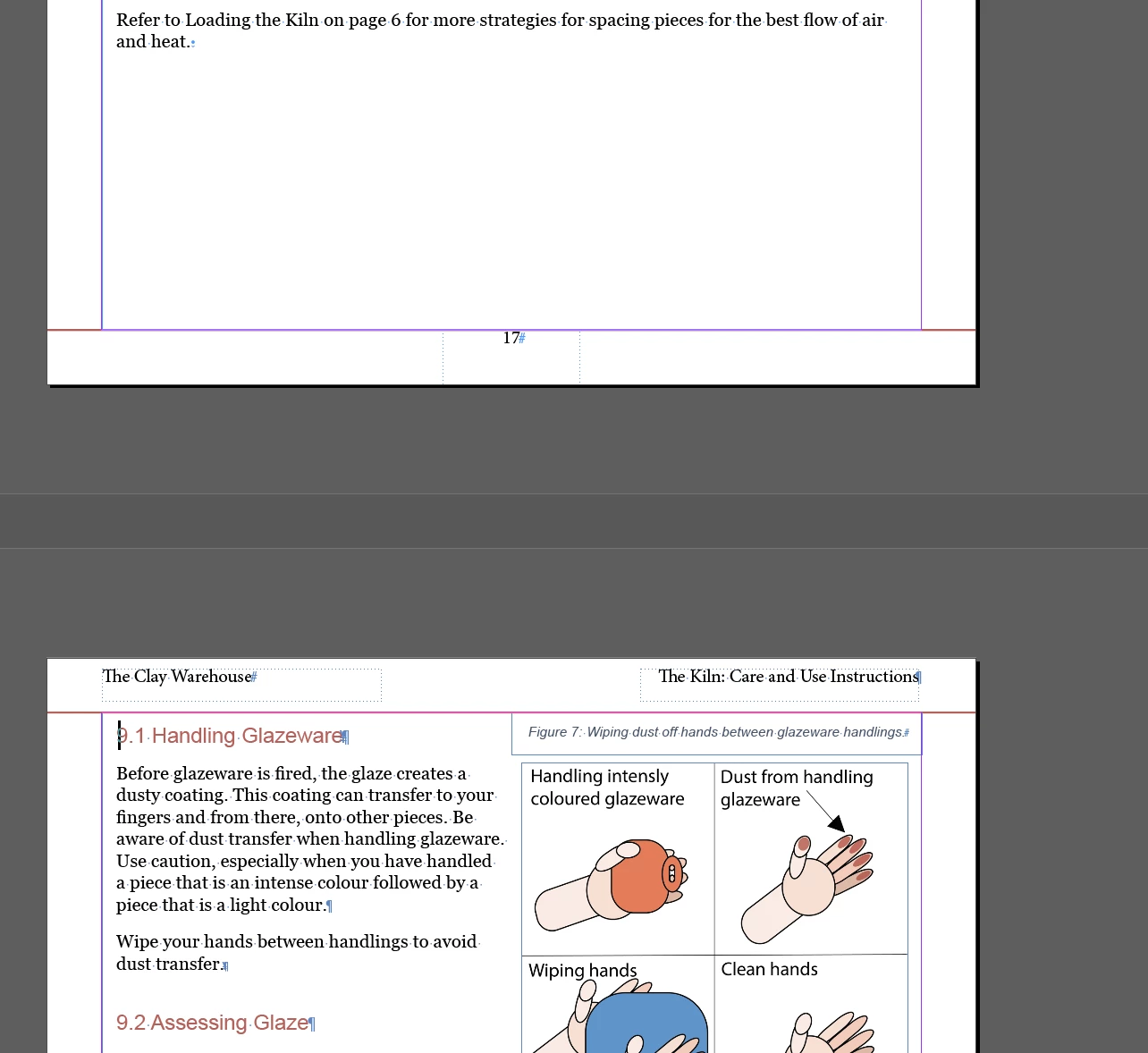
This image shows what the document looks like before I make some edits. The image and formatting is where I want it. The image is anchroed to heading 9.1.
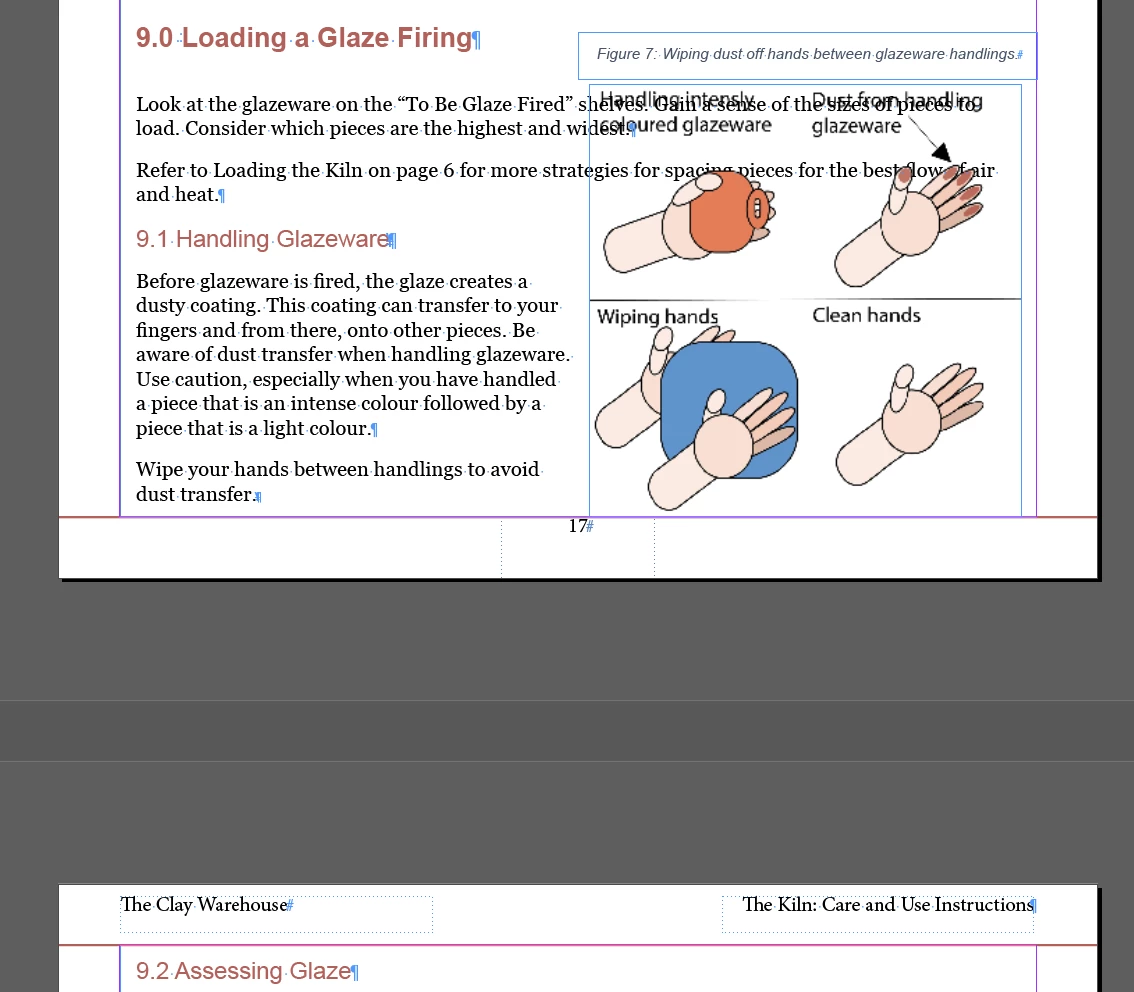
This image shows what happens after I make some edits and the text and anchroed image move up, because they now fit on the previous page. Because text wrap does not work on text above the anchor, the above text is now overlapped with the image.
I could insert a page break to avoid the text and anchored image from moving up the page. But, ideally I'd like my document to flow without page breaks, because page breaks can impact formatting in other ways if document changes are made. In a 10 page document, it's okay to insert and remove page breaks as needed. In a 100 page document, not so much.
I could also anchor the image to a different point in the text, so the text wrap works where I want it. But this poses the same issue: if the document changes, the image may be forced up and overlap with a different section.
I'm seeking tips and tricks for situations like this. How do I maintain and automate my formatting as much as possible, while keeping images and text together.
 AdChoices