Participant
April 3, 2024
Answered

Seeking tips for making the overset indicator appear more obvious?

  • April 3, 2024
  • 2 replies
  • 554 views

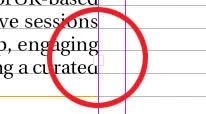
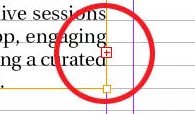
Hi, recently we updated the ID and IC to higher version, and find that the indicator for overset content in text frame is now by default transparent, rather not visible. Until we select and focus on that particular text frame, the indicator turns red. But the default indicator color could cause designer miss out the error.


May I know if any tips on preferences or other settings for adjusting the indicator presentation?


Please find the screenshots below for references of before/after selecting the text frame and how the indicator appears. Thanks.


Correct answer Eugene Tyson

Hey


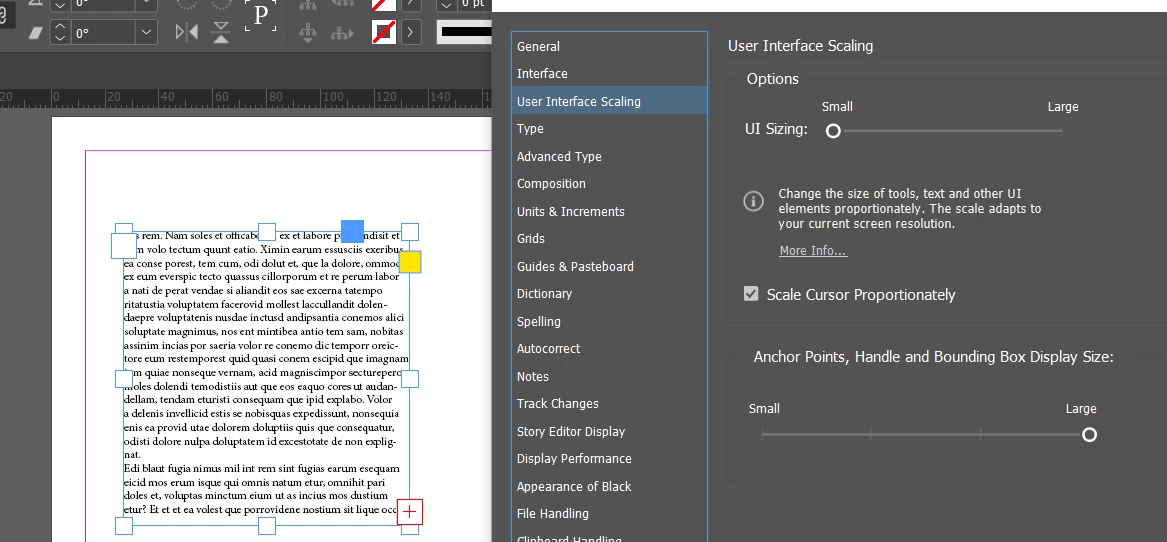
In the preferences under Interface you will see options for the Anchor Points and things like that


If you set it to Large you get a nice big icon 

2 replies

Participant
September 8, 2025

If you click "File" , the "Export", a pop-up box will tell you the page number where there is overset text.

Eugene TysonCommunity ExpertCorrect answer
Community Expert
April 3, 2024

Hey


In the preferences under Interface you will see options for the Anchor Points and things like that


If you set it to Large you get a nice big icon 

Cris_cAuthor
Participant
April 4, 2024

Thanks for sharing. I tried and it could enlarge the size of the indicator. 
However, regarding the low visibility color issue especially when the text frame is not selected, is there any way to improve? Thanks. 

Community Expert
April 4, 2024

I don't see a way


You can set up a Preflight check to check for Overflows

https://creativepro.com/tip-week-finding-overset-text-preflight/