Known Participant
June 11, 2020
Answered

Setting up page numbers warning message

  • June 11, 2020
  • 9 replies
  • 3336 views

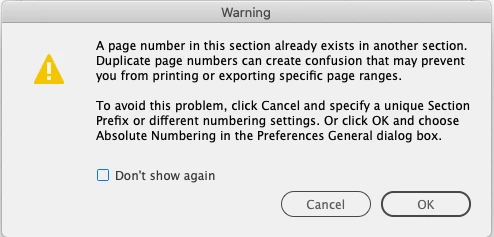
I'm adding page numbers (Next Page Numbers) to a 24 page booklet (with spreads), I'm then right-clicking on the page that I want to start the page numbers from on the Pages tab, I then deselect 'Allow Document Pages To Shuffle' and 'Allow Selected Spread to Shuffle', then 'Start Page Numbering' at number 1 but when I click on 'OK' I get this message, I can't seem to get rid of it, can anyone help please, I don't want to set my document up incorrectly? 
 

This topic has been closed for replies.
Correct answer Barb Binder

Unchecking the shuffle commands will allow you to drag pages or spreads to specific positions. Here is a demo of how achieve non-traditional page numbering.

~Barb


9 replies

rob day
Community Expert
Community Expert
June 12, 2020

If I go to professional repro with a PDF surely the pages will be in the order I can see on screen?


If you start with the cover to the left of the spine you will run into problems both on an export to PDF, and when the printer imposes the document for binding. The cover has to be to the right of the spine—it’s not a convention it’s a mechanical requirement.


If you set up a document with the cover to the left of the spine, and page 1 to the right of the spine, the spreads will get reversed on an export to PDF, and when the pages are imposed for binding. It seems like this is what you are trying to do:


But on an export to PDF this will happen—the inside cover is page 1, and is moved to the left of the spine, which is where it will be when the report is bound. With a Facing Page document the center mark of the spread represents the spine:


Barb Binder
Community Expert
Community Expert
June 12, 2020

Hi Miss Sparkles:


Great. I'm glad you got it to work.


Here is a link to Adobe's explanation of these two confusing commands. https://helpx.adobe.com/indesign/using/pages-spreads-1.html but really just remember that you can create non-traditional spreads when they are turned off and when you turn them back on the spreads return to normal.


I'm just about to shut down my computer for the weekend. Have a good one,


~Barb


~Barb at Rocky Mountain Training
Known Participant
June 15, 2020

Thanks Barb. Hope you had a great weekend. 


Thanks so much for your help.


I'm so glad you summarised with "just remember that you can create non-traditional spreads when they are turned off and when you turn them back on the spreads return to normal."  I had read the info in the link and was still fairly confused but now understand why my pages were jumping around.


I had moved my pages / spreads in a non-traditional set-up but when clicking the shuffles back on, ID was moving everything back to a traditional page set-up which was jiggling pages all over the place (this was completely confusing me). 


Am I to assume that once you have turned your shuffles off to lay up your doc, you have to keep them off from then on otherwise pages will move around? 


Still not sure why when I am messing with a spread or a page, ID then seems to automatically turn shuffle on or off on some other spreads (I've seen the brackets appear on other spreads) but now I've got my pages set up to where I want them to be I hopefully won't need to move anything. 


I find most Adobe products very intuitive but for me, this has been mind-boggling. 

rob day
Community Expert
Community Expert
June 15, 2020

 I find most Adobe products very intuitive but for me, this has been mind-boggling. 


Have you ever seen a book, magazine, or annual report where the spine is to the right of the cover?

Barb Binder
Community Expert
Community Expert
June 12, 2020

Also, your video doesn't show me how you have got the Cover page to sit alone and then placed a spread to the right of it (sorry have just read your most recent post above) 

Watch the video again but keep this in mind—blue icons and page numbers mean pages are selected. Pages must be selected to change them.


Pages 2 and 3 are sitting directly to the right of page 1 because I have my page display options sent to horizontal. The default is vertical. This has no impact on printing. I work primarily online document layout and I prefer to get more spreads in view without having to scroll. It's just a preference setting.


I deselected the shuffle options but I still couldn't move any pages as per your video, am I doing something wrong?

You must select the pages that you want to move before you uncheck the shuffle options. Blue icons and page numbers mean pages are selected. In my animation they are blue before I make the selection, then I can move them.


Also, you don't say when I should add the page numbers, is this before I do the procedure above that you have demonstrated or after (and do I do it with the shuffle options ticked on or off, do the shuffle options interfere with the page numbers please?). 

Add the page numbers to the master pages whenever you are ready. You can do it before you set the page numbering and shuffle the pages or after. It doesn't make a difference.


~Barb

~Barb at Rocky Mountain Training
Known Participant
June 12, 2020

Oh my goodness, I've just got it! I was so focused on getting my cover page to sit to the left of the first spread like yours does in the vid, thinking that if it didn't look like yours I was doing something wrong, I didn't realise it was a preference setting, so sorry! 


Okay fab, so that's all good, I've done that successfully, do I just now just pull down my blank master page over the cover page in order to hide the 'i' that now appears on my cover page?  


Have you any links you can send me to explain the shuffles a little more please? I have to say, I am still a bit confused as to their function. If the 'Allow Selected Spreads To Shuffle' is ticked off, and brackets then appear around the page numbers to symbolise they're locked together (?), how come when I move them, only one page moves and not the two pages in the spread, should they not move together, and if not, what is the function of locking them together? 


It may just be me but I would think "Allow Selected Pages To Shuffle' would be ticked off in order to move just one page at a time. 


I have been playing around this afternoon in order to get to grips with what the two shuffle options ticked on and off are doing and it's not clear.  All sorts of strange things have been happening if I tick either shuffle option on, pages move all over the place. It's boggling my brain a little. 


Thanks for your help. 

Barb Binder
Community Expert
Community Expert
June 12, 2020

Hi Miss Sparkles:


Allow Pages/Spread to Shuffle: when these are checked, the pages/spreads will return to or remain in the normal odd left/even right page organization. When they are unchecked, you can drag spreads or pages to non-traditional locations as you saw in my animation. 


Page number markers: there are three page number markers. For page numbers in the running heads, add Current Page Number to the left/right master pages. This will add the current page number (1, 2, 3) to the body pages.


Next Page Number and Previous Page Number are used to track a multi-page story. We use these in newsletters where a story might start on page 1 but then jumps to page 8, and you want to let the reader know which page to turn to. For example, you can add a line to the bottom of the story on page 1 that says "Continued on page 8" using the Next Page Number marker. If you end up adding a page before page 8 that marker will automatically update to "Continued on page 9". 


~Barb

~Barb at Rocky Mountain Training
Known Participant
June 12, 2020

Hi Barb, sorry, I replied to your previous message as I didn't see this reply of yours, thanks for the info here.


I'll send my reply again to your post here in case you didn't see it (?)...


Also, your video doesn't show me how you have got the Cover page to sit alone and then placed a spread to the right of it (sorry have just read your most recent post above) I deselected the shuffle options but I still couldn't move any pages as per your video, am I doing something wrong?


InDesign won't seem to allow me to change the format of - first single page then spreads below it which InDesign defaults to. 


Also, you don't say when I should add the page numbers, is this before I do the procedure above that you have demonstrated or after (and do I do it with the shuffle options ticked on or off, do the shuffle options interfere with the page numbers please?). 


Thanks for the info on the page number markers, that's great, I will just need the Current Page Numbers then as I won't have any pages that readers will need to jump to.

Community Expert
June 12, 2020

Hi MissSparkles75,

Next Page number and Previous Page number are special characters that are working very differently to the Current Page Auto Number. They only show the next or the previous page when used with threaded text frames that continue from page to page. And they show the page numbers where the previous text frame and the next text frame is placed on. Could be the previous page or the next page of your current page text frame or an entirely different page in your document.


Just to give you an example where I used special character for Next Page on page 201.

You'd perhaps expect that "202" will be automatically inserted, but this is not the case, because the next frame of that story continues on page 203. So Next Page means "203" in that case:


And if you do Next Page or Previous Page with a stand-alone text frame that is not threaded, the name or number of the current page is used.


Regards,
Uwe Laubender

( ACP )

Mike Witherell
Community Expert
Community Expert
June 12, 2020

"It's going to be a company's annual report it's not a book and I need page 1 to start after the front cover"


A printed publication like an annual report is a book. Odd numbers are correctly done as right-hand pages. That is why you do not number the left-hand inside cover as page 1. It's simply incorrect according to a thousand or more years of conventional practice.

Mike Witherell
Known Participant
June 12, 2020

Yes, thank you, Barb had explained this perfectly clearly in a previous post. I am just trying to establish how I get a cover page with no number and start from page 1 without the error message, I am attempting to do this as accurately as I can for the print house. 

Barb Binder
Community Expert
Barb BinderCommunity ExpertCorrect answer
Community Expert
June 11, 2020

Unchecking the shuffle commands will allow you to drag pages or spreads to specific positions. Here is a demo of how achieve non-traditional page numbering.

~Barb


~Barb at Rocky Mountain Training
Known Participant
June 12, 2020

Thanks so much Barb, I will give that a try now. 


So, just to confirm, if the shuffle options are turned off I can move pages and/or spreads and the page numbering will be in my control and not automatically done by InDesign?


Also, I can't find the answer anywhere online to this, people in (page numbering) tutorials say to insert 'Current Page Number' and not 'Next Page Number', can you explain briefly the difference in these two options please, and maybe which I should choose? When I do a little test, both options recognise the next page and show the page numbers in page number order so I can't see the difference in selecting one instead of the other. Thanks so much. 


Barb Binder
Community Expert
Community Expert
June 11, 2020

 I had wanted the number 1 to start on page number two as the first page will be a front cover. 

Ah. That is what's going on. I didn't understand that from the original question.


In print publishing, right pages are always odd pages and left pages are always even—so you are going against the grain. If you want too pursue it, change 1 to i and then shuffle the pages and set page 2 to 1, but I would advise against it. Instead, I would recommend hiding the page number on the cover and allowing the next page to start on 2, or adding a blank left page (ii) and designating the third page as page 1.


~Barb

~Barb at Rocky Mountain Training
Known Participant
June 11, 2020

It's going to be a company's annual report it's not a book and I need page 1 to start after the front cover, when I've seen You Tube videos showing me how to start any page numbering from any page, when that error message comes up the vloggers just ignore it. If I go to professional repro with a PDF surely the pages will be in the order I can see on screen?


Could you just summarise what 'Allow Document Pages To Shuffle' and 'Allow Selected Spread To Shuffle' actually do please as I can't find it anywhere and its confusing?

Barb Binder
Community Expert
Community Expert
June 11, 2020

Dbl click page 2 again (2nd screen shot) and disable Start new section. Then double-click the hyphen btwn pages 2-3 in the Pages panel and check Allow Selected Spread to Shuffle in the Pages panel menu.


~Barb 

~Barb at Rocky Mountain Training
Known Participant
June 11, 2020

Thanks. When you say disable 'Start New Section' do I do that by clicking on 'Select Automatic Page' numbering instead? 


I have done that and I have clicked on the hyphen between pages 2-3 etc. but I had wanted the number 1 to start on page number two as the first page will be a front cover. I have attached a screenshot...


Have I taken that away by turning 'Allow Selected Spread to Shuffle' on as page two was showing as Page 1 at the bottom of the page? This is so confusing, I don't really understand what the two options 'Allow Document Pages To Shuffle' and 'Allow Selected Spread To Shuffle' do?


Also, the brackets that were either side of '2-3' have gone, is that a good sign, what does that symbolise? 


JonathanArias
Legend
June 11, 2020

it seems you already set up page numbering on other pages. that is why you get that dialog.


where did you set it up? show us a screenshot of the master pages, we need to see where the little triangle above a page is. that is the marker for where the section is set up right now

Known Participant
June 11, 2020

Thanks. Here is a screenshot of my master pages. I'm not sure what you mean when you say 'where did you set it up?'


JonathanArias
Legend
June 11, 2020

no problem. i will explain.


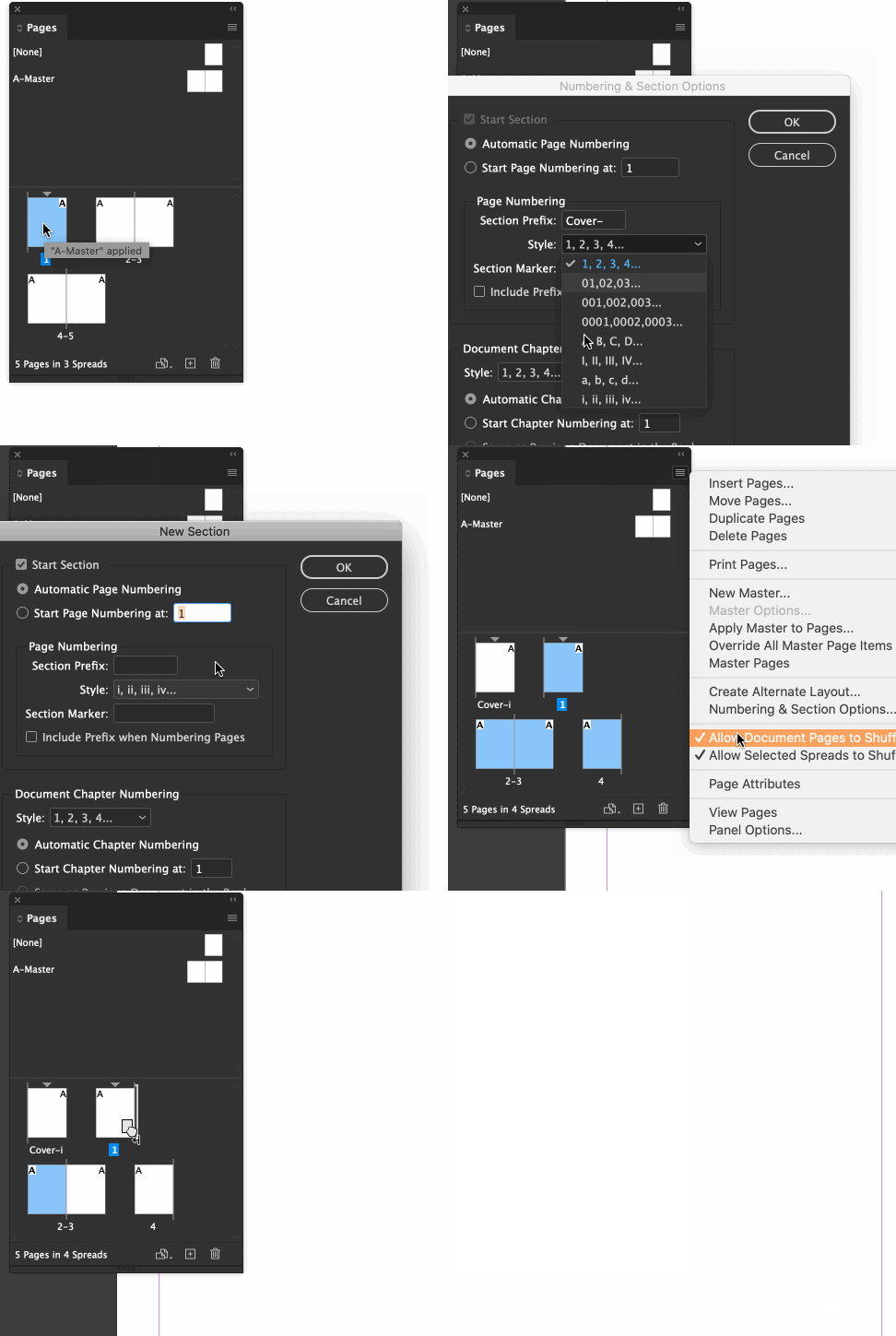
look at the pages panel i have below, see the triangle icon on top some pages? ( page 2 and 4):

for page 2, if i double click on the triabgle and i get a dialog, i created a section and i set it up to count in roman numbers:

than, i created another section and that one is numbers:


so, look in your pages panel, and see where you have those markers. lets start there.