


Participating Frequently
September 30, 2026
Question

Show import options not working

  • September 30, 2026
  • 17 replies
  • 63 views

OS: Windows
Version: 21.6 x64

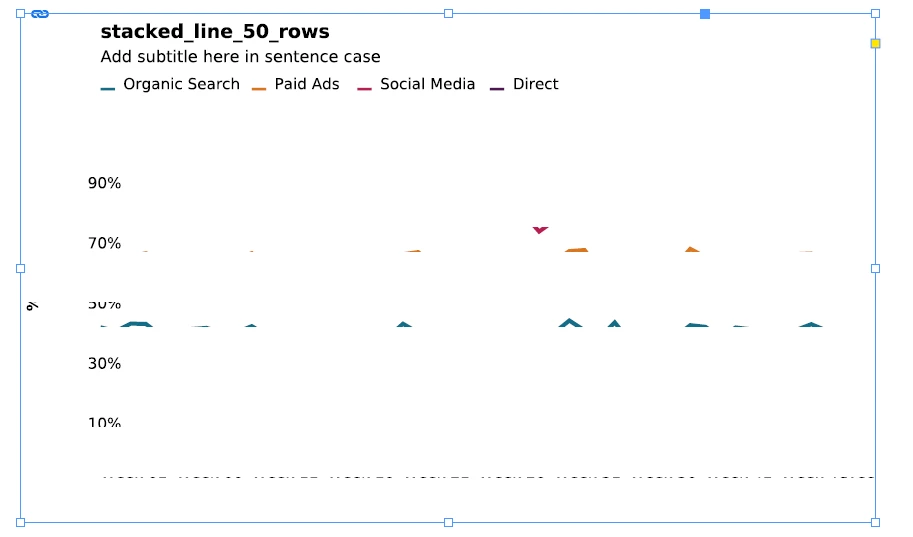
While trying to import files or place SVG when the show import options is selected it doesn’t open the options dialogue window. I need to rasterize the vector graph because the chart is 100% clear in PNG but SVG typical density is distorted and high density clears/wipes out many things in the chart. 

high density display
 

    17 replies

    rob day
    Community Expert
    Community Expert
    September 30, 2026

    Hi ​@Marvelous_video5d56 , You can place .SVG but it’s not a great format for print. Have you tried opening the SVG in Illustrator and resaving as an .AI or .PDF? Those formats include import options.

    derekwatson
    Community Expert
    Community Expert
    October 1, 2026

    This is what I do, I feel if you need to edit then its better to open the linked file natively in Illustrator 

    Derek Watson
    Abhishek Rao
    Community Manager
    Community Manager
    September 30, 2026

    Hi ​@Marvelous_video5d56,


    Thanks for sharing the details and screenshots, and sorry for the trouble. Adding to the expert's suggestion, since you're placing an SVG, please note that InDesign doesn't provide the same format-specific Import Options/rasterization controls for SVG as it does for formats such as PSD, PNG, TIFF, and EPS. Therefore, the absence of an Import Options dialog for the SVG may be expected rather than the cause of the rendering issue.

    Ref: Import options for graphics | InDesign

    Could you please export the affected page using Adobe PDF (Print) and check whether the chart is also distorted or missing elements in the exported PDF, or whether this only occurs within InDesign? Please also compare View > GPU Preview with View > Preview on CPU, and try placing the same SVG into a new blank InDesign document. 

    If the issue persists, please share the sample SVG file with us so we can test the exact artwork. As a workaround, you can open the SVG in Illustrator, save it as an AI file, and place the AI file into InDesign to retain the vector artwork. If you specifically need a rasterized version, exporting it as a PNG before placing it is another option.


    Please let us know how it goes.

    ^

    Abhishek

    Participating Frequently
    September 30, 2026

    Hi ​@Abhishek Rao , Thanks for your response
    There is no such option in View menu. ITs not letting me attach the files, files are closed and tried multiple times. Illustrator is not an option because we have 100s of users who deal with tons of charts on daily basis


    Abhishek Rao
    Community Manager
    Community Manager
    September 30, 2026

    Hi ​@Marvelous_video5d56,


    Thanks for the update. The View > GPU Preview / Preview on CPU options I mentioned will only be available when GPU Performance is supported and enabled in InDesign. Please check Edit > Preferences > GPU Performance. GPU Performance is available only when your system and connected display meet the required specifications outlined here:

    GPU performance in InDesign | InDesign

    Also, if you're unable to attach the SVG directly to the Community post, you can upload the sample file to a cloud-sharing service such as Google Drive, Dropbox, etc., and share the link here or via DM. 


    We will look forward to the update from you. 

    Thanks, 

    Abhishek

    Community Expert
    September 30, 2026

    Did you try trashing the preferences and cache, that generally resolves such issues.


    -Manan
    Participating Frequently
    September 30, 2026

    sort of new to indesign, how do I do this

    leo.r
    Community Expert
    Community Expert
    September 30, 2026