
BarbLovesInDesign
Inspiring
August 25, 2021
Answered

Size of pages in file not matching that stated in Document set up dialog box.

  • August 25, 2021
  • 5 replies
  • 2524 views

We have received an InD file from a customer; the document set up dialog box says it's 8.5 x 11".  But ALL the pages (74!) are sized, based on the rulers, at 8"x10.5", and the pdf  is 8"x10.5"(I plan to post a screen capture.) 

I can only guess that someone added new pages in the smaller size, or maybe changed some on a page-by-page basis, as I do know it is now possible to have more than one page size in one document, then deleted all of the original Letter-size pages, leaving only the smaller pages. 

But now there is confusion about just what size the job should be.  (Our contact person says it should be 8.5x11. Given the organization involved, maybe they don't really know/are guessing.) We will get it worked out, but it is causing a lot of confusion. Any other person using this file, other than it's creator, will likely get upset when things aren't what the file says they are in the place everyone is accustomed to finding it (doc.set up box). 

I don't have a suggestion for a fix by Adobe.  The graphic artist/designer should probably have gone back and edited the Document Set Up box, but didn't.  Just one more thing to surprise us all.
Correct answer rob day

I can only guess that someone added new pages in the smaller size, or maybe changed some on a page-by-page basis, 


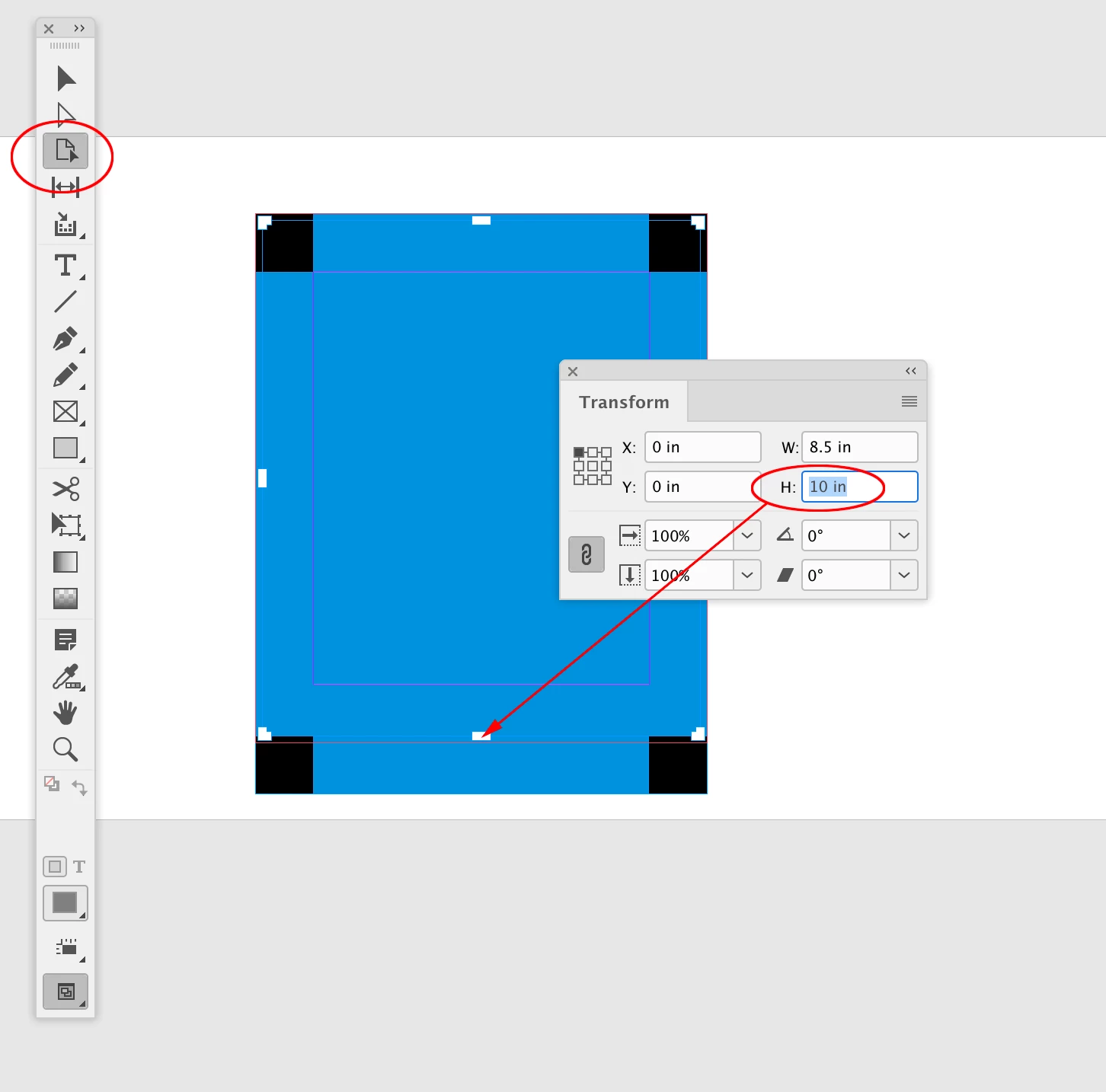
One thing worth noting about Document Setup—if you want to change the document’s page sizes without adjusting the layout content, the resize transform reference point is always centered. The designer may have wanted to crop the pages to a specific transform reference point. To do that you can select a range of pages in the Pages panel, select the Pages tool and adjust the page size(s) via the Transform panel:


5 replies

rob day
Community Expert
rob dayCommunity ExpertCorrect answer
Community Expert
August 26, 2021

I can only guess that someone added new pages in the smaller size, or maybe changed some on a page-by-page basis, 


One thing worth noting about Document Setup—if you want to change the document’s page sizes without adjusting the layout content, the resize transform reference point is always centered. The designer may have wanted to crop the pages to a specific transform reference point. To do that you can select a range of pages in the Pages panel, select the Pages tool and adjust the page size(s) via the Transform panel:


BarbLovesInDesign
Inspiring
August 26, 2021

I will have to try that, sounds useful.

Community Expert
August 26, 2021

Your options:

You could resize all pages using the Page tool.

To select all pages in the document: Switch to the Page tool and do the keyboard shortcut for Select All.

Ctrl + A (Windows) or Cmd + A (Mac)

Then define the new size in the Control panel or the Transform panel.


Also check the master pages for size.


Regards,
Uwe Laubender

( ACP )

BarbLovesInDesign
Inspiring
August 26, 2021

I did check the masters, there are 2, both 8 x 10.5. 

Legend
August 25, 2021

Does the job require full bleed, or do you have margins? If you are not using full bleed, you can place the pages from the 8x10.5 document into the center of the pages of a new 8.5x11 document quickly and easily. You can continue to edit the pages of the original document, and when it's time to print, just update the links in the new document and print from there.

If you need full bleed, this won't be a good solution.


And mostly off-topic, so disregard the following if you like, but there may be a reason that this was done. If there was a requirement from the printer that there be 1/4 inch margins on all sides, designing to the 8x10.5 live area has an advantage. In this screen shot:

…the page on the left looks completely reasonable, and what the designer expected, but if the printer could not let image into the margin, it would look like the page on the right. If the document size had been 8x10.5, the designer would have seen that the drop shadow was going off of the page instead of into the margin, and not placed the object so close to the edge. I get this all the time, so I thought I'd offer my unsolicited 2¢.

Brad @ Roaring Mouse
Community Expert
Community Expert
August 25, 2021

Yah, the designer definitely prurposefully added master pages of a different size. Why, who knows, as you said. They must have had a reason for it "at some point", whether they accidentally brought it forward from an old prject file where it was necessary (say for an insert). In any case, this is all on them. If they didn't know themselves that they were working with smaller pages up to now, they need to give their head a shake. (surely printing pages in house would have tipped them off!)

But yes, maybe a nice feature to have is a Document Setup dialog that at least states "Multiple Page sizes in Document".

Have a better day!

BarbLovesInDesign
Inspiring
August 26, 2021

I like that idea.

Ashutosh_Mishra
Inspiring
August 25, 2021

Hi there,


Sorry to hear about your experience. This looks like a file specific issue. Do you have other files showing similar behavior? I tried to replicate it on my end and page sizes & ruler information has no issues. Would it be possible for you to share the file with us on DM(if not confidential)? Please share version of the app & OS as well. We'll be happy to take a look.


Regards,

Ashutosh

Community Expert
August 26, 2021

I agree with Roaring Mouse and Migintosh


Where you can start a document with a document preset - you can use the page tool to resize pages to different sizes. You can have multiple page sizes within the same document that are independent of the document setup.


It's a significant difference - I'd suggest creating a dummy document of both sizes (just blank pages) and ask your client which size is correct.

Once they have the tangible blank dummy in their hand they can make the call.