
Legend
June 28, 2018
Answered

skew text box, keep text upright

  • June 28, 2018
  • 3 replies
  • 16095 views

I'm working with a template developed by a colleague (who is not contactable). She used text in a text box that looks like this:
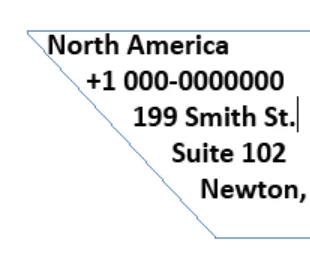
I need to emulate this, but I have no idea how she achieved it. She used the slanted side of a text box to achieve sequential indentation. It's not skewed, which gives a false Italic to the text. It's not a rotated text box. How do I do this?

Thanks!

-j

This topic has been closed for replies.
Correct answer winterm

Select unselected text frame with Direct Selection tool (white arrow). Edit its shape by dragging the corners.

3 replies

Participant
August 11, 2020

A more elegant (If silly) solution:

  1. Skew Text Box
  2. Select text
  3. False Itallic in the opposite direction.
  4. Profit

NedlawAuthor
Legend
August 11, 2020

There is always room for finesse. 🙂

NedlawAuthor
Legend
June 28, 2018

DOH. <forehead slap>

Thanks!

winterm
wintermCorrect answer
Legend
June 28, 2018

Select unselected text frame with Direct Selection tool (white arrow). Edit its shape by dragging the corners.

NedlawAuthor
Legend
June 29, 2018

This is absolutely the correct answer -- but I have a follow-up question: Is there a way to do this with specific settings rather than just by eyeballing the angle? I have three text fields, all lined up. I made the adjustment by eyeballing the angles, and I THINK I got it pretty close -- but is there a setting where I can make the angle, say, 30 degrees in each case? I didn't see anything changing as I made the adjustments.

Thanks.

-j

Steve Werner
Community Expert
Community Expert
June 29, 2018

Use the Measure tool and the Info panel:

This Help file explains how to measure angles:

Use rulers and measurement units in Adobe InDesign