
Known Participant
May 29, 2024
Question

Snap guides to background objects

  • May 29, 2024
  • 3 replies
  • 1146 views

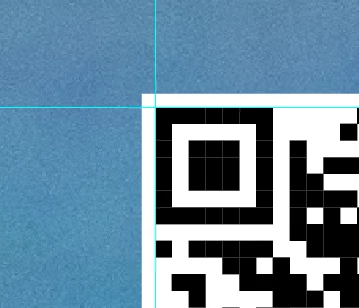
Hello, in my work i have completed PDF files that i have to attach a QR to through a frame i have to place carefully.  I'm wondering if there is an INDD tool that will 'magic wand' a box in the artwork where a white box has been set aside for the QR code graphic.   


The process i'm looking to do this:  set the background, use the 'magic wand' tool on background where the white box in the background is (pdf link) and it snaps a frame into that background white box.  Then i select the frame adjust a certain 'inches' (0.03" for instance) shorter, then move the created QR box into that new adjusted frame and resize the QR to fit to the frame. 


Currently I have to zoom in very close, adjust the guides right onto the white edges of the box then change the value of the guide +/- 0.03 inches to form the guide frame for the QR box.  This takes considerable time, especially with multiple artworks to work on.


is there anything in INDD like a 'magic wand' ?  If not, can it be placed in a feature request ?


3 replies

Known Participant
June 3, 2024

Is there any "bounding box" from adobe PDF that adobe InDesign can recognize and script for ?  Same company but different programs that are designed to work together should have some features universal between the two.

rob day
Community Expert
Community Expert
June 3, 2024

Is there any "bounding box" from adobe PDF that adobe InDesign can recognize and script for ?


Again, it depends on whether the QR code inside of the PDF is a vector or an image, can’t help with a scripting solution without an sample PDF. If the QR codes were output as vectors (which is what InDesign’s built-in QR code feature does) then scripting the position should be possible.

Known Participant
August 29, 2025

We gained a new employee last year that had more InDesign experience than me, as she went to college for graphical arts.  I learned a lot of new techniques and was able to complete my steps in a fraction of the time from before.  So that is good.


I have noticed new AI being added to InDesign and was wondering if that could help with "magic wand' selection as i have mentioned above.  The PDF is essentially layered vectors created in Illustrator and saved as PDF.  The 'magic wand' should be able to detect and outline a vector box in the background layered image.  My thoughts are:  apply background, select magic wand and double click the white box, A selection box apears on the vectored edges of the box, right click the box and a popup shows, one option is apply guide lines.  when clicked 4 guide lines perfectly outline the box.  From there its easy to find the center with creating a rectangle form tool (with the x in the center) and then create snap on guides to the center of it. 


Right now i zoom in to the boxes edges and place the guides by hand.

Mike Witherell
Community Expert
Community Expert
May 30, 2024

Just wondering: if the other creative makes the designed layout, then why don't they make the QR code, too?

Another approach: why not place the QR graphic directly into Acrobat Pro?

Mike Witherell
rob day
Community Expert
Community Expert
May 30, 2024

then why don't they make the QR code, too?


Right, inDesign’s QR codes are EPS vector objects, and would be easier to position. An ID QR code could even be saved out as a PDF for reuse, and that PDF would snap to guides:


James Gifford—NitroPress
Legend
May 30, 2024

Are the codes in the same place on every page? Set one perfectly, then position the others through numeric entry.


If the codes aren't in the same position, it sounds as if you'll have to place the guides as a first step anyway, so I'm not sure there's any simple way to speed up the process.


I guess I have to ask: is your layout so precise that a 1mm offset of the code grid is even noticeable? What about scaling the QR code slightly so it's more self-positioning?

Known Participant
May 30, 2024

The QR is in a different spot each time and often a different size.  I currently have to set my ruler guides first now, but as mentioned that takes a lot of time.  On average i have about 10 different files i have to reset the QR locations for on each sales offer change.  Some have multiple QR codes squares.  My usual rule of thumb on the spacing is about one QR square box (the tiny ones) as a white box around the QR code.  This gives it a good look.  So any frame that right on the background white box will need to be shrunk inward by a bit.  Dependin on the sizes of the creative 36x75 inch down to 3x5 inch, i have to adjust the shrinkage for that scale.  Since the background doesn't have any of the indd frames included, its just a PDF someone else made, i have to anchor points to place a new frame to.  I have to do it all visually at the moment.

James Gifford—NitroPress
Legend
May 30, 2024

Okay, I guess I am not sure what the need is here. Is this new placement of the QR code as a graphic on each (new) layout, or are you updating the codes on existing/continuing layouts? It would seem that dropping in a new graphic, using the prior frame and positioning, would be — almost literally — a snap, with no need to zoom in to millimeter scale to tweak the position.


In detail, then — what is it you want to accomplish here, as a workflow?