Bart_Bossuyt_-_die_Keure
Known Participant
February 9, 2018
Answered

Space after every character. GREP?

  • February 9, 2018
  • 1 reply
  • 1853 views

Hi all,

I need indesign to put a space behind every character i type.

Is this something i can do with GREP?

Thanks

    This topic has been closed for replies.
    Correct answer Laubender

    Hi Bart,

    I see two solutions.

    1. Working with a text path like you did:

    Apply tracking to e.g. 300.

    For all white space use a GREP Style that scales it to e.g. 200% horizontally.

    GREP: \h

    Note: The last character of the text will not react to kerning tracking.

    Add a character at the end of all texts on path and use a GREP Style to make it invisible.

    Set that character style's fill color to "None".

    GREP: .$

    Here a screenshot of the result:
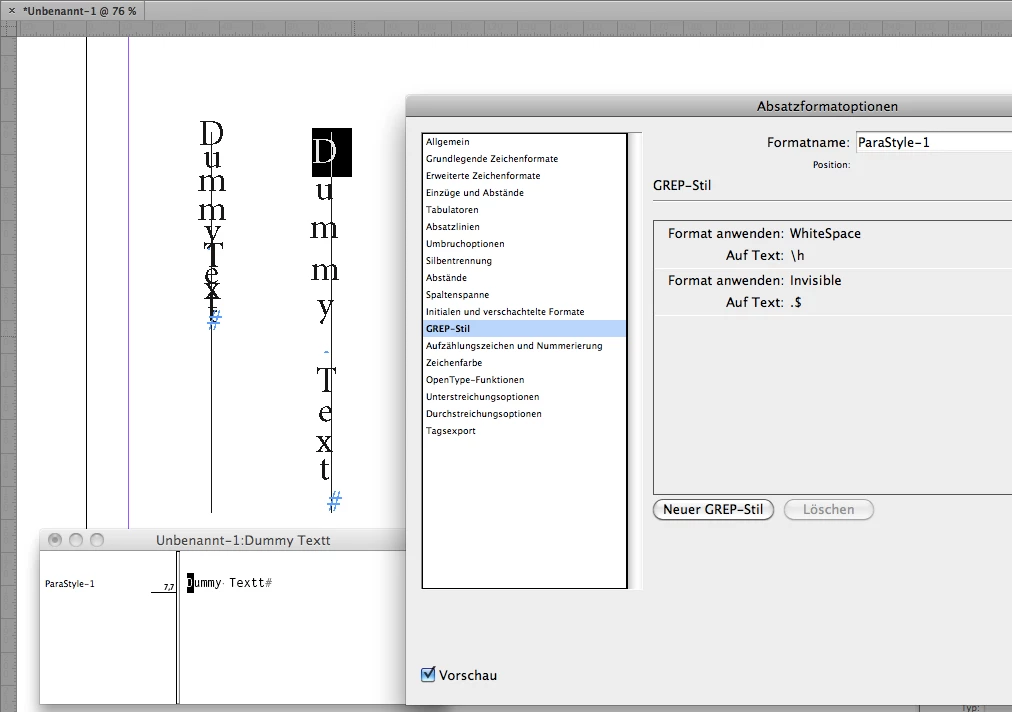
    2. Use a rotated text frame (-90°) and rotate all characters to 90°. That can be done with a script that uses the Adobe Japanese Paragraph Composer and the character.rotate command that is not available in the UI for non-Japanese versions of InDesign.

    For all white space use a GREP Style that scales it to e.g. 150% horizontally.

    GREP: \h

    Here a screenshot of the result:
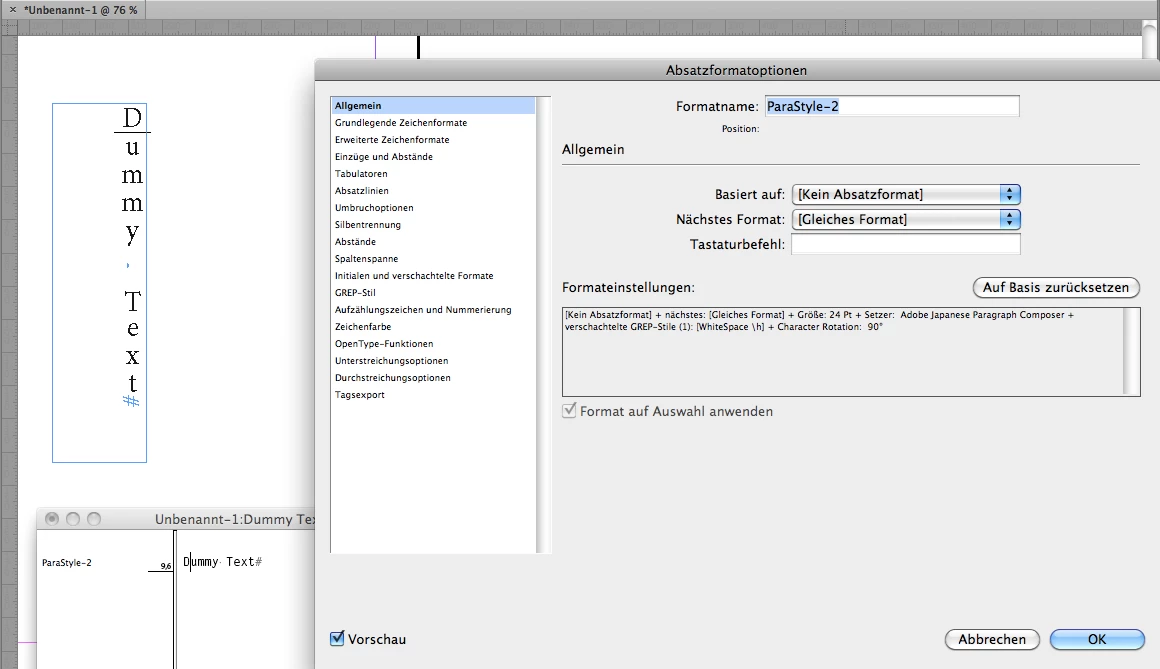
    A script that can do this can be found here:

    https://indesignsecrets.com/free-script-to-rotate-selected-characters.php

    The sample I am showing above was done by my own script, but Keith Gilbert's version should do it as well.

    EDIT: Forgot one thing.

    If you did the rotation of characters you could save the formatting as paragraph style as I was showing this in the screenshot above.

    All tests done with InDesign CS6 8.1.0 on Mac OS X 10.6.8. Keith' script will run on Mac or Windows because it's written in ExtendScript (JavaScript).

    Regards,
    Uwe

    1 reply

    vinny38
    Legend
    February 9, 2018

    Wouldn't it be more appropriate to use tracking or justification?

    What is your intended goal ?

    Bart_Bossuyt_-_die_Keure
    Known Participant
    February 9, 2018

    I need to make a datamerge in indesign.

    The text needs to go from top to bottom for every character.

    So i've made a path. typed a dummy text. Set the path options to stair step.

    then it's like this:

    D

    U

    M

    M

    Y

    T

    E

    X

    T

    at this point the characters are overlapping. but the line spacing can't be changed.

    If i put a space after every character i've made myself a workaround for this problem.

    Problem is that the amount of data for the datamerge is so big that it is no option to fill in the spaces myself.

    LaubenderCommunity ExpertCorrect answer
    Community Expert
    February 9, 2018

    Hi Bart,

    I see two solutions.

    1. Working with a text path like you did:

    Apply tracking to e.g. 300.

    For all white space use a GREP Style that scales it to e.g. 200% horizontally.

    GREP: \h

    Note: The last character of the text will not react to kerning tracking.

    Add a character at the end of all texts on path and use a GREP Style to make it invisible.

    Set that character style's fill color to "None".

    GREP: .$

    Here a screenshot of the result:

    2. Use a rotated text frame (-90°) and rotate all characters to 90°. That can be done with a script that uses the Adobe Japanese Paragraph Composer and the character.rotate command that is not available in the UI for non-Japanese versions of InDesign.

    For all white space use a GREP Style that scales it to e.g. 150% horizontally.

    GREP: \h

    Here a screenshot of the result:

    A script that can do this can be found here:

    https://indesignsecrets.com/free-script-to-rotate-selected-characters.php

    The sample I am showing above was done by my own script, but Keith Gilbert's version should do it as well.

    EDIT: Forgot one thing.

    If you did the rotation of characters you could save the formatting as paragraph style as I was showing this in the screenshot above.

    All tests done with InDesign CS6 8.1.0 on Mac OS X 10.6.8. Keith' script will run on Mac or Windows because it's written in ExtendScript (JavaScript).

    Regards,
    Uwe