This topic has been closed for replies.
Correct answer Barb Binder

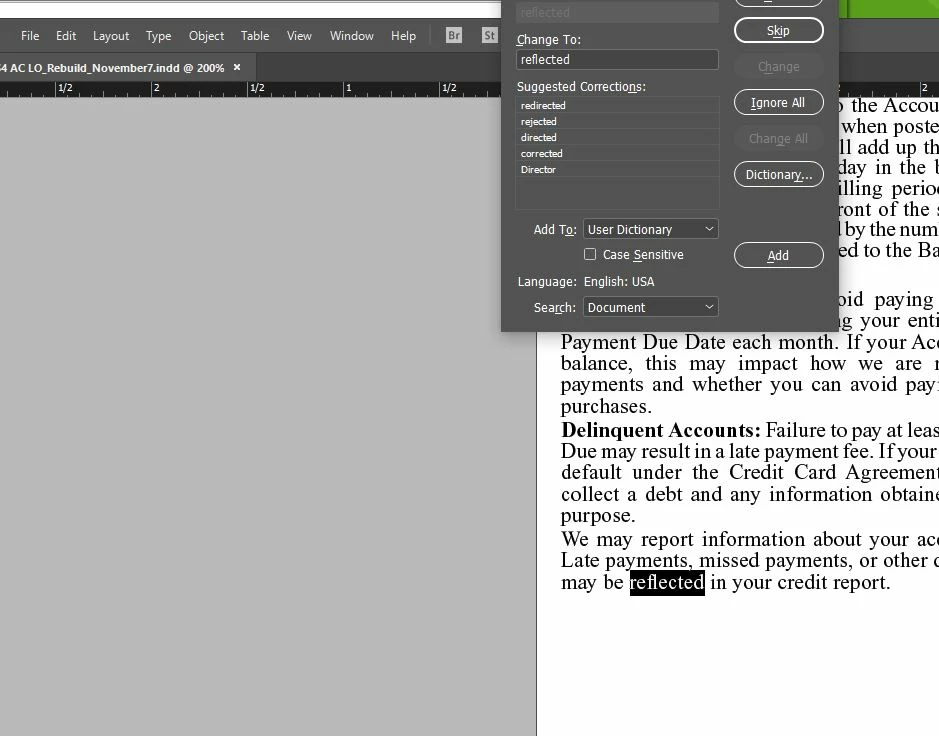
That looks like Windows, but it's so closely cropped it's hard to tell, and you didn't mention the operating system. If Windows, to move a dialog using just the keyboard:

  1. Hold down the ALT key.
  2. Press SPACEBAR.
  3. Press M (Move).
  4. A 4-headed arrow will appear. When it does, use your arrow keys to move the outline of the window.
  5. When you are happy with its position, press ENTER.

1 reply

Barb Binder
Community Expert
Barb BinderCommunity ExpertCorrect answer
Community Expert
November 8, 2017

That looks like Windows, but it's so closely cropped it's hard to tell, and you didn't mention the operating system. If Windows, to move a dialog using just the keyboard:

  1. Hold down the ALT key.
  2. Press SPACEBAR.
  3. Press M (Move).
  4. A 4-headed arrow will appear. When it does, use your arrow keys to move the outline of the window.
  5. When you are happy with its position, press ENTER.
~Barb at Rocky Mountain Training
winterm
Legend
November 8, 2017

Barb, unfortunately, this works for OS windows, not the panels inside the app.

If this is indeed Windows, and you keep Taskbar at the top (like I do), you can set it to auto-hide temporarily, it might help to get it.

Barb Binder
Community Expert
Community Expert
November 8, 2017

Well, I'm a Mac girl but I fired up my Windows 10 Surface, winterm and it worked as I described with the Find/Change dialog box. Just click in the bottom of the dialog box to make it the active window. (In the old days, I had students routinely shoving title bars off the screen, so this was a regular part of my classes).

~Barb at Rocky Mountain Training